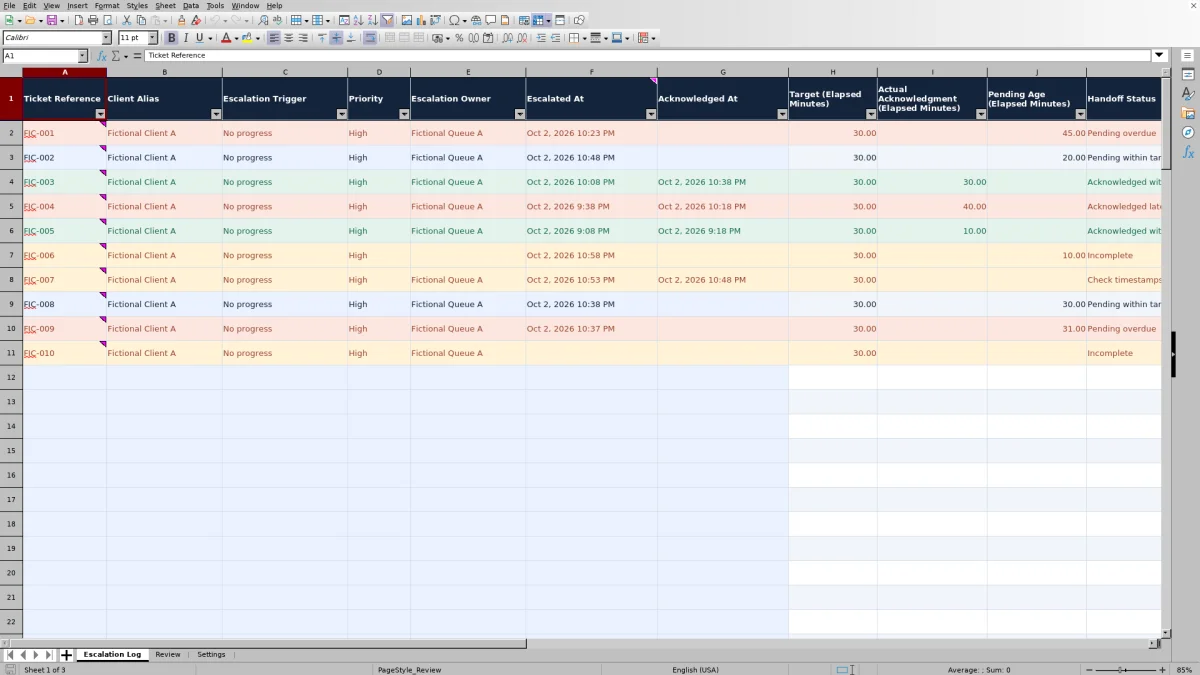
When a support case stalls, record why it needs escalation, who owns the handoff, and whether that owner has acknowledged it. This Excel escalation log helps you keep those details together for managed service provider (MSP) service desk reviews.
Enter handoff details manually, then use calculated elapsed minutes and status counts to decide what needs follow-up. The workbook is a manual review tool, not a live ticketing system: you update the review timestamp and record acknowledgment yourself.
When to use this workbook
- Keep each escalation trigger, assigned owner, and acknowledgment together for follow-up.
- Identify pending handoffs that have exceeded your editable internal review targets.
- Separate valid acknowledgment results from missing inputs and timing exceptions.
- Review acknowledgment performance without confusing pending handoffs with completed acknowledgments.
What is in the file
How to use the workbook
1. Replace the fictional setup
In Settings, replace the fictional owner and client alias entries and review the escalation triggers. Set the priority targets in B7:B9 to positive elapsed-minute values. Replace the fictional records in Escalation Log before operational use, preserving the formulas in columns H–K.
2. Set the review time and shared time zone
Enter your review timestamp in Settings!B2 and document the shared local time zone in Settings!B3. Use that same time basis for every entry. Update B2 before each review; pending ages do not advance with a live clock.
3. Record each escalation handoff
In Escalation Log, complete Ticket Reference through Escalated At in columns A–F. Use the dropdowns for Client Alias, Escalation Trigger, Priority, and Escalation Owner. Leave Acknowledged At blank until acknowledgment has actually occurred, then enter its timestamp manually.
4. Review exceptions and follow up
Check Handoff Status and correct incomplete records, unusable targets, or timestamp issues. On Review, inspect pending counts and acknowledgment results, then filter Escalation Log by status to find the relevant rows. Confirm ownership and follow up through your normal service desk process; the workbook does not send messages.
Make the handoff clear before measuring it
Use one row per escalation handoff, not necessarily one row per ticket. A ticket reference may appear more than once when the same support case requires separate handoffs. This keeps the measured interval tied to a particular escalation rather than the entire ticket lifecycle.
Choose a trigger that explains why the case needs attention, such as No progress, Diagnosis blocked, Dependency stalled, or Reopened repeatedly. Record the intended recipient in Escalation Owner. If you use a queue alias, make sure your operating process identifies who is responsible for accepting work from that queue; filling in the owner field does not notify or obtain acceptance from anyone.
Enter Acknowledged At only after you confirm acknowledgment through your normal workflow. An acknowledgment establishes that the handoff was accepted; it does not establish that the underlying ticket was resolved. Keep diagnostic notes and the full case history in the ticket system, not in this log.
Choose targets that match the review decision
The supplied targets are High at 30 elapsed minutes, Normal at 60 elapsed minutes, and Low at 120 elapsed minutes. They are editable assumptions in Settings!B7:B9. When you select a priority, the log looks up its target and compares that target with either the completed acknowledgment interval or the pending age.
These are internal review targets, not contractual SLAs (service-level agreements). All timing uses elapsed minutes, including nights and weekends. A target of 60 minutes means one continuous hour, not one hour within a support schedule. Do not use the resulting status as proof that a business-hours contractual commitment was met or missed.
Equality counts as within target: an acknowledgment at exactly 30 elapsed minutes meets a 30-minute target, and an unacknowledged handoff aged exactly 30 minutes is still pending within target. Keep priority labels unique and their targets positive. Changing a target affects existing rows that look it up, so retain a separately named review copy if you need to preserve the earlier assumptions and results.
Use a consistent timestamp snapshot
For an acknowledged handoff, the workbook subtracts Escalated At from Acknowledged At and converts the difference to elapsed minutes. For an unacknowledged handoff, it subtracts Escalated At from the Review Timestamp in Settings!B2. Excel stores date-time differences in days, so the formulas multiply by 1,440 to obtain minutes.
The review timestamp is a snapshot, not a live clock. If you leave yesterday's value in B2, pending ages remain anchored to yesterday, and a newly entered event after that timestamp can be flagged for review. Update B2 before examining the log and ensure the workbook recalculates its formulas.
Settings!B3 documents the shared local time zone; it does not convert timestamps. Excel date-time values do not carry time-zone metadata. Use one consistent UTC offset for all entered times, particularly across daylight-saving transitions. If timestamps come from different systems or locations, normalize them before entry rather than assuming the spreadsheet will reconcile them.
Example: distinguish a late acknowledgment from an overdue handoff
Suppose you review three complete handoff records at 10:00 AM on October 2, 2026. Use UTC for all timestamps, set Settings!B2 to that review time, and give all three rows High priority with a 30-elapsed-minute target. The following are illustrative inputs:
- Handoff A: escalated October 2, 2026, at 9:00 AM; acknowledged that day at 9:30 AM.
- Handoff B: escalated October 2, 2026, at 9:00 AM; acknowledged that day at 9:40 AM.
- Handoff C: escalated October 2, 2026, at 9:15 AM; Acknowledged At left blank.
Handoff A has 30 elapsed minutes to acknowledgment and is Acknowledged within target. Handoff B has 40 elapsed minutes and is Acknowledged late. Handoff C has a pending age of 45 elapsed minutes at the review snapshot and is Pending overdue.
For these three records alone, Review shows two valid acknowledged handoffs, one pending handoff, and 50% acknowledgments within target: one within-target acknowledgment divided by two valid acknowledgments. It is not one divided by all three records. Follow up with Handoff C's owner first because acceptance is still missing; separately examine why Handoff B was acknowledged late. Neither result tells you whether its ticket has been resolved.
Read the review counts without hiding unfinished work
Start with Records Needing Data Review and Pending Handoffs, not just the acknowledgment percentage. Incomplete rows and target or timestamp exceptions are excluded from acknowledgment performance. Valid pending handoffs are also outside that percentage because they have no completed acknowledgment interval yet.
Total Recorded Handoffs counts records with nonblank statuses, including exceptions. Valid Acknowledged Handoffs Only is the denominator for Acknowledgments Within Target. The percentage is the number acknowledged within target divided by all valid acknowledged handoffs; the minute columns are not totaled to produce it.
A high percentage can therefore coexist with several overdue handoffs or incomplete records. Filter Escalation Log by Pending overdue to locate unacknowledged work, and address exception statuses before presenting the figures to a service owner or account manager. Because the review formulas cover the prepared log range rather than a selected reporting period, use a clearly defined set of handoff records when interpreting the summary.
Troubleshooting missing values and exception statuses
Correct the input before trusting the timing indicator. Handoff Status distinguishes missing required details from target and timestamp problems. More than one issue can exist on a row, so recheck the status after each correction.
- Incomplete: fill every required field in columns A–F, from Ticket Reference through Escalated At. Acknowledged At may remain blank while the handoff is pending.
- Check target: confirm that the selected priority matches a unique entry in Settings!A7:A9 and that its corresponding target in B7:B9 is a positive number. A missing match can leave the displayed target blank.
- Check timestamps: confirm that the entries are actual Excel date-time values, not text. Acknowledgment must not precede escalation, and neither event may be later than the review snapshot. Also check that Settings!B2 contains a valid positive date-time value.
- Unexpected blanks: Actual Acknowledgment (Elapsed Minutes) is blank while acknowledgment is missing. Pending Age (Elapsed Minutes) is blank once an acknowledgment is entered. Invalid time inputs can also suppress timing results, so consult the status rather than treating a blank as zero minutes.
The fictional examples intentionally include incomplete records in rows 7 and 11 and a reversed timestamp in row 8. These demonstrate exceptions; replace them before using the workbook for operational reporting. After edits, allow your spreadsheet application to recalculate the workbook before relying on displayed results.
Comparison: prepared escalation log or blank spreadsheet
A blank spreadsheet can be sufficient when you only need a short list of escalations and do not need consistent timing measures. This workbook is useful when you want a defined handoff structure, elapsed-minute calculations, and a repeatable review summary without building those elements yourself. Both approaches still depend on accurate manual entry and follow-up.
| Method | Setup effort | Timing and review | Flexibility and limits |
|---|---|---|---|
| MSP ticket escalation workbook | Prepared fields, dropdowns, and editable settings; fictional entries must be replaced. | Calculates elapsed minutes, handoff statuses, and summary counts from entered data. | Provides 100 prepared handoff rows and fixed lookup and summary ranges; extensions require adjustment and checking. |
| Blank spreadsheet | You choose fields and create any validation or review structure. | Timing calculations and summary rules must be added or reviewed manually. | Can be designed around your process, but consistent rules depend on how you build and maintain it. |
Choose based on the review you need, not on an assumption that a spreadsheet replaces ticket operations. If you require automatic routing, notifications, or business-hours target handling, assess those requirements in your ticketing or professional services automation (PSA) system. This workbook records and evaluates manually entered handoffs; it does not monitor systems or drive the escalation workflow.
Frequently asked questions
Can the same ticket appear more than once?
Yes. Each row represents one escalation handoff, so a ticket can have multiple rows for separate handoffs. Keep the trigger, owner, and timestamps specific to each event. Review counts handoffs, not unique tickets.
Can I add more than 100 handoffs or expand the dropdown lists?
The prepared formulas, input validation, and log filter cover rows 2–101, and Review counts statuses within that range. The Settings lookup and dropdown sources also use fixed ranges. Do not assume newly appended rows or list entries will be included automatically. Extend the relevant formulas, validation sources, filter, and summary references together, then check the results before operational use.
Why is the acknowledgment percentage blank instead of 0%?
Review leaves Acknowledgments Within Target blank when there are no valid acknowledged handoffs. That means there is no eligible denominator, not that performance is 0%. A displayed 0% means valid acknowledged handoffs exist, but none were acknowledged within target. Check pending and exception counts alongside either result.
What client information should I enter?
Use client and owner aliases and a suitable ticket reference. Do not enter personal information, credentials, sensitive details, or ticket narratives. Keep the escalation trigger concise and retain the case evidence in your authorized ticket system. Alias fields do not remove the need to control access to the workbook.
Can I use the workbook to prove a contractual SLA was met?
No. Its editable targets are internal review assumptions, and its calculations measure elapsed time to acknowledgment from manually entered timestamps. They do not apply contractual business calendars or establish ticket resolution performance. Assess contractual obligations using the applicable agreement, timing rules, and supporting records.
About the authors

Tessa WhitlockClient & service operations
More about this area of the library →
Nathan CalderwoodService economics & planning
More about this area of the library →