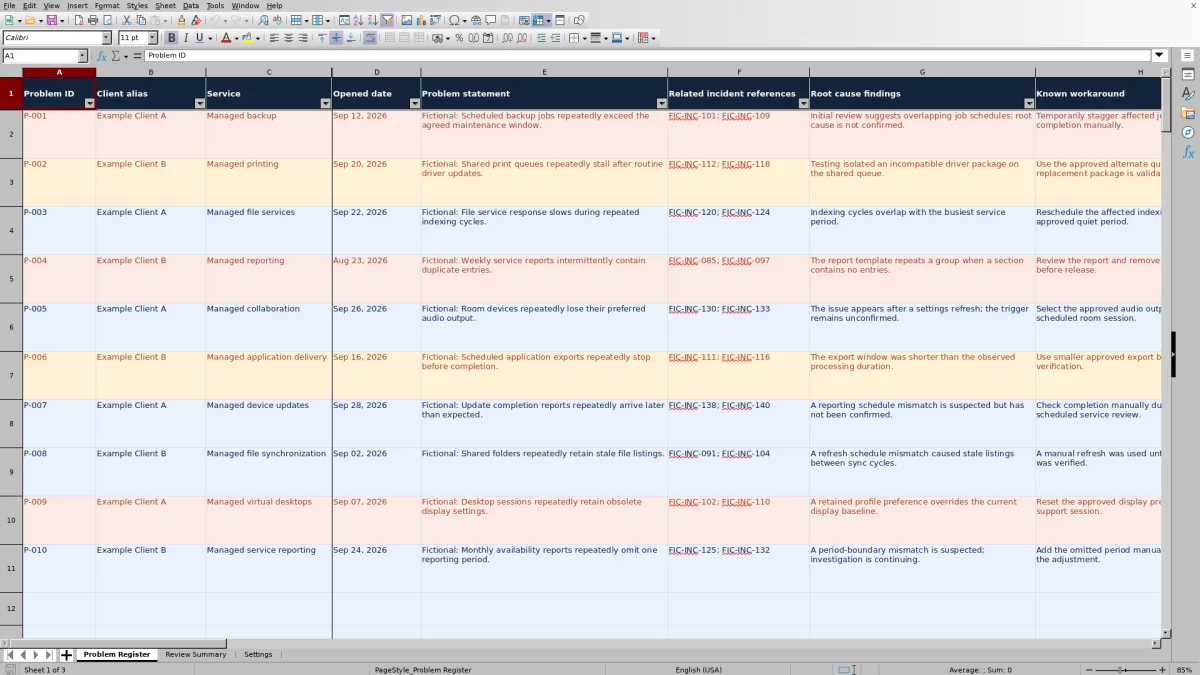
When the same client service issue keeps returning, track the investigation beyond the individual incident. This Excel problem management register helps you record root cause findings, known workarounds, permanent corrections, and verification results in one problem record.
Built for managed service providers (MSPs), the workbook calculates review targets and elapsed age from your entries, then summarizes items needing attention. Use it to coordinate recurring problem investigations, not as a second incident list or a substitute for change approval.
When to use this workbook
- Keep findings, workarounds, and permanent correction plans together for each recurring service problem.
- Identify reviews that are overdue, due today, or missing scheduling inputs.
- Spot closed records with missing evidence before relying on closure counts.
- Give service owners a consistent basis for discussing investigation progress and next corrective actions.
What is in the file
How to use the workbook
1. Set your review assumptions
Open Settings and review the High, Medium, and Low review intervals, initially 7, 14, and 30 calendar days. Adjust them to your internal review practice. These are planning assumptions, not contractual service-level agreement (SLA) targets.
2. Replace the fictional examples
In Problem Register, clear or replace the fictional sample entries in the editable cells. Enter a unique text Problem ID, Client alias, Service, Opened date, Problem statement, Accountable role, Stage, and Priority. Preserve the formulas in columns N and Q:S; they are visually distinguished but not protected.
3. Record the investigation and actual reviews
Add sanitized Related incident references, Root cause findings, Known workaround, and Permanent correction details as the investigation develops. Enter Last review date only after an actual review. Check the calculated Next review date and Review status rather than typing over them.
4. Review exceptions and verify closure
Use Review Summary to choose which records to inspect, then apply the corresponding filters in Problem Register. Before setting Stage to Closed, review the findings, correction, Change reference, Verified date, and Verification result. After closure, inspect Closure check for missing entries and confirm the evidence actually supports closure.
Keep the problem record focused on the recurring cause
Create one row for an investigated recurring service problem, not one row per incident. Describe the repeated failure in Problem statement and use Related incident references to point to the supporting incident records. Client alias and Service keep the affected delivery context visible without reproducing an entire client or ticket record.
Separate what you know from what you suspect. Root cause findings can document an unconfirmed hypothesis, but the wording should make that uncertainty clear. Known workaround records the temporary way to reduce disruption; Permanent correction records the intended lasting remedy. A workaround that restores service does not, by itself, establish that the underlying cause is resolved.
Use Accountable role to make the next investigation or correction discussion actionable. The workbook stores your entries; it does not assign work, fetch incident details, or confirm that the responsible service owner has accepted the task.
Use review dates as internal planning targets
For an identified, nonclosed problem with an Opened date, Next review date takes the Last review date, if present, or otherwise the Opened date, and adds the interval for the selected Priority. The default intervals in Settings are High: 7, Medium: 14, and Low: 30 calendar days, not business hours. You can edit those intervals as whole numbers from 1 through 365.
Review status compares the target with today's date: an earlier target is Overdue, a target today is Due today, and a later target is Scheduled. Changing a priority or its interval changes the calculated target when the workbook recalculates. Choose those changes deliberately rather than using them simply to remove an overdue flag.
Next review date is a target; Last review date records actual activity. Do not advance the actual date until you have reviewed the findings, workaround suitability, and next corrective action. These indicators measure your review schedule, not contractual response performance or the amount of technician effort spent.
Example: An overdue backup problem review
Consider the fictional managed backup record P-001. Its Opened date is September 12, 2026, Last review date is September 22, 2026, Priority is High, and Stage is Investigating. With the default High interval of 7 calendar days, its next review target is September 29, 2026.
As of October 2, 2026, the calculated Review status is Overdue and Age (elapsed days) is 20. The review target is three calendar days in the past, while the problem itself has been open for 20 calendar days. Neither figure represents labor hours, and the overdue flag does not establish an SLA breach.
The sample findings suggest overlapping backup job schedules but explicitly leave the cause unconfirmed. The useful next action is to review the evidence and the temporary staggering workaround, then decide what investigation or correction is justified. If an actual review takes place on October 2, entering that date as Last review date moves the next target to October 9, provided the priority and interval remain unchanged.
Treat closure as an evidence decision, not a label
The available stages are Investigating, Known error, Correction planned, Verifying, and Closed. You select the stage manually. For records not marked Closed, Closure check displays Not closed; it does not provide a preclosure approval decision.
Once a record is marked Closed, the check looks for entries in five fields: Root cause findings, Permanent correction, Change reference, Verified date, and Verification result. Any blank produces Incomplete closure. If all five are populated, it displays Ready. Ready means populated, not approved: the formula does not judge whether the cause is proven, the change is authorized, or the verification result is successful.
Review the content before closing the problem. Describe what service behavior was tested and what result was observed in Verification result. For a closed record, Age (elapsed days) becomes Verified date minus Opened date; without a Verified date it remains blank. This is elapsed time to recorded verification, not a separate closure timestamp or proof of service quality.
Turn summary counts into a useful review agenda
Review Summary provides six counts with suggested register filters and actions. Start with overdue and due-today reviews to organize current work, then inspect incomplete closures so missing evidence is not hidden behind a Closed stage. Return to the underlying problem records for the findings and decisions; a count alone cannot explain why an investigation has stalled.
Closed counts include incomplete closures. A closed-problem total therefore should not be presented as a total of verified, evidence-complete resolutions without checking the records. Similarly, open problems include identified rows whose Stage is anything other than Closed, including a missing stage.
A zero overdue count does not mean every open problem has a valid review schedule. Records with Missing review inputs are not counted as overdue, and rows without a Problem ID do not contribute to the summary counts. Filter for Missing review inputs and inspect incomplete entries as a separate check. Remove unused fictional records before using the totals in an operational review.
Troubleshooting blank results and inconsistent entries
If Next review date is blank on an open problem, check Problem ID, Opened date, and Priority first. An absent or unmatched priority prevents the interval lookup. An identified open record without a calculated target displays Missing review inputs. A closed record intentionally has no next review target, while a row without a Problem ID leaves its calculated indicators blank.
Pasting can bypass validation. After importing or pasting entries, check that IDs are unique text values, stages and priorities match the available choices, and dates are real spreadsheet dates rather than text. Opened dates must not be in the future; Last review date and Verified date must fall between the Opened date and today. Use date-only entries rather than timestamps.
Red warnings identify overdue reviews or incomplete closures. Amber warnings can indicate due-today reviews, missing review inputs, or missing required descriptive fields. Treat these as prompts for inspection, not enforcement. Formula cells are not protected, so an accidental overwrite can also produce missing or misleading results; restore the affected formula from a clean copy and recheck the row.
The fictional dates stay fixed while date-based results change with recalculation. Their current statuses may differ from the sample counts recorded for October 2, 2026. Always interpret the current calculated results against the actual entries.
Comparison: This workbook or a blank spreadsheet?
A blank spreadsheet is a realistic alternative when you need a highly customized problem record. This workbook gives you a prepared structure and review calculations, but both approaches depend on disciplined manual updates. Choose based on how much structure you need and whether spreadsheet-based review fits your delivery process.
| Method | Starting structure | Review scheduling | Closure evidence | Operational upkeep |
|---|---|---|---|---|
| This Excel workbook | Prepared fields for recurring problems, findings, workarounds, and corrections | Calculates targets and status from entered dates and priority intervals | Flags five missing evidence fields on closed records; content still needs review | Manual entries, references, and on-sheet checks; fixed prepared ranges |
| Blank spreadsheet | You design the fields and layout | You create formulas or maintain dates manually | You define the evidence requirements and checks | You maintain the structure, formulas, and review discipline |
Use this register when you want a consistent starting point for recurring-problem reviews. Start from a blank sheet if your process needs materially different fields or scheduling rules and you can maintain those rules yourself. If you need assigned workflow, automated notifications, or connected incident and change records, evaluate a professional services automation (PSA) or ticketing platform with those specific capabilities. This workbook provides manual on-sheet indicators only; it has no monitoring, integrations, or automated messages.
Frequently asked questions
How many problems can I record in the prepared workbook?
The prepared range contains 100 entry rows, from row 2 through row 101. That is the supplied coverage, not a stated maximum capacity for Excel. If you extend it, update and verify the formulas, validation, conditional formatting, filters, and summary ranges; simply adding rows below the existing range does not establish that they will be included.
Can I rename priorities or stages?
Yes, but keep priority labels unique and update existing problem records when a priority label changes. Retain the exact terminal stage label Closed because the calculations depend on it. The dropdowns and priority lookup use fixed Settings ranges, so adding choices outside those ranges requires corresponding workbook changes and checks.
Why might a preview show no calculated results?
The file does not include cached formula results. Open it in Excel or LibreOffice and allow formulas to recalculate before relying on the dates, statuses, or summary counts. A static preview is not a reliable basis for checking those outputs. Confirm the results in the spreadsheet application you use rather than assuming compatibility has been tested.
Do incident and change references connect to our service tools?
No. Related incident references and Change reference are manually entered identifiers. Keep the authoritative incident history and change approval in your existing systems, and use sanitized references here so you can locate the supporting records during review.
What client information belongs in this register?
Use client aliases and only the operational detail needed to understand the recurring problem, its workaround, and its correction. Keep passwords, unnecessary personal data, and sensitive raw evidence out of the workbook. Verification notes document a service test; they do not provide security compliance certification. Store and share the file according to your organization's client-data handling rules.
About the authors

Tessa WhitlockClient & service operations
More about this area of the library →
Nathan CalderwoodService economics & planning
More about this area of the library →