Review closed support tickets for clear documentation, customer communication, and resolution verification. This Excel checklist helps you record a ticket sample, identify evidence gaps, and assign corrective coaching actions for your managed service provider (MSP).
You enter the review findings and action details; the workbook calculates quality scores, target results, action dates, and a sample summary. Use it as a manual quality review tool, not as live ticket monitoring or a measure of overall service performance.
When to use this workbook
- Apply the same three evidence checks to each sampled closed ticket.
- Identify below-target reviews that need corrective service coaching.
- Spot missing action details and date or status inconsistencies before follow-up.
- Review sample-level scores alongside incomplete audits and coaching indicators.
What is in the file
How to use the workbook
1. Prepare your review copy
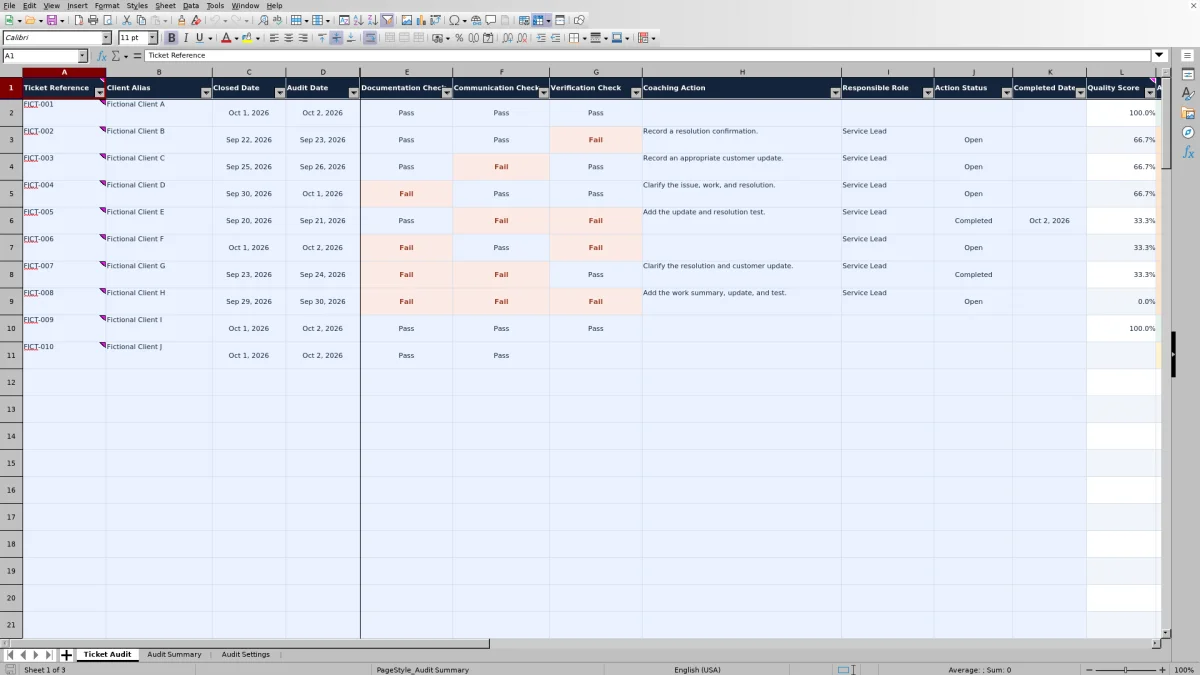
Save a working copy and remove or replace the 10 fictional records before reporting on your own sample. Clear input values without deleting the formulas in Ticket Audit columns L:O. Keep references minimally identifying, use client aliases and role names, and leave sensitive ticket contents in your ticketing system.
2. Set the review assumptions
On Audit Settings, confirm Quality Target in B2 and Action Interval (Calendar Days) in B3. The initial values are 100% and 7 calendar days. Review the documentation, communication, and verification guidance so that you apply consistent evidence standards.
3. Enter each ticket review
On Ticket Audit, enter Ticket Reference, Client Alias, Closed Date, and Audit Date. Enter Closed Date before Audit Date, then select Pass or Fail for each of the three checks. Quality Score and Audit Result calculate from these entries; an unfinished review remains unscored.
4. Record coaching and review the summary
For a Needs coaching result, enter Coaching Action, Responsible Role, and Action Status. When the action is finished, select Completed and enter Completed Date. Review Action Alert and Audit Summary after recalculation, checking incomplete records and missing details before interpreting the sample results.
Choose a useful sample and judge recorded evidence
Decide which closed support cases you will review before entering results. For example, you might choose a defined period and a mix of client aliases or ticket types. Keep that selection rule with your review records so that a later discussion does not treat a deliberately narrow sample as representative of all delivered support.
Use the guidance on Audit Settings to assess what the ticket actually records. Documentation should make the issue, work performed, and resolution understandable. Communication should include an appropriate customer update. Verification should record a resolution test or confirmation. These are evidence checks, not employee ratings.
You make each Pass/Fail judgment manually; the workbook does not inspect the source ticket. If the work appears to have been done but the evidence is missing, apply your agreed review guidance rather than assuming the record proves completion. Use Coaching Action to describe the correction without copying personal information, credentials, or sensitive technical details into the workbook.
Example: turn three checks into a coaching decision
Consider fictional ticket FICT-002 for Fictional Client B: Closed Date is September 22, 2026; Audit Date is September 23, 2026; Documentation Check and Communication Check are Pass; Verification Check is Fail. Coaching Action is “Record a resolution confirmation,” Responsible Role is Service Lead, and Action Status is Open. With a 100% quality target and a 7-calendar-day interval, these inputs produce a Quality Score of 66.7%, a Needs coaching result, and a Target Action Date of September 30, 2026.
The score is the number of passing checks divided by three: two passes out of three equal 66.666…%, displayed to one decimal place. The checks have equal weight; the result identifies a missing verification requirement under the current guidance, not the percentage of the entire support job completed. The next decision is to obtain or record the appropriate resolution evidence and follow through on the coaching action.
Target comparisons use the underlying score, not its rounded display. A target entered as 66.7% is slightly above two-thirds, so two passes still fall below that target. An exact-target score meets the target. Review the practical effect of a proposed threshold before changing it: with three binary checks, only scores of 0%, one-third, two-thirds, and 100% are possible.
Manage coaching dates without confusing them with SLAs
For a below-target review, Target Action Date adds the interval on Audit Settings to Audit Date. It uses elapsed calendar days, including weekends, rather than business hours or business days. This is an internal follow-up assumption, not a contractual service-level agreement (SLA) deadline.
Once Coaching Action, Responsible Role, and Action Status are present, an open action with no completion date can show Open, Due today, or Overdue. In the example above, it would be Due today on September 30, 2026, and Overdue after that date if it remained open and the workbook recalculated. These alerts are worksheet results, not sent reminders.
Each ticket has only one current Action Alert. Missing action details take precedence over overdue timing, so an overdue count alone does not show every action needing attention. Review Action Details Missing and the completion-related indicators as well. To record completion, enter both Completed as the status and a valid Completed Date; the workbook checks those entries but does not verify that the corrective work occurred.
Completing coaching does not erase the original below-target result. Needs Coaching continues to include that ticket, while Completed Coaching Actions can also count its finished action. This preserves the distinction between a review finding and its recorded follow-up.
Read the summary with the right denominator
Audit Summary distinguishes Tickets Entered from Audits Scored. Tickets Entered counts populated Ticket Reference cells. Audits Scored counts numeric Quality Scores, so a referenced ticket with missing required information can increase the entered count without contributing to the score metrics.
Average Quality Score averages scored tickets only. Target Attainment is the number of scored tickets meeting the current target divided by all scored tickets. Incomplete reviews are excluded from both calculations. Check the Incomplete count before presenting either percentage, especially when unfinished reviews may differ from the completed ones.
If there are no scored audits, Average Quality Score and Target Attainment remain blank; that does not mean 0% quality or 0% attainment. A genuine 0% Quality Score means a complete review with all three checks marked Fail. A 0% Target Attainment means scored reviews exist but none meets the current target.
All summary results describe only the entered sample. They do not establish employee performance, overall service performance, or SLA compliance. Filtering Ticket Audit helps you inspect rows, but the summary formulas still cover the prepared range rather than only the visible filtered records.
Keep review assumptions stable and results interpretable
Quality Target, Action Interval (Calendar Days), and the three guidance statements are editable internal assumptions. The target accepts values from 0% through 100%, and the interval accepts whole numbers from 0 through 365 calendar days. Keep both settings populated. A zero-day interval makes the target action date the audit date; a 0% target lets every fully scored review meet the target, even when all checks fail.
Changing the target recalculates existing audit results. Changing the interval recalculates action dates for reviews that need coaching. Those changes can alter both alerts and summary counts, so avoid treating a revised workbook as an unchanged historical baseline. Save a separately named copy before changing assumptions if you need to retain the earlier review state.
Editing the guidance does not reassess previously entered Pass/Fail values. You must decide whether earlier judgments remain consistent with the revised standard. Also retain the dropdown vocabulary Pass, Fail, Open, and Completed: formulas depend on those words, so renaming them is not merely a cosmetic change.
Troubleshooting incomplete scores and misleading alerts
- Blank score or Incomplete result: Confirm that Ticket Reference, Client Alias, Closed Date, and Audit Date are populated and that all three checks contain Pass or Fail. With no Ticket Reference, Audit Result and Action Alert remain blank rather than flagging the row as incomplete.
- Date entry rejected: Use date-only values with no time component. Closed Date cannot be in the future; Audit Date must be on or after Closed Date and no later than today; Completed Date must be on or after Audit Date and no later than today. Enter dates in that order and review dependent dates after edits.
- Action details missing: For a Needs coaching row, fill Coaching Action, Responsible Role, and Action Status. A completion date by itself does not satisfy these requirements.
- Completion date missing or Check action status: Completed requires a completion date. Conversely, a populated completion date with a status other than Completed triggers a status check once the required action details are present. Correct the entries to reflect what actually happened.
- Results appear stale or differ from the fictional example: Recalculate the workbook. Date-based alerts depend on the current date, so creation-day examples will not remain fixed. Check the current target and interval as well.
Validation can be bypassed by pasting. Inspect pasted references for duplicates, confirm that check and status words are valid, and review date order manually. Formula completion checks do not replace a full review of pasted data.
Comparison: this workbook or a blank spreadsheet
A blank spreadsheet is a realistic alternative when you need a different audit rubric or reporting structure. This workbook is useful when its three-check, one-action-per-ticket approach matches your review process and you want prepared calculations rather than building them yourself.
| Method | Review structure | Scoring and follow-up | Setup and limits |
|---|---|---|---|
| Ticket quality audit workbook | Three equally weighted Pass/Fail checks with editable guidance | Prepared scores, target results, calendar-day action dates, alerts, and sample summary | 100 prepared rows; manual evidence review and action updates; existing formulas rely on fixed status words |
| Blank spreadsheet | You define the criteria, fields, and review layout | You build calculations and checks or track results manually | More design freedom, with responsibility for creating and checking the scoring and summary logic |
Choose the prepared workbook for a bounded sample using these three evidence categories. Choose a custom spreadsheet if you need weighted criteria, multiple corrective actions per ticket, or a substantially different review method. Neither approach should be assumed to retrieve tickets, send follow-up messages, or verify evidence automatically.
Frequently asked questions
Can I import tickets from my PSA or ticketing system?
The workbook does not retrieve tickets or provide a live connection to professional services automation (PSA) or ticketing software. Enter a minimally identifying reference and client alias, then review the source ticket separately. If you paste inputs, check them carefully because pasting can bypass validation.
Can I mark a check as not applicable?
The prepared checks accept Pass or Fail only. A blank or unrecognized value leaves the review unscored when the required three valid checks are not present. Agree on how your guidance applies to the selected ticket types rather than entering N/A and expecting the denominator to change automatically.
Can I use more than 100 ticket reviews?
Rows 2–101 are prepared for 100 records, and the summary formulas reference that range. Do not assume rows added below it will be scored, validated, filtered, or included in the summary. Use another review copy or carefully extend and verify the formulas, validation, formatting, and summary ranges before relying on a larger sample.
Why does a completed action still count as Needs Coaching?
Needs Coaching describes the ticket's quality result against the current target, not whether its corrective action is still open. A below-target ticket remains in that count after coaching is marked Completed with a completion date. Use Completed Coaching Actions and the current Action Alert to understand the recorded follow-up state.
Does the workbook prove SLA compliance or overall service quality?
No. It summarizes the evidence judgments entered for the reviewed sample. Its quality target and action interval are editable internal assumptions, not contractual requirements. Use the results to guide service coaching and further investigation, not as certification or a conclusion about all tickets handled for a client.
About the authors

Tessa WhitlockClient & service operations
More about this area of the library →
Nathan CalderwoodService economics & planning
More about this area of the library →