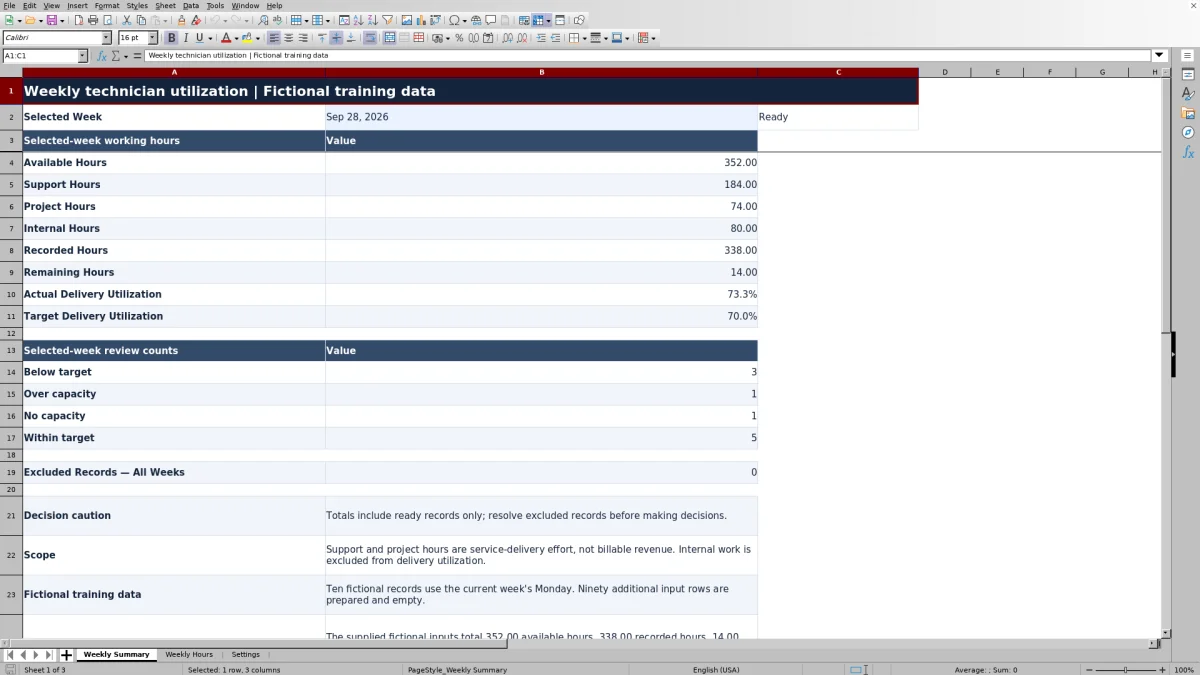
Before shifting support coverage or assigning project work, reconcile the hours your technicians actually worked against their available working hours. This Excel report helps managed service provider (MSP) operations leads review weekly support, project, and internal effort in one place.
Enter one record per technician alias and Monday-starting week, then review calculated capacity, delivery utilization, and exceptions. The workbook separates actual delivery effort from total recorded work, so you can investigate the work mix rather than treating every low utilization result as spare capacity.
When to use this workbook
- Reconcile scheduled capacity, unavailable time, and actual worked hours before making allocation decisions.
- See how support and project delivery compare with internal work without losing sight of total effort.
- Identify records needing correction before relying on selected-week totals.
- Review individual capacity exceptions that a positive team remaining-hours total can hide.
What is in the file
How to use the workbook
1. Prepare a working copy and confirm the target
Save a separate working copy and replace or clear the ten fictional sample records in Weekly Hours A:G. Keep the formulas in H:M intact. In Settings B2, review the Delivery Utilization Target: the starting value is an editable, illustrative 70%, not a contractual requirement. Keep a numeric percentage from 0% through 100% entered.
2. Enter weekly capacity and actual effort
In Weekly Hours A:G, enter the Monday date, a technician alias, scheduled hours, unavailable hours, and actual support, project, and internal hours. Use one row per alias per week. Enter explicit zeroes where appropriate, and keep the three work categories mutually exclusive. All quantities are working hours, including actual overtime.
3. Resolve record exceptions
Filter Record Status in Weekly Hours to find Incomplete, Check inputs, or Duplicate records. Correct these before interpreting totals. Review Review Flag separately for capacity and utilization issues; a Ready record can still require an operational review.
4. Select the week and reconcile the results
Enter the matching Monday in Weekly Summary B2 and confirm that its status reads Ready. Review available, recorded, and remaining hours alongside actual delivery utilization and the review counts. Check Excluded Records — All Weeks before using the report, then investigate individual rows before reallocating work.
Build a consistent weekly hours reconciliation
The report is useful only when capacity and effort describe the same technician and week. Consolidate your source records into one weekly total for each alias before entering them. For example, multiple support entries for the same technician belong in that row's Support Hours total, not in separate rows with the same week and alias.
Scheduled Hours is the starting capacity assumption. Unavailable Hours is the portion of that schedule that was not available for work; it reduces capacity rather than becoming another work category. Support Hours, Project Hours, and Internal Hours are actual worked time, including overtime. Do not count the same effort in more than one category or count unavailable time as internal work.
Use consistent category rules across your service team and enter decimal hours rather than hours-and-minutes text. For example, 1 hour 30 minutes is 1.5 hours. The workbook checks input structure, but you must reconcile the totals against your source records; Ready does not confirm that all work was captured.
Understand what the utilization percentage measures
Available Hours equals Scheduled Hours minus Unavailable Hours. Recorded Hours adds Support Hours, Project Hours, and Internal Hours. Remaining Hours subtracts recorded work from available capacity. A positive remainder indicates unused capacity according to the entered figures; a negative remainder means recorded work exceeded that capacity. Missing time entries can make a positive remainder look more useful than it is.
Delivery Utilization divides support plus project hours by available hours. Internal work contributes to recorded hours but not to the delivery numerator. A technician can therefore have no remaining hours and still be below the delivery target because much of the week was spent on internal work. Review that work mix before deciding whether more client delivery is feasible.
The summary uses total delivery hours divided by total available hours, not a simple average of technician percentages. This preserves the different capacity represented by each row. Delivery effort is not billable revenue, and the result is not a measure of profitability or service-level agreement (SLA) performance.
Example: interpret a week below the delivery target
For the week starting September 28, 2026, the fictional Technician 02 record contains these inputs together: 40 scheduled hours, 8 unavailable hours, 16 support hours, 4 project hours, and 8 internal hours. With the illustrative target left at 70%, the workbook calculates:
- Available Hours: 40 minus 8 = 32 hours.
- Recorded Hours: 16 plus 4 plus 8 = 28 hours.
- Remaining Hours: 32 minus 28 = 4 hours.
- Delivery Utilization: 20 delivery hours divided by 32 available hours = 62.5%.
This record is Below target, but that flag alone does not explain why. Eight hours were used for internal work, and four available hours are not represented by recorded effort. First confirm that time capture is complete and the internal work is classified correctly. Only then consider whether those four hours represent capacity that could have supported client delivery.
For comparison, fictional Technician 03 has 40 scheduled hours, zero unavailable hours, 10 support hours, 10 project hours, and 20 internal hours. That produces 40 recorded hours, zero remaining hours, and 50% delivery utilization. Both records are below target, but only the first shows an unused-hours balance. Below target is not the same as available for more work.
Review exceptions before reallocating work
Review Flag assigns one outcome to each Ready record in a defined order: No capacity first, then Over capacity, then Below target, then Within target. These outcomes are mutually exclusive. A row whose recorded hours exceed available hours is Over capacity even if its delivery percentage is below target, unless available capacity is zero.
Zero available hours produces No capacity and a blank row utilization percentage, not 0%. Such a record can remain Ready and participate in the totals. If it contains worked hours, investigate the schedule, unavailable hours, and effort entries: those hours are still included in the summary even though that row has no capacity denominator.
Review individual rows before interpreting the team's Remaining Hours. One technician's positive balance can offset another's negative balance. A positive team total therefore does not establish that the right person was available for the work. The report summarizes actual weekly hours; it does not determine skills, coverage windows, or the feasibility of a future assignment.
Troubleshooting missing totals and excluded records
- Incomplete: Check the week, alias, and all five hour inputs. Blank hour fields are not treated as explicit zeroes. Complete the row or clear its inputs if it is not a real record.
- Check inputs: Confirm that the week is a real Monday date with no time component, hours are numeric and nonnegative, and unavailable hours do not exceed scheduled hours. Review pasted data carefully because pasting can bypass entry validation.
- Duplicate: Find repeated combinations of Week Starting and Technician Alias. All matching duplicate records are excluded. Consolidate the actual weekly totals into one row or correct an incorrectly assigned week or alias; do not rename a record merely to evade the check.
In Weekly Summary, Select a Monday or Check selected week means the selected-week calculations are withheld until B2 contains a valid Monday. With a valid selection but no matching Ready records, the totals can be zero and Actual Delivery Utilization remains blank because available hours are zero. A blank percentage is not evidence of 0% delivery utilization.
Excluded Records — All Weeks counts Incomplete, Check inputs, and Duplicate records across the full prepared range, not just the selected week. Selected-week totals and review counts omit these records. If a total looks low, check both the selected date and excluded records before assuming that less work occurred.
Keep the report within its operating boundaries
The prepared range supports 100 technician-week records in Weekly Hours rows 2 through 101, shared across all weeks entered. It is not 100 records per week. The calculations, duplicate checks, and summary references use that range. Do not assume entries below row 101 will be included; use a separate reporting copy or carefully extend and verify every affected formula and validation range before relying on a larger version.
Keep inputs limited to operational aliases and hour totals. Do not enter client names, ticket details, personal identifiers, credentials, or absence reasons. The workbook contains no integrations or automated messages, so collecting and reconciling actual hours remains a manual task.
Retain a dated copy when you need a stable reporting baseline. The shared target in Settings affects the review flags for records evaluated against it, so changing it can change how an older week is classified. Preserve the target assumption with any result you circulate, and check that formulas recalculate after editing rather than treating an unchanged display as confirmation.
Comparison: this workbook or a blank spreadsheet?
A blank spreadsheet is a realistic alternative when your operation needs a different period, category structure, or reconciliation method. This workbook is suited to a defined weekly process: one alias per Monday-starting week, three actual-effort categories, and a shared delivery target.
| Method | Initial setup | Calculation and review | Scope and upkeep |
|---|---|---|---|
| MSP technician utilization workbook | Prepared input fields, fictional examples, and operating definitions. | Available and remaining hours, delivery utilization, record-status checks, and review flags are already defined. | 100 prepared technician-week rows; manual entry and source reconciliation are still required. |
| Blank spreadsheet | You define the categories, reporting period, and layout. | You must build and verify calculations, duplicate handling, and exception checks. | Can be designed around a different process, but its ranges and rules need your own maintenance. |
Choose this workbook when its definitions match your service-delivery review and you want a structured starting point. Choose a custom sheet when your categories or reporting rules differ materially. Neither approach establishes that the entered hours are complete or accurate without a source reconciliation, and this workbook does not replace ticket-level time capture.
Frequently asked questions
Can I report on more than one week?
Yes. You can enter different Monday-starting weeks within the 100 prepared rows and select one at a time in Weekly Summary B2. A technician alias can appear in different weeks, but the same alias and week combination must be unique. The summary reports the selected week rather than providing a multiweek trend view.
Is the 70% utilization target a recommended benchmark?
No. It is an illustrative, editable assumption in Settings B2. Choose a target that fits your service-delivery model and planned internal work, and keep a numeric percentage from 0% through 100% entered. The workbook does not establish an industry benchmark or contractual obligation.
How should overtime be entered?
Include actual overtime in the appropriate Support Hours, Project Hours, or Internal Hours total. Keep scheduled and unavailable hours faithful to the capacity assumptions you are reconciling rather than increasing the schedule merely to remove an exception. Recorded hours can exceed available hours, producing a negative remainder and, for a row with positive capacity, an Over capacity flag.
Does the report pull hours from a PSA or ticketing system?
No integrations are included. If your source is a professional services automation (PSA) or ticketing system, consolidate its actual hours into the workbook's weekly categories yourself. Transfer only the permitted alias and hour totals, and reconcile them before using the results for allocation decisions.
Can I use support and project hours as billable utilization?
Not without a separate reconciliation. The workbook defines support and project hours as service-delivery effort, whether or not that effort is billable. It has no billing-status, rate, or revenue inputs, so its utilization percentage does not establish billable utilization, revenue, margin, or contract performance.
About the authors

Tessa WhitlockClient & service operations
More about this area of the library →
Nathan CalderwoodService economics & planning
More about this area of the library →