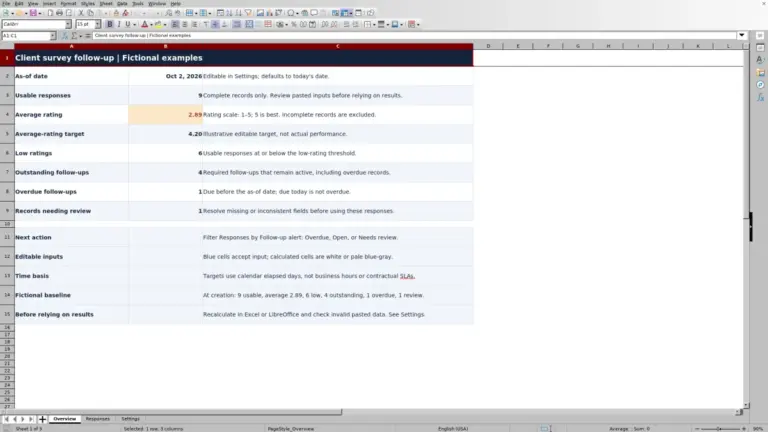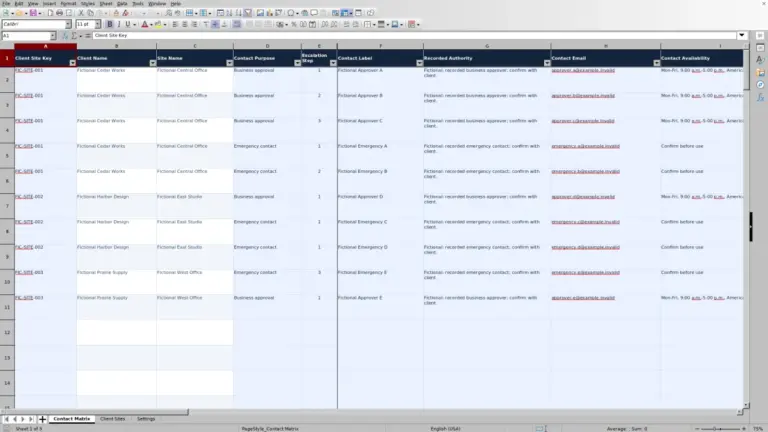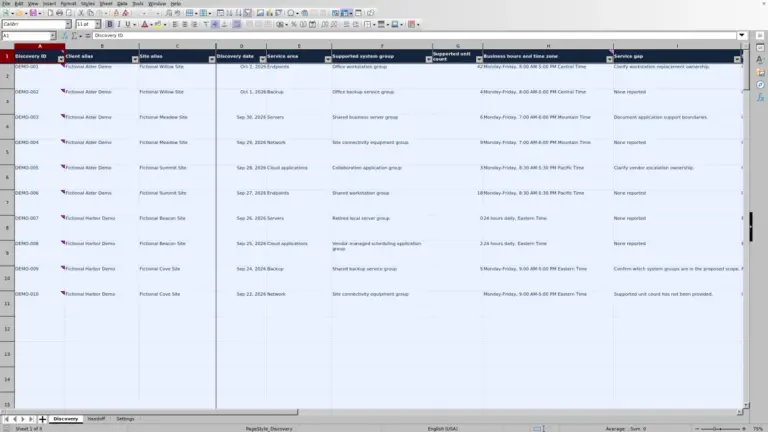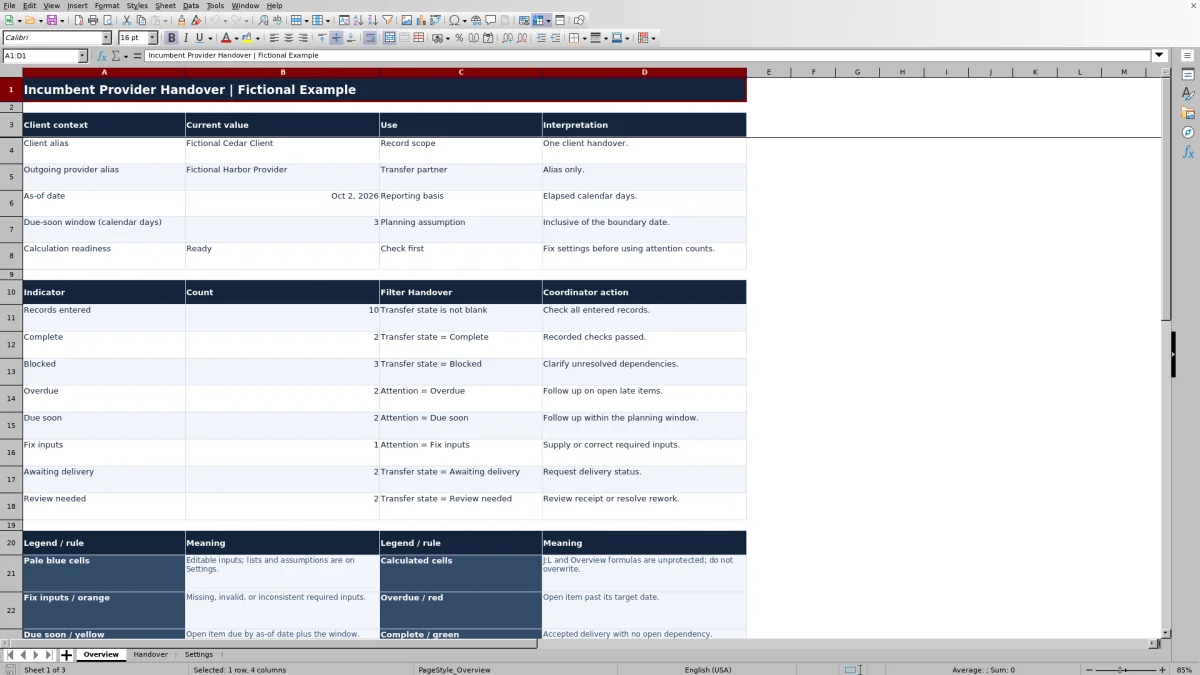
When you take over a client's IT services, you need to know what the outgoing provider still owes you and what requires review. This Excel handover tracker helps your managed service provider (MSP) record documentation requests, export deliveries, and unresolved transfer dependencies in one client-specific workbook.
Enter the request details, delivery dates, review results, and dependency status, then use the calculated transfer states and attention flags to plan follow-up. The tracker records transfer status, not the transferred content; keep documents, credentials, and sensitive export locations outside it.
When to use this workbook
- Keep missing deliveries, review work, and unresolved dependencies visible during a client takeover.
- Prioritize follow-up using elapsed calendar days and an editable due-soon window.
- Separate receipt of an item from its recorded review result and dependency status.
- Prepare a client-specific handover update from calculated counts and filterable request records.
What is in the file
How to use the workbook
1. Set the reporting context
In Settings, replace the fictional client and outgoing-provider aliases. Check As-of date, which defaults to TODAY(), and replace it with a fixed reporting date if needed. Set Due-soon window (calendar days) to a whole number from 0 through 365. Confirm Calculation readiness says Ready.
2. Replace the fictional requests
The workbook includes 10 fictional example requests. Replace or clear their manual entries in Handover columns A:I without deleting the formulas in J:L. Give each real request a unique Request ID, a specific Requested item, an Item type, and valid Requested date and Target date values. Use the existing list choices for Review result and Dependency status.
3. Record delivery and review separately
Enter Delivered date when the item arrives, and update Review result after your review. If Dependency status is Open, explain the unresolved requirement in Dependency note. Do not mark an item Accepted merely because a file was received.
4. Check exceptions before reporting
Review Transfer state, Open overdue days, and Attention on Handover. Resolve Fix inputs or Check settings messages before relying on date-based counts. Use the worksheet filters to inspect outstanding records, then review Overview for the reporting summary. Preserve the calculated cells; they are not protected from overwriting.
Define requests that can be checked at handover
Use one workbook for one client handover so the aliases and summary counts refer to a clear scope. Record each separately trackable request on its own row. A broad entry such as “all documentation” makes it difficult to distinguish a partial delivery from an outstanding request; a specific Requested item gives you a clearer basis for follow-up.
Choose Documentation, Export, or Transfer dependency in Item type. These categories describe the request, not whether it is finished. Keep Request ID unique so a delivery or clarification can be matched to the correct row without relying on similar item names.
Keep descriptions operational and nonsensitive. You can identify the type of guide or export being requested without pasting its contents or recording a sensitive storage location. The tracker is a coordination record, not a document repository, asset inventory, or password store.
Separate delivery, acceptance, and unresolved dependencies
A Delivered date records receipt. Review result records your assessment using Not reviewed, Accepted, or Rework. Dependency status separately records None, Open, or Resolved. Maintaining these distinctions helps you avoid treating a delivered export as usable before you have checked it.
Receipt is not acceptance. If an export needs correction, record Rework and follow up with the outgoing provider. If a transfer depends on an unresolved clarification or prerequisite, use Open and supply a Dependency note that explains what remains to be resolved. The input checks require a note for an open dependency and a Delivered date when Review result is Accepted.
The workbook calculates Transfer state from the entries; it does not inspect documents, validate export contents, or perform the review for you. Complete means the recorded handover checks passed. It does not certify security compliance or establish that the entire client environment is ready for service.
Use planning dates without turning them into SLA claims
The editable Target date is a handover planning date, not a default contractual service-level agreement (SLA) target. All day counts use elapsed calendar days, not business hours. Weekends are therefore included in the date difference.
For a valid, noncomplete request with ready settings, Open overdue days is the reporting date minus the target date, with a minimum of zero. A positive result produces Overdue attention. Otherwise, a target on or before the reporting date plus the due-soon window produces Due soon; later targets produce On track. The due-soon boundary is inclusive.
A zero does not prove that an item is complete or was delivered on time. An open item due today or later has zero overdue days, and a Complete item also returns zero. Complete items receive Closed attention, so this column is not a historical late-delivery measure.
Use a fixed As-of date when you need a stable reporting basis. Leaving TODAY() in Settings means the date basis can change when the workbook recalculates. Choose the due-soon window to suit your follow-up cadence rather than presenting it as a contractual requirement.
Example: decide what to chase and what to review
For this scenario, set As-of date to October 2, 2026, and Due-soon window (calendar days) to 3. Confirm Calculation readiness is Ready. Consider two requests with unique IDs and the following manual entries:
- Service guide: Item type Documentation; Requested date September 22, 2026; Target date October 1, 2026; Delivered date blank; Review result Not reviewed; Dependency status None.
- Report export: Item type Export; Requested date September 22, 2026; Target date October 2, 2026; Delivered date October 1, 2026; Review result Not reviewed; Dependency status None.
The service guide is awaiting delivery. Its target is one calendar day before the reporting date, so Open overdue days is 1 and Attention is Overdue. Your next action is to request a delivery update from the outgoing provider.
The report export has arrived but still needs review. Its target is the reporting date, so Open overdue days is 0 and Attention is Due soon. Your next action is to inspect the delivered export and record the review result, not to request the same delivery again.
The three-day window reaches October 5, 2026, inclusive. An otherwise valid open request due that day also falls within Due soon. These results show different next actions for different transfer states, even when both requests need attention in the same reporting cycle.
Troubleshooting missing results and input errors
If Attention says Fix inputs, inspect the manual fields on that row before changing dates to make the warning disappear. Common causes include missing required entries, duplicate Request IDs, values that do not match the workflow lists, an Open dependency without a note, or Accepted without a Delivered date.
- For date problems, use actual spreadsheet dates without time values. Target date must not precede Requested date. Check Delivered date against the request date and reporting context rather than entering a future delivery as if it had already happened.
- For Check settings, correct Settings As-of date and Due-soon window (calendar days). The reporting date must be a valid whole-date value, and the window must be a whole number from 0 through 365.
- For blank Open overdue days, inspect Transfer state and Calculation readiness. Blank can mean the row is unused, the inputs are incomplete, or settings are not ready; it does not mean the request is on time.
- For stale or missing calculated results, have Excel or LibreOffice recalculate the workbook. If a formula was overwritten, recover it from an intact copy rather than typing a status into the calculated column.
Keep the workflow labels in Settings unchanged. The formulas depend on those labels as well as the entries in Handover. Validation assists entry, but you should still review pasted data and the resulting status messages.
Read the summary within its reporting limits
Overview provides a starting point for a handover update, but the underlying rows explain what action is needed. Records entered counts nonblank Transfer state results, including incomplete records. The Fix inputs indicator counts records whose Transfer state is Incomplete.
Do not add every indicator together. Transfer-state counts and date-attention counts describe different aspects of the same requests. An awaiting-delivery request can also be overdue, so adding those counts would double-count it. Review the relevant Handover filters when explaining the summary to a service owner or account manager.
The prepared formulas, validation ranges, filters, and summary counts cover Handover rows 2–101: 100 request rows. Entries below that range are not included in the existing calculations. If you need more capacity, extend and verify all dependent ranges rather than assuming that adding a row extends the workbook's behavior.
The file has no automatic monitoring, messages, integrations, macros, or external links. You must update the manual entries as the handover progresses. Save a separately named copy when you need a reporting baseline; do not assume the workbook maintains an audit trail.
Comparison: this workbook or a blank spreadsheet
A blank spreadsheet is a realistic alternative when your team wants a custom handover register. This workbook supplies a defined request structure and status logic, while a blank file leaves both the workflow and its checks for you to design.
| Method | Initial setup | Follow-up calculations | Review and dependency tracking | Ongoing responsibility |
|---|---|---|---|---|
| MSP handover tracker | Prepared fields, workflow lists, and 100 request rows | Calculated states, calendar-day overdue values, attention flags, and summary counts | Separate delivery date, review result, dependency status, and dependency note | Update entries, check exceptions, preserve formulas, and verify any range extensions |
| Blank spreadsheet | You define the fields and reporting layout | Manual review unless you build and maintain formulas | You decide how receipt, acceptance, and blocking issues are represented | Maintain entries and any validation, calculations, or summaries you create |
Choose this workbook when its one-client scope and existing workflow labels fit your handover process. Choose a blank spreadsheet when you need a materially different structure and can maintain its checks. If you need assigned tasks, reminders, or a detailed activity history, assess a ticketing or project workflow that explicitly supports those requirements; this tracker does not provide them.
Frequently asked questions
Can I track several client handovers in one workbook?
The workbook is structured for one client handover, with one client alias and one outgoing-provider alias in Settings. Use a separate copy for each client so Overview counts and reporting assumptions stay tied to a clear scope.
Does it request exports or contact the outgoing provider?
No. It records requests and calculates status from your entries. There are no automatic messages, integrations, or monitoring functions. Send requests through your normal communication process and update the tracker when you receive a response or delivery.
Should I keep the fictional examples?
The 10 example requests and aliases are fictional. You can inspect them to understand the layout, but replace or clear them before reporting a real handover. Clear only their manual inputs in Handover columns A:I and preserve the formulas in J:L.
Can I rename the review or dependency choices?
Keep the existing workflow labels unchanged. The calculations rely on those values. The reporting date, due-soon window, aliases, request details, and planning dates are editable inputs; changing workflow labels is not a safe way to customize the process.
Does Complete prove that the client's transition is fully accepted?
No. Complete is a recorded-check result for an individual request. It is not client sign-off, a security certification, or confirmation that every takeover requirement has been met. Use your separate acceptance process for any broader transition approval.
About the authors

Tessa WhitlockClient & service operations
More about this area of the library →
Nathan CalderwoodService economics & planning
More about this area of the library →