When a client gives a low rating after a managed IT service interaction, you need to connect that response to the work and keep the follow-up visible. This Excel tracker helps your managed service provider (MSP) record ratings by interaction and review outstanding follow-ups.
Enter response details and update follow-up status manually. The workbook calculates due dates, elapsed days, alerts, and summary metrics using editable settings. It records responses; it does not distribute surveys or send client messages.
When to use this workbook
- Connect each rating to a client alias and service interaction reference.
- Prioritize overdue and open follow-ups without searching every response.
- Review average ratings alongside the number of usable responses.
- Identify incomplete or inconsistent records before relying on response metrics.
What is in the file
How to use the workbook
1. Prepare a working copy
Save a copy, then clear the fictional inputs in Responses A2:G11 without deleting formulas in H:K. Rename the column B heading from Fictional client alias to Client alias. Use aliases rather than personal names, and keep ticket contents and customer secrets out of the file.
2. Set your review assumptions
In Settings, review As-of date, Low-rating threshold, Follow-up target, elapsed days, and Average-rating target. The starting values are a low-rating threshold of 3, a follow-up target of 4 calendar days, and an average-rating target of 4.2 out of 5. Adjust these assumptions to your process; they are illustrative, not contractual commitments.
3. Record each response
Use the prepared rows 2–101 on Responses. Enter a unique Response ID, Client alias, Interaction reference, Response date, Rating, and Follow-up status. Add a Closed date only when the status is Closed. Ratings use whole numbers from 1 to 5, with 5 best. Leave the four status labels unchanged because the calculations depend on their wording.
4. Recalculate, check, and act
Recalculate in Excel or LibreOffice, inspect invalid inputs, and resolve Records needing review. On Responses, filter Follow-up alert for Overdue first, then Open. Use Overview to review usable responses, average rating, low ratings, and outstanding follow-ups after those checks.
Keep each response tied to a service interaction
Use one response per managed IT service interaction. A unique Response ID identifies the survey record, while Interaction reference lets you locate the related work in your service records. Keeping those references distinct helps you tell a repeated client interaction from an accidentally duplicated survey entry.
The workbook deliberately limits what you record. Use Client alias to identify the account without entering personal names. Do not add free-text feedback, contact details, ticket contents, credentials, or customer secrets. Keep the supporting conversation in your appropriate service system and use the interaction reference to find it.
Follow-up status is a manual entry, not evidence that outreach occurred. Update it after the corresponding action, and keep responsibility and conversation details in your existing follow-up process. The tracker has no dedicated owner or narrative-notes field.
Choose thresholds and understand the timing
The Low-rating threshold determines which usable responses require follow-up. With the starting threshold of 3, ratings of 1, 2, and 3 qualify. A qualifying response gets a Follow-up due date equal to its Response date plus the Follow-up target, elapsed days. The target is editable from 0 to 30 days.
These are calendar elapsed days, not business hours. A four-day target includes weekends. It is an internal follow-up assumption, not a contractual service-level agreement (SLA). If your commitment depends on working hours, holidays, or a different start event, assess that commitment separately.
An active follow-up becomes Overdue only when its due date is earlier than the As-of date; due today remains Open. Follow-up elapsed days measures response-to-as-of time for active qualifying responses and response-to-closure time for closed qualifying responses. It is not a count of days past the deadline or technician effort.
Changing the threshold or day target recalculates existing records too. Review the resulting queue before using a new setting as your operating baseline. Average-rating target is a separate benchmark and does not determine which individual responses need follow-up.
Example: interpret a low rating and its follow-up
Suppose you enter Response ID EX-001 for Client alias Client North and Interaction reference INT-247. The Response date is September 24, 2026, the Rating is 2, and Follow-up status is Open with no Closed date. Set As-of date to October 2, 2026, Low-rating threshold to 3, and Follow-up target, elapsed days to 4.
Once the record passes its completeness check, the rating qualifies for follow-up. The calculated due date is September 28, 2026: September 24 plus four calendar days. The alert is Overdue because that due date is before October 2. Follow-up elapsed days is 8, meaning eight days have passed since the response—not eight days overdue. The follow-up is four days past its due date.
Your next action is to locate the interaction and address the low rating through your normal client follow-up process. If you complete the follow-up on October 2, enter Closed and that Closed date together. The alert becomes Closed, and elapsed days remains 8. The response still contributes to the low-rating count and average; closing the follow-up does not change the original client rating.
Read the overview without hiding record-quality problems
Overview calculates Average rating by adding ratings from rows marked Ready and dividing by the number of those rows. Each usable response has equal weight; this is a response-level average, not an equally weighted average across clients. A client with more recorded interactions can contribute more ratings.
A blank average is not a zero rating. When there are no usable responses, the average stays blank. Incomplete records are excluded rather than counted as zero, so review both Usable responses and Records needing review before interpreting the score. A zero outstanding-follow-up count also does not clear unresolved Needs review records.
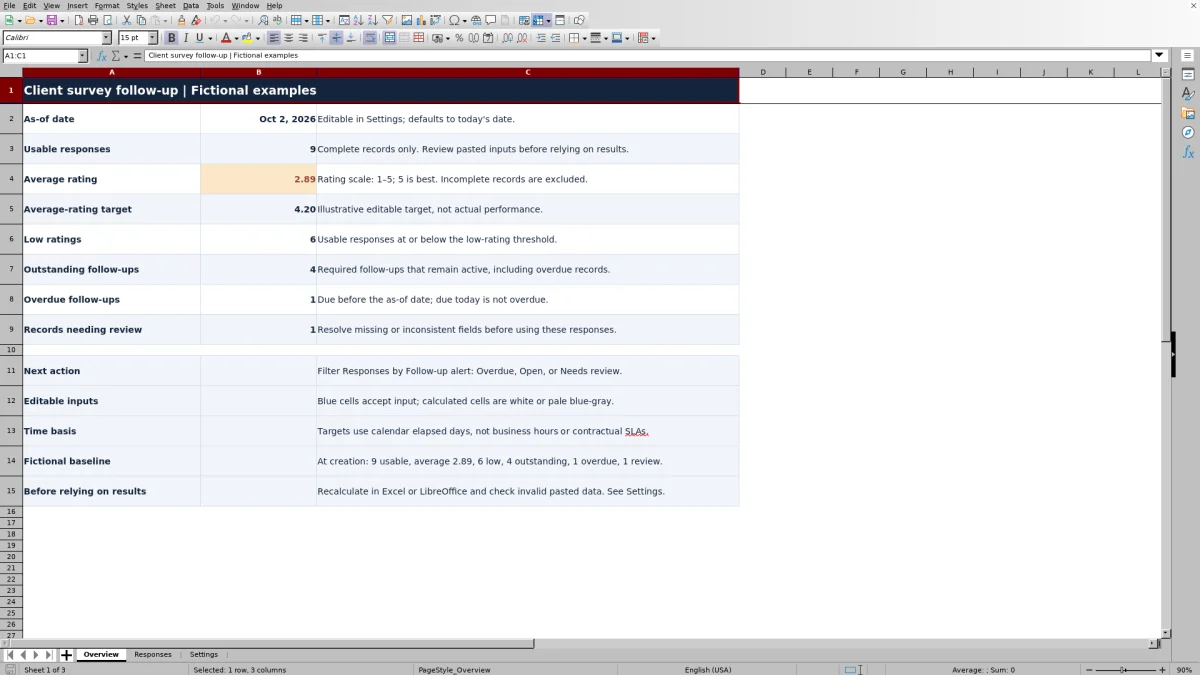
The fictional baseline at creation shows 9 usable responses averaging 2.89 out of 5, compared with the illustrative target of 4.2. It also shows 6 low ratings, 4 outstanding follow-ups, 1 overdue follow-up, and 1 record needing review. That example illustrates why an average alone is not an action list: inspect the active low-rating records and fix the incomplete record before drawing conclusions.
The sample baseline is tied to October 2, 2026. Because As-of date initially uses today's date, later recalculation can change the sample follow-up alerts. Neither the fictional results nor the editable target represents your actual client performance.
Troubleshooting entry and calculation problems
Ready is a completeness check, not proof of valid data. It checks required entries and certain status/date relationships, but it does not repeat every validation rule. Pasted data can bypass entry restrictions and still appear Ready.
- For Needs review, check that Response ID, Client alias, Interaction reference, Response date, Rating, and Follow-up status are populated. Dates and ratings must be numeric Excel values, not text that only looks correct.
- For a low rating marked Not needed, select the appropriate active status or record a completed follow-up. A rating at or below the threshold cannot be treated as Not needed and remain Ready.
- For closure inconsistencies, enter Closed and a valid Closed date together. Leave Closed date blank for other statuses. Check that closure is not before the response or after the As-of date.
- For pasted records, inspect duplicate IDs, ratings outside the whole-number 1–5 scale, invalid dates, and altered status text. Use Excel's invalid-data review, or inspect invalid entries in LibreOffice, before trusting the summary.
- For unexpected blanks in Follow-up due date or Follow-up elapsed days, check Record check and Rating first. Those fields stay blank when the record is not Ready or its rating does not qualify for follow-up.
If calculated results appear stale, recalculate and confirm that formulas in Responses H:K remain intact. Before production use, verify in your application that a rating of 0, a duplicate ID, and invalid dates are rejected. These are checks for you to perform, not automated acceptance tests supplied by the workbook.
Manage review dates, capacity, and working copies
As-of date defaults to today's date. Replacing Settings B2 with a fixed date makes the timing calculations stable for a review, but the as-of date is not a reporting-period filter. Overview still summarizes Ready records in the prepared range; it does not automatically exclude responses dated after a historical review date.
For a historical review, save a separate copy containing the appropriate records and check their dates against the selected As-of date. Changing that date alone does not recreate earlier statuses or recover previous data. Keep separately named copies when you need a retained baseline rather than assuming the file stores change history.
The workbook has formulas and input validation prepared for 100 responses in rows 2–101. Overview formulas also reference that range. Entries below row 101 should not be assumed to calculate or appear in the summary. If you extend the workbook, review the formulas, summary ranges, validation, and filter coverage together; otherwise, keep a clearly defined set of records within the prepared range.
Filtering Responses helps you work through the queue, but it does not limit Overview to visible rows. Treat the overview as the summary of the prepared records, not as a filtered-client report.
Comparison: this workbook or a blank spreadsheet
A blank spreadsheet is a realistic alternative when you only need a response log or want to design your own fields. This workbook adds a defined low-rating follow-up process, but it still requires manual entry, review, and client outreach.
| Method | Initial setup | Follow-up calculations | Record-quality checks | Ongoing responsibility |
|---|---|---|---|---|
| Client satisfaction survey tracker | Prepared fields and 100 response rows; replace examples and review settings. | Due dates, elapsed days, and alerts use the chosen threshold and calendar-day target. | Entry validation and completeness formulas are provided; pasted data still needs review. | You enter responses, update statuses, and carry out follow-up outside the file. |
| Blank spreadsheet | You choose the fields, layout, and reporting ranges. | You calculate timing manually or build and maintain formulas. | You design checks or inspect records manually. | You maintain the structure as well as the response and follow-up process. |
Choose the tracker when its rating scale and calendar-day rules fit your review process. Choose a blank spreadsheet when you need a different structure and can maintain the calculations yourself. If you need automated survey distribution, assigned work, reminders, or a durable activity history, evaluate a service-management or survey tool for those requirements rather than assuming this workbook provides them.
Frequently asked questions
Can I use this tracker for employee satisfaction surveys?
This resource is designed for external managed IT client responses tied to service interactions. Its fields and follow-up rules are not intended as a generic employee survey workflow. Keep client-service reporting separate from employee feedback.
Does it calculate response rate, NPS, or client-level scores?
No. It summarizes recorded 1–5 ratings and follow-up counts. It has no survey-invitation denominator for a response rate, no Net Promoter Score calculation, and no separate client-level score summary. Do not label the average rating as one of those measures.
Can I follow up on a rating above the low-rating threshold?
You can take action outside the workbook, but its calculated due dates and active-follow-up counts apply only to Ready responses at or below the threshold. An above-threshold response will show Not required in Follow-up alert even if you manually select Open. Track discretionary outreach through your normal service process rather than relying on this alert queue to include it.
Can I rename the follow-up statuses?
Keep Not needed, Open, In progress, and Closed unchanged. The dropdown uses the list in Settings D2:D5, and calculations depend on exact status wording. Renaming a label without revising the related logic can produce misleading results.
Will it import ratings or update tickets automatically?
No automated import, ticket update, or messaging connection is provided. You record the responses and maintain follow-up status manually. Interaction reference is a lookup reference for your workflow, not a live connection to your ticketing system.
About the authors

Tessa WhitlockClient & service operations
More about this area of the library →
Nathan CalderwoodService economics & planning
More about this area of the library →