Before you hand a prospect’s environment to the service owner or account manager, make clear what you found and what still needs clarification. This MSP discovery questionnaire gives your managed service provider (MSP) team an Excel workbook for recording customer sites, supported system groups, business hours, service gaps, and scope recommendations.
Enter your discovery findings, then use the calculated readiness and date checks to prepare a scoped presales handoff. The workbook separates complete records from missing information, but you still decide whether a proposed inclusion is appropriate and authorized.
When to use this workbook
- Keep site-level support assumptions together so the receiving team can understand the proposed scope.
- Find incomplete discovery records before relying on them in a handoff.
- Identify older findings for rechecking against an editable review date and age threshold.
- Separate proposed inclusions from exclusions and unresolved recommendations.
What is in the file
How to use the workbook
1. Replace the fictional discovery records
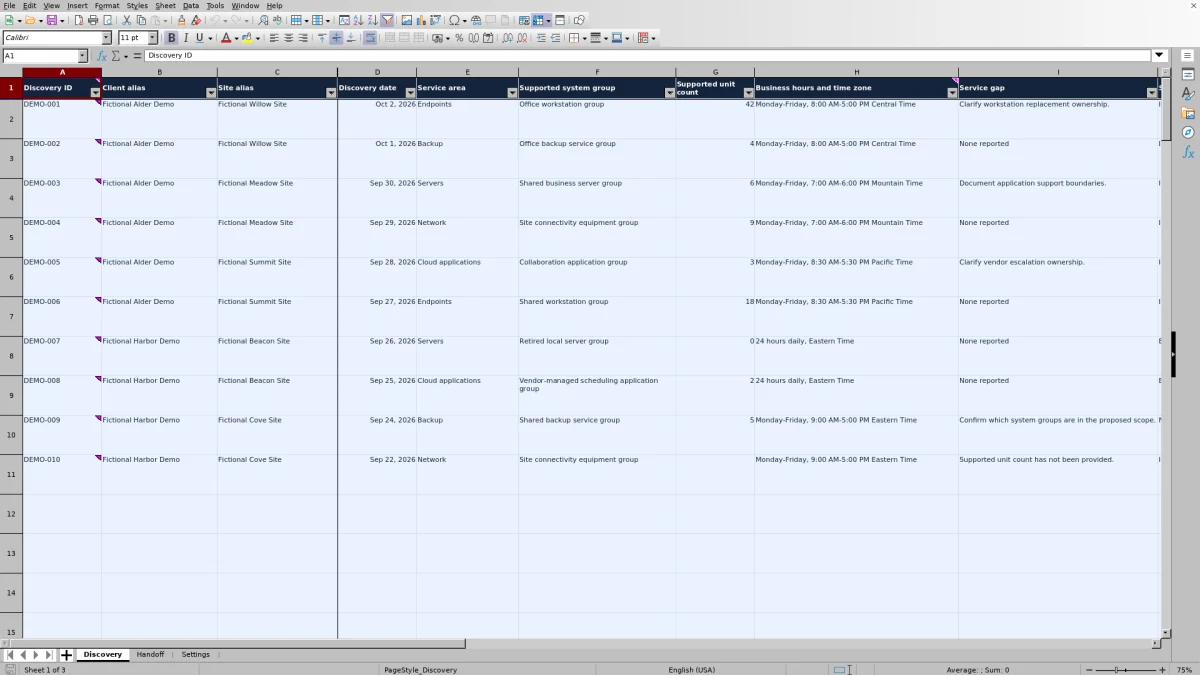
Save a working copy and open Discovery. All ten populated records are fictional examples. Replace or clear their input cells in columns A–J, retaining the formulas in K–L. Rows 2–101 are prepared for 100 records.
2. Set the review assumptions
In Settings, update Review date in B2 and Review age threshold (elapsed calendar days) in B3. The initial values are October 2, 2026, and 7 days. Use a whole date and a positive whole-number threshold that reflects your internal presales review process.
3. Record each system group at its site
Use one Discovery row for one supported system group at one customer site. Complete the ID, aliases, discovery date, service area, system group, unit count, business hours and time zone, service gap, and scope recommendation. Use the dropdowns for Service area and Scope recommendation; do not overwrite the calculated Handoff readiness or Review flag fields.
4. Recalculate and inspect the handoff
Recalculate the workbook before relying on Handoff counts. In Discovery, filter Handoff readiness to Ready and Scope recommendation to Include to find proposed inclusions. Clear those filters before checking Needs review records, date flags, and duplicate IDs. Resolve or explicitly carry forward open questions before preparing the handoff.
Record scope at the system-group and site level
Start with the boundary the receiving team needs to understand: one supported system group at one customer site. Give each row a unique Discovery ID rather than using an asset identifier. Keep Client alias and Site alias consistent across related rows so that the same location is recognizable without entering personal information.
The Supported unit count is a manual entry, not a discovered inventory total. Enter a nonnegative whole number and make the unit meaning clear in Supported system group. For example, a workstation count and a backup-service count describe different things; they should not be treated as interchangeable measures of support workload. A zero is allowed by validation, so confirm that it represents the finding rather than an unknown quantity.
Record business hours and time zone together, such as Monday–Friday, 8:00 AM–5:00 PM Central Time. These are discovery inputs, not a calculated coverage schedule or an agreed support commitment. If proposed support hours differ from the customer’s operating hours, explain that boundary during the scope review instead of assuming the row establishes it.
Interpret readiness without mistaking it for approval
Handoff readiness checks whether every input in Discovery columns A–J is present and whether Scope recommendation is Needs clarification. A populated row with a missing input or that recommendation returns Needs review. When all ten inputs are present and the recommendation is not Needs clarification, it returns Ready. An entirely unused row leaves both calculated status fields blank.
Ready means complete, not approved. An Exclude record can be Ready, and a row can be Ready even when its Service gap describes unresolved work. The formula does not interpret that text, verify the supported unit count, or establish that your team has accepted responsibility. If an unresolved gap prevents a scope decision, select Needs clarification rather than relying on the gap description to change readiness.
Handoff uses Ready together with Include to count Ready items proposed for inclusion. Treat that count as a starting set for review. Read the underlying records before deciding what belongs in a proposal or service scope.
Use elapsed age to decide what needs reconfirmation
The Review flag compares each Discovery date with the Review date in Settings. For a valid date, it subtracts the discovery date from the review date to calculate age in elapsed calendar days. An age equal to or greater than the threshold returns Review due; a younger record returns Current. Weekends count, and the Business hours and time zone entry does not affect this calculation.
The review date is an editable value, not a rolling current-date formula. Update it for each review so that old findings do not continue appearing current against an old reference date. The initial 7-day threshold is also editable, but it must be a positive whole number. It is an internal review assumption, not a contractual response target.
Age and completeness are separate checks. A Ready record may still be Review due, while an incomplete record may be Current. Use the age flag to decide which findings to reconfirm, then update the discovery date only when you have actually refreshed the information—not merely to clear the warning.
Example: a complete workstation record with an open ownership question
The fictional DEMO-001 record groups these inputs together: Client alias Fictional Alder Demo; Site alias Fictional Willow Site; Discovery date October 2, 2026; Service area Endpoints; Supported system group Office workstation group; Supported unit count 42; Business hours and time zone Monday–Friday, 8:00 AM–5:00 PM Central Time; Service gap “Clarify workstation replacement ownership.”; and Scope recommendation Include.
With a review date of October 2, 2026, and a threshold of 7 days, the record is Ready and Current. All ten inputs are present, the recommendation is Include, and the finding is 0 elapsed calendar days old. It contributes one record—not 42 units—to Ready items proposed for inclusion.
The ownership question remains unresolved despite those results. If it blocks a defensible scope recommendation, change the recommendation to Needs clarification and address the responsibility boundary. If the discovery inputs stay unchanged but you move the review date to October 9, 2026, the age becomes 7 days and Review flag becomes Review due; readiness remains Ready. This shows why completeness and freshness need separate decisions.
Prepare the handoff without hiding unresolved work
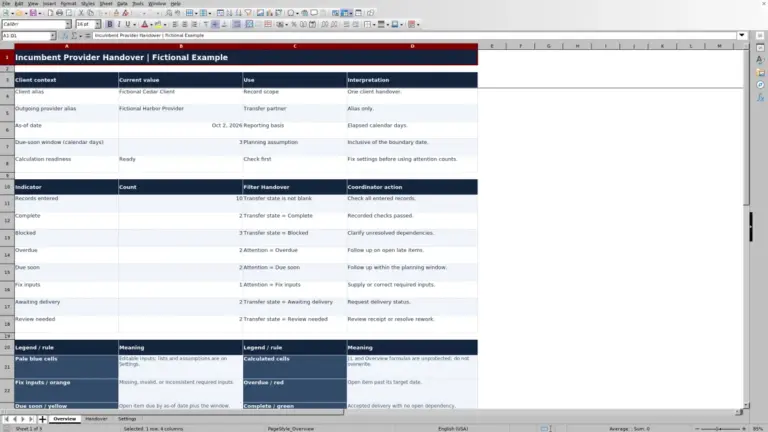
Use Handoff to organize the review, then return to Discovery for the supporting detail. First inspect Ready records recommended for Include. Next, clear the filters and examine Needs review records. Finally, clear the filters again and inspect Review due, Date needed, and Check date flags, along with duplicate-ID warnings. Leaving a previous filter active can hide records that belong in a different review group.
The summary counts overlap. Age-based reviews due may include both Ready and Needs review records, so do not add those measures together as if they were separate populations. Rows with duplicate IDs counts affected rows: if two rows share one ID, the result is 2, not 1.
The final scoped handoff is a manual decision. Explain proposed inclusions, exclusions, remaining questions, and any assumptions the receiving team must verify. The workbook does not authorize scope, send automated messages, or monitor the client environment. It also does not calculate service pricing or workload from the supported unit counts.
Troubleshooting missing results, dates, and inconsistent entries
- Counts are blank or appear stale: Recalculate before using Handoff. Unused Discovery rows intentionally produce blank status fields. A calculated zero for Ready items proposed for inclusion means no rows meet both Ready and Include; it does not prove that discovery is complete.
- A date warning appears: Date needed means the discovery date is missing from a populated row. Check date means it is nonnumeric or later than the review date. Enter an actual spreadsheet date without a time component and verify Settings B2. The input validation checks whole dates, while the Review flag is a separate, narrower check.
- A filled-in row still says Needs review: Check all inputs in A–J and the Scope recommendation. When no gap was reported, a clear entry such as None reported is more informative than a blank, but it is not evidence that no gap exists.
- Duplicate IDs appear: Assign a distinct Discovery ID to each record. Check whether the rows describe separate findings or an accidental repeated entry before changing or removing data.
- Custom lists behave unexpectedly: The five service-area entries in Settings A6:A10 can be edited; keep them populated and distinct. Keep Include, Exclude, and Needs clarification in C6:C8 unchanged because formulas depend on those labels.
After pasting data, inspect the entries and calculated results rather than treating validation as a complete accuracy guarantee. The prepared formulas, checks, and Handoff ranges cover rows 2–101. If you need more than 100 records, do not assume that adding rows extends every formula, validation rule, formatting rule, and summary range; verify each before relying on the expanded file.
Comparison: this workbook or a blank spreadsheet
A blank spreadsheet can work when your discovery process needs a different structure. This workbook is useful when you want an existing site-and-system-group record layout with completeness and age checks. The choice depends on how much structure you need and who will maintain the checks.
| Method | Record structure | Review checks | Handoff preparation | Maintenance |
|---|---|---|---|---|
| MSP discovery workbook | Prepared fields for one system group at one site, across 100 input rows. | Existing completeness, date, age, and duplicate-ID checks. | Calculated summary counts and Discovery filters support a manual scope review. | Requires current review assumptions, preserved formulas, and verification if expanded. |
| Blank spreadsheet | You choose the fields and record structure. | Checks must be built or performed manually. | You create the summary and process for separating inclusions from unresolved findings. | You maintain the layout, formulas, validation, and review guidance you add. |
Use the prepared workbook when its boundaries match your presales handoff. Start from a blank spreadsheet when materially different fields or record relationships justify building your own structure. Neither approach turns entered findings into approved scope or replaces verification of the customer environment.
Frequently asked questions
Is this a scripted questionnaire or a discovery record?
It is a structured discovery record rather than a scripted interview. Use its fields to guide questions about sites, system groups, unit counts, business hours, service gaps, and scope recommendations, then record the answers for review.
Can I record multiple customer sites?
Yes. Each Discovery row includes Client alias and Site alias, and one row represents one supported system group at one customer site. Use consistent aliases and unique Discovery IDs. Handoff counts summarize the prepared range as a whole rather than providing separate client or site summaries.
Does the workbook discover devices or verify customer answers?
No. You enter supported systems, counts, hours, gaps, and recommendations manually. The calculations check specified aspects of the entered records; they do not scan the environment, verify inventory, or provide live ticketing or monitoring.
What information should I leave out of discovery notes?
Use general client and site aliases and avoid real personal data. Do not put passwords, recovery codes, or other secrets in the system-group or service-gap fields. Keep the notes focused on support boundaries and findings, and share the workbook according to your organization’s handling procedures.
Can I change the review threshold for a longer sales cycle?
Yes. Edit Review age threshold (elapsed calendar days) in Settings B3 to a positive whole number. Choose it according to how quickly the findings may become outdated, and update Review date in B2 for each review. A longer threshold changes the age flag only; it does not resolve missing inputs, approve a recommendation, or extend a contractual service target.
About the authors

Tessa WhitlockClient & service operations
More about this area of the library →
Nathan CalderwoodService economics & planning
More about this area of the library →