When a client needs to approve a business decision or receive an emergency notification, you need the right contact and a clear approach order. This Excel contact escalation matrix helps your managed service provider (MSP) record those details by client site.
Enter confirmed contact information, assign escalation steps, and review the workbook’s completeness, sequence, and date checks before use. The spreadsheet is a contact reference—not an authorization system or a guarantee that someone is available.
When to use this workbook
- Keep business approvers and emergency contacts organized by client site and purpose.
- Identify duplicate escalation steps and missing preceding steps before relying on a sequence.
- Prioritize contact reviews using a shared review date and editable calendar-day interval.
- Spot incomplete records without treating a completed row as confirmed authority or availability.
What is in the file
How to use the workbook
1. Replace the fictional site records
On Client Sites, enter a unique Client Site Key, Client Name, and Site Name for each site. Replace the fictional sample contacts as well; the example.invalid email addresses are not operational contact details.
2. Set the review assumptions
On Settings, update Review As Of in B2 to the date you are assessing the register. Set Review Interval (Calendar Days) in B3 to your chosen interval, from 1 through 365 calendar days. The supplied values are October 2, 2026, and 90 calendar days; the review date does not advance automatically.
3. Enter each contact and purpose
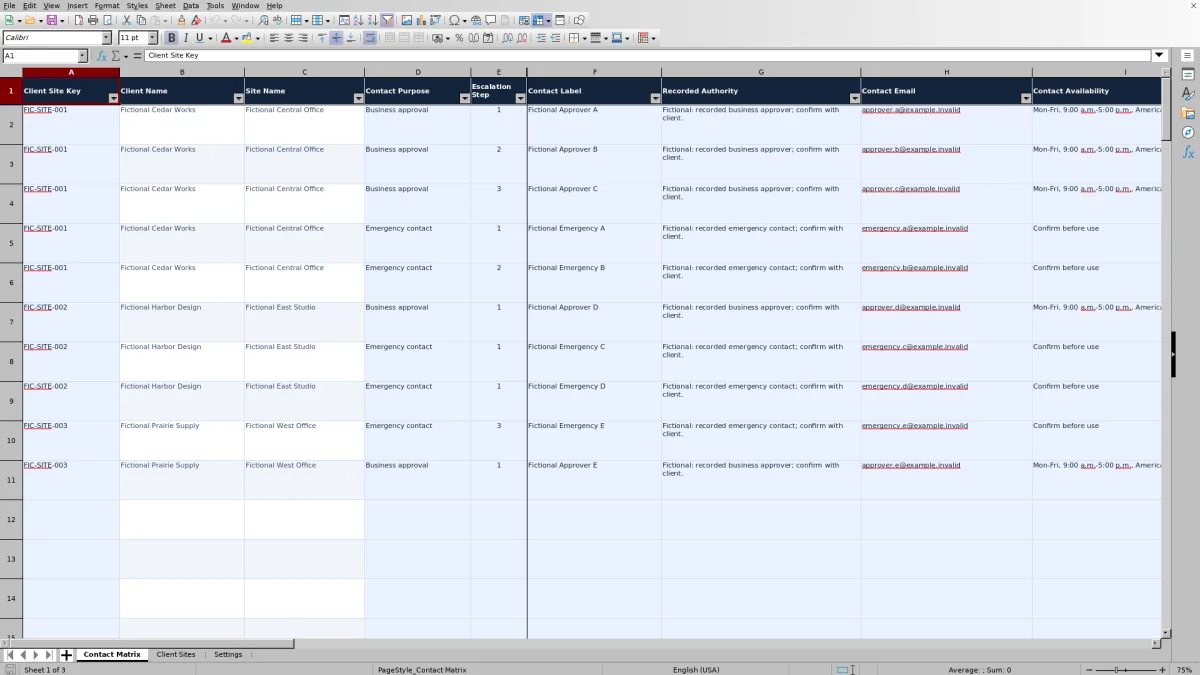
On Contact Matrix, select the Client Site Key and Contact Purpose, then enter Escalation Step, Contact Label, Recorded Authority, Contact Email, Contact Availability, and Last Verified Date. Use separate rows if one person serves both purposes. Client Name, Site Name, and columns K through N are calculated; preserve those formulas.
4. Check the entire approach order
Filter Contact Matrix by Client Site Key and Contact Purpose, then sort Escalation Step from smallest to largest. Resolve incomplete records, review warnings, and sequence exceptions throughout that group before using it. Confirm authority with the client, and store no passwords in the workbook.
Record authority without confusing it with permission
Start by deciding what each contact is listed to do. Business approval and Emergency contact are separate purposes: being notified about an outage does not necessarily make someone authorized to approve a disruptive change. Record the client-confirmed scope in Recorded Authority rather than relying on a job title alone.
Use Contact Label to identify the person or role clearly, Contact Email for the address, and Contact Availability for the stated coverage. Include the time zone when recording hours, such as Monday–Friday, 9:00 a.m.–5:00 p.m., America/New_York. Availability is manually entered text; the workbook does not evaluate whether those hours cover the current incident.
Recorded authority requires client confirmation. A filled-in authority field satisfies part of the completeness check, but the calculation cannot establish whether its contents are accurate or whether a particular action is permitted. Check the proposed action against the client’s confirmed authority before proceeding.
Build a usable escalation sequence for each site
The approach order is defined by the combination of Client Site Key, Contact Purpose, and Escalation Step. Start each site-and-purpose group at step 1 and use consecutive whole numbers. Business approval can have its own steps 1, 2, and 3 while Emergency contact has a separate sequence for the same site.
Sequence Check flags Duplicate step when the same step appears more than once in that group. For a step above 1, it checks whether the immediately preceding step exists and returns Missing prior step if it does not. Otherwise, it reports Sequence OK.
Check the whole sequence, not just one row. If steps 1, 3, and 4 exist, step 3 lacks a preceding step, while step 4 can still report Sequence OK because step 3 exists. Likewise, a later row can pass its own check while an earlier step is duplicated. Resolve every exception in the filtered group.
These numbers define an approach order, not a waiting period. They do not specify how many minutes to wait, measure elapsed response time, or establish a contractual response target. Use your agreed incident procedure to decide when to move to the next contact.
Use review dates as a maintenance decision
Last Verified Date is a manual entry representing when you actually checked the contact details. Next Review Date adds the Settings review interval to that date. The interval uses calendar days, not business days, so weekends and holidays do not extend it.
Review Status compares those dates with Review As Of. A missing verification date produces Missing verification. A verification date later than the assessment date produces Future date. A next-review date on or before the assessment date produces Needs review; otherwise, the result is Current.
Both assumptions are editable. Changing the review interval shifts next-review dates across the register, while changing Review As Of changes the assessment point. Choose an interval that fits your contact-maintenance process and update the assessment date whenever you review the list. Do not change Last Verified Date merely to clear a warning—verify the information first.
A blank Next Review Date means the site key or verification date is missing; it does not mean no review is required. Current describes the date check only, not a recent successful contact attempt.
Example: distinguish a current approver from an overdue contact
Consider two fictional records for FIC-SITE-001, with the site defined on Client Sites and all required contact fields completed. Set Review As Of to October 2, 2026, and Review Interval (Calendar Days) to 90. Give each record step 1 within its own purpose:
- Business approval: Last Verified Date is September 25, 2026.
- Emergency contact: Last Verified Date is July 3, 2026.
For the approver, adding 90 calendar days gives a Next Review Date of December 24, 2026. That is later than October 2, so Review Status is Current. With no duplicate step and all required fields present, Record Status is Listed and current.
For the emergency contact, adding 90 calendar days gives October 1, 2026. That date has already passed relative to the assessment date, so Review Status is Needs review and Record Status is Review before use.
The useful decision is to recheck the emergency contact’s details before relying on that record, not to assume the person is unreachable. Equally, Listed and current is not an availability guarantee for the approver. Both results describe the register’s checks, not actual response performance.
Troubleshooting blanks and warning statuses
- Client Name or Site Name is blank: Check that the selected key exists on Client Sites and that both labels are filled in there. An unknown pasted key can leave both lookup results blank. Correct the source record or key rather than typing over the calculated labels.
- Incomplete: Supply the site key and every required entry from Contact Purpose through Last Verified Date, and resolve missing site labels. This status takes precedence over review and sequence warnings, so check those columns again after completing the row.
- Duplicate step: Find all rows with the same site, purpose, and step. Decide the intended approach order, then remove an accidental duplicate or assign the correct distinct steps.
- Missing prior step: Check whether a contact was omitted or the sequence was numbered incorrectly. Restore the intended record or renumber the group consecutively.
- Future date: Compare Last Verified Date with Review As Of. Correct a mistaken verification date or update a stale assessment date; do not invent a verification event.
- Review before use: Once the record is complete, inspect Review Status and Sequence Check to identify the remaining issue.
Unused input rows intentionally have blank statuses. A partially entered row can also have blank individual checks when their required inputs are missing, so do not read an empty check as a pass. Input validation helps guide entry, but inspect pasted data and calculated results before distributing the register.
Maintain a controlled reference within the prepared limits
The supplied structure covers 100 contact records and 100 client-site entries, in rows 2 through 101. Contact records are shared across all sites and purposes; this is not 100 contacts per site. Escalation Step accepts whole numbers from 1 through 10 within each site-and-purpose group.
Do not assume added rows inherit every check. The supplied lookup, sequence, and validation ranges end at row 101. If you expand the workbook, review and test the formulas, source ranges, validation, and formatting together before relying on the added records.
Keep only necessary business contact details, restrict access through your approved file-storage process, and identify which copy technicians should consult. Preserve a separately named baseline if you need one; do not assume the workbook maintains an audit trail of edits or verification activity.
For emergency use, keep the matrix aligned with your wider incident procedure. It has a Contact Email field but no dedicated phone-number field, and it does not send notifications, place calls, or track contact attempts. Keep passwords and other credentials out of the file.
Comparison: prepared workbook or blank spreadsheet?
A blank spreadsheet can work for a small contact list when someone reliably maintains it. This workbook is useful when you want a consistent site-and-purpose structure plus calculated review and sequence checks without designing them from scratch.
| Method | Initial setup | Review maintenance | Escalation checks | Operational limits |
|---|---|---|---|---|
| This Excel workbook | Prepared site and contact fields; replace fictional samples and set review assumptions. | Calculates review dates and statuses from manually entered verification dates. | Checks duplicate steps and the presence of the immediately preceding step within each site and purpose. | 100 prepared contact rows; no automatic outreach or confirmation of authority. |
| Blank spreadsheet | You choose and build the layout, fields, and any validation. | Manual review unless you add and maintain calculations. | Manual inspection unless you build suitable checks. | Flexible layout, but consistency and safeguards depend on your design. |
Choose this workbook if its two contact purposes and prepared capacity fit your register. Choose a custom spreadsheet if you need a different data structure and can maintain its checks. If your process requires timed escalation, contact-attempt history, or automated notifications, evaluate a ticketing workflow with those specific capabilities; this workbook remains a reference rather than a live escalation engine.
Frequently asked questions
Can the same person be both an approver and an emergency contact?
Yes. Create a separate Contact Matrix row for each purpose, even if the label and email are identical. Assign the appropriate step within each purpose and record the relevant authority and availability separately.
Does the review status update to today automatically?
No. Review Status uses the editable Review As Of date on Settings, not an automatic current-date calculation. Update that date when assessing the register so the results reflect the intended review date.
Does entering a contact mean the client has approved them?
No. Recorded Authority is manually entered information, and Record Status checks completeness, review dates, and sequence conditions. Confirm authority with the client; no workbook status grants permission for a change or business decision.
Can I use the fictional sample contacts for testing?
The samples can help you understand the layout and warning statuses, but they are not real contacts. Their email addresses use example.invalid. Replace the fictional site and contact records before operational use, and keep any testing copy clearly separate from the reference your team uses.
Does the matrix connect to our ticketing or monitoring tools?
No integration or live synchronization is provided. Maintain the contact entries manually and record incident activity in your established operational system. Do not assume that changing a contact here updates another tool or triggers an alert.
About the authors

Tessa WhitlockClient & service operations
More about this area of the library →
Nathan CalderwoodService economics & planning
More about this area of the library →