When customer IT and your managed service provider (MSP) share delivery responsibilities, each coordination activity needs a clear lead. Use this Excel workbook to record who leads, who supports, and which roles are accountable for and approve the decision.
The co-managed responsibility matrix checks assignment structure and groups review dates for follow-up. It helps you prepare ownership discussions without treating a completed row as proof of approval or service performance.
When to use this workbook
- Clarify the boundary between customer IT and provider responsibilities for each coordination activity.
- Find missing fields, duplicate activity IDs, and activities with no lead or two leads.
- Prioritize ownership reviews using an editable as-of date and calendar-day window.
- Separate complete assignment records from decisions manually marked Approved.
What is in the file
How to use the workbook
1. Set up the customer and review period
On Setup, replace the fictional Customer Alias, enter the Review As Of Date, and set Upcoming Review Window (Calendar Days) to a nonnegative whole number. Confirm that Review Input Check says Ready before relying on review flags or counts.
2. Agree on role labels and replace examples
Edit the four Editable Role Choices on Setup to match your customer-provider arrangement. Replace the fictional matrix records before operational use. If you rename a role later, update existing records too; changing a dropdown choice does not rewrite earlier entries.
3. Record one activity per row
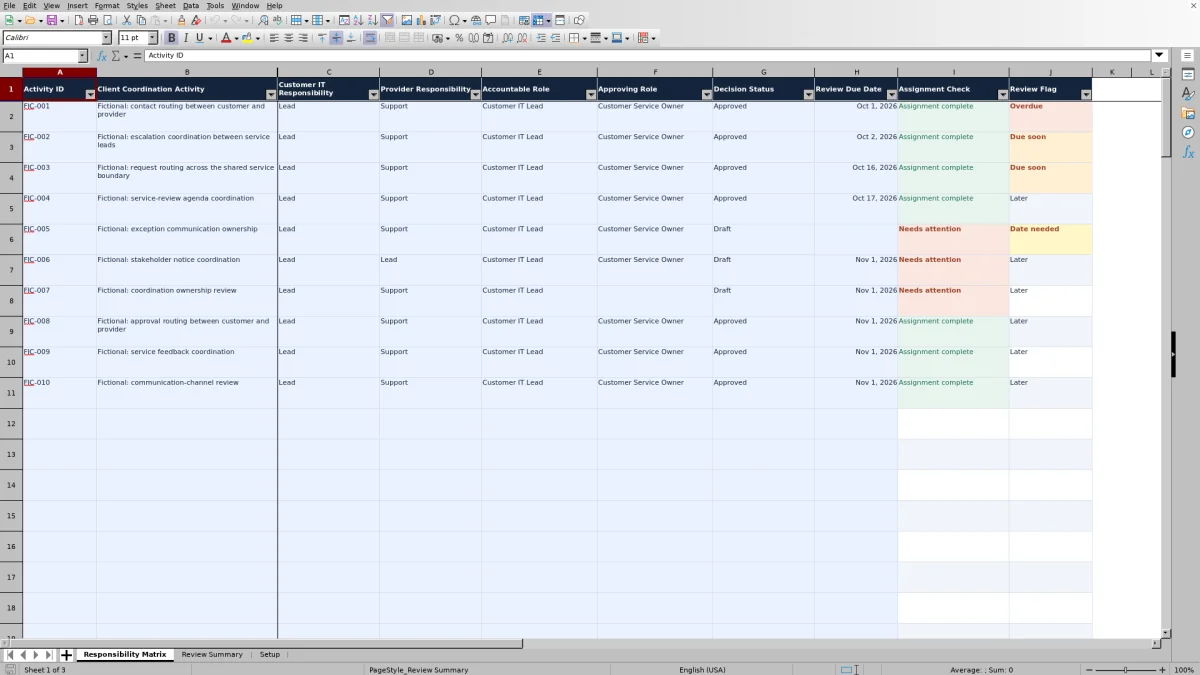
On Responsibility Matrix, enter a unique Activity ID and a specific Client Coordination Activity. Complete the customer and provider responsibilities, accountable and approving roles, decision status, and review due date. Choose Lead for exactly one party. Additional activities can be entered in rows 12–101.
4. Resolve checks and prepare the review
Allow the workbook formulas to recalculate, then filter Assignment Check for Needs attention and inspect the affected records. Use Review Summary to see complete assignments, manually approved complete assignments, and review timing counts. Keep execution details and approval evidence in separate operational records.
Define the customer-provider boundary before assigning roles
Start with activities where a handoff or decision could otherwise fall between teams: contact routing, escalation coordination, request routing, or service-review preparation. Describe each activity narrowly enough that both parties can understand what its lead is expected to coordinate. This workbook is for shared client coordination, not a substitute for individual ticket records.
Customer IT Responsibility and Provider Responsibility offer Lead, Support, Consulted, Informed, and Not involved. Apply exactly one Lead across those two fields. If both teams appear to need the lead role, check whether the row combines two different activities. Splitting genuinely separate responsibilities is more useful than assigning two leads to an ambiguous task.
Accountable Role and Approving Role are separate manual choices. Use them to identify the role answerable for the assignment and the role expected to approve it. They may match; the workbook does not require separate roles or verify that either role has the necessary authority. Confirm those expectations with the customer before relying on the matrix for handoffs.
Separate assignment completeness from approval
Assignment Check evaluates the eight input fields from Activity ID through Review Due Date. A populated row returns Assignment complete only when all eight fields are filled, exactly one of the two responsibility fields contains Lead, and the Activity ID is unique within rows 2–101. Otherwise, it returns Needs attention.
Assignment complete is a structural result, not a statement that the arrangement is appropriate, approved, or working in practice. A row with Decision Status set to Draft can still be structurally complete. The formula checks that the status field is populated, not that approval has occurred.
Review Summary counts Approved Complete Assignments only when the row is structurally complete and Decision Status is manually set to Approved. Before making that entry, follow your normal approval process and retain its evidence separately. Typing Approved does not create verified approval evidence or establish a contractual obligation.
Use review dates as a planning queue
Review Flag compares each populated record's Review Due Date with the Review As Of Date and Upcoming Review Window on Setup. These editable inputs let you assess a particular review period. The as-of date is a stored input, so check and update it for each review rather than assuming it advances with the current date.
- Date needed means a populated record has no review due date.
- Overdue means the due date is before the as-of date.
- Due soon means the due date falls from the as-of date through the as-of date plus the window, including both endpoints.
- Later means the due date falls after that window.
The window uses calendar days, not business hours. With a window of zero, only dates matching the as-of date are Due soon; earlier dates remain Overdue. These flags schedule a review of the responsibility decision. They do not measure elapsed service time, ticket response, or achievement of a service-level agreement (SLA).
Review flags are calculated independently of assignment completeness. An incomplete assignment can therefore be Overdue or Due soon. Resolve the ownership gaps as part of that review rather than assuming a date flag means the rest of the record is ready.
Example: a complete assignment that still needs approval
Suppose you are documenting escalation coordination for a customer. Use the following inputs together in a hypothetical copy containing only this record:
- Setup: Review As Of Date = October 2, 2026; Upcoming Review Window (Calendar Days) = 14.
- Activity ID = COORD-001; Client Coordination Activity = Escalation coordination between service leads.
- Customer IT Responsibility = Support; Provider Responsibility = Lead.
- Accountable Role = Provider Service Lead; Approving Role = Customer Service Owner.
- Decision Status = Ready for approval; Review Due Date = October 16, 2026.
After recalculation, Assignment Check returns Assignment complete: all required inputs are present, there is one Lead, and the ID is unique. Review Flag returns Due soon because October 2 plus 14 calendar days is October 16, and the window includes its end date.
For this one-record example, Review Summary shows one Recorded Activity, one Complete Assignment, one Upcoming Review, and zero Approved Complete Assignments. Zero approved assignments does not mean the record is incomplete. It means the complete record has not been manually marked Approved. Your next action is to obtain the required decision through your approval process, then update the status if appropriate. Changing the status does not automatically move the review due date.
Troubleshooting assignment and review results
When Assignment Check says Needs attention, inspect the input fields before changing formulas. The result combines several checks rather than identifying a single cause.
- Missing fields or conflicting leads: Fill the required inputs and confirm that only one of Customer IT Responsibility and Provider Responsibility is Lead. Two Support entries also fail the single-lead rule.
- Duplicate Activity IDs: Search the Activity ID column for the repeated value. Give distinct activities distinct IDs, or remove an accidental duplicate record. Repeated IDs cause the affected records to need attention.
- Setup needed: Enter a valid Excel date in Setup's Review As Of Date and a numeric, nonnegative whole number for the window. Do not rely on review flags or review counts until Review Input Check returns Ready.
- Unexpected values after pasting: Dropdown and date validation guide entry, but pasted values can bypass them. Check the actual responsibility labels, statuses, roles, and dates; the structural formula does not validate every entry against its dropdown list.
- Results that do not change: Confirm formula recalculation is enabled and that the formulas in Assignment Check and Review Flag have not been overwritten.
A completely empty input row has blank check results and is excluded from Recorded Activities. Once any input from Activity ID through Review Due Date is entered, the row is treated as a record, even if it is only a draft. An incomplete row with no date can increase both Assignments Needing Attention and Missing Review Dates; those counts are not mutually exclusive.
Run a review without overstating what the summary proves
Use Review Summary to organize the discussion, not to certify the arrangement. Recorded Activities includes all populated records, including incomplete drafts. Complete Assignments and Assignments Needing Attention divide those records by structure, while Approved Complete Assignments is a subset of complete records. Review timing counts provide a separate view of the same activity list.
Before closing the review, ask whether the list covers the coordination activities you actually need. A summary showing zero assignments needing attention only means the recorded rows pass the structural checks. It cannot identify an activity nobody entered or determine whether the selected lead can fulfill the responsibility.
The prepared formula, validation, and filter range covers 100 activity rows, from row 2 through row 101. Do not assume entries below that range will be checked or included in the summary. If you extend the workbook, review the affected formulas, validation, and filter ranges before using the larger list.
Preserve the Lead label and fixed decision-status labels used by the formulas. Save a separately named copy if you need a review baseline; do not assume the workbook maintains an audit trail. Keep ticket execution, approval evidence, and contractual terms in their appropriate records. The workbook provides no live monitoring, automatic messages, or integrations.
Comparison: this workbook, a blank sheet, or a ticketing system
Choose the method around the decision you need to manage. This workbook provides a prepared structure for agreeing on customer-provider responsibilities. A blank spreadsheet offers more design freedom, while a suitably configured ticketing system may be more appropriate when the main requirement is tracking work and its approval workflow.
| Method | Responsibility structure | Checks and review timing | Execution and evidence | Best fit |
|---|---|---|---|---|
| This Excel workbook | Prepared customer/provider responsibilities plus accountable and approving roles | Required-field, single-lead, unique-ID, and date-window checks across 100 prepared rows | Manual decision entries; execution details and approval evidence stay elsewhere | A focused ownership register for one customer-provider arrangement |
| Blank spreadsheet or manual checklist | You design the fields and conventions | You build formulas or perform checks manually | You define how supporting records are retained | A substantially different responsibility model or a small informal list |
| Suitably configured ticketing system | Depends on available fields and workflow configuration | Review tasks and routing depend on the selected product and setup | Can track work records; approval capabilities depend on the system | Operational execution that needs an ongoing workflow rather than only an ownership register |
Use the workbook when its single-lead model and manual review process match your needs. Keep it alongside your operational system when both are useful, but define which record governs ownership changes and update each deliberately. There is no automatic synchronization between them.
Frequently asked questions
Is this a standard RACI matrix?
Not exactly. It uses Lead, Support, Consulted, Informed, and Not involved for the customer and provider, with separate Accountable Role and Approving Role fields. If your organization uses a RACI model, agree on how its terminology maps to these fields rather than assuming the labels are interchangeable. Preserve Lead because the assignment check depends on that label.
Can the accountable role and approving role be the same?
Yes. The workbook allows the same role in both fields. Whether that is appropriate depends on your customer's decision process and your service arrangement; the workbook does not evaluate separation of duties or approval authority.
Can I enter personal names instead of role titles?
The editable choices are intended to be role labels, not personal names. Use recognizable customer and provider roles, and maintain the current role-to-person contact mapping in a separate operational record. That keeps the responsibility decision distinct from changes in personnel.
Should I keep multiple customers in one workbook?
The workbook is organized around one Customer Alias and one customer-provider arrangement. A separate copy for each customer is the clearer approach. The summary is not a multi-customer report, and Activity IDs are checked for uniqueness across the entire prepared matrix range.
Can I use the file in a spreadsheet application other than Excel?
The XLSX contains formulas and validation that need to recalculate and behave correctly in the application you use. Do not assume compatibility has been tested. Before operational use elsewhere, verify dropdowns, date entry, filters, Assignment Check, Review Flag, and summary results using a few known examples, including an incomplete row and a date at the review-window boundary.
About the authors

Tessa WhitlockClient & service operations
More about this area of the library →
Nathan CalderwoodService economics & planning
More about this area of the library →