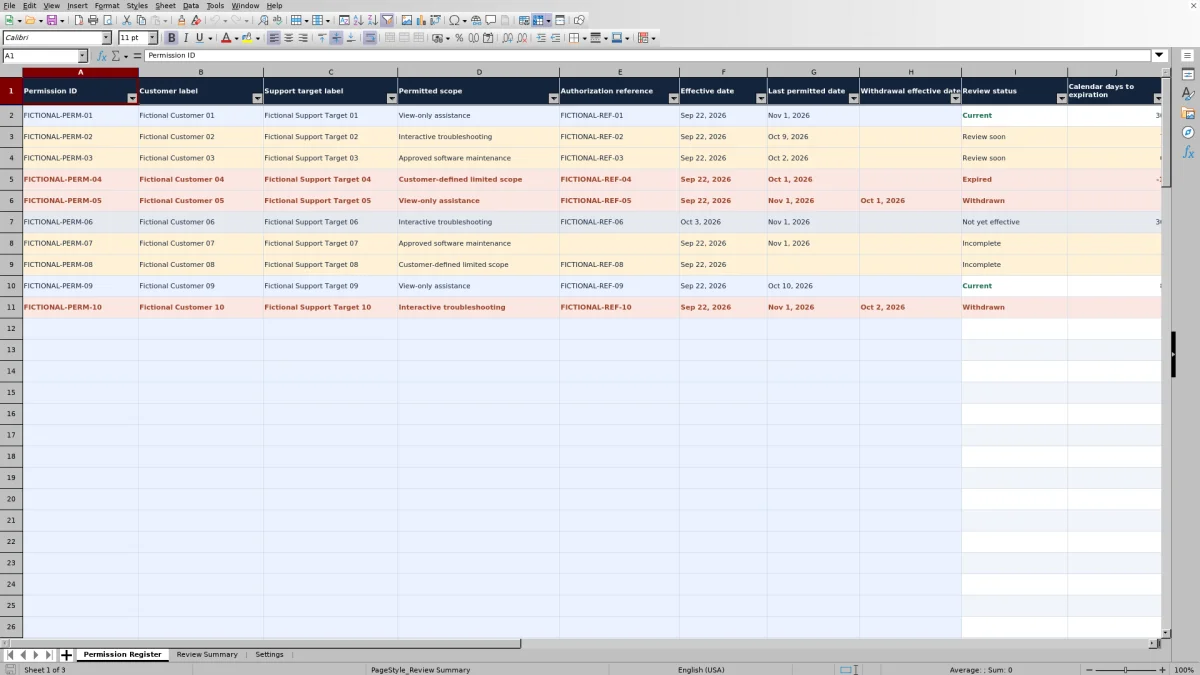
Before scheduling remote support, check which customer authorization record covers the target, scope, and proposed date. This Excel register helps a managed service provider (MSP) record those details and identify permissions that need follow-up.
Enter internal labels, authorization references, and effective dates, then use calculated review statuses to organize your checks. The workbook is a manual operations register, not proof of legally valid consent or permission to connect.
When to use this workbook
- Keep each customer authorization reference together with its support target, scope, and effective period.
- Prioritize incomplete, withdrawn, expired, and approaching-expiration records for follow-up.
- Use a consistent review date and calendar-day warning window across the register.
- Separate recorded date status from the source checks required before remote access.
What is in the file
How to use the workbook
1. Set the review assumptions
In Settings, check Review date in B2 and Review warning window (calendar days) in B3. The date defaults to TODAY(), and the warning window starts at 7 calendar days. You can enter a fixed review date for a dated review; doing so replaces the daily formula. The warning window accepts whole numbers from 0 through 365.
2. Replace the fictional examples
The workbook contains ten fictional records. Replace or clear their inputs in columns A–H of Permission Register before using the file for customer work. Preserve the calculated columns I–J. Use one row for one authorization reference, target, scope, and effective period.
3. Record the source details
Complete Permission ID through Last permitted date in columns A–G. Enter Withdrawal effective date in H only when applicable. Select a Permitted scope label and store an internal Authorization reference, not the source document itself. Use separate records for different targets, scopes, or renewals.
4. Recalculate and review exceptions
Allow the workbook to recalculate in Excel or LibreOffice, then check Review Summary and filter Review status in Permission Register. Investigate records needing follow-up and verify the referenced source before access, including the target, scope, conditions, effective period, and any future withdrawal.
Record the scope without treating a label as authorization
A useful record tells you which source to consult and what work it concerns. In Permission Register, use Customer label and Support target label to distinguish the customer environment and the target covered by the source. Give each record a distinct Permission ID so follow-up does not become confused with another period or target.
The scope dropdown starts with View-only assistance, Interactive troubleshooting, Approved software maintenance, and Customer-defined limited scope. These labels help organize records; they do not define access rights or capture every condition in the source. Before a technician connects, compare the planned work with the actual authorization rather than relying on the selected label.
Store reference identifiers only. Do not enter personal names, addresses, credentials, document contents, or hyperlinks. Keep the referenced source in your existing controlled process, where you can consult it when reviewing or scheduling work.
Understand what each review status tells you
Review status is calculated from required-field completeness and recorded dates against the Review date in Settings. The order matters: the workbook checks Incomplete first, followed by Withdrawn, Expired, Not yet effective, Review soon, and Current. Each record receives one status, not a list of every issue affecting it.
- Incomplete means required information is missing or a date check fails, such as a last permitted date before the effective date.
- Withdrawn means a recorded withdrawal date has reached or passed the review date, after the completeness check.
- Expired means the last permitted date is before the review date.
- Not yet effective means the effective date is still in the future.
- Review soon means the record has reached its effective period and its last permitted date falls within the warning window, including the review date itself.
- Current describes the remaining records whose dates pass those checks.
Current is a date assessment, not approval. It does not establish that the reference is genuine, that the customer authorized the requested action, or that the planned session fits the source conditions. Use the status to decide what to investigate, not whether access is legally authorized.
Example: review a permission seven calendar days before expiration
For a controlled example, set Review date to Oct 2, 2026 and the warning window to 7 calendar days. Enter Permission ID EXAMPLE-01, Customer label Example Customer, Support target label Example Workstation, Permitted scope Interactive troubleshooting, Authorization reference EXAMPLE-REF-01, Effective date Sep 22, 2026, and Last permitted date Oct 9, 2026. Leave Withdrawal effective date blank.
The days calculation subtracts the review date from the last permitted date: Oct 9 minus Oct 2 equals 7 calendar days. With all required fields completed, the record is Review soon because seven days is within the selected warning window. Your next decision is whether the proposed work fits that remaining period and whether renewal needs follow-up.
If you move the review date to Oct 9, 2026, the result becomes zero and the status remains Review soon. The last permitted date is inclusive, so zero does not mean it has already expired. On Oct 10, 2026, the result becomes −1 and the status becomes Expired. These are calendar-day differences, not business hours, session duration, or service-level performance.
Handle withdrawals and future scheduling separately
A future Withdrawal effective date does not immediately produce Withdrawn. Until the review date reaches it, the record can retain another status, including Current or Review soon. Check column H explicitly before scheduling a session that will occur after the date used for the review.
Calendar days to expiration subtracts the review date from Last permitted date. It does not shorten that interval to a future withdrawal date. For example, a record could show 30 calendar days to expiration while a withdrawal takes effect in two days. Those 30 days must not be interpreted as the available access window.
Once withdrawal takes effect, a complete record becomes Withdrawn and its days result is blank. Follow the recorded source and obtain appropriate customer confirmation before arranging further work; changing a status in the register is not a substitute for a new or reviewed authorization source.
Troubleshooting incomplete records and misleading results
- Unexpected Incomplete status: Check that every field in A–G is filled, Effective date and Last permitted date are real spreadsheet dates, the end date is not before the start date, and any withdrawal date is numeric. Resolve incomplete data before interpreting other status conditions.
- Blank Calendar days to expiration: This is expected for blank, Incomplete, and Withdrawn records. It is not the same as zero days remaining. A fully blank prepared row also has no review status.
- Repeated Permission ID: Resolve the highlighted duplicate manually. Duplicate IDs do not change Review status or remove records from summary counts.
- Unexpected scope or date after a paste: Pasting can bypass the direct-entry checks. Inspect pasted records for duplicate IDs, unrecognized scope labels, invalid dates, and unwanted time components even when a row shows Current.
- Missing or stale calculated results: Open the workbook in Excel or LibreOffice and recalculate it. Check Settings B2 as well; a fixed review date will not advance like TODAY(). Do not rely on a preview to establish current results.
Because Incomplete takes precedence, it can hide an otherwise expired or withdrawn condition until the input problem is corrected. Recheck the resulting status after making repairs rather than assuming that filling the missing field completes the operational review.
Keep summaries, scope labels, and review copies reliable
Review Summary counts the six calculated statuses in Permission Register rows 2–101 and adds them into Total records. Blank prepared rows contribute nothing; partial records count as Incomplete. These are record counts, not unique-customer counts or a count of verified authorizations. Use the summary to choose a follow-up category, then inspect the underlying rows.
The prepared range contains 100 record rows. If you need more, do not assume that entering data below row 101 extends the formulas or summary. Check formula coverage, validations, filters, formatting, and summary ranges before relying on an expanded copy.
You can edit the four scope labels in Settings D2:D5. Keep all four nonblank and distinct. Changing a label does not rewrite earlier records, so review existing labels and their source documents after a change.
For a dated review, use a fixed Review date and save a separately named copy under your retention process. That preserves your chosen working snapshot, not an automatic audit trail or compliance certification. Review dates and warning windows are operational assumptions, not legal defaults.
Comparison: prepared register or a blank spreadsheet?
A blank spreadsheet can be sufficient for a small list if you are prepared to define the fields and check every date manually. This workbook provides a structured starting point for repeated reviews, but it still depends on accurate manual entries and source verification.
| Method | Record structure | Date review | Follow-up overview | Ongoing responsibility |
|---|---|---|---|---|
| This Excel register | Prepared fields for reference, target, scope, and dates across 100 rows | Calculated statuses and calendar-day differences using editable assumptions | Status counts and follow-up guidance | Maintain inputs, recalculate, inspect exceptions, and verify source conditions |
| Blank spreadsheet | You define the fields and layout | Manual checks unless you build formulas | Manual review unless you build summaries | Design and maintain the checks as well as verify source conditions |
Choose the prepared register when its one-reference, one-target, one-scope structure matches your review process. Choose a custom sheet when your record structure differs substantially and you can maintain the required checks. Neither approach grants remote access, verifies customer authorization, or automatically stops a connection when a date changes.
Frequently asked questions
Does a Current status prove customer consent?
No. Current describes recorded dates after the workbook's completeness and status checks. It does not establish legally valid consent or permission to connect. Verify the authorization reference, actual target, scope, conditions, and effective period before access.
Can I use a review date other than today?
Yes. Settings B2 defaults to TODAY(), but you can replace it with a valid fixed date for a dated review. That replaces the formula, so the date will no longer advance automatically. Restore TODAY() when you want a daily review date again, and recalculate before using the results.
Will it send reminders or disable remote access?
No. The workbook calculates review statuses and summary counts; it is not automatic monitoring or access enforcement. Review the file through your operational process and take any scheduling or access-control action in the appropriate system.
How should I record a renewal or several support targets?
Use separate records for renewals, different targets, or different scopes, with a distinct Permission ID for each. Each row covers one authorization reference, one support target, one scope, and one effective period. Retain the relationship to the actual source through the Authorization reference field.
Why do the fictional example counts change when I open the file?
The examples use fixed dates, while the default review date changes daily through TODAY(). After recalculation, records can move between statuses as time passes. The stated example baseline is not a permanent expected result. Replace or clear the fictional inputs before using the register for customer records, while preserving the calculated columns.
About the authors

Tessa WhitlockClient & service operations
More about this area of the library →
Nathan CalderwoodService economics & planning
More about this area of the library →