After an onsite visit, record what you did, how long you were there, and what still needs attention. This Excel workbook helps you prepare a specific visit record for your managed service provider (MSP), including parts references and customer receipt acknowledgment.
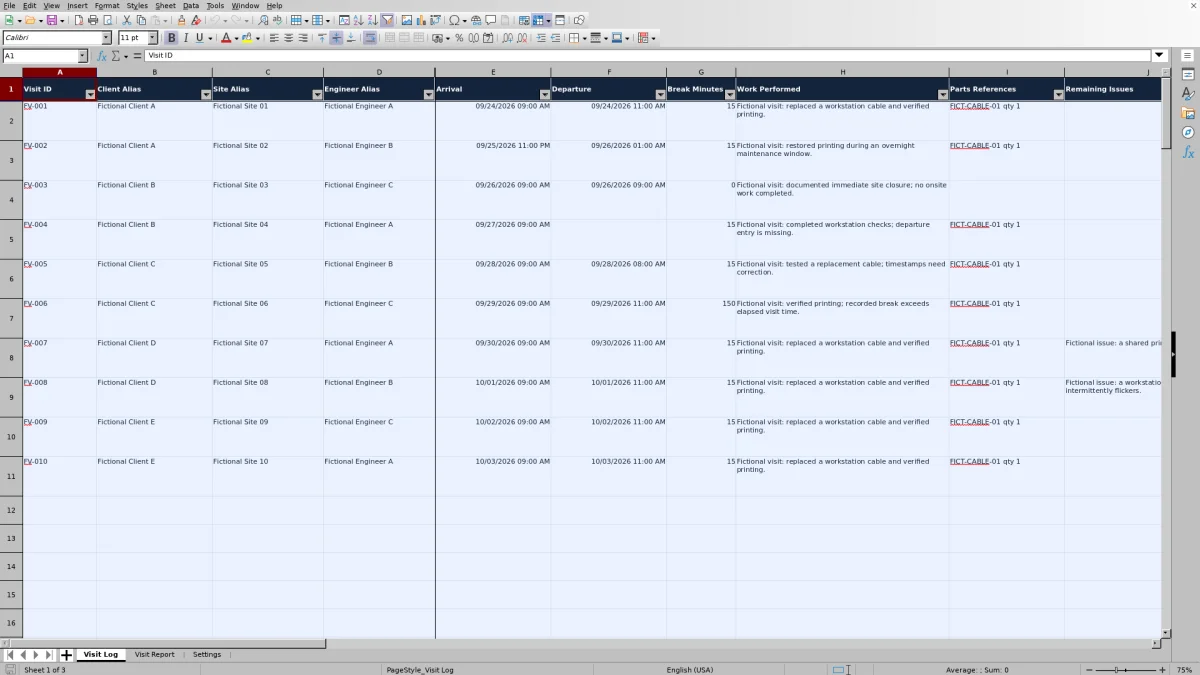
Enter the details in Visit Log, review the calculated hours and exception indicators, then select the visit in Visit Report. The workbook supports documentation and manual review; it does not dispatch technicians, update tickets, or send follow-up messages.
When to use this workbook
- Keep completed work and unresolved issues together for the next service handoff.
- Review elapsed onsite time and time less breaks without calculating each visit manually.
- Spot missing details, time problems, and follow-up exceptions before sharing a report.
- Display one selected visit without retyping its details into a separate report.
What is in the file
How to use the workbook
1. Prepare your working copy
Save a working copy and replace the ten fictional records before operational use. Read Settings, then review Long Visit Review Threshold (Hours) in B2. Its initial value of 8 hours is an editable review trigger, not a service-level agreement (SLA) or contractual limit. Keep the four acknowledgment status codes unchanged.
2. Record one visit per row
In Visit Log, enter a unique Visit ID, Client Alias, Site Alias, Engineer Alias, Arrival, Departure, and Break Minutes. Use full dates and times on one site-local time basis. Enter breaks as whole minutes, including 0 when there was no break. Add Work Performed and any Parts References, Remaining Issues, Next Action, and Follow-Up Due.
3. Check time, follow-up, and receipt
Select the appropriate Acknowledgment value and enter Acknowledgment Date when receipt is acknowledged. Review Onsite Hours, Work Hours, Review Status, and the colored indicators. Keep formula columns O–Q intact; the cells are not locked. Correct the first exception shown, then check again for another issue.
4. Open the selected visit report
In Visit Report, choose the visit using Selected Visit ID in B2. Confirm the client, site, dates, work description, and outstanding actions before using the report. Make corrections in Visit Log rather than overwriting the report’s derived values.
Write a visit record the next technician can use
Describe the work as an action and an observed result. For example, “Replaced the workstation cable and verified printing” gives the next technician more useful context than “Printer fixed.” Keep unfinished work in Remaining Issues so that a successful test on one device does not imply the whole site is clear.
Use consistent aliases for the client, site, and engineer, and give each visit its own ID. Visit Report uses that ID to find a single record. Duplicate IDs can make the report retrieve the first matching row rather than the visit you intended.
Parts References is for identifiers and quantities, such as “FICT-CABLE-01 qty 1.” It does not post stock movements or calculate charges. Keep descriptions safe to share: do not record credentials or customer secrets, sensitive configurations, or personal data in the workbook.
Example: interpret onsite hours and work hours
Consider the fictional visit FV-001: Arrival is September 24, 2026, at 9:00 AM; Departure is September 24, 2026, at 11:00 AM; Break Minutes is 15. The recorded work is replacing a workstation cable and verifying printing, with one cable referenced in Parts References.
The elapsed interval is 2.00 hours, so Onsite Hours displays 2.00. Work Hours subtracts 15 ÷ 60, or 0.25 hours, and displays 1.75 hours. That means 1 hour and 45 minutes after the entered break deduction—not 1 hour and 75 minutes.
Neither result is billable hours. These calculations do not apply business-hour calendars, travel rules, minimum charges, or service-agreement terms. Check the underlying timestamps and break entry first, then use your separate billing process to determine any charge.
For an overnight visit, include the next date in Departure. September 25, 2026, at 11:00 PM through September 26, 2026, at 1:00 AM also produces 2.00 onsite hours. Verify daylight-saving transitions manually because the workbook’s date-time subtraction does not establish a time-zone-aware duration.
Keep unresolved work visible after the visit
If Remaining Issues contains an entry, also enter Next Action and Follow-Up Due. A note such as “Intermittent printing still under investigation” is not a complete handoff without a practical next step and a date for returning to it. Confirm responsibility through your normal service desk process; the workbook does not assign or dispatch the follow-up.
Review Status can show “Follow-up needed” when an issue lacks an action or due date. With those details present, a due date earlier than today can produce “Follow-up overdue.” This is a date-based workbook check, not an SLA clock or an automatic notification.
The status shows the first applicable exception. Missing core details or invalid time can therefore hide a later follow-up problem until the earlier issue is corrected. “Ready for review” does not mean all remaining issues have been resolved. Read the issue and action fields before deciding whether the visit needs further work.
Record customer receipt without implying acceptance
The Acknowledgment choices are Pending, Acknowledged, Declined, and Not requested. Choose the value that reflects what actually happened. Acknowledged means receipt was recorded and requires an Acknowledgment Date; it does not mean the customer approved every repair or accepted contractual completion.
Acknowledgment is receipt only, not a signature. Do not use an acknowledgment entry to erase an unresolved issue or substitute for a separate acceptance process. If your agreement requires signed acceptance, retain that evidence through your approved process.
Keep the four status codes unchanged in Settings because formulas depend on their wording, including Acknowledged. The long-visit threshold is intended to be editable; the acknowledgment labels should not be treated as customizable workflow stages.
Troubleshooting blanks, zero hours, and review warnings
- Blank hours are not zero hours. Check that Visit ID is present and Arrival and Departure are real Excel date-time values. Departure earlier than Arrival leaves elapsed hours blank. Missing break minutes, negative breaks, or breaks longer than the visit can leave Work Hours blank.
- A legitimate zero is possible. Equal Arrival and Departure values with 0 break minutes produce 0.00 onsite and work hours, as in the fictional immediate-site-closure example. Confirm that this reflects the event rather than a copied timestamp. Breaks equal to the full visit duration also produce zero work hours.
- “Required details missing” calls for checking Client Alias, Site Alias, Engineer Alias, and Work Performed. “Incomplete time” points to missing or nonnumeric time inputs; “Check time” warrants checking timestamp order and break duration.
- “Visit not found” in Visit Report means the selected ID could not be retrieved. Compare Selected Visit ID with Visit Log and confirm that the record is within rows 2–101. A blank selection leaves the report details blank; missing source values are also suppressed.
- Red Visit IDs indicate duplicates or populated inputs without an ID. Check them even after pasting data, because pasted content can bypass entry validation.
An amber Onsite Hours cell means elapsed hours exceed the Settings threshold. With the initial 8-hour threshold, exactly 8.00 hours does not trigger that warning. Investigate the timestamps and circumstances rather than treating the warning as proof of an error or a contractual breach.
Maintain a dependable working file
The pale blue cells are intended for inputs; white or pale blue-gray cells contain derived results or guidance. Because worksheet protection is not enabled, an accidental paste can replace a formula. Enter data only in the intended input areas, and compare an unexpected result with a clean copy before relying on it.
The prepared range is fixed at rows 2–101. Report lookups and the ID selection list also refer to that range. Adding a row below it does not establish that formulas, validation, formatting, and report selection have expanded with it. Use another copy or deliberately extend and verify all dependent ranges.
Save a separately named copy when you need a stable record of what was reviewed or shared; the selected report reflects the current log values. Review follow-up dates when opening the workbook, since its indicators are formula results rather than background monitoring or messages.
Comparison: this workbook or a blank spreadsheet?
A blank spreadsheet can suit a simple visit note, especially when you already have a consistent reporting process. This workbook is useful when you want prepared fields, repeatable elapsed-time calculations, and a selected-visit view without building them yourself. Both approaches still depend on accurate entries and manual review.
| Method | Visit structure | Time and record checks | Individual report | Ongoing maintenance |
|---|---|---|---|---|
| This visit report workbook | Prepared fields for work, parts references, issues, follow-up, and receipt acknowledgment | Elapsed and work-hour formulas, validation, and visible review indicators | Exact-ID lookup into Visit Report | Preserve formulas and verify changes beyond the 100 prepared rows |
| Blank spreadsheet | You choose and create the fields | You calculate manually or build and check formulas | You create a report layout or copy selected details | You maintain the structure and any checks you add |
Choose the workbook when its visit-level fields match your process. Choose a blank spreadsheet when a smaller or substantially different record is more appropriate. If you need assigned tasks, notifications, or links to billing workflows, evaluate professional services automation (PSA) or ticketing software for those needs rather than expecting this static workbook to provide them.
Frequently asked questions
How many visits can I record?
The workbook has 100 prepared visit rows, from row 2 through row 101, including ten fictional examples to replace. This is the prepared range, not a claimed Excel capacity limit. Data added beyond it needs corresponding changes and checks to formulas, validation, formatting, and report references.
Can I share the whole workbook with a customer?
Review the entire file before sharing it. Selecting one visit in Visit Report does not remove other clients’ records from Visit Log. Use your approved method to share only the intended visit details, and check the resulting document for unrelated records and sensitive information.
Can this report be used as an invoice?
It is a visit record, not an invoice. There are no financial totals or billing transactions, and Work Hours is elapsed time less breaks rather than an agreed billable quantity. Parts References records identifiers and quantities only. Apply your pricing and contract rules in your billing process.
Will the calculations work in my spreadsheet application?
Verify the results in the application you will use before operational use. Automatic recalculation is requested, but that is not a compatibility guarantee. If using Excel or LibreOffice, check the sample durations, acknowledgment list, selected-ID report, and visible warnings before replacing the examples with live records. Do not assume another application behaves identically.
About the authors

Tessa WhitlockClient & service operations
More about this area of the library →
Nathan CalderwoodService economics & planning
More about this area of the library →