Review whether your client tickets met their response and resolution targets before you prepare a service report. This Excel SLA compliance tracker helps you compare recorded timestamps with entered service-level agreement (SLA) targets and documented pause deductions.
Built for managed service provider (MSP) service reviews, the workbook calculates adjusted elapsed minutes and separate milestone results. You enter the ticket details, contractual targets, and verified pauses; the summary separates assessed outcomes from unfinished milestones and records needing correction.
When to use this workbook
- Compare response and resolution performance separately against the targets you enter.
- Keep pause explanations alongside the minutes deducted from each milestone.
- Separate completed, valid results from pending work and input problems before reporting attainment.
- Reuse editable target profiles across tickets while keeping the applied targets visible.
What is in the file
How to use the workbook
1. Prepare a reporting copy
Save a working copy and review the operating rules on SLA Summary. The seeded tickets, clients, profiles, and pause narratives are fictional. Replace them before operational reporting, clearing only input values rather than the calculated columns.
2. Enter the applicable targets
On Target Profiles, enter a unique Profile Name and positive numeric values for Response Target Minutes and Resolution Target Minutes. Confirm these against the client agreement. The fictional 30/240-minute and 15/120-minute profiles are examples, not recommended contractual defaults.
3. Record ticket timestamps consistently
On Tickets, enter a unique Ticket Reference, Client Alias, Target Profile, and the available milestone timestamps. Use real Excel date/time values in one time zone. Document that zone in SLA Summary under Documented entry time zone; its initial value is UTC. Changing the time-zone label does not convert timestamps.
4. Document and enter eligible pauses
Enter the milestone timestamps first, then Pause Documentation, then verified Response Pause Minutes and Resolution Pause Minutes. Leave pause inputs blank or enter zero when no deduction applies. Check eligibility and overlapping intervals manually before entering aggregate minutes.
5. Recalculate and review the results
Keep Tickets columns J:O intact: they calculate targets, adjusted minutes, and results. Recalculate the workbook in your spreadsheet application, inspect Check inputs results and missing-reference rows, then review response and resolution attainment on SLA Summary. Verify saved results before using them in a client report.
Match target profiles to the client agreement
Choose the target that actually applies to the ticket, rather than treating a profile name as proof of contractual scope. Target Profiles holds the response and resolution limits in minutes. Selecting a profile on Tickets brings those limits into Response Target Minutes and Resolution Target Minutes, so you can compare the applied targets with the intended agreement.
Profile names must be unique, and both targets should be positive numbers. A missing profile, duplicate profile name, or invalid target can prevent a valid target lookup and leave the affected milestone needing input review. The workbook does not decide which client, priority, or service entitlement belongs to a profile; that assignment is yours.
Changing a profile recalculates linked tickets. If an agreement changes, use a separately named profile for the new target assumptions rather than overwriting the values used for earlier work. Save a separate reporting copy when you need to retain a baseline; do not treat the workbook as an automatic history of contract changes.
Understand the elapsed-time calculation
The response clock runs from Opened At to First Response At. The resolution clock runs from Opened At to Resolved At, not from the first response. For each completed milestone, the workbook converts the timestamp difference to minutes, subtracts the corresponding entered pause total, and rounds the adjusted duration to four decimal places.
In practical terms, adjusted response minutes equal opening-to-response elapsed minutes minus Response Pause Minutes. Adjusted resolution minutes equal opening-to-resolution elapsed minutes minus Resolution Pause Minutes. A valid adjusted duration at or below its target returns Met; a duration above the target returns Missed. Equality meets the target.
These are elapsed minutes, not business hours. There is no built-in working-hours or holiday calendar. If the agreement uses business-hour clocks, do not present this calculation as equivalent without separately reconciling the timing rules. Keep all timestamps in the same time zone and manually normalize daylight-saving transitions before entry.
A calculated zero can be valid, for example when a verified pause equals the entire measured interval. It does not mean the technician performed no work. A blank adjusted-duration cell is different: it may reflect a missing reference, an unfinished milestone, or invalid inputs. Check the result status and source entries rather than reading a blank as zero minutes.
Keep pause deductions supported and consistent
The workbook subtracts the aggregate pause minutes you enter; it does not derive those totals from a series of hold events. Use Pause Documentation to explain the basis for each deduction and retain enough source detail to verify the intervals. A positive pause requires documentation and the timestamps for its corresponding milestone.
Calculate response pauses only within the opening-to-first-response window. Resolution Pause Minutes must cover eligible pauses across the entire opening-to-resolution window, including eligible time before the first response. For example, if 10 eligible minutes occurred before response and another 20 occurred afterward, the resolution total is 30 minutes, not 20.
Pause eligibility and overlap checks are manual. Do not count the same interval twice within a milestone's total. The input checks can identify negative or excessive deductions and missing documentation, but a narrative by itself does not establish that a deduction is allowed under the agreement.
Blank pause inputs mean zero. This is useful when no pause applies, but it also means an omitted deduction will not be inferred from the documentation. Confirm that the narrative and both numeric pause inputs agree before interpreting a Missed or Met result.
Example: a documented hold brings both milestones to target
The fictional sample Ticket 04 illustrates how a pause changes the comparison. All timestamps below are on September 21, 2026, in UTC, using the Fictional Standard profile:
- Opened At: 9:00 AM; First Response At: 9:40 AM; Resolved At: 1:30 PM.
- Response target: 30 minutes; resolution target: 240 minutes.
- Response Pause Minutes: 10; Resolution Pause Minutes: 30.
- Pause Documentation describes a verified client-requested hold with 10 response minutes and 30 total resolution minutes.
The response interval is 40 elapsed minutes. Subtracting the 10-minute response pause gives 30 adjusted minutes, so the response result is Met. The resolution interval is 270 elapsed minutes, or 4 hours 30 minutes. Subtracting the 30-minute resolution pause gives 240 adjusted minutes, so resolution also returns Met.
Both milestones meet their targets exactly. Without the deductions, both would be Missed. Before using that result in a client discussion, verify that the hold qualifies under the agreement and that the 30-minute resolution total includes, rather than adds again, the eligible 10 minutes before response. The arithmetic supports the comparison; it does not approve the hold.
Read attainment alongside pending and excluded records
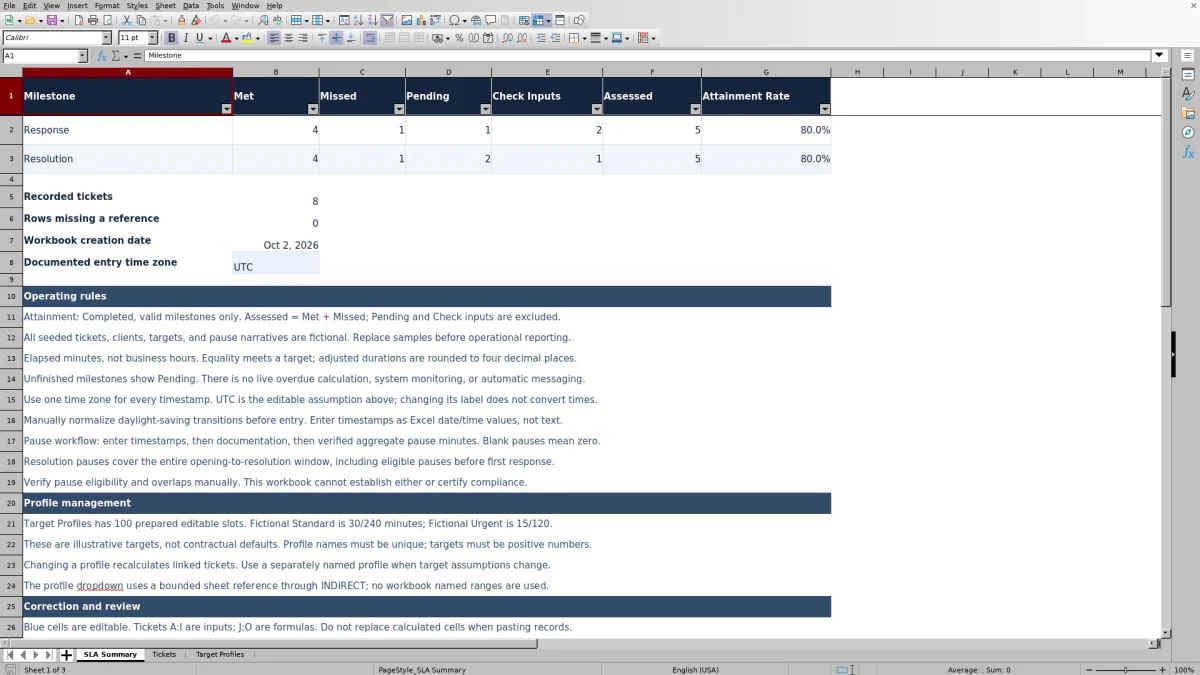
SLA Summary reports response and resolution independently. For each milestone, Assessed equals Met plus Missed, and Attainment Rate equals Met divided by Assessed. Pending and Check inputs are excluded from attainment. If no milestones have been assessed, the rate is blank rather than 0%.
For the fictional sample set, the expected response counts are 4 Met, 1 Missed, 1 Pending, and 2 Check inputs. Response attainment is therefore 4 divided by 5, or 80.0%. Resolution has 4 Met, 1 Missed, 2 Pending, and 1 Check inputs, also producing 80.0%. The equal percentages conceal different unfinished and invalid-record counts, so report those counts with the rates.
Pending means the milestone is unfinished when the other applicable checks pass. It does not mean the ticket is still within target: there is no live overdue calculation. Use your operational ticket process to identify current breach risk rather than relying on this retrospective status.
Recorded tickets counts populated ticket-reference cells, not a deduplicated total. Rows missing a reference counts rows with other inputs but no Ticket Reference; those rows have no milestone result. Also, filtering Tickets does not change the summary's fixed-range counts. Define the client and reporting-period dataset before presenting a rate, rather than assuming the visible filtered rows control it.
Troubleshooting input errors and unexpected results
Start with the status text, not color alone. Met is green, Missed is red, Pending is gray, and Check inputs is amber. A result requiring input review is not an assessed SLA miss; correct the underlying record and recalculate before drawing a performance conclusion.
- Check inputs: Look for duplicate or whitespace-only references, a missing or invalid profile, missing opening timestamps, text instead of date/time values, or invalid pause entries. Positive pauses also need documentation and a completed corresponding milestone.
- Blank target minutes: Confirm that the ticket has a reference and that its selected profile appears exactly once with a positive numeric target for that milestone.
- Blank adjusted minutes: Check timestamp order and pause limits. A response cannot precede opening; resolution cannot precede opening or an entered first response. A pause cannot exceed its measured interval.
- Missing summary outcomes: Inspect Rows missing a reference. A row containing timestamps but no Ticket Reference is excluded from milestone results.
- Unexpected results after pasting: Pasted values may bypass validation. Paste only into Tickets columns A:I, inspect the records, and verify that calculated columns J:O still contain formulas.
The sample set deliberately includes an excessive response pause in Ticket 07 and a missing profile in Ticket 08. Their warnings demonstrate input problems; do not carry them into operational reporting. Recalculate and compare the untouched sample results with the documented expected counts before replacing the samples if you want a practical starting check.
Comparison: this workbook or a blank spreadsheet
A blank spreadsheet is a realistic alternative when you need a custom reporting structure. This workbook provides a prepared method for elapsed-time milestone review, but you still supply the records and make the contractual judgments.
| Method | Calculation setup | Input review | Reporting scope | Ongoing operation |
|---|---|---|---|---|
| This SLA tracker | Prepared target lookups, pause deductions, and separate milestone results. | Validation and result checks flag specified input problems; pause eligibility remains manual. | Prepared summary covers 100 ticket rows, with separate response and resolution rates. | Records are entered manually; no live overdue calculation or automatic messaging. |
| Blank spreadsheet | You design the target structure, formulas, and timing assumptions. | You create and maintain any validation or review checks. | You define the reporting ranges and summaries for your chosen dataset. | You manage data entry and any additional workflow you build. |
Choose the prepared workbook when its elapsed-minute method and bounded review scope fit the task. Start from a custom spreadsheet when the reporting structure needs materially different rules and you can maintain and verify those calculations. If you need live breach management or business-hour clocks, evaluate ticketing or professional services automation (PSA) software for those specific requirements rather than assuming this file provides them.
Neither a completed spreadsheet row nor a Met result certifies contractual compliance. Keep the source ticket evidence and the agreement available for review, especially where exclusions, pause rights, or milestone definitions affect the outcome.
Frequently asked questions
How many tickets and target profiles are prepared?
The workbook has 100 prepared ticket rows and 100 editable target-profile slots, in rows 2–101 of their respective worksheets. Ticket formulas, dropdowns, validation, and summary calculations use bounded ranges. Do not assume entries beyond row 101 will be assessed or summarized. Use another reporting copy or carefully extend and verify all dependent ranges before relying on a larger dataset.
Can I use it for more than one client?
Tickets includes a Client Alias field, so you can identify records for different clients. SLA Summary combines the prepared ticket range; it does not provide a client-specific breakdown. For a client report, use a copy containing only the intended records or calculate a separate verified breakdown. Filtering the ticket list alone does not change the summary totals.
Does it connect to my ticketing platform?
No ticketing connection or automatic import is provided. Enter records manually or carefully paste values into the input columns. Keep the source ticket references so you can verify timestamps and pause evidence, and do not overwrite the calculated columns when transferring data.
Can resolution be assessed when first response is blank?
Yes. With a valid reference, opening timestamp, resolution timestamp, resolution target, and resolution pause inputs, resolution can be assessed without a first-response timestamp. The response milestone can remain Pending when its other checks pass. If a first-response timestamp is present, the resolution calculation also checks that it is not before opening or after resolution. Treat the two results separately and investigate missing response evidence.
Should I verify the workbook in Excel or LibreOffice?
Recalculate and verify the saved workbook in the application you plan to use, whether Excel or LibreOffice. Check the target dropdown, date/time entries, milestone results, and summary counts before operational reporting. The workbook includes expected fictional sample counts to help with that review; they are not a guarantee of compatibility or a substitute for checking your working copy.
About the authors

Tessa WhitlockClient & service operations
More about this area of the library →
Nathan CalderwoodService economics & planning
More about this area of the library →