When a customer incident depends on an upstream vendor, keep the vendor case reference, response commitment, and next action together. This Excel tracker helps you record those details and review which cases need follow-up.
Built for managed service provider (MSP) delivery, the workbook links each vendor case to a customer incident and calculates response and update states from your entries. It is a manual snapshot tracker, not a live ticketing system or notification service.
When to use this workbook
- Keep customer incident and vendor case references together for follow-up and handoff.
- Identify overdue responses, overdue updates, and missing update deadlines at each review.
- Separate recorded response performance from unanswered cases and records needing correction.
- Keep the next action visible when work is waiting on either the vendor or your MSP.
What is in the file
How to use the workbook
1. Replace the demonstration cases
Cases rows 2–11 contain ten fictional examples. Clear or replace their inputs in columns A:K before operational use, leaving the formulas in L:P intact. Rows 12–101 are also prepared for entries.
2. Set the review time and time zone
Enter the review timestamp in Settings!B2 and confirm the team time zone in Settings!B3. The initial time zone is UTC. Use that same zone for every case timestamp; changing the label does not convert existing values. Refresh the review timestamp manually before each review.
3. Record each vendor case
In Cases, enter the customer alias, incident reference, vendor alias, vendor case reference, case status, opened time, and positive response target in elapsed hours. Add a nonsecret entitlement reference if useful. Record the first response when received, the next update deadline, and a concrete next action. Edit or paste into Cases A:K only; formula columns L:P are not locked.
4. Correct records and review exceptions
Check Record check first, then filter Response state and Update state for exceptions. Use Review for the summary counts. Follow up through your normal communication process, update Next action, and manually revise Next update due as appropriate. The workbook does not send messages.
Keep vendor cases connected to the customer incident
Use one row per vendor case for one customer incident. If an incident requires cases with two vendors, create two rows using the same incident reference. Keep the customer alias accurate on both rows so a technician can identify the affected customer without relying on the incident number alone.
The Vendor case reference identifies the upstream record; it does not create a live connection to that record. Enter enough detail in Next action to make the next step clear, such as requesting a diagnostic review or preparing information the vendor needs. Keep detailed incident work in your normal service record rather than assuming this tracker replaces it.
Entitlement reference is optional. Use it to locate a support agreement or other entitlement evidence, then verify coverage separately before relying on a response commitment. A populated reference is not proof of active coverage. Never enter passwords, tokens, or customer secrets.
Apply response targets on the correct time basis
Enter a verified target for each case in Response target (elapsed hours). The workbook adds that duration to Opened at to calculate Response due. For example, a four-hour target means four continuous hours after opening, not four hours within a support schedule. The four-hour values in the fictional cases are not contractual defaults.
The calculation uses elapsed hours, not business hours. It does not apply weekends, holidays, support calendars, or paused clocks. If a vendor commitment uses business hours, assess it separately rather than treating this result as a contractual service-level agreement (SLA) assessment. Editing the duration-basis description does not change the formulas.
When First response at is entered, Actual response (elapsed hours) measures the time from opening to that response. Response state compares the recorded response with the calculated deadline: exactly at the deadline is Met; after it is Late. An unanswered active case is Pending at the deadline and becomes Overdue only when the review timestamp is later.
Settings!B2 is a fixed review clock. Keep it current, and normalize timestamps to the team time zone before entering them. Changing Settings!B3 changes the label only; it does not perform time-zone conversion.
Example: a timely response with an overdue update
Suppose you enter a valid case with these inputs, all in UTC:
- Case status: Waiting on vendor.
- Opened at: October 5, 2026, at 9:00 AM.
- Response target (elapsed hours): 4.
- First response at: October 5, 2026, at 12:00 PM.
- Next update due: October 5, 2026, at 2:00 PM.
- Review timestamp: October 5, 2026, at 3:00 PM.
Response due is 1:00 PM, and Actual response is 3 elapsed hours. Response state is Met because the first response arrived one hour before the deadline. Update state is Overdue because the review time is one hour after the next update deadline.
The decision is not to chase the initial response—it has already been recorded within target. Instead, follow up on the missing update, record the next action, and revise the next deadline when appropriate. A timely first response does not mean the case is resolved. It also does not mean later updates are on schedule.
Read the review indicators without overstating performance
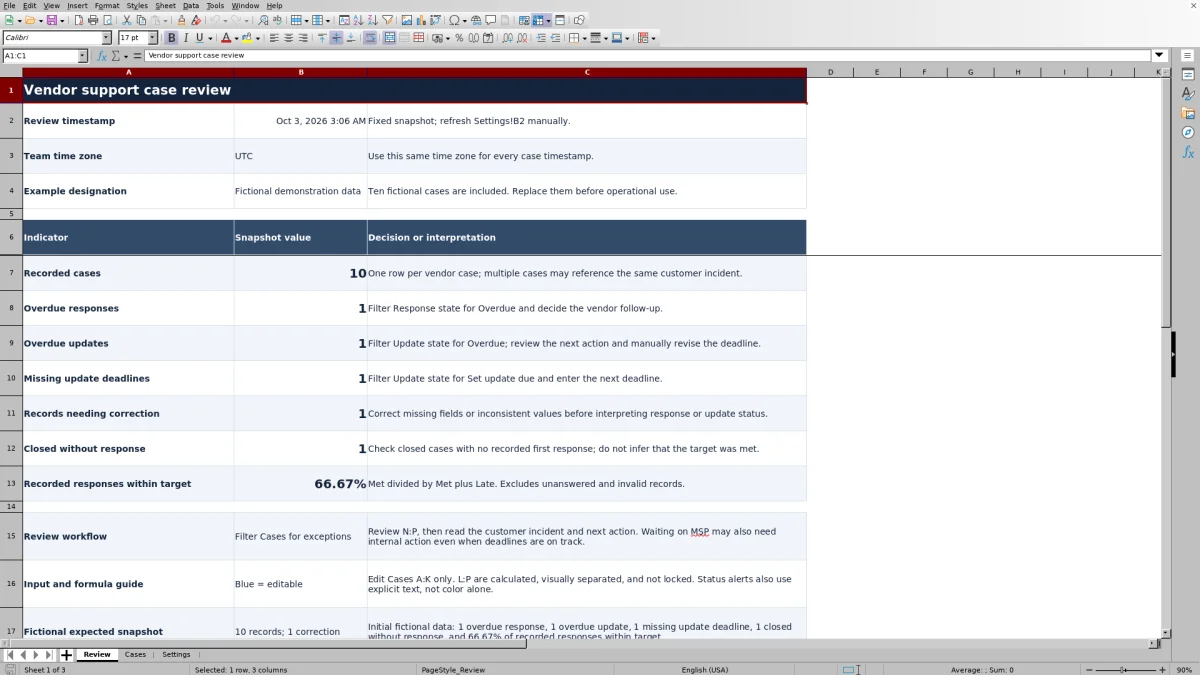
Start with Records needing correction. Invalid entries can prevent a meaningful response or update classification, so fix them before using the summary to set priorities. Then review overdue responses, overdue updates, and missing update deadlines. Filter Cases columns N:P to find the rows behind those indicators and read their incident references and next actions.
Recorded responses within target is the count of Met responses divided by Met plus Late responses. If two valid recorded responses are Met and one is Late, the result is 66.67%. That describes those three recorded responses only. Unanswered and invalid records are excluded, so the percentage is not an all-case success rate or a customer incident resolution measure.
A blank percentage means there are no valid responses classified as Met or Late; it does not mean 0% or 100%. A displayed 0% means the included recorded responses are all Late. Likewise, zero overdue responses does not establish that every case has received a response: some may still be Pending, need correction, or be closed without a response recorded.
Review also counts Closed without response separately. Check those records rather than inferring success from closure. Inspect Waiting on MSP cases as well—even when their deadlines are on track, they may need your team to act.
Errors and solutions when a case does not calculate as expected
Fix the inputs before interpreting the state. Record check distinguishes incomplete records from time or target problems, and the response and update state fields repeat those warnings instead of presenting normal deadline results.
- Incomplete: Fill the required fields in Cases A:D and F:H. Confirm that Case status matches a listed choice: Open, Waiting on vendor, Waiting on MSP, or Closed. An optional blank entitlement reference is not the cause of this warning.
- Check times: Use real spreadsheet date/time values rather than text, and enter a positive numeric response target. Check that Opened at is no later than the review timestamp, First response at is between opening and review, and Next update due is not before opening. Also check Settings!B2.
- Set update due: A valid active case has no Next update due value. Enter the next deadline based on the working commitment; the workbook does not derive it from the first-response target.
- No response recorded: A closed case has no First response at value. Check the underlying vendor record. Enter a supported timestamp if available, but do not invent one to remove the warning.
- Unexpected blanks: Empty rows have no calculated states. Response due stays blank unless the record is Ready, and Actual response stays blank until a valid first response is recorded. Check Record check before assuming a blank means no work is needed.
If indicators seem stale, refresh Settings!B2. If formulas have been overwritten, restore them from an intact copy before relying on the review. The input coloring and visual separation are guides, not protection against editing calculated cells.
Maintain a reliable manual review process
The prepared range is Cases rows 2–101. Its formulas, filters, and input validation cover those 100 rows, and Review counts that same range. Do not assume entries below row 101 are included. If you extend the workbook, extend and check the formulas, validation, filter range, and summary references together before using the results.
At each review, update the snapshot timestamp, correct records, and handle exceptions. After a vendor response, manually update the next action and next deadline. Changing Case status to Waiting on MSP identifies an internal dependency; it does not pause the elapsed-time calculations. Keep the exact status label Closed because the formulas use it to recognize closed cases.
This file provides no monitoring, notifications, entitlement verification, or automated customer communications. Arrange follow-up outside the workbook if missed reviews would leave customer incidents unattended. Save separately named copies if you need retained review snapshots; do not assume the current file preserves a history of earlier values.
Comparison: this tracker or a blank spreadsheet
A blank spreadsheet is a realistic alternative when you only need a small case register or want to design your own fields. This workbook adds a prepared review structure, but it still depends on manual entries and a manually refreshed review time.
| Method | Initial setup | Deadline review | Record checks | Ongoing upkeep |
|---|---|---|---|---|
| This Excel tracker | Prepared fields and formulas for 100 case rows; replace fictional data and set the review time. | Calculates response and update states using elapsed hours and a fixed snapshot. | Flags missing required values, unlisted statuses, and time or target problems. | Manually enter case changes, refresh the clock, communicate, and revise update deadlines. |
| Blank spreadsheet | Define your own fields, layout, and any calculations. | Review deadlines manually or build your own formulas and time assumptions. | Review entries manually or create validation and checks. | Maintain case data and any custom logic you add. |
Choose this tracker when its fields and elapsed-hour approach match your process and you want a consistent starting point. Choose a blank sheet when your register needs substantially different information and you can maintain its logic. If you require automatic reminders, live case updates, or business-hours timing, evaluate a ticketing or professional services automation (PSA) workflow for those specific requirements rather than assuming either spreadsheet provides them.
Frequently asked questions
Can one customer incident have several vendor cases?
Yes. Create a separate row for each vendor case and repeat the incident reference as needed. Each row has its own response target, first response, update deadline, and next action. Review counts vendor case records, not unique customer incidents.
Does closing a case mark its response target as met?
No. If a valid closed case has a recorded first response, its response state remains Met or Late based on that timestamp. If no first response is recorded, it shows No response recorded. Its update state becomes Closed, so it no longer needs a next update deadline.
Is an entitlement reference required for a record to be Ready?
No. Entitlement reference is optional, and Ready is a record-check result—not confirmation that the vendor has accepted coverage or that the target is contractually correct. Verify entitlement and response commitments separately using the relevant source information.
Can I change the case status choices?
The dropdown uses Settings!D2:D5. Retain the exact label Closed because the calculations depend on it. If you change other labels, review existing case entries so they still match the list. Do not assume adding a choice outside D2:D5 automatically extends the dropdown or record checks.
Does the workbook send reminders or update customer tickets?
No. The indicators are calculated snapshots, not alerts or integrations. You must refresh the review timestamp, inspect the cases, contact the vendor or customer through your normal tools, and enter the resulting changes manually.
About the authors

Tessa WhitlockClient & service operations
More about this area of the library →
Nathan CalderwoodService economics & planning
More about this area of the library →