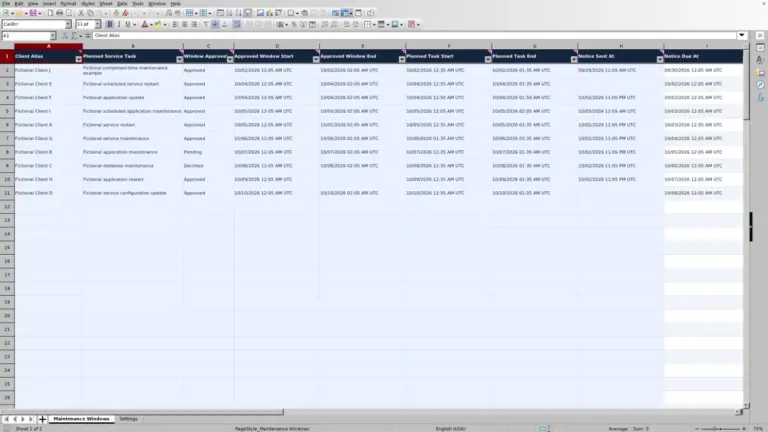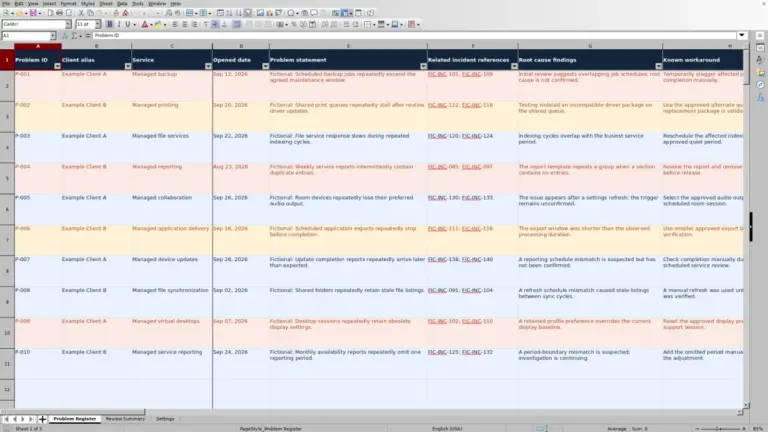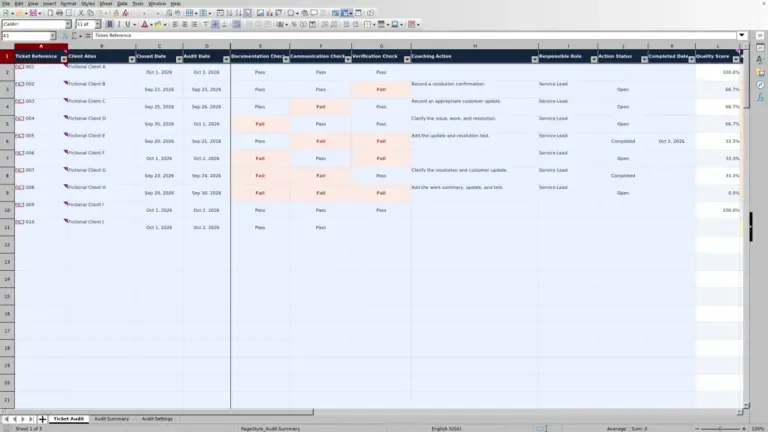
Before an after-hours support window begins, check who will cover the client and who will provide backup. This Excel roster helps your managed service provider (MSP) service desk assign responders against verified client coverage windows and identify gaps in the entered schedule.
Enter required windows, responder assignments, and backup requirements, then review calculated covered hours, coverage statuses, and planning alerts. The workbook supports coverage planning, not proof of service delivery: you still need to confirm availability, review concurrent assignments, and manage the operational handoff.
When to use this workbook
- Compare assigned primary and backup hours with each client's required coverage window.
- Identify missing inputs and short coverage before publishing the after-hours roster.
- Focus review on unresolved windows that fall within an editable planning horizon.
- Keep responder eligibility and client coverage assumptions visible for manual verification.
What is in the file
How to use the workbook
1. Establish the planning clock
On Controls, check Time Basis and As of Date and Time before reviewing alerts. The default NOW() formula uses the application system clock; the UTC label does not convert it. If needed, replace Controls B2 with a fixed timestamp in the same time basis as your assignments. Set Planning Horizon Hours to the period you want to review; the supplied value is 48 hours.
2. Prepare the responder list
On Responders, replace the fictional aliases with your own unique Responder Alias entries and set Eligible for Assignment to Yes or No. This is a manual planning assumption, not an availability check. Confirm that each person can actually take the proposed assignment.
3. Enter verified client windows and assignments
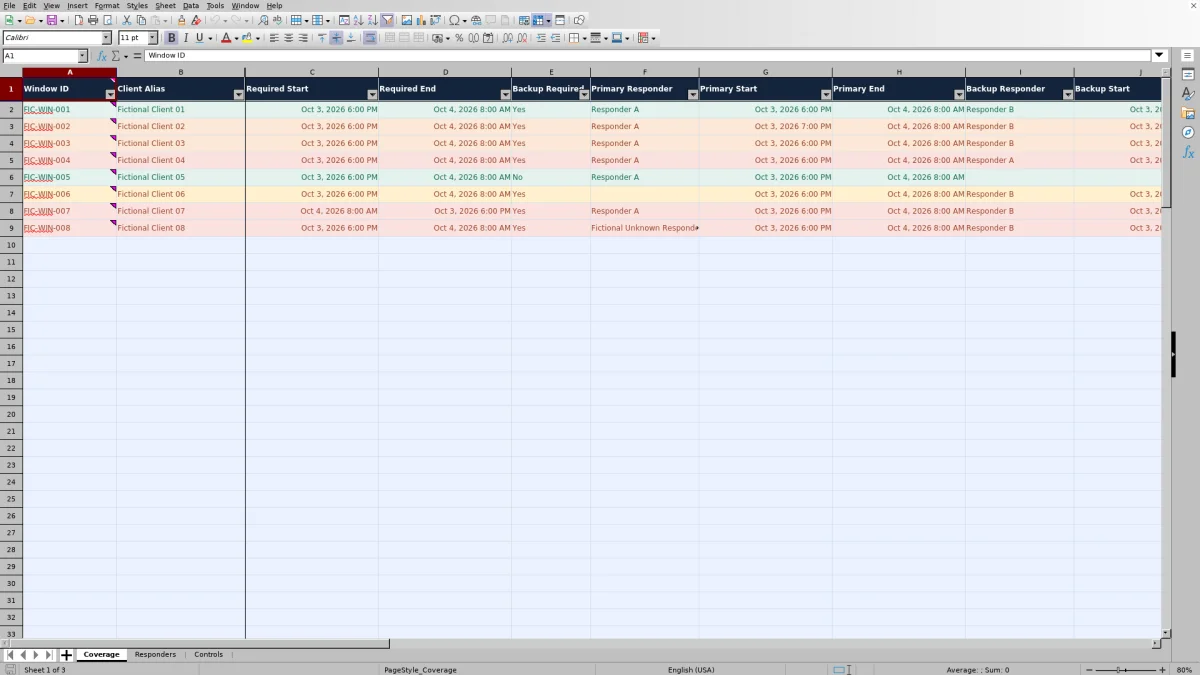
On Coverage, use the pale blue input cells to enter a unique Window ID, Client Alias, Required Start, Required End, and Backup Required. Select a Primary Responder and enter Primary Start and Primary End. When backup is required, assign a different Backup Responder and enter Backup Start and Backup End. Use full dates and times, including the next day's date for overnight end times.
4. Recalculate and resolve exceptions
Recalculate the workbook, then review Required Elapsed Hours, Primary Covered Hours, Backup Covered Hours, Coverage Status, and Planning Alert. Use the Coverage filters and the status counts on Controls to organize your review. Replace or remove the fictional input records before using the roster operationally, while preserving the calculation columns.
Translate contracted coverage into clear roster records
Start with the client's agreed coverage window, not the shift someone happens to be available to work. Enter that obligation in Required Start and Required End, then record the proposed assignment separately. This preserves the distinction between what the client requires and what you have scheduled.
Set Backup Required from the verified client requirement. There are no contractual defaults in the workbook, and a filled-in roster does not establish that you interpreted the agreement correctly. Confirm the covered dates, time zone, after-hours scope, and backup requirement before relying on the calculated status.
Each record represents one continuous client window with one primary and at most one backup. If responsibility changes during the window, split it into separate records with unique Window ID values. Check that the end of one segment meets the start of the next so the handoff does not leave an unrecorded gap.
Use consistent timestamps for overnight coverage
The workbook measures elapsed hours, not business hours. Required Elapsed Hours is the difference between Required End and Required Start, converted from Excel days to hours. An overnight window therefore needs both dates: October 3, 2026 at 6:00 PM through October 4, 2026 at 8:00 AM is 14 hours on a consistent time basis.
Primary Covered Hours and Backup Covered Hours measure only the portion of each assignment that overlaps the required window. Starting early or ending late does not increase covered hours beyond the client's required interval. For each role, compare the calculated overlap with Required Elapsed Hours to see whether that assignment spans the full requirement.
Use one time basis throughout the file. Controls initially labels it UTC, but changing the label does not convert entered timestamps or the NOW() clock. UTC is useful across daylight-saving transitions; convert the source times before entry and ensure the as-of timestamp uses the same basis. Otherwise, both duration calculations and alert timing can be misleading.
Example: a full backup does not repair a primary gap
Consider this set of inputs for one client, all entered in UTC:
- Required window: October 3, 2026 at 6:00 PM through October 4, 2026 at 8:00 AM.
- Backup Required: Yes.
- Primary: Responder A, October 3, 2026 at 7:00 PM through October 4, 2026 at 8:00 AM.
- Backup: Responder B, October 3, 2026 at 6:00 PM through October 4, 2026 at 8:00 AM.
- Both aliases are unique on Responders and marked eligible.
The calculated results are 14 required hours, 13 primary covered hours, and 14 backup covered hours. With the other inputs valid, this is a Gap: the primary assignment misses the first hour, from 6:00 PM to 7:00 PM.
Primary and backup hours are not interchangeable. Adding 13 and 14 to get 27 hours would conceal the primary shortfall. Confirm whether the primary can start at 6:00 PM or arrange a separate, verified assignment segment for that first hour. Then recalculate and review the revised records before publishing the roster.
Troubleshooting statuses, blank hours, and pasted data
Coverage Status describes the entered plan. Ready means the entered primary and required backup assignments cover the entered window. Gap means coverage is short. Incomplete means required inputs are missing. Review means an interval or assignment needs correction. None of these statuses confirms that a responder has accepted the assignment or will answer a call.
- Incomplete or blank hour results: check for missing dates, times, aliases, and backup details. Hour formulas also remain blank when an interval ends at or before its start. A blank is not evidence that no support is required.
- Zero covered hours: valid required and assignment intervals do not overlap. Compare the dates as well as the times; an assignment on the wrong day can look plausible at a glance.
- Review: check end-after-start order, the Yes or No value in Backup Required, and responder eligibility. A required backup must be different from the primary. Correct duplicate eligible aliases rather than treating the name as a unique match.
- Duplicate identifiers: inspect the separate duplicate highlighting for Window ID and Responder Alias. Do not use Coverage Status as your only data-quality check.
The supplied Coverage rows 8 and 9 deliberately contain pasted invalid inputs. Entry validation helps with new values but does not reliably block pasted data. Review imports and pasted changes before using the results, and avoid overwriting the formulas in Coverage columns L through P.
Use planning alerts to prioritize unresolved windows
Planning Alert shows Action Needed for a nonblank, non-Ready record when its required interval is valid, its end is later than the as-of timestamp, and its start is at or before the end of the planning horizon. This includes unresolved windows already underway and windows starting exactly at the horizon boundary.
For example, with As of Date and Time set to October 1, 2026 at 6:00 PM UTC and Planning Horizon Hours set to 48, an unresolved window starting October 3, 2026 at 6:00 PM UTC falls within the alert period, provided it ends after the as-of timestamp. Moving the horizon changes which unresolved records are brought forward for attention; it does not change their underlying coverage status.
A blank alert is not an all-clear. A problematic record may be outside the horizon, already ended, or missing usable required timestamps. Review Coverage Status as well as Planning Alert. The counts on Controls summarize statuses across the prepared records, not just the alert horizon. Recalculate before reviewing alerts, especially if you use the NOW() formula rather than a fixed planning timestamp.
Confirm capacity and handoffs outside the calculations
An eligible alias is only an editable planning assumption. Before finalizing assignments, confirm that the responder is available, understands the client scope, and knows the escalation route. The workbook does not collect acceptance or actual attendance, so those confirmations need to happen through your operational process.
Review concurrent assignments across clients manually; there is no conflict detection. The same responder can appear to cover several client windows while still being unable to handle simultaneous incidents. Assess the expected demand and escalation options rather than interpreting full covered hours as proof of sufficient response capacity.
Do not add client window-hours to estimate unique responder workload. Two overlapping 14-hour client windows assigned to one person represent 28 client window-hours, not 28 distinct hours of that person's time. Likewise, the roster does not measure actual incident effort or performance against a service-level agreement (SLA). Keep planning coverage separate from ticket-based performance evidence.
Comparison: this roster or a blank spreadsheet?
A blank spreadsheet can be enough for a small, stable roster if you are prepared to check every interval and assignment manually. This workbook is useful when you want a consistent structure for client windows, calculated overlap hours, and a repeatable exception review. It still requires verified inputs and operational judgment.
| Method | Setup and structure | Coverage checks | Ongoing review |
|---|---|---|---|
| MSP on-call coverage workbook | Prepared client-window and responder fields, with 100 input rows on each input sheet. | Calculates elapsed and overlap hours, coverage statuses, and horizon-based planning alerts. | Requires manual availability, concurrent-assignment, and handoff review; no automated messages or service-performance tracking. |
| Blank spreadsheet | You choose the layout and build any needed validation or formulas. | Coverage checks are manual unless you create and verify calculations. | You define the review process and maintain any exception tracking yourself. |
Choose the prepared workbook when its one-primary, one-backup record structure fits your planning task. Choose a custom sheet when you need a different model and can maintain its calculations. If you need live dispatch, notifications, or incident-performance evidence, evaluate a separate operational system against those requirements; this roster does not provide those functions or integrations.
Frequently asked questions
Does an optional backup affect whether a window is Ready?
No. When Backup Required is No, optional backup assignments do not affect readiness. You can enter an optional backup, but you should still check its details manually if your team intends to rely on it.
How many coverage windows and responders are prepared?
Coverage and Responders each have prepared input rows 2–101, allowing 100 records on each sheet. The formulas, dropdown source range, validation, filters, and summary counts use bounded ranges. Do not assume adding rows automatically extends those functions; verify and adjust the relevant ranges before using a larger roster.
Do the responder dropdowns show only eligible people?
No. The dropdowns use the aliases in Responders A2:A101, while eligibility is checked separately. Selecting a listed alias is not enough: confirm that its Eligible for Assignment value is Yes and that the person is available for the actual window.
What should I check when opening the workbook in a spreadsheet app?
The formula results need recalculation in Excel or LibreOffice. Recalculate and check representative records before relying on the output, including a fully covered window, a gap, and an invalid or incomplete entry. Confirm that date-time values are recognized as dates rather than text and that the planning clock matches your chosen time basis.
Can a Ready status demonstrate contractual SLA compliance?
No. Ready describes coverage in the entered plan, not actual attendance, response time, resolution time, or contractual compliance. Use the roster to prepare assignments, and use separate service records to assess actual delivery against the client's agreement.
About the authors

Tessa WhitlockClient & service operations
More about this area of the library →
Nathan CalderwoodService economics & planning
More about this area of the library →