Before you publish a client logo, share a case study, or arrange a prospect reference discussion, check what the client actually permitted. This Excel tracker helps your managed service provider (MSP) record permission decisions, approved uses, evidence references, and expiration dates in one register.
You enter the permission details; the workbook calculates days to expiration and a review status. Use those results to organize follow-up, then verify the underlying evidence and scope before using any client asset or reference.
When to use this workbook
- Keep separate permission scopes visible so a website approval is not mistaken for permission to advertise.
- Identify approaching expirations using an editable calendar-day warning window.
- Prioritize missing details, pending decisions, expired permissions, and declined or revoked items.
- Find the internal evidence reference you need for a manual check before publication or a prospect discussion.
What is in the file
How to use the workbook
1. Prepare a working copy
Save a copy and review the operating notes on Overview and Settings. All populated records are fictional. Clear or replace their input values on Permissions without deleting the formulas in Days to expiration and Use status.
2. Set your review date and warning window
On Settings, Reporting date in B2 defaults to TODAY(). Enter a fixed date such as October 2, 2026, if you need a stable review date. Set Warning window (calendar days) in B3 to your preferred value from 0 to 365; the default is 30.
3. Record each permission separately
On Permissions, enter a unique Record ID, a Client label using an organization alias, the Permission type, and the Asset or reference label. Record the Approved use scope, select the Permission decision, and add the Evidence reference, Permission date, and Expiration date where supported by the evidence. Use one row per asset or reference, scope, and decision; record different scopes separately.
4. Recalculate and review before use
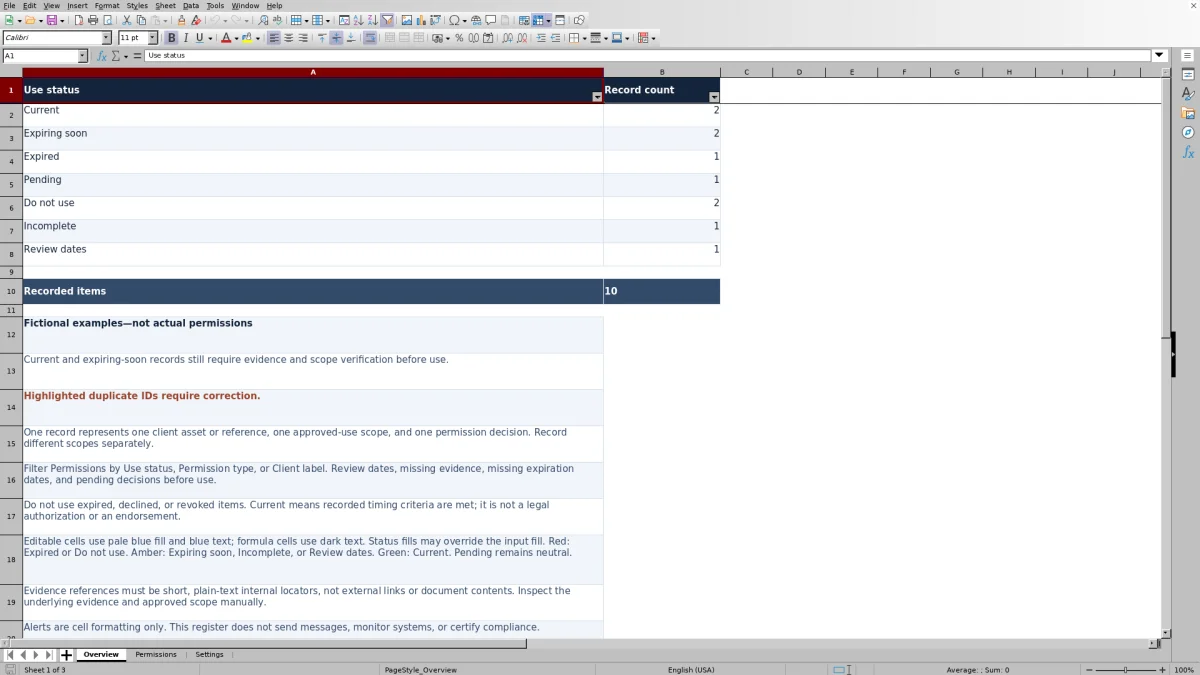
Let your spreadsheet application recalculate, then filter Permissions by Use status, Permission type, or Client label. Review the counts on Overview and resolve missing information or date issues. Even for Current and Expiring soon records, inspect the evidence and confirm that the proposed use is within scope.
Separate client permission from general client relationships
A client relationship does not establish permission to display that client's logo, publish a case study, or offer a reference discussion. Record the specific asset or reference and the use the client approved. The Permission type organizes the record; Approved use scope explains its boundaries.
For example, permission to display a logo in your MSP website's client-logo section may exclude paid advertising. Likewise, permission for one private managed IT prospect discussion does not authorize a public quotation. If you need both uses, record them separately and obtain evidence for each decision rather than broadening the existing scope yourself.
A Current status also cannot tell you whether a one-time reference discussion has already taken place. Check that condition manually before arranging another discussion. The register tracks the information you enter; it does not establish an endorsement or verify that a limited-use permission remains unused.
Keep evidence accessible without copying sensitive material
The Evidence reference field is a pointer for your review, not the approval document itself. Enter a short, plain-text internal locator that lets you find the underlying evidence through your normal internal process. Do not enter external links or paste document contents into the workbook.
Use organization aliases in Client label. Keep contact details, credentials, customer secrets, and source-document contents outside this register. Before using an asset, inspect the underlying evidence to confirm that it applies to the asset, intended channel, scope, and dates recorded in the row.
An evidence locator being present satisfies only a data-completeness check. It does not prove that the evidence exists, is sufficient, or supports the proposed use. If the source cannot be located or its scope is unclear, resolve that uncertainty before proceeding rather than relying on the status color.
Interpret permission decisions and calculated statuses
Permission decision is a manual entry describing the recorded decision. Use status is calculated from that decision, required details, dates, the reporting date, and the warning window. Current is a timing result, not authorization.
- Current and Expiring soon identify records that pass the workbook's completeness and timing checks. Both still need evidence and scope verification before use.
- Expired identifies permissions whose expiration date is before the reporting date. Do not use these items without a new supported permission decision.
- Pending indicates a decision is still pending. It is not approval.
- Do not use applies to declined or revoked decisions once the basic required fields are present.
- Incomplete flags missing required information or an unrecognized decision. Approved records require scope, an evidence reference, and numeric dates.
- Review dates flags an approved record whose permission date is after its expiration date or after the reporting date.
The formula checks basic fields before evaluating the decision. A revoked record missing its Record ID, for example, can display Incomplete instead of Do not use. Complete the record, but do not let the displayed status override a known decline or revocation.
Example: Review a logo and a reference on a fixed date
For a fictional review, set Reporting date to October 2, 2026, and Warning window (calendar days) to 30. Enter a complete Approved logo record with a permission date of September 12, 2026, an expiration date of December 1, 2026, an internal evidence locator, and the scope “MSP website client-logo section only; no paid advertising.”
Days to expiration subtracts the reporting date from the expiration date: December 1 minus October 2 equals 60 calendar days remaining. With complete inputs and valid dates, the record is Current because it is outside the 30-day warning window. Your next decision is whether the planned placement matches the website-only scope. The result does not permit a paid advertisement.
Now consider a complete Approved reference record with the same permission date but an expiration date of October 2, 2026. Its result is zero days remaining, placing it in the warning period rather than making it already expired. The workbook treats permission as current through the expiration date. Verify the evidence and any one-discussion restriction before arranging the reference; on an October 3 reporting date, the unchanged record is expired.
Changing Reporting date recalculates results. It does not move the stored permission or expiration dates.
Troubleshooting missing results and misleading counts
- Blank is not zero. An unused row has blank calculated results. Days to expiration is also blank when the expiration entry is not numeric, including a missing date. Inspect Expiration date and Use status instead of treating the blank as indefinite permission.
- An Approved row shows Incomplete. Check the basic identification fields, Approved use scope, Evidence reference, and both dates. A missing expiration date requires review; do not invent a date merely to make the status change.
- A row shows Review dates. Compare Permission date with both Expiration date and Settings Reporting date. Correct a transcription error from the source evidence, or investigate a future-dated permission before using the item.
- A Record ID is highlighted as a duplicate. Give each separate permission record a unique identifier and check whether you entered the same item twice. The Overview counts records, not unique clients.
- Status counts are blank or stale. Ensure Excel or LibreOffice recalculates the workbook, then check Reporting date. The fictional examples have stored dates, so their statuses can change as the reporting date advances.
Overview's Recorded items total sums the seven status counts. A zero for Current means no rows in the prepared range currently have that calculated status; it does not prove that no real client permissions exist outside the register.
Maintain a review routine within the workbook's limits
Use the warning window to decide which permissions need attention before your next planned publication or reference request. It is an editable operational assumption, not a contractual requirement. The calculations use calendar days, not business hours. Changing the window changes the review classification, not the client's expiration date.
Alerts are cell formatting only. The workbook does not send renewal messages, monitor published assets, or certify compliance. Establish a manual review routine and check the register again before use, especially when a permission may have been revoked since the last review.
The prepared formulas, filters, and validations cover Permissions rows 2 through 101, and Overview counts statuses only in those 100 rows. If you need more records, do not assume that typing below the range extends the workbook. Extend and check formulas, validation, formatting, filters, and summary ranges together before relying on additional records.
Keep the Permission decision labels on Settings unchanged because the status formulas depend on their exact wording. For a dated baseline, save a separately named copy with a fixed reporting date. A fixed date alone does not prevent later edits or create an audit trail.
Comparison: This tracker or a blank spreadsheet
A blank spreadsheet can suit a small permission list when you are prepared to design the fields and check every date manually. This workbook provides a defined structure and calculated review categories, but neither approach replaces inspection of the permission evidence.
| Method | Record structure | Expiration review | Evidence and follow-up |
|---|---|---|---|
| MSP permission tracker | Prepared fields, dropdowns, and 100 record rows with calculations. | Days remaining and status calculations use a reporting date and warning window; Overview counts statuses. | Stores internal evidence locators. Evidence checks and follow-up remain manual; alerts are formatting only. |
| Blank spreadsheet | You choose the fields and maintain consistent entries yourself. | You check dates manually or build and maintain your own formulas and summaries. | You define how to locate evidence and organize manual follow-up. |
Choose this tracker when its logo, case study, and reference structure matches your process and a manually reviewed register is sufficient. Choose a custom sheet when you need a substantially different record model and can maintain its checks. If you require automated reminders or approval routing, evaluate a workflow tool for those requirements rather than expecting this file to provide them.
Frequently asked questions
Does entering Approved mean a client asset is safe to publish?
No. Approved is the decision you record, not a verified authorization generated by the workbook. Check the source evidence, approved scope, relevant dates, and any restrictions before publication. Neither Approved nor Current creates permission or an endorsement.
How should I handle permission with no stated expiration date?
The workbook marks an Approved record without an expiration date as Incomplete. Do not treat that result as indefinite permission or enter an unsupported date. Review the evidence and your handling process for that situation before relying on the item.
Can one client have several records?
Yes. Use separate records for different assets, reference arrangements, or approved-use scopes, each with a unique Record ID. This lets you distinguish, for example, a website logo permission from a private prospect reference permission. Overview counts those records separately rather than counting unique clients.
Can I keep the reporting date fixed?
Yes. Replace TODAY() in Settings B2 with a fixed date for a stable review date. Restore =TODAY() when you want the reporting date to follow the current date on recalculation. Save a separate copy if you need to preserve the inputs as well as the date.
Are the included clients and approvals real?
No. All populated examples are fictional and demonstrate the register's structure and status checks. Replace or clear their input values before using the workbook for real permissions, while preserving the calculated columns.
About the authors

Tessa WhitlockClient & service operations
More about this area of the library →
Nathan CalderwoodService economics & planning
More about this area of the library →