Before you plan support or discuss a client's business impact, record which activities depend on which applications and sites. This Excel workbook gives your managed service provider (MSP) team a structured way to document those relationships and nominate a business owner role for each.
Enter the discovery findings manually, then use calculated review dates, status labels, and duplicate flags to decide what needs attention. This is a business dependency register, not infrastructure discovery automation or a live view of application health.
When to use this workbook
- Connect client activities to the applications and sites they depend on.
- Keep business consequences and nominated owner roles alongside each relationship.
- Identify incomplete records and relationships due for review.
- Spot repeated relationship entries before consolidating discovery findings.
What is in the file
How to use the workbook
1. Replace the fictional reference entries
Open Reference Lists and replace the Demo values with client aliases, application names, site labels, and business owner roles. Edit each list independently within rows 2–101, keep entries contiguous, and avoid duplicates. Replace or clear the fictional inputs in Dependency Map as well, preserving its calculated columns.
2. Set your internal review assumptions
In Settings, review the Business Impact Tier labels and Review Interval (Elapsed Days) values. The starting intervals are 30 days for Critical, 60 for High, and 90 for Standard, with a 7-day Due-Soon Window. These are editable internal assumptions, not contractual commitments.
3. Record each dependency relationship
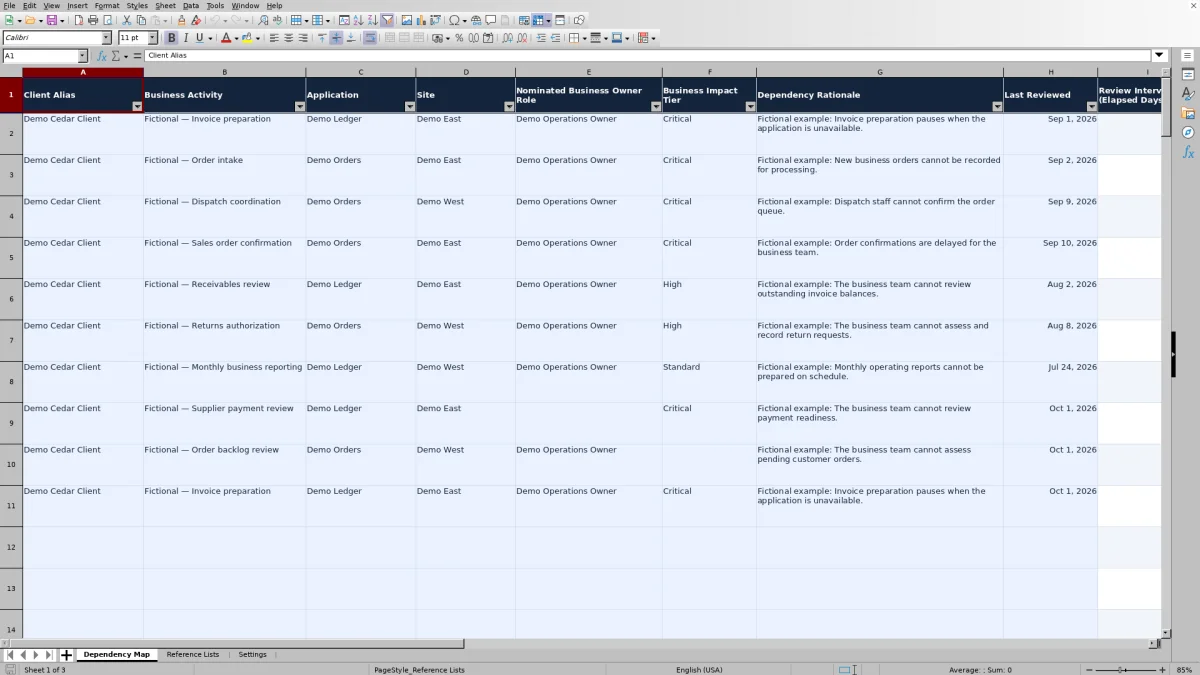
Complete columns A–H on Dependency Map. Use one relationship per row: client alias, business activity, application, site, nominated business owner role, impact tier, dependency rationale, and actual Last Reviewed date. Repeat an activity on another row when it depends on another application or site.
4. Check the results and assign follow-up
Leave columns I–L for calculations. Filter Review Status for Incomplete, Overdue, Due Soon, or Check Settings, and inspect any Possible Duplicate flags. Use the counts in Settings to gauge the review workload, then manage follow-up through your normal operating process; the workbook does not send reminders.
Structure relationships around the client's work
Start with an activity the client recognizes, such as invoice preparation, order intake, or dispatch coordination. Then identify the application and site involved. An application inventory alone does not explain what business work is interrupted when an application becomes unavailable.
Each row represents one client business activity–application–site relationship. If invoice preparation uses two applications at one site, enter two rows. If the same activity and application are used at two sites, enter a row for each site. This keeps the context specific enough to discuss during discovery or a later service review.
Use consistent names from Reference Lists rather than slightly different spellings for the same application or site. The four reference columns are independent lists, not linked client-specific catalogs. A dropdown selection therefore helps standardize an entry but does not establish that the application or site belongs to the selected client. Check that relationship yourself.
Document business consequences and nominated ownership
Use Dependency Rationale to explain the consequence of losing the application for that activity at that site. A useful statement is “Invoice preparation pauses when the application is unavailable,” rather than “Important application.” The first gives you a concrete business effect to discuss when assigning a Business Impact Tier.
The Nominated Business Owner Role field records a role, not proof of acceptance or approval. Use a role such as Operations Owner instead of a person's name or contact details. If ownership is uncertain, resolve that uncertainty through your discovery process rather than treating a populated cell as confirmation.
Keep business impact separate from technical diagnosis. The workbook records the relationship and your rationale; it does not measure an outage, calculate financial loss, or verify technical dependencies. Use aliases and role labels, and omit credentials, personal data, customer secrets, and sensitive technical details.
Choose review intervals and interpret the status boundaries
The selected Business Impact Tier looks up its review interval in Settings. The workbook adds that interval to Last Reviewed to calculate Next Review. For example, a valid review date plus a 30-day interval produces a date 30 elapsed calendar days later. These are elapsed calendar days, not business hours; weekends and holidays are not excluded.
You can edit the three tier labels and their intervals in Settings. Intervals must be whole numbers from 1 to 365 days. The Due-Soon Window in Settings E2 accepts a whole number from 0 to 365 days. Choose these values to match how frequently you intend to reconfirm the relationships, not to imply a service-level agreement (SLA).
- Overdue: Next Review is before today.
- Due Soon: Next Review is today through today plus the due-soon window, inclusive.
- Current: Next Review falls after that window.
A zero-day due-soon window still marks reviews due today as Due Soon. Status As-of Date in Settings is calculated with TODAY(), so the results depend on the current date when the workbook recalculates. The Fictional Example Creation Date is not the date used for status calculations.
Example: Decide whether an invoice dependency needs review
Consider this fictional, complete relationship, using the starting review assumptions and assuming the workbook's Status As-of Date is October 2, 2026:
- Client Alias: Demo Cedar Client
- Business Activity: Fictional — Invoice preparation
- Application and Site: Demo Ledger at Demo East
- Nominated Business Owner Role: Demo Operations Owner
- Business Impact Tier: Critical
- Dependency Rationale: Invoice preparation pauses when the application is unavailable.
- Last Reviewed: September 1, 2026
- Settings: Critical interval of 30 elapsed days and a 7-day due-soon window
The Critical tier returns a 30-day review interval. Adding 30 days to September 1 produces a Next Review date of October 1, 2026. On October 2, the record is Overdue because its review date is one elapsed day in the past.
Overdue means the record needs review, not that the application has failed. Your next action is to reconfirm the activity, application, site, owner role, and business consequence. Update Last Reviewed only after that review occurs. Do not enter a future date to make the status look current; the calculation requires an actual review date no later than today.
On the same assumed date, an otherwise complete record with Next Review from October 2 through October 9 would be Due Soon. A date after October 9 would be Current. These results will differ when the workbook recalculates on another day.
Turn review flags into a manageable worklist
Use the Dependency Map filters to separate data cleanup from overdue review work. Incomplete records need missing or invalid inputs resolved. Overdue and Due Soon records need their relationships reviewed. Check Settings indicates that an otherwise complete record cannot receive its normal review status because the due-soon window is invalid.
Settings summarizes Records Started and the status counts. Records Started counts rows with a nonblank Review Status; entirely unused rows do not count. A started but unfinished record does count, so this total is not a count of verified dependencies.
The Possible Duplicate count measures flagged rows, not duplicate groups. If two rows share the same client alias, business activity, application, and site, both are flagged and the count is two. The check does not compare the owner role, tier, rationale, or review date. Inspect those differences before deleting or merging anything.
Duplicate flags can overlap with any review status, so do not add the duplicate count to the status counts as though it represents extra records. Likewise, zero overdue records does not establish that all client dependencies have been discovered or confirmed. It only describes the entered records and their calculated review timing.
Troubleshooting blank dates, incomplete records, and stale labels
- Next Review is blank: Check Last Reviewed and the selected tier's interval. Last Reviewed must be an Excel date value without a time component, greater than zero and no later than today. The interval must be a whole number from 1 to 365. A missing or unmatched tier can leave the interval blank. A blank Next Review is not permission to skip review.
- Review Status says Incomplete: Complete all eight input fields in columns A–H, then check the review date and interval. Even if the application and site are filled in, a missing rationale or owner role leaves the record incomplete. An entirely empty input row correctly has a blank status.
- Review Status says Check Settings: Correct the Due-Soon Window in Settings E2 to a whole number from 0 to 365. Incomplete takes precedence, so unfinished rows may still show Incomplete while this setting is invalid.
- Existing labels no longer match the reference lists: Editing Reference Lists does not update previous selections in Dependency Map. Review affected records manually after renaming a client alias, application, site, or owner role. Do the same after changing a tier label in Settings.
- Pasted data looks acceptable but behaves unexpectedly: Pasting can bypass entry validation. Check pasted dates, tier labels, intervals, and reference selections rather than relying on the dropdowns or a Current status as proof that every value is valid.
The fictional review dates are examples, not ready-to-use operational dates. If you open the workbook before one of those dates, that future date will not produce a valid Next Review. Replace the sample inputs with actual findings and actual review dates instead of changing dates merely to clear a warning.
Comparison: This workbook or a blank spreadsheet?
A blank spreadsheet can record the same business relationships, but you must decide the fields, naming rules, review logic, and duplicate checks yourself. This workbook provides those structures for a bounded, manually maintained register. Neither approach discovers dependencies or confirms that an entered business relationship is correct.
| Method | Initial setup | Review control | Consistency checks | Ongoing maintenance |
|---|---|---|---|---|
| This Excel workbook | Prepared fields and 100 record rows; fictional data must be replaced. | Tier-based next-review dates, status labels, and summary counts. | Reference dropdowns and a four-field possible-duplicate check. | Manual entry, relationship confirmation, and follow-up; prepared ranges need attention if expanded. |
| Blank spreadsheet | You design the fields and layout for your discovery process. | You create review dates and checks or maintain them manually. | You add validation and duplicate checks if needed. | Flexible structure, with responsibility for building and maintaining the controls you choose. |
Choose this workbook when its relationship model and prepared range fit your discovery work. A blank spreadsheet may suit a substantially different model, provided you are prepared to build and check its controls. If your process requires assigned reminders, approval workflows, or retained change history, evaluate a system that explicitly supports those needs rather than assuming this workbook provides them.
Frequently asked questions
How many relationships can I enter without changing the workbook?
The prepared Dependency Map range contains 100 record rows, from row 2 through row 101, including any fictional examples still present. The reference lists also use rows 2–101. Formulas, dropdown ranges, filters, duplicate checks, and summary counts are bounded to the supplied ranges. If you need more rows, extend and verify all affected ranges; simply typing below row 101 is not enough to include new records in the existing controls.
Does Current mean the business owner approved the dependency?
No. Current means the record has the required inputs and a calculated Next Review date beyond the due-soon window, with valid review settings. It does not establish owner acceptance, accuracy, application availability, or discovery completeness. Record any required approval through your normal process.
Can I keep a history of previous reviews in this file?
The supplied fields hold a Last Reviewed date and the current relationship details; they do not provide an automatic review history or audit trail. If you need a baseline, save a separately named copy before making changes, following your document retention and access practices. Use a separate review log or suitable system when you need a retained record of individual review events.
Can I use the XLSX file in another spreadsheet application?
The workbook is an XLSX resource, but compatibility testing in other spreadsheet applications is not established here. Before using an imported or converted copy operationally, verify the dropdowns, date handling, TODAY()-based statuses, duplicate flags, and summary counts. Keep an unchanged original so you can compare results.
About the authors

Tessa WhitlockClient & service operations
More about this area of the library →
Nathan CalderwoodService economics & planning
More about this area of the library →