Before you begin managed support at a client site, check whether the engineer can work there as planned. This Excel workbook helps your managed service provider (MSP) record power, connectivity, access arrangements, and workspace conditions in one site readiness assessment.
Enter your manual assessment results, document constraints, and set planned follow-up dates. The workbook calculates readiness indicators, check coverage, and follow-up timing so you can identify records that need attention before making a separate operational decision.
When to use this workbook
- Use the same four logistical checks when assessing each client site.
- Separate unresolved constraints from checks that have not yet been evaluated.
- Prioritize planned follow-ups against a chosen review date and warning window.
- Review site-level results alongside an overall readiness summary.
What is in the file
How to use the workbook
1. Set the review context
On Settings, review the editable operational guidance for the four checks. Set Warning window (calendar days) in B2 and confirm Review date in B3. The defaults are three calendar days and today's local date; use a fixed date when you need reproducible timing results.
2. Replace the fictional records
Replace the example inputs in Site Checks rows 2–11 before operational use, preserving the calculated columns L–N. Use the pale blue input cells to enter a unique Site reference, Client alias, Site alias, and Assessment date. Keep one latest assessment per site within the prepared rows 2–101.
3. Assess the site and record follow-ups
Evaluate Power, Connectivity, Access arrangements, and Workspace yourself. Select Ready, Action needed, or Not checked for each. Record the Constraint or follow-up, Responsible role, and Target date where action remains. Use roles and aliases rather than personal names, and do not enter credentials or access codes.
4. Review the calculated results
Check Readiness indicator, Follow-up timing, and Check coverage on Site Checks, then review the counts on Readiness Summary. Investigate Hold, Review needed, and Incomplete record entries. Treat Ready for review as a review cue, not approval, and make the support-start decision through your normal operational process.
Define what the site assessment needs to establish
Use this assessment to determine whether the site's logistical conditions support the planned work. Power concerns usable power at the work area; Connectivity concerns the connectivity required for the work; Access arrangements concerns attendance and entry; Workspace concerns a suitable work area and its constraints. These checks require engineer evaluation—the workbook does not inspect the site or test systems.
Before assessing multiple sites, review the guidance on Settings so each assessor applies the same expectations. The guidance is an editable operational assumption, not a contractual standard. If the planned work changes, revisit whether the recorded check results still apply rather than relying on an earlier Ready result.
Keep access notes logistical, such as whether attendance and entry arrangements have been confirmed. Do not record passwords, access codes, personal names, or sensitive infrastructure details. This is a site-onboarding review, not a security evidence register or a certification process.
Read readiness and coverage as different measures
The Readiness indicator first checks the core record fields: Site reference, Client alias, Site alias, and a numeric Assessment date. Missing identifiers or a missing or nonnumeric assessment date produce Incomplete record, even when a check says Action needed. Correct the record before interpreting its readiness category.
- With the core fields present, any Action needed result produces Hold.
- Four Ready results produce Ready for review.
- Other combinations, including Not checked or blank check fields without an Action needed result, produce Review needed.
- A row with no inputs in columns A–K has no calculated indicator.
Check coverage measures how many of the four checks have been evaluated. It counts both Ready and Action needed, then divides by four. Three evaluated checks produce 75%; four produce 100%. Coverage does not measure readiness: a fully assessed site can still be on Hold because an evaluated condition needs correction.
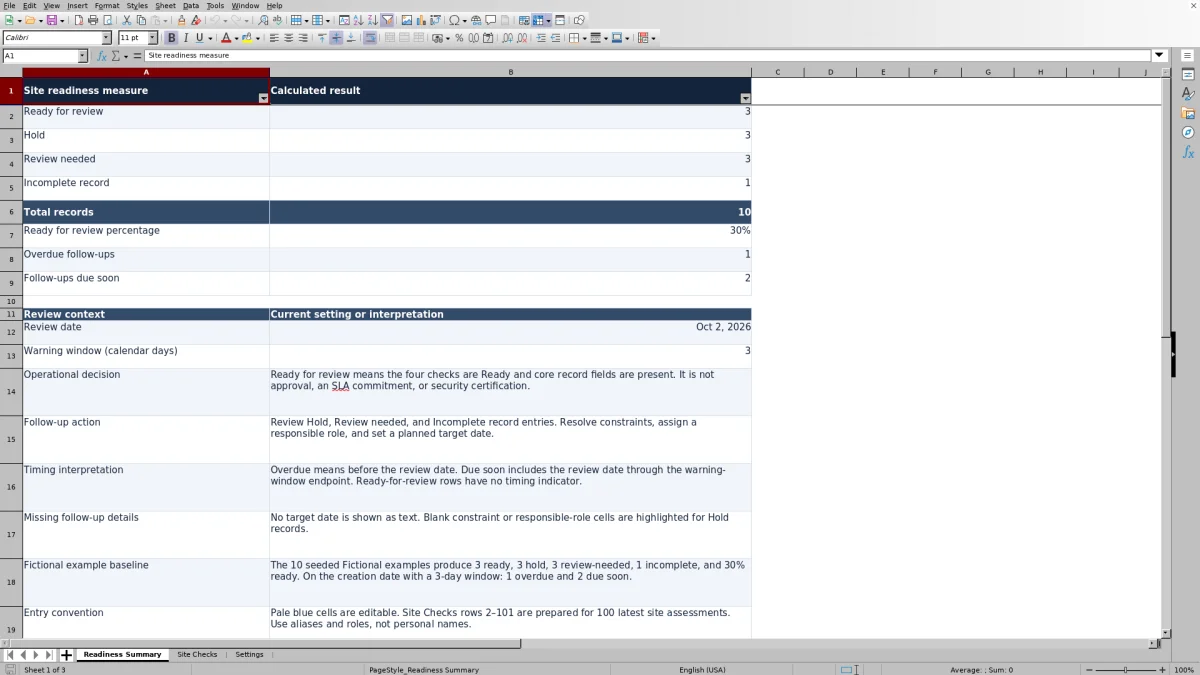
Readiness Summary divides the number of Ready for review records by the total of the four readiness categories. An Incomplete record is included in that total. The percentage is blank when there are no classified records; 0% means records exist but none are Ready for review. Neither result establishes whether support can begin.
Use follow-up timing to organize the next review
For records that are not Ready for review, Follow-up timing compares Target date with the Review date and Warning window (calendar days) on Settings. A target before the review date is Overdue. A target from the review date through the warning-window endpoint, inclusive, is Due soon. A later target is Scheduled.
The default warning window is three calendar days and can be changed to a whole number from 0 to 365. With a zero-day window, only a target on the review date is Due soon; earlier targets remain Overdue. These are planned follow-up dates, not completion dates. They do not measure business hours, elapsed response time, or performance against a service-level agreement (SLA).
A non-ready record without a target displays No target date. A Ready for review record has no timing indicator, even if its Target date remains populated. Therefore, zero overdue follow-ups does not mean every constraint has a plan: also check for No target date and missing follow-up details.
Review date defaults to TODAY(), so timing can change as the workbook recalculates on a later date. Replace it with a valid fixed date for a repeatable review, and confirm spreadsheet recalculation before relying on the results.
Example: a fully evaluated site that still needs action
Consider a hypothetical assessment with these inputs grouped together:
- Site reference: SITE-014; Client alias: Client North; Site alias: North Office.
- Assessment date: October 1, 2026.
- Power: Action needed; Connectivity, Access arrangements, and Workspace: Ready.
- Constraint or follow-up: Confirm usable power at the planned work area.
- Responsible role: Client facilities role; Target date: October 1, 2026.
- Settings Review date: October 2, 2026; Warning window: 3 calendar days.
The record calculates Hold because one check needs action. Check coverage is 100% because all four checks have been evaluated. Follow-up timing is Overdue because October 1 is before the October 2 review date. The useful conclusion is assessment complete, constraint unresolved—not that the site is ready.
Your next step is to confirm the power correction and reassess that check. If you only move the target to October 5, 2026, timing changes to Due soon because that date is the window's inclusive endpoint, but the readiness indicator stays Hold. Once all four checks are genuinely Ready and the core record fields remain present, the indicator becomes Ready for review and the timing indicator becomes blank.
Troubleshooting unexpected indicators and totals
- A completed-looking row says Incomplete record: check the three identifier fields and Assessment date. Enter a real Excel date, not date-like text. The formula checks whether the date is numeric, so also inspect the displayed date for plausibility.
- A row says Review needed when you expected Ready for review: confirm all four check cells use the exact Ready label. A blank, Not checked, or unrecognized pasted label will not satisfy the four-Ready condition.
- A Hold record lacks a useful action plan: fill Constraint or follow-up and Responsible role, then set Target date. Blank constraint and responsible-role cells are highlighted for Hold records, but the workbook does not supply those details for you.
- The summary includes sites you did not assess: replace or clear the fictional inputs in rows 2–11. Preserve the formulas in columns L–N.
- Timing looks outdated: check Review date, Target date, and the warning window, then confirm recalculation. A fixed review date will not move forward automatically.
- Pasted records look valid but behave unexpectedly: inspect result labels, dates, and duplicate site references. Pasting can bypass Excel validation.
Keep the three result labels on Settings unchanged because the indicator formulas depend on them. Edit the operational guidance to clarify your assessment expectations instead of renaming Ready, Action needed, or Not checked.
Maintain a current site register without implying history
The prepared area supports 100 latest site assessments in Site Checks rows 2–101. Use one unique Site reference per site and update the existing record when you reassess it. A new row for every visit would turn the summary into a count of assessments rather than the intended count of current site records.
The summary formulas reference the prepared rows explicitly. Do not assume records below row 101 will be counted or receive the same formulas and validation. If you need more capacity, treat expansion as a workbook change that requires checking formulas, validation, formatting, and summary ranges before operational use.
If you need a dated baseline, save a separately named copy and record a fixed review date for that copy. Do not assume the workbook provides an audit trail or preserves prior values when a record is updated. Keep any required approval record in your established process; Ready for review is not a recorded acceptance or a commitment to start service.
Keep this register focused on power, connectivity, logistical access arrangements, and workspace. It is not intended for ticket delivery, staffing, finance, asset inventories, security evidence, or project tracking.
Comparison: this workbook or a blank spreadsheet
A blank spreadsheet is a realistic alternative when you need a custom site checklist. This workbook is useful when the four supported checks match your scope and you want defined readiness and follow-up calculations without building them from scratch. Both approaches still depend on accurate manual assessment.
| Method | Assessment structure | Results and timing | Maintenance and fit |
|---|---|---|---|
| Site readiness workbook | Four defined checks, core site fields, and follow-up details are prepared. | Calculates readiness, coverage, category counts, and calendar-date follow-up timing. | Prepared for 100 latest site assessments; fixed labels and ranges need care when changing the structure. |
| Blank spreadsheet | You choose the fields and assessment categories. | You must create and check any formulas or review results manually. | Useful for a substantially different scope, but consistency and calculation rules must be designed and maintained. |
Choose this workbook for a focused logistical review. Start with a custom sheet if your assessment needs different categories or decision rules that would require substantial changes here. If you need work assignment, notifications, approval routing, or historical records, evaluate an appropriate operational system against those requirements rather than assuming this spreadsheet provides them.
Frequently asked questions
Does the workbook perform connectivity or power checks automatically?
No. You must evaluate all four conditions and enter the results manually. The formulas classify those entries and calculate coverage, summary counts, and follow-up timing; they do not test connectivity, inspect power, or monitor systems.
What should the fictional example summary show?
The 10 seeded fictional records produce 3 Ready for review, 3 Hold, 3 Review needed, and 1 Incomplete record. The ready-for-review percentage is 3 divided by 10, or 30%. This describes the example records, not actual client readiness. Timing counts depend on the review date and warning window, so they can change as the default date advances.
Can I use Not checked for a condition that is not applicable?
The available labels are Ready, Action needed, and Not checked; there is no separate Not applicable result. Not checked does not count as evaluated and cannot contribute to a Ready for review result. Clarify the operational guidance and document the limitation rather than using Ready merely to avoid an unresolved indicator.
Can a site be Ready for review without a responsible role or target date?
Yes. The readiness calculation requires the core identifiers, a numeric assessment date, and four Ready results. Constraint or follow-up, Responsible role, and Target date are not prerequisites for Ready for review. If your acceptance process requires additional ownership or approval details, check those separately before authorizing work.
Can I track several client sites in the same file?
Yes. Site Checks includes Client alias, Site alias, and a unique Site reference for each record, with 100 prepared rows. Readiness Summary counts all classified records in that prepared range, so treat it as an overall summary rather than a separate client-level report. Keep aliases consistent and maintain one latest assessment per site.
About the authors

Tessa WhitlockClient & service operations
More about this area of the library →
Nathan CalderwoodService economics & planning
More about this area of the library →