Prepare a quarterly business review (QBR) that connects your customer's objectives with service results and clear next steps. This Excel template gives managed service provider (MSP) account managers a structured place to assemble the discussion, record decisions, and assign dated follow-up actions.
You enter the objectives, summarized results, targets, and action details manually. The workbook calculates service assessments, action timing flags, and six review counts so you can identify exceptions before the meeting. It is a review record, not a live service dashboard.
When to use this workbook
- Keep customer objectives and desired outcomes visible while preparing the service discussion.
- Compare entered service results with editable targets using an explicit unit and time basis.
- Turn review decisions into follow-up actions with a responsible role, due date, and status.
- Prioritize overdue actions, near-term commitments, and off-target metrics using calculated flags and counts.
What is in the file
How to use the workbook
1. Set the customer and review dates
In Review Setup, enter the Customer Alias, Review As Of date, inclusive Review Period Start and Review Period End, and Due-Soon Window, Calendar Days. The window accepts whole numbers from 0 to 90. Clear the fictional example inputs before entering customer data, while retaining the formulas.
2. Confirm the customer's objectives
In Customer Objectives, assign a unique Objective ID to each populated row. Record the Customer Objective, Desired Outcome, Account Lead Role, Progress, and Review Notes. Progress is your manual assessment, not a result calculated from service metrics.
3. Enter summarized service results
In Service Results, enter each Metric with its Unit, Time Basis, Actual Result, Review Target, and Target Direction. Add a Source Note identifying the report and measurement definition. Read the calculated Assessment, and resolve incomplete inputs before using it in the review.
4. Record decisions and follow-up work
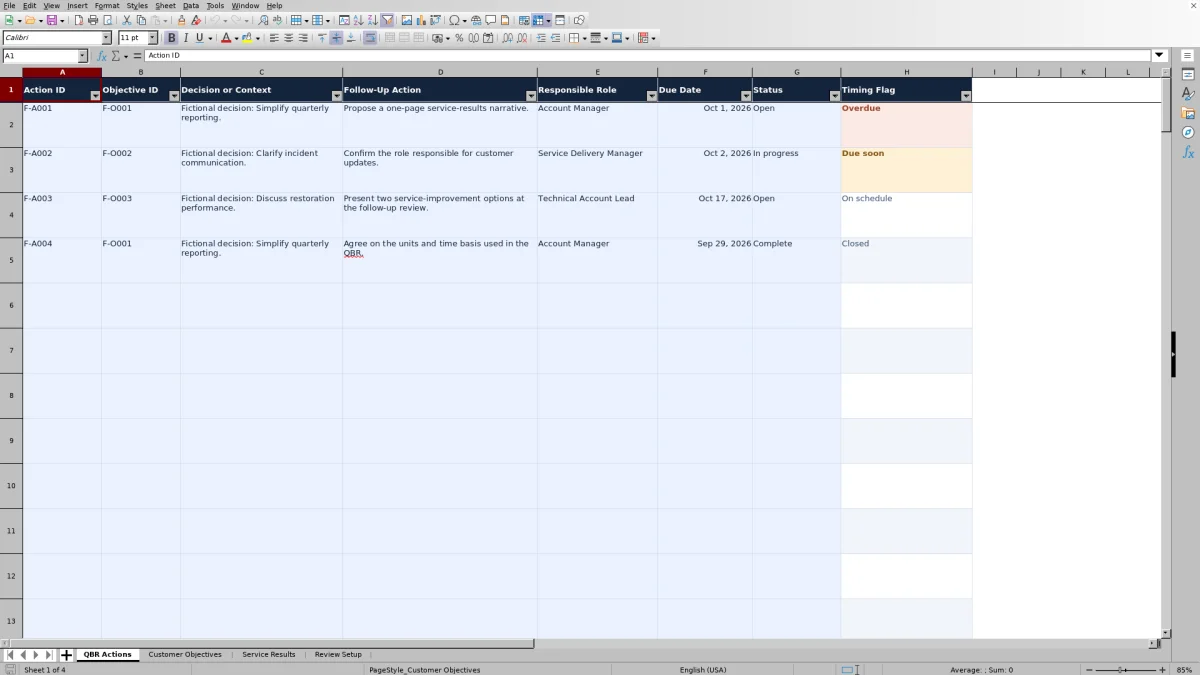
In QBR Actions, enter a unique Action ID, Decision or Context, Follow-Up Action, Responsible Role, Due Date, and Status. Select an Objective ID when the action supports a recorded objective; leave it blank for a general action. Repeat the decision context if one decision creates several actions.
5. Check exceptions and save the review copy
Review the counts in Review Setup, then use the input-sheet filters to inspect the underlying records. Correct missing IDs, incomplete measurements, and unclear ownership. Preserve QBR Actions column H, Service Results column G, and Review Setup B9:B14: these are formula cells, not manual inputs, and they are not locked.
Build the review around customer outcomes
Start with what the customer wants to achieve, rather than treating a list of service statistics as the agenda. In Customer Objectives, use Desired Outcome to state what improvement would matter to the customer. Use Review Notes to explain progress, uncertainty, or the decision needed at the meeting.
The Progress choices are Not started, On track, At risk, and Complete. These are manually selected judgments. An On target service metric does not automatically make an objective On track, and completing an action does not update the objective's progress.
Use the Objective ID selection in QBR Actions to connect a commitment to its business purpose. Keep the Follow-Up Action specific enough to review later, and confirm who will carry it out: Responsible Role records a role, not proof that someone has accepted the work. If several actions support the same objective, give each action its own ID and due date.
Interpret service results without overstating them
Service Results compares a manually entered Actual Result with a manually entered Review Target. With At most selected, a result equal to or below the target is On target. With At least selected, a result equal to or above the target is On target. A complete row that fails the selected comparison is Off target.
Match the unit and time basis before comparing values. The supplied Unit choices are Hours, Minutes, and Count. Time Basis offers Business time, Elapsed time, and Not applicable. Enter the actual and target on the same basis; the formula does not convert minutes to hours or calculate business-hour durations from ticket timestamps.
Use Source Note to identify the reporting period, source report, and whether the measure is a mean, total, or another defined aggregate. The workbook compares the numbers you enter; it does not calculate those aggregates from raw service records. A quarterly mean can also conceal individual exceptions, so investigate relevant underlying records before making a performance claim.
The Review Target is editable and supports the discussion. It is not automatically a contractual service-level agreement (SLA) target. Confirm the contract's measurement rules separately before describing a result as SLA attainment or a breach.
Use action timing as a dated planning view
Timing Flag uses the Review As Of date, not today's live date. For an action with an ID and an active status, a due date before that review date is Overdue. A date from the review date through the review date plus the due-soon window is Due soon, including both boundaries. A later date is On schedule.
The window is measured in calendar days, not business days. A zero-day window makes actions due on the review date Due soon; it does not turn off the check. Update Review As Of deliberately when reassessing the action list, because changing it can change timing flags without any action due date changing.
Complete and Cancelled both produce Closed, before the formula checks the due date or review assumptions. Closed therefore does not mean completed successfully or completed on time. Check the manually entered Status and the decision context when explaining why a commitment is no longer active.
The stored due dates do not move with the review date. Renegotiate a date explicitly if the commitment changes rather than changing the review assumptions to make the flag appear more favorable.
Example: Turn a service exception into a follow-up decision
The fictional examples illustrate a review covering July 1, 2026, through September 30, 2026, with Review As Of set to October 2, 2026, and a 14-calendar-day due-soon window. Together, these assumptions create a due-soon boundary of October 16, 2026.
- Initial response: 1.5 business hours actual, 2 business hours target, At most. The assessment is On target.
- Service restoration: 5 elapsed hours actual, 4 elapsed hours target, At most. The assessment is Off target.
- Resolved requests: 42 requests actual, 40 requests target, At least, with Count and Not applicable selected. The assessment is On target.
The restoration result is 1 elapsed hour above the discussion target. That difference is an interpretation of the entered numbers, not a separate calculated variance field. Use it to ask what drove the result and which improvement is worth pursuing; it does not by itself establish an SLA breach.
The fictional restoration follow-up is to present two service-improvement options, assigned to the Technical Account Lead and due October 17, 2026. Its Open status produces On schedule because the due date is one day beyond the due-soon boundary. Another open action due October 1 is Overdue, an in-progress action due October 2 is Due soon, and the completed action due September 29 is Closed.
Across these example records, Review Setup reports 4 Total Actions, 3 Open Actions, 1 Overdue Action, 1 Due-Soon Action, 1 Off-Target Metric, and 0 Unevaluated Metrics. The next decision is to address the overdue commitment and confirm the restoration follow-up—not to treat the summary counts as a complete measure of account health.
Troubleshooting blank flags and misleading counts
A blank flag is not a clean bill of health. Timing Flag stays blank when Action ID is blank, even if other action details have been entered. Assessment stays blank when Metric is blank. Populate those identifying fields before relying on the summaries.
- Missing status: select Open, In progress, Complete, or Cancelled in QBR Actions. The timing formula checks status before evaluating an active action's date.
- Missing due date: enter a valid calendar date for the active action. Use a date without a time component.
- Set review assumptions: complete Review As Of and Due-Soon Window, Calendar Days in Review Setup.
- Incomplete assessment: check Unit, Time Basis, Actual Result, Review Target, and Target Direction. A genuine numeric zero is a value, not missing information; do not enter zero merely to hide an unknown result.
- Duplicate or missing IDs: resolve the highlighted IDs and inspect pasted records. Validation cannot prevent every paste-related problem.
The six counts measure different things. Total Actions counts nonblank action IDs, while Open Actions counts Open and In progress statuses. A malformed row with a status but no ID can therefore create a mismatch. Zero Overdue Actions also does not rule out active actions with missing dates or assumptions, because those rows receive different flags.
Similarly, zero Off-Target Metrics does not establish that all service measures met their targets. Check Unevaluated Metrics and look for rows missing the Metric name. Keep Source Note populated as a manual evidence check; a missing source note does not make the calculated assessment Incomplete.
Maintain a usable quarterly record
The workbook provides 100 prepared rows per input sheet, covering rows 2–101. Formulas, validation, formatting, and filters are prepared within those ranges, and the six summary formulas use those ranges. Adding records below row 101 without adapting the workbook can leave them outside the checks and counts. If you extend it, verify every affected range and test the resulting assessments before relying on them.
Keep a separately named copy for each customer and review period when you need to preserve the meeting baseline. Do not assume the workbook maintains an audit trail or historical snapshots. If you carry actions into the next quarter, preserve their IDs and agreed due dates, then deliberately update statuses and review assumptions.
Review Period Start and Review Period End define the intended reporting scope; they do not filter source data or populate results. Confirm that each manually summarized measure covers that inclusive period. Enter a real Excel date, such as October 2, 2026, rather than an ambiguous date string.
Use customer aliases, role names, and aggregated service information where practical. Keep passwords and unnecessary ticket-level personal details out of the workbook, and apply your normal access and sharing controls before sending a customer-facing copy.
Comparison: This workbook or a blank spreadsheet?
Use this workbook when you want a repeatable QBR structure with existing input choices and review checks. A blank spreadsheet is reasonable when your customer review needs a substantially different model, but you will need to design and verify the relationships and calculations yourself.
| Method | Review structure | Checks and calculations | Ongoing upkeep |
|---|---|---|---|
| This QBR workbook | Prepared objectives, service results, decisions, and follow-up actions across four worksheets. | Target assessments, action timing flags, validation, and six summary counts within prepared ranges. | Manually enter results and statuses, update assumptions, and preserve review copies. |
| Blank spreadsheet | You choose and build the fields, layout, and connections between records. | You create any validation, comparisons, timing logic, and summaries you need. | You maintain both the review content and the custom spreadsheet design. |
Neither approach should be treated as live ticketing or monitoring. If follow-up execution needs reminders, assignments, or an operational work history, use an appropriately configured ticketing or professional services automation (PSA) system for that work. Keep the QBR workbook as the review record and reconcile updates manually; no integration is provided here.
Frequently asked questions
Does the workbook import results from a PSA or monitoring platform?
No import or live connection is provided. Enter summarized service results manually and use Source Note to identify where each value came from. Verify the reporting period, unit, and time basis before entering an aggregate from another system.
Can I rename an objective after linking actions to it?
You can edit its description, but changing its Objective ID requires care. Action references are manually selected IDs, not an automatic rename relationship. If you change an ID, update the corresponding Objective ID entries in QBR Actions and check that each action still points to the intended objective.
Can I use percentage-based metrics such as uptime?
The supplied Unit list contains Hours, Minutes, and Count, not Percentage. Do not label a percentage as a count to fit the existing choices. Percentage-based measures require an adapted design and verified validation, numeric representation, and target comparisons before use.
Are the fictional targets and dates recommended defaults?
No. The example records are fictional, and the review dates, due-soon window, and metric targets are editable. Replace them with assumptions appropriate to the customer and review. In particular, the due-soon window is a planning choice, not a contractual SLA default.
Can I send the workbook directly to a customer?
Prepare a customer-facing copy first. Remove the fictional inputs, review notes for accuracy and sensitivity, verify the calculated results, and confirm that the decisions and follow-up dates reflect what was agreed. The workbook does not replace your review, approval, or secure-sharing process.
About the authors

Tessa WhitlockClient & service operations
More about this area of the library →
Nathan CalderwoodService economics & planning
More about this area of the library →