Before answering whether a customer request is covered, check the service boundary and who is accountable. This Excel service scope matrix helps you record each customer system and service as included, excluded, or separately billed.
Built for managed service provider (MSP) account managers, the workbook combines scope decisions with billing routes and review targets. Use it to prepare customer reviews and give your service desk a clearer reference, while keeping contractual approval separate from spreadsheet checks.
When to use this workbook
- Clarify which services are included, excluded, or handled through separate billing.
- Make the accountable party visible for each customer system and service.
- Find incomplete decisions before relying on them during a scope discussion.
- Prioritize scope reviews using calculated targets and summary counts.
What is in the file
How to use the workbook
1. Set the review assumptions
On Settings, check As of Date and Review Interval (Calendar Days). The date initially uses TODAY(), and the interval defaults to 90 calendar days. Replace the date formula with a fixed date if you need a stable review snapshot. Confirm that Assumption check says Ready.
2. Replace the fictional records
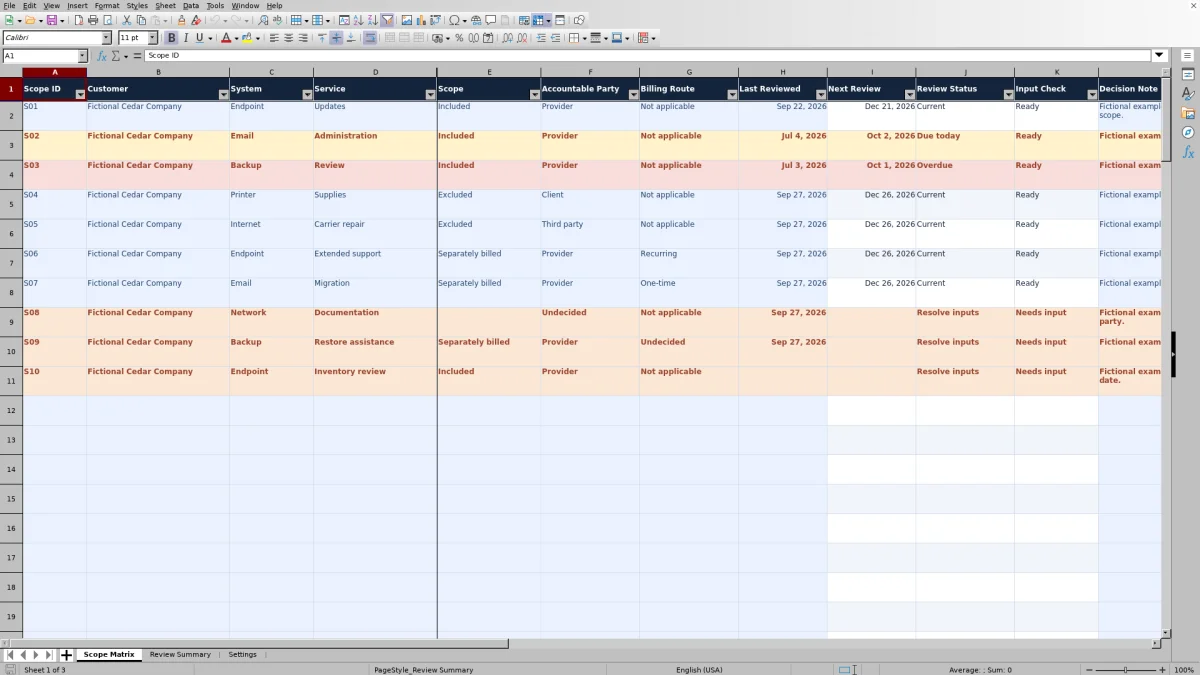
Replace the 10 fictional examples with your customer scope decisions. Use the pale blue input cells on Scope Matrix, with one customer, system, and service per row. Enter a Scope ID, choose an accountable party, and record the actual Last Reviewed date. Keep columns I–K intact because they calculate automatically.
3. Match scope to its billing route
Choose Included, Excluded, or Separately billed in Scope. Included and Excluded require Not applicable in Billing Route; Separately billed requires Recurring or One-time. Use Decision Note for a short boundary explanation where needed, without entering sensitive customer details.
4. Resolve inputs and plan the next review
Check Input Check and Review Status, then open Review Summary to see unresolved records, ready scope counts, review timing, and the duplicate ID warning. Filter Scope Matrix to investigate the relevant records. Treat Ready as an input-check result, not approval of the underlying agreement.
Define a service boundary your team can use
A system name alone rarely explains what you have agreed to support. An email environment might have administration included while a migration is separately billed. Record those as different services so a broad system label does not hide different responsibilities.
The workbook uses one customer, system, and service per row, with one Accountable Party. Choose Provider, Client, or Third party once the responsibility is decided. Undecided is available for a draft, but it prevents the record from becoming Ready.
If responsibilities are shared, split the work into clearly named service rows instead of forcing several owners into one field. For example, distinguish provider administration from client approval tasks. Use Decision Note to explain a boundary or exception; the note is optional and does not replace a complete service description or the governing agreement.
Separate scope decisions from pricing decisions
Scope answers whether a service is covered by the agreed scope, excluded, or handled through separate billing. Billing Route describes how a separately billed service is treated. These are related decisions, but neither field calculates a price.
- Included requires Not applicable as the billing route.
- Excluded also requires Not applicable.
- Separately billed requires Recurring or One-time.
A billing route is not a charge. Recurring does not specify a monthly amount or billing frequency, and One-time does not create a project quote. The workbook has no charge calculation, so confirm pricing and authorization through your quoting or agreement process before committing to work.
For Included records, Not applicable means a separate billing route is not being recorded here; it does not mean the service has no cost or is delivered free. Likewise, Excluded is a boundary decision, not evidence that another party has accepted the work.
Use review targets without confusing them with service performance
You enter Last Reviewed as the actual date the scope decision was reviewed. For a Ready record, the workbook adds the Settings review interval to that date to calculate Next Review. The interval is editable from 1 to 3,650 whole calendar days and applies across the prepared records.
Review targets use elapsed calendar days, not business hours. The default 90-day interval is an internal planning assumption, not a service-level agreement (SLA) or contractual requirement. Changing it shifts the calculated targets for Ready records.
Review Status compares Next Review with As of Date: an earlier target is Overdue, an equal date is Due today, and a later target is Current. Current means only that the scope-review target is in the future relative to that reference date. It does not show system health, ticket completion, or actual service performance.
As of Date initially follows TODAY() when the spreadsheet recalculates. For a meeting snapshot, use a fixed date and save a separately named copy. That preserves a reference version; it does not create an automated audit trail.
Example: interpret a 90-day scope review
For a fixed-date example, use these inputs together:
- Settings: As of Date = October 2, 2026; Review Interval (Calendar Days) = 90.
- Scope Matrix: Scope ID = S02; Customer = Fictional Cedar Company; System = Email; Service = Administration.
- Scope = Included; Accountable Party = Provider; Billing Route = Not applicable.
- Last Reviewed = July 4, 2026.
With valid settings and all required inputs complete, Input Check returns Ready. Adding 90 calendar days to July 4, 2026 produces a Next Review date of October 2, 2026. Because the target equals As of Date, Review Status returns Due today.
The next decision is to review whether email administration still has the same boundary and accountable party. Do not update Last Reviewed just to clear the indicator; enter a new actual review date after you have performed the review. If As of Date advances to October 3, 2026 without another review, this record becomes Overdue.
This example demonstrates review timing, not approval or delivery of email administration. The workbook's starting examples are fictional, and their displayed statuses can change as the reference date changes.
Read the summary without overlooking unresolved work
Review Summary separates Populated Records into Ready Records and Unresolved Records. Any editable input makes a row populated, even if you have entered only a Decision Note. Completely blank prepared rows contribute nothing.
Ready means the required inputs pass workbook checks. The Included, Excluded, and Separately Billed summary counts include only Ready records. A zero in one of those categories can therefore mean there are no complete records in that category, not necessarily that you have entered no draft decisions for it.
Resolve Inputs counts the same records shown under Unresolved Records; do not add the two measures as separate workloads. Similarly, the Duplicate ID Warning is a data-quality indicator, not an extra record count, and duplicate IDs do not change readiness.
Use the summary to choose what to inspect, then filter Scope Matrix for the individual responsibilities. These are counts of service-scope records, not unique customers, supported systems, revenue, or completed service tasks.
Troubleshooting incomplete records and misleading results
A blank Next Review is not evidence that no review is needed. Populated records that fail the input checks show Resolve inputs in Review Status and do not receive a calculated target. Completely empty rows leave the calculated fields blank.
- If Input Check says Needs input, complete Scope ID through Last Reviewed in columns A–H. Check the selected party and billing route, not just whether every cell contains something.
- If a date is rejected or the record stays unresolved, enter a real date without a time component. Last Reviewed must be on or after January 1, 2000 and no later than As of Date.
- If many records become unresolved together, inspect Settings first. An invalid date or review interval makes populated matrix records unresolved.
- If a separately billed record stays unresolved, choose Recurring or One-time. Included and Excluded records must use Not applicable.
- If Review Summary warns about duplicate IDs, filter Scope ID and inspect the IDs marked with a heavy amber border. Confirm whether the same record was entered twice or distinct services need distinct IDs.
Keep the supplied English dropdown labels unchanged because the billing rules and summary formulas depend on them. Before acting on displayed totals, open the workbook in a spreadsheet application and let its formulas calculate.
Comparison: this workbook or a blank spreadsheet
A blank spreadsheet can suit a short, informal scope list. This workbook is more useful when you want a consistent decision structure, input checks, and a repeatable review cycle without building those elements yourself.
| Method | Decision structure | Input checks | Review follow-up | Maintenance needs |
|---|---|---|---|---|
| MSP service scope matrix workbook | Prepared fields for customer, system, service, scope, accountability, and billing route | Required-input and billing-rule checks, with a separate duplicate ID warning | Calculated review dates, status indicators, and summary counts; no messages are sent | Maintain the inputs and assumptions; verify formulas and ranges if extending beyond the prepared rows |
| Blank spreadsheet | You choose and maintain the fields and terminology | Manual checks unless you build validation and formulas | Manual date tracking unless you add calculations and summaries | Flexible structure, but you must design and maintain the review logic |
Choose this workbook when its fixed scope categories and review model fit your process. Choose a blank spreadsheet when your decision structure is substantially different and you are prepared to maintain the logic. If you need assigned workflow, notifications, or ticket execution, assess an appropriate operational system separately; this workbook is a decision register, not a live ticket queue or monitoring tool.
Frequently asked questions
Can I use the workbook for more than one customer?
Yes. Each row has a Customer field, so you can record different customers within the prepared range. Review Summary counts the records across that range rather than presenting a customer-by-customer breakdown. Filter Scope Matrix to inspect a particular customer's responsibilities.
Can I leave a scope decision unfinished?
Yes. Blank draft inputs are allowed. A populated row remains unresolved until the required fields are complete, the accountable party is decided, the billing route is valid, and the review assumptions pass their checks. Decision Note is optional. Keep unfinished rows visible as drafts rather than treating them as approved scope.
What happens if I need more than 100 records?
Rows 2–101 are prepared for 100 records. The calculations, validations, filters, and summary references use that prepared range. Do not assume entries below row 101 will be included automatically. If you extend the workbook, verify those elements together before relying on the results; no larger tested capacity is established here.
Does Ready mean the customer has approved the scope?
No. Ready is a completeness and consistency result from the workbook's checks. It does not record contractual approval, authorize separate charges, establish that work was performed, or certify compliance. Confirm the underlying decision through your normal agreement process.
What customer information should I avoid entering?
Use non-sensitive scope descriptions. Do not enter contacts, credentials, customer secrets, or technical security details in the matrix or Decision Note. The workbook is a scope decision register, not password storage or a technical security repository.
Can I calculate the workbook in LibreOffice?
The workbook guidance calls for opening it in Excel or LibreOffice to calculate formulas. That is not a compatibility-test guarantee for every version. Check dropdown behavior, dates, Input Check results, and summary totals in your chosen application before using them for a customer review.
About the authors

Tessa WhitlockClient & service operations
More about this area of the library →
Nathan CalderwoodService economics & planning
More about this area of the library →