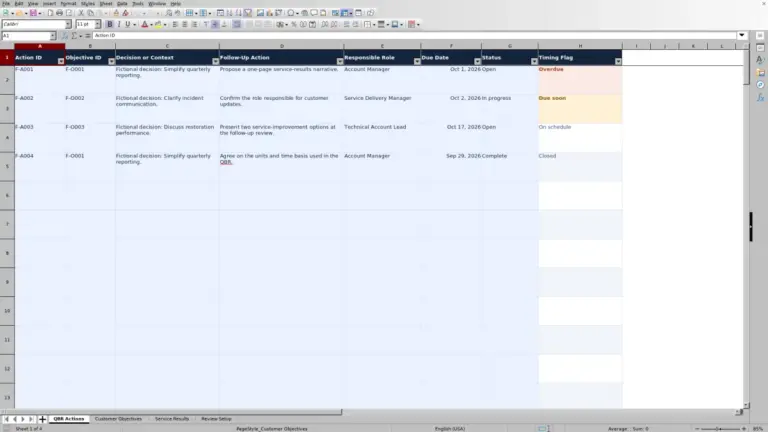
Turn client meeting decisions into clear follow-up commitments. This Excel workbook helps you, as an account manager at a managed service provider (MSP), record the next action, customer and MSP owner roles, and target due date.
Use the calculated review flags to identify overdue actions, upcoming deadlines, and records that need correction. It is a manual meeting follow-up log, not a quarterly business review scorecard or service ticket queue.
When to use this workbook
- Keep each agreed action connected to the meeting decision that prompted it.
- Make customer and MSP ownership visible before you request an update.
- Prioritize follow-up using overdue and due-soon categories.
- Identify incomplete or inconsistent records before relying on the summary.
What is in the file
How to use the workbook
1. Set the review assumptions
On Settings, check Review Date and Due Soon Window (Calendar Days). Review Date defaults to today's date through a formula; replace it with a fixed date when you need a specific review point. The initial due-soon window is 3 calendar days and can be set to a whole number from 0 to 365.
2. Replace the fictional records
Action Log rows 2–11 contain fictional examples. Replace or clear their input values before using the file for client follow-up. Enter one action per row within rows 2–101, completing columns A–I. Keep the calculated columns K–L intact.
3. Record status and actual completion
Choose Open, In progress, Waiting on client, or Complete in Status. Enter a Completed Date only for Complete records; leave it blank for the other statuses. Use role labels in Customer Owner Role and MSP Owner Role rather than personal contact information.
4. Recalculate and plan follow-up
Recalculate the workbook before relying on its results. Review Summary, then filter Review Flag on Action Log to inspect the underlying commitments. Correct Needs review records before treating them as actionable or complete, and contact the appropriate owner roles manually.
Separate the meeting decision from the next action
A decision explains what the client and your team agreed to do; the next action states the follow-up needed to carry it out. Keep those entries distinct. For example, agreeing to a monthly operations meeting cadence is a decision, while confirming the recurring meeting day with the client coordinator is an action.
Use one action per record. If one decision creates several commitments, repeat the meeting details and give each action a unique Action ID, its own due date, and the relevant owner roles. Otherwise, completing one part of the work can make the whole row appear finished while another commitment remains open.
Customer Owner Role and MSP Owner Role identify the two sides of the handoff. They do not verify that anyone has accepted responsibility. Confirm ownership during the meeting or recap, and make Next Action specific enough that you can later check whether it happened.
Choose a review date that matches your follow-up session
The workbook classifies commitments against Review Date on Settings, not against a continuously running timer. Its default TODAY formula follows the current date when recalculated. A fixed date is useful when you want a consistent view for a particular meeting or review session.
Due Soon Window (Calendar Days) determines how far ahead to look. Valid, incomplete actions due before the review date are Overdue. Actions due on the review date through the end of the selected window are Due soon; later actions are On track. A window of 0 includes only actions due on the review date in Due soon.
These are calendar-day planning assumptions, not business-hour calculations or service-level agreement (SLA) targets. Weekends are not excluded. Set the window to suit your follow-up routine, and do not interpret On track as evidence that work is progressing—it describes the due date's position relative to the review window.
Example: decide what to follow up on before a client meeting
Use this grouped example to understand the calculation:
- Settings: Review Date is Oct 2, 2026; Due Soon Window is 3 calendar days.
- Action ID: Fictional-01; Client: Fictional Cedar Client; Meeting Date: Sep 18, 2026.
- Meeting Decision: Use a monthly client operations meeting cadence.
- Next Action: Confirm the recurring meeting day with the client coordinator.
- Customer Owner Role: Client coordinator; MSP Owner Role: MSP account manager.
- Due Date: Sep 27, 2026; Status: Open; Completed Date: blank.
With valid inputs and recalculated formulas, the record is Overdue and Days Overdue is 5 calendar days: Oct 2 minus Sep 27. That result tells you the recorded target has passed without recorded completion. Your next step is to ask for an update and establish what is blocking confirmation; it does not establish a service breach.
Under the same settings, a valid incomplete action due Oct 5, 2026 falls within Due soon and has 0 Days Overdue. It needs near-term attention, but it is not late. Keeping the same review date lets you compare those priorities on a consistent basis.
Read completion, zero, and blank results correctly
Status is a manual entry; Review Flag is a calculated assessment of the record. Selecting Complete alone is not enough. A Complete record also needs a valid Completed Date and must pass the date consistency checks. For other statuses, leave Completed Date blank.
For a valid incomplete record, Days Overdue is the difference between Review Date and Due Date, with a minimum of zero. A zero therefore means the target date has not passed; it does not mean the action is complete.
A blank Days Overdue value is not proof of timely completion. That field is blank for Complete records, Needs review records, and unused rows. Check Review Flag to distinguish them. Complete records are excluded from overdue-day calculations, so the workbook does not use this field to report how late an action was when it finished.
Waiting on client is also not a pause control. A valid incomplete commitment still needs to be reviewed against its due date, even when the next response is expected from the customer.
Troubleshooting records marked Needs review
Needs review means the record should be corrected before you use it for follow-up prioritization or completion reporting. Inspect the inputs rather than replacing the calculated flag.
- Missing details: complete Action Log columns A–I. A partially entered row is not a valid commitment.
- Duplicate IDs: give each action a unique Action ID, including actions for different clients in the same workbook.
- Unsupported status: select one of the four supplied dropdown labels. Do not substitute a label such as Closed.
- Date problems: use real spreadsheet dates without time components. Check for future meeting dates, due dates before meetings, and inconsistent completion dates.
- Completion mismatch: supply a valid Completed Date for Complete records and remove it from records with other statuses.
If many populated rows become Needs review together, inspect Settings first. An invalid Review Date or due-soon window causes populated records to require review, while unused rows remain blank. The window must be a whole number from 0 to 365. After correcting inputs, recalculate and check the flags again; input validation is not a substitute for reviewing the resulting records.
Use the summary to prepare a focused meeting agenda
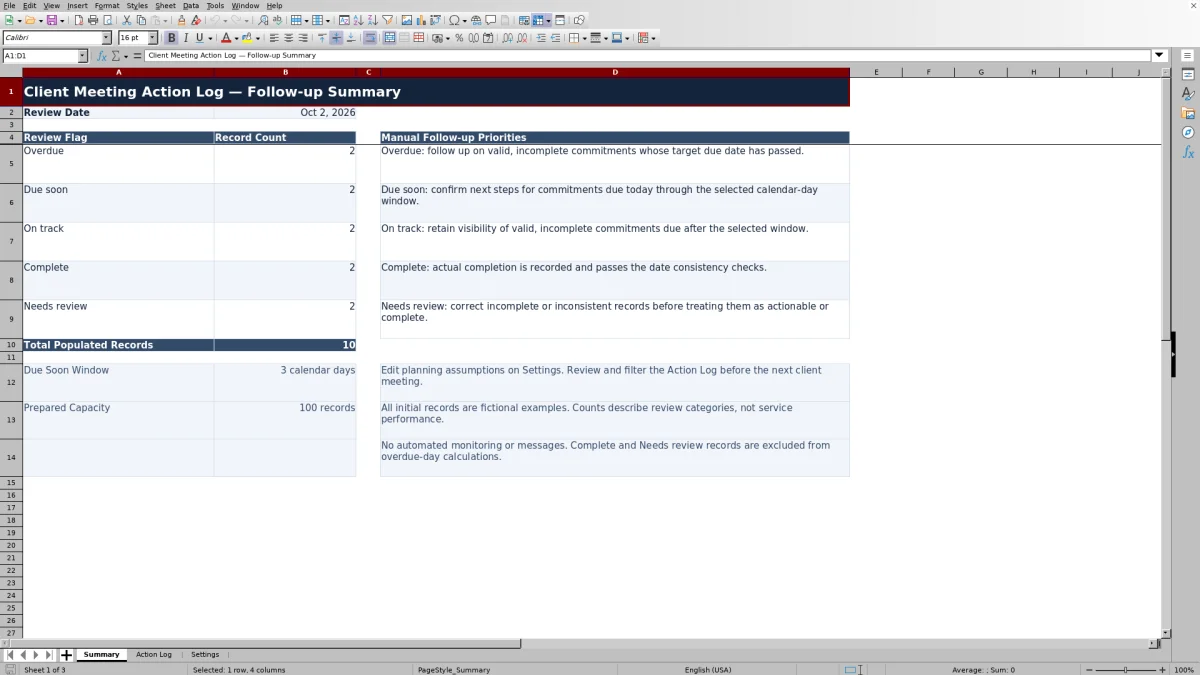
Summary counts the five review categories across the 100 prepared Action Log rows. Use those counts to identify the kind of work ahead: correct incomplete records, chase overdue commitments, and confirm next steps for upcoming deadlines. The manual priority notes guide your review; they do not send messages or perform the follow-up.
Filter Action Log by Client and Review Flag when preparing a customer discussion. Summary counts are not filter-specific: they count the full prepared range, even when you hide other clients' records with a filter. Total Populated Records also includes Needs review records, so it is not a count of validated commitments alone.
The prepared capacity is rows 2–101. Do not assume an action entered below row 101 will receive formulas, validation, filtering, or summary coverage. Before expanding the workbook, check and extend the relevant ranges together. Category counts describe the state of your follow-up records, not customer service performance.
Comparison: this workbook or a blank spreadsheet
A blank spreadsheet can be sufficient when you only need a short list of meeting commitments. This workbook is useful when you want a consistent distinction between manual status, date-based priority, and records needing correction. Both approaches depend on someone maintaining the information and following up.
| Method | Decision and ownership structure | Follow-up prioritization | Maintenance and limits |
|---|---|---|---|
| Client Meeting Action Log workbook | Prepared fields connect decisions, actions, customer roles, MSP roles, and dates. | Calculated review categories and calendar days overdue use editable review settings. | Requires manual updates and follow-up; 100 records are prepared, with fixed summary ranges. |
| Blank spreadsheet | You choose and maintain the fields and conventions. | You review dates manually or build your own calculations and checks. | Offers a flexible layout, but you must create and maintain any validation and summary logic. |
Choose the prepared workbook for a repeatable meeting follow-up routine; choose a blank spreadsheet when a simpler or substantially different layout better fits the task. If a meeting action leads to technical service work, handle that work in your normal service delivery process. This log does not replace ticket handling, automated monitoring, or reminder workflows.
Frequently asked questions
Can I change the status dropdown labels?
Keep Open, In progress, Waiting on client, and Complete intact in Settings cells D2–D5. The dropdown uses those values, and Complete is the completion-state label. Changing the labels can make existing records require review or disrupt the intended workflow. Put additional context in Next Action rather than changing the supported statuses.
How can I preserve the view used for an earlier meeting?
Set Review Date to the date of that review, recalculate, and save a separately named copy if you need to retain that view. A fixed review date alone does not preserve the records if you later edit them. Do not assume the workbook maintains an audit trail or previous versions.
What customer information should I avoid entering?
Use role labels rather than personal contact information. Do not enter credentials, customer secrets, or technical security details. Keep Meeting Decision and Next Action focused on the commitment, and use your approved systems for sensitive supporting information.
Can I use the workbook outside Excel?
The operating guidance calls for recalculation in Excel or LibreOffice before relying on results, but it does not establish compatibility testing across applications or versions. If you use another spreadsheet application, check formulas, date handling, dropdowns, filters, and review results before using the file for client follow-up.
Why do the fictional example counts change when I open the file?
Review Date defaults to TODAY, so recalculation can move fictional actions between date-based categories as the current date changes. The example counts are not a permanent expected result. Use a fixed Review Date when checking a specific scenario, and replace or clear the fictional input records before interpreting Summary as your own client action totals.
About the authors

Tessa WhitlockClient & service operations
More about this area of the library →
Nathan CalderwoodService economics & planning
More about this area of the library →