Before you invest more time in a managed IT proposal, compare the prospect’s technical environment, support expectations, service scope, and proposed commercial terms. This Excel scorecard helps you screen prospective clients for your managed service provider (MSP) business.
Enter your assessment, then use the calculated fit score and minimum-requirement checks to guide the next sales decision. The workbook returns Proceed, Review, or Do not proceed using editable screening assumptions—not contract approval or a guarantee of successful service delivery.
When to use this workbook
- Apply the same fit criteria and commercial minimums across prospect assessments.
- Keep a strong overall rating from hiding a failed minimum requirement.
- Identify incomplete assessments before relying on a qualification decision.
- Filter prospects by decision to focus follow-up and clarification work.
What is in the file
How to use the workbook
1. Set your screening policy
On Settings, review the editable values in B2:B8: minimum recurring monthly fee, minimum contract term, three minimum fit ratings, and the Proceed and Review thresholds. The starting values are fictional assumptions. Confirm that Settings status — calculated reads Ready before assessing prospects.
2. Agree on the rating guidance
Review the 0–5 guidance in Settings B13:B18. You can edit its wording to describe your service offering, but the scale and equal weighting remain fixed. Agree on how you will judge supported technologies, requested support coverage, and managed service scope.
3. Enter a prospect assessment
On Prospects, use one row per prospect’s current assessment. Enter a Prospect alias, Review date, all three fit ratings, the proposed recurring monthly fee in USD, contract term in months, and one-time fee in USD. Enter 0 for a known absence of a one-time fee; leave an unknown value blank rather than inventing it.
4. Check the result and choose the next action
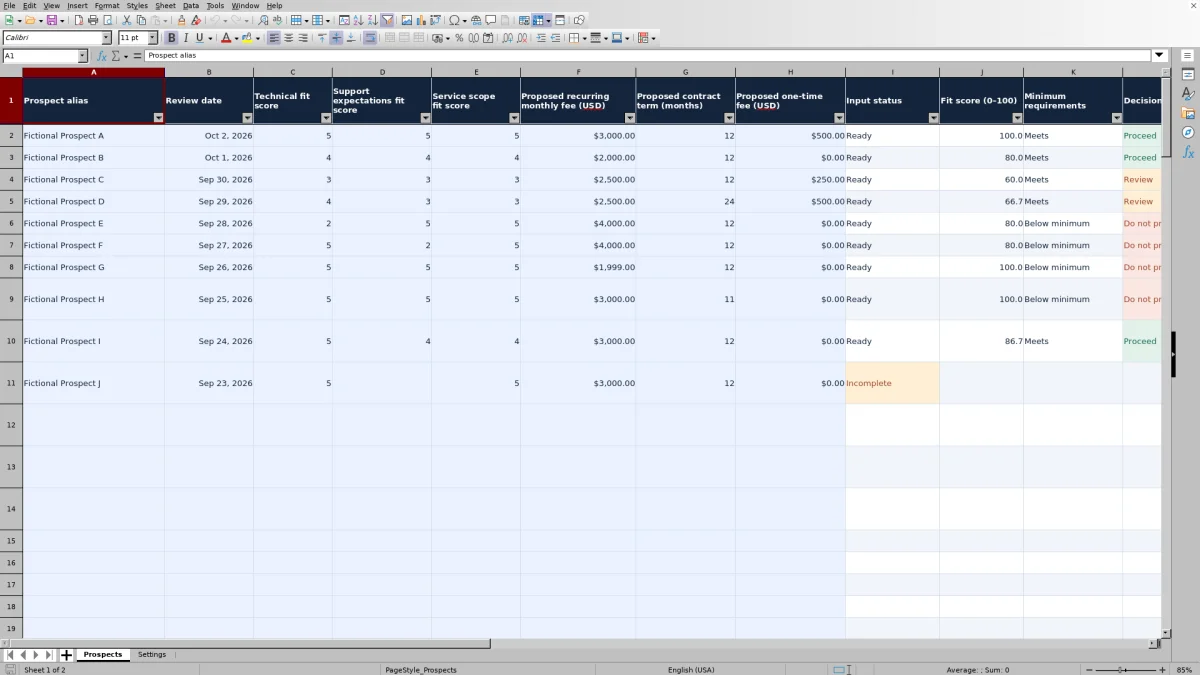
Read Input status first, then Fit score (0–100), Minimum requirements, and Decision. Use the filters to isolate records needing attention. Replace the fictional examples before using the counts for your own pipeline, and keep calculated columns I:L and the count formulas in O intact.
Make fit ratings useful for managed IT qualification
The three ratings capture different reasons a prospect may or may not suit your service offering. Technical fit concerns the technologies you support. Support expectations fit concerns requested coverage and response expectations. Service scope fit concerns the managed services the prospect wants you to deliver.
Use discovery evidence to assign each rating rather than treating enthusiasm for the opportunity as evidence of fit. The initial guidance runs from 0, No fit, to 5, Strong fit; a 3 means Workable with clarification. If you use that middle rating, identify what still needs clarification in your sales records before advancing the proposal.
Rate service fit, not personal characteristics. Keep the assessment focused on the client environment, requested services, expectations, and commercial terms. For support expectations, distinguish business-hours coverage from elapsed-time response expectations. These are subjective qualification judgments, not measured service-level agreement (SLA) performance.
Understand how minimums and scores determine the decision
The workbook first requires a named, complete assessment and valid settings. It then averages the three fit ratings, divides that average by 5, and multiplies by 100. The result is rounded to one decimal before comparison with the decision thresholds. Each rating contributes equally; proposed fees and contract length do not increase the fit score.
Minimum requirements take priority over the score. The recurring monthly fee, contract term, technical fit rating, support expectations fit rating, and service scope fit rating must each meet their corresponding minimum. If any one fails, the decision is Do not proceed, even with a high overall score.
When all five minimums are met, a score at or above the Proceed threshold returns Proceed. Otherwise, a score at or above the Review threshold returns Review; a lower score returns Do not proceed. Initially, the fictional minimums are $2,000 per month, 12 months, and 3 for each fit rating, with thresholds of 80 for Proceed and 60 for Review.
Use these outputs to decide what to do next: continue qualification, resolve a specific uncertainty, or stop under your current screening policy. Changing Settings recalculates existing assessments, so check the effect on the list rather than assuming earlier decisions remain unchanged.
Example: a workable prospect still needs review
Consider this complete assessment using the initial settings: Prospect alias is Example Client; Review date is October 2, 2026; technical fit is 4; support expectations fit is 3; service scope fit is 3; recurring monthly fee is $2,500; contract term is 24 months; and one-time fee is $500.
The average rating is 3.333…, which becomes a fit score of 66.7 out of 100. The $2,500 monthly fee exceeds the $2,000 minimum, the 24-month term exceeds the 12-month minimum, and all three ratings meet the minimum of 3. Minimum requirements therefore reads Meets, but Decision reads Review because 66.7 is above 60 and below 80.
The useful next step is to clarify the support and scope gaps represented by the two ratings of 3—not simply increase the proposed fee. If the monthly fee were instead $1,800, the decision would become Do not proceed because the recurring fee minimum would fail. The $500 one-time fee cannot make up that shortfall.
Use the prospect list without losing context
The prepared range covers Prospects rows 2–101. Use the filters in A1:L101 to find Review decisions, failed minimums, or incomplete records. A single current assessment per prospect keeps the list focused; multiple rows for the same prospect can inflate counts because the formulas count rows, not unique client identities.
The Decision / input status summary provides counts for the displayed categories. Treat these as counts within the prepared range, not a complete sales forecast or a record of all prospects ever reviewed. A zero decision count means no row currently has that decision; incomplete assessments may still be waiting for inputs.
Separate current screening from historical evidence. Save a separately named copy if you need a baseline before changing thresholds or replacing an assessment. Do not assume the workbook preserves earlier ratings or decisions. Rows beyond 101 are outside the prepared formula and count ranges; do not assume adding a row extends the logic automatically.
Troubleshooting blank decisions and misleading results
- Input status says Check settings: Go to Settings B2:B8. All seven values must be numeric. Check for a nonnegative recurring fee, a whole-number term of at least 1 month, fit minimums within 0–5, and decision thresholds within 0–100 with Proceed no lower than Review. Correct the inputs until B9 reads Ready.
- Input status says Incomplete: A named row needs a numeric Excel review date and all six numeric inputs in C:H. Check the one-time fee as well as the ratings, recurring fee, and term. A blank one-time fee blocks a decision even though that fee does not affect the minimum check.
- A populated row has no status or decision: Check Prospect alias. If it is blank, the calculated status, score, minimum result, and decision remain blank.
- A pasted record looks implausible but says Ready: Readiness checks numeric presence, not every permitted input range. Pasting can bypass entry validation. Inspect dates, whole-number ratings from 0–5, nonnegative fees, and whole-number contract terms of at least 1 month before relying on the result.
- A completed row scores 0.0: This can be a valid calculated result when all three ratings are zero. It is not the same as a blank score, which indicates that the row is not ready for calculation.
Keep screening separate from pricing and delivery approval
A proposed recurring monthly fee is an input to a minimum check, not proof that the account will be profitable. The workbook does not calculate revenue totals, delivery costs, margin, or markup. Review your pricing and cost assumptions separately before issuing a commercial proposal.
Likewise, a strong support expectations rating does not establish an achievable contractual response target. Confirm coverage windows, exclusions, escalation arrangements, and delivery capacity through your normal scoping process. The scorecard does not track actual service delivery, monitor client systems, certify compliance, or approve contracts.
The initial examples and thresholds are fictional. Edit the screening assumptions to match your service policy, but do not change them merely to obtain a preferred outcome for one prospect. If you choose to pursue an exception, record the rationale outside the calculated decision rather than overwriting its formula.
Comparison: this scorecard or a blank spreadsheet?
A blank spreadsheet is a reasonable alternative when your qualification model is still changing. This workbook is more structured: it supplies a fixed three-rating model, minimum checks, and decision formulas. The choice depends on whether that model matches the decisions you need to make.
| Method | Starting structure | Decision logic | Flexibility | Ongoing checks |
|---|---|---|---|---|
| MSP qualification scorecard | 100 prepared rows with defined inputs, filters, and summary counts | Equal-weight fit score plus five minimum requirements and editable thresholds | Editable assumptions and guidance within a fixed scoring model | Review evidence, pasted values, settings, and prepared range limits |
| Blank spreadsheet | You choose and create the fields | You design formulas or make decisions manually | Can be tailored to different criteria and weighting | You must build and verify calculations, validation, and summaries |
Use this scorecard when you want a repeatable screen based on the three fit dimensions and proposed commercial terms. Start with a custom sheet if you need materially different criteria or weighting, allowing time to check the resulting logic. Neither approach replaces discovery evidence or a separate contract review.
Frequently asked questions
Can I change the rating descriptions or weight one criterion more heavily?
You can edit the scoring guidance in Settings B13:B18. Changing those descriptions does not change the fixed 0–5 scale or the equal-weight calculation. Different weighting would require modifying and checking the formulas; it is not an editable setting supplied by the workbook.
What happens if the Proceed and Review thresholds are equal?
Equal thresholds are permitted. Because the formula checks Proceed first, a prospect that meets all minimums and reaches that shared threshold receives Proceed. A lower score receives Do not proceed, so there is no Review score band in that configuration.
Should I enter zero when a proposed one-time fee is unknown?
No. Enter 0 only when the proposed one-time fee is known to be zero. Leave an unknown fee blank until it is established; the row will remain Incomplete. The field is required for completeness but does not affect the fit score or compensate for a recurring monthly fee below the minimum.
What results should the fictional examples produce?
With the initial settings and examples unchanged, the reference outcomes are 3 Proceed, 2 Review, 4 Do not proceed, and 1 Incomplete. Fictional Prospect A scores 100.0. Fictional Prospect J has a missing support fit rating and therefore has a blank decision. The reference notes on Settings are static, not live counts.
Can I open the workbook in LibreOffice?
The workbook is designed for its formulas and counts to recalculate when loaded in Excel or LibreOffice. Check the displayed results after opening, particularly before using decisions operationally. The fictional reference outcomes provide a useful initial check, but they are not a claim of compatibility testing across software versions.
About the authors

Tessa WhitlockClient & service operations
More about this area of the library →
Nathan CalderwoodService economics & planning
More about this area of the library →