After a client signs, make sure they receive the information needed to use your support service. This Excel checklist helps your managed service provider (MSP) track delivery of support channels, escalation guidance, service-hours guidance, and orientation acknowledgment.
Enter the evidence dates, then review which welcome packs need follow-up. The workbook calculates completion status and calendar-day timing against an editable internal target; it does not deliver the materials or verify their receipt for you.
When to use this workbook
- Find signed clients still missing welcome materials or orientation acknowledgment.
- Prioritize unfinished packs that have passed your internal completion target.
- Separate completed-late packs from those still awaiting follow-up.
- Review on-time completion across completed packs without counting unfinished work as success.
What is in the file
How to use the workbook
1. Set your internal completion target
In Settings, enter 0–60 whole calendar days in B2, labeled Target calendar days after signature. The initial value is 7. This is an internal follow-up goal, not a contractual service-level agreement (SLA). Replace the fictional examples in Welcome Tracker rows 2–11 before operational use.
2. Identify each signed client
In Welcome Tracker, enter a unique Client code, a Client label of no more than 80 characters, and the Contract signed date. Enter the code first. Use an organization label rather than personal contact details, and leave unused rows blank.
3. Record delivery and acknowledgment evidence
Enter actual dates in the four fields from Support channels delivered date through Orientation acknowledged date. Leave an event blank until it has occurred. Dates must be whole dates from the contract signature date through today. Edit the input fields, not the formulas in H–L.
4. Recalculate and review follow-up
Recalculate the workbook in your spreadsheet application, then filter Pack status for Overdue, In progress, or Needs input. Inspect missing evidence dates and input alerts before relying on Overview. For completed packs, check Calendar days past target to identify late completion.
Record evidence without overstating completion
Use one row for each client's post-signature welcome pack. The four evidence dates answer different questions: when support channels were delivered, when escalation guidance was delivered, when service-hours guidance was delivered, and when orientation was acknowledged. Sending an orientation invitation is not the same as receiving acknowledgment.
A filled date is a manual evidence entry. The workbook does not inspect the delivered documents or confirm what the client understood. Keep supporting correspondence in your normal approved records system and enter dates only when you can substantiate the event.
Actual completion date is the latest of the four evidence dates and appears only when all four are present, provided the client code and signature date are entered. Pack status also requires a client label and an internal target before it can show Complete. If an item is outstanding, leave its date blank so it remains visible for follow-up.
Choose a calendar-day target and understand its effect
The target completion date is the contract signed date plus the number of calendar days in Settings B2. Weekends and holidays count. A seven-day setting means seven calendar days after signature, not seven working days or a number of support hours.
An unfinished pack remains In progress on its target date. It becomes Overdue only when the current calculation date is later than that target. Elapsed calendar days measures time from signature to today for unfinished packs, or from signature to the latest evidence date for completed packs.
Changing the target also changes historical results. The workbook uses one shared target rather than a separate saved target for each client. If you need to retain a baseline before changing your operating goal, save a separately named copy and record the review date. Do not treat a revised on-time percentage as evidence that past delivery changed.
Use the overview to direct the next action
Start with Records needing input. A coded record missing its client label, signature date, or shared target receives Needs input before other statuses are considered. Fix these gaps so a missing setup value does not obscure the pack's follow-up position.
Next, filter Overdue packs and inspect the four evidence fields to decide what remains to be delivered or acknowledged. Review In progress packs as well: a pack due today is still in that group. Completed late packs stay Complete, but their positive Calendar days past target preserves the lateness for review.
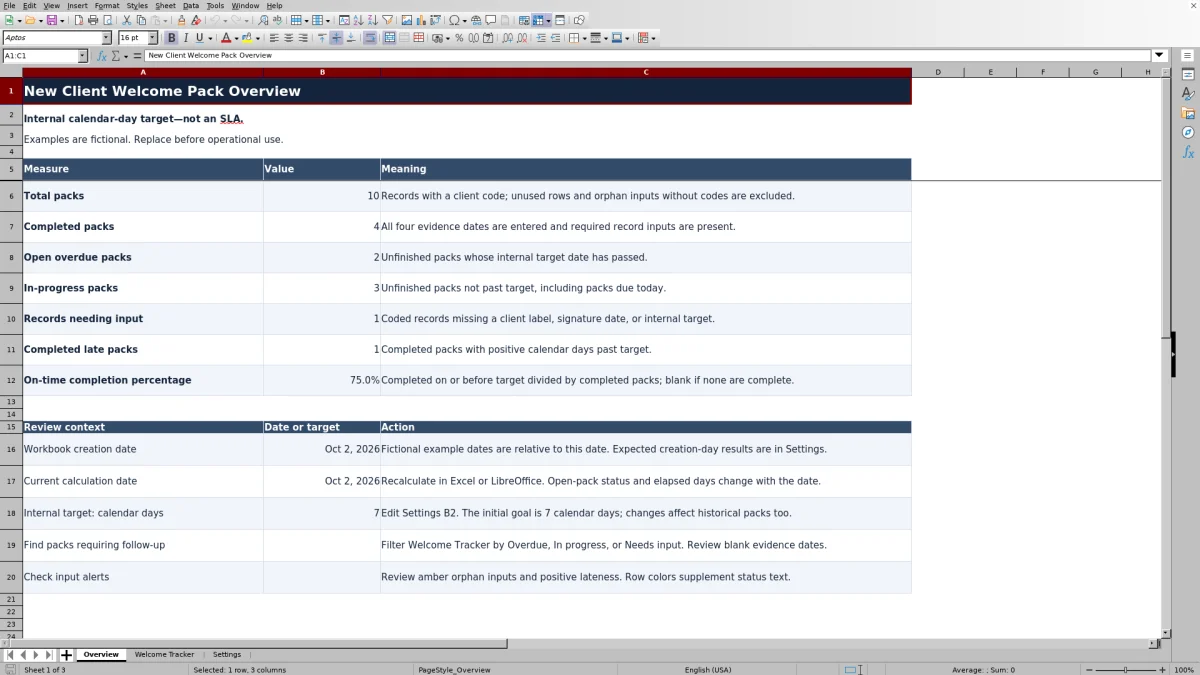
The on-time completion percentage divides completed packs with zero lateness by all completed packs. It describes completed work only. A high percentage can coexist with open overdue packs, so read both measures together. A blank percentage means no packs are Complete; it does not mean 0% or 100%.
Total packs counts populated client codes. Inputs entered without a code are excluded from that total, so inspect the amber orphan-input alerts rather than assuming the summary includes every partially filled row.
Example: a completed pack that missed the target
Consider this grouped set of inputs: Client code FIC-02; Client label Fictional Client 02; contract signed September 12, 2026; support channels delivered September 13, 2026; escalation guidance delivered September 14, 2026; service-hours guidance delivered September 15, 2026; orientation acknowledged September 22, 2026. Set the internal target to 7 calendar days.
The signature date plus seven days gives a target of September 19, 2026. The latest evidence date is September 22, 2026, so Actual completion date is September 22 and Pack status is Complete. Elapsed calendar days is 10, and Calendar days past target is 3.
The result means all four recorded requirements are finished, but completion occurred three calendar days after the internal goal. No item remains open in this row. Your next decision is whether the acknowledgment process needs earlier follow-up—not whether to mark the pack unfinished or declare an SLA breach.
For the workbook's full fictional dataset, the stated October 2, 2026 check at a seven-day target is 10 packs: 4 complete, 2 overdue, 3 in progress, and 1 needing input. One completed pack is late, so 3 of 4 completed packs are on time: 75.0%. Open-pack results change as the calculation date advances.
Troubleshooting missing results and misleading entries
- Inputs exist but status is blank: Check Client code first. Without a code, the row's calculated outputs remain blank and the record is not included in Total packs. Add the correct unique code or remove accidental inputs.
- A coded row shows Needs input: Check Client label, Contract signed date, and Settings B2. Entering all four evidence dates does not override these missing required inputs.
- Four visible dates do not produce completion: Confirm that D–G contain actual spreadsheet dates, not text that merely looks like a date. Completion requires four numeric date entries. Re-enter valid dates and recalculate rather than typing over Actual completion date.
- A date is rejected: Enter the client code and valid signature date first. Signature dates cannot be in the future; evidence dates cannot precede signature or exceed today. Use dates without time components.
- A completed pack has amber lateness: Positive lateness is intentional even when status is Complete. Review the timing rather than replacing the status or clearing the calculated days.
- Results look stale or are absent: Recalculate before review. Open-pack status and elapsed days depend on TODAY(), and formula results are not supplied as cached values.
Typed-entry validation checks codes, label length, dates, and the target, but pasting or clearing cells may bypass entry checks. Review duplicate codes, date ranges, and orphan inputs after bulk edits. Zero Calendar days past target means no positive lateness; for an unfinished pack it does not mean the pack is complete. A blank lateness result can instead indicate missing required inputs.
Keep the tracker within its prepared scope
The workbook has 100 prepared record rows, covering Welcome Tracker rows 2–101. Ten contain fictional examples and the other 90 are initially available. Replacing the examples makes all 100 rows available for your records.
The formulas, validation, filter, and Overview references are prepared for that range. Do not assume that typing below row 101 extends them. If you modify the workbook for more records, review and extend all relevant ranges and verify the summaries before relying on them.
This is a welcome-delivery register, not a full client onboarding project plan. Keep support tickets, staffing, billing, assets, security compliance, project execution, credentials, customer secrets, and sensitive document contents out of it. The service-hours field records delivery of guidance; it does not calculate coverage, measure support performance, monitor systems, or send messages.
Comparison: this workbook or a manual checklist
A manual checklist can be enough when you only need to confirm delivery for a small number of clients. This workbook is useful when you also need consistent timing calculations and a cross-client follow-up view. Both approaches still depend on someone recording accurate evidence.
| Method | Evidence capture | Timing review | Cross-client follow-up | Main responsibility |
|---|---|---|---|---|
| Welcome pack Excel workbook | Four defined delivery and acknowledgment dates per client | Calculated calendar-day targets, elapsed time, and lateness | Status filters and summary counts across 100 prepared records | Enter evidence, check inputs, and recalculate |
| Manual checklist | Items and evidence notes chosen by your team | Dates and lateness checked manually | Individual checklists reviewed or consolidated manually | Maintain consistent items and perform each timing review |
Choose the workbook when its four milestones and shared internal target match your process. Choose a manual checklist when requirements vary substantially and a calculated summary is unnecessary. If you need assigned tasks or automated reminders, evaluate a workflow tool for those requirements; neither the workbook nor a basic manual checklist provides them automatically.
Frequently asked questions
Does this include the welcome documents to send to clients?
No. It tracks the dates when support channels, escalation guidance, and service-hours guidance were delivered, plus orientation acknowledgment. Prepare and deliver the actual client-facing materials through your normal process.
Can I use a same-day completion target?
Yes. Settings B2 accepts 0 whole calendar days, making the target date the contract signed date. An unfinished pack is still In progress on that date and becomes Overdue on a later calculation date. This is date-based tracking, not an hourly deadline.
Does Complete mean the client has been fully onboarded?
No. Complete means the four evidence dates and required record inputs are present. It does not confirm technical setup, project completion, client understanding, or contractual compliance. Keep those acceptance decisions in the appropriate operational process.
Can I use the XLSX workbook in LibreOffice?
The workbook instructions call for recalculation and verification in Excel and LibreOffice before operational use; they do not establish a compatibility test result. In the application you choose, verify date entries, status calculations, filters, and alerts before using the summary for follow-up decisions.
Why do the fictional examples show different overdue counts now?
The stated example totals apply to October 2, 2026 with a seven-calendar-day target. Open-pack calculations use the current date, so overdue counts and elapsed days can change later. Changing Settings B2 also changes target-based results. Replace the examples before using the workbook for your clients.
About the authors

Tessa WhitlockClient & service operations
More about this area of the library →
Nathan CalderwoodService economics & planning
More about this area of the library →