Before you take responsibility for a new client's IT, check which prerequisites are accepted and which still need attention. This MSP onboarding checklist is an Excel workbook for managed service provider (MSP) teams tracking evidence references, ownership, and acceptance gates during a client service transition.
Enter the transition requirements, record acceptance decisions, and review the calculated gate statuses and readiness summary. The workbook supports a responsibility-transfer review; it does not transfer responsibility automatically or replace your acceptance process.
When to use this workbook
- Keep prerequisites, owner roles, evidence references, and acceptance records together for one client transition.
- Identify required gates that still need approval, evidence, or rework before the handoff review.
- Prioritize open items using overdue and due-soon flags tied to your review date.
- Spot incomplete setup and partial entries that could otherwise make the transition look more complete than it is.
What is in the file
How to use the workbook
1. Set the client and review assumptions
On Settings, replace Client Alias with a nonsensitive identifier. Check Review Date and Warning Window (Calendar Days). The review date defaults to TODAY(); replace it with a fixed date when you need a stable review. The warning window defaults to 3 calendar days and accepts whole numbers from 0 through 30.
2. Replace the fictional prerequisites
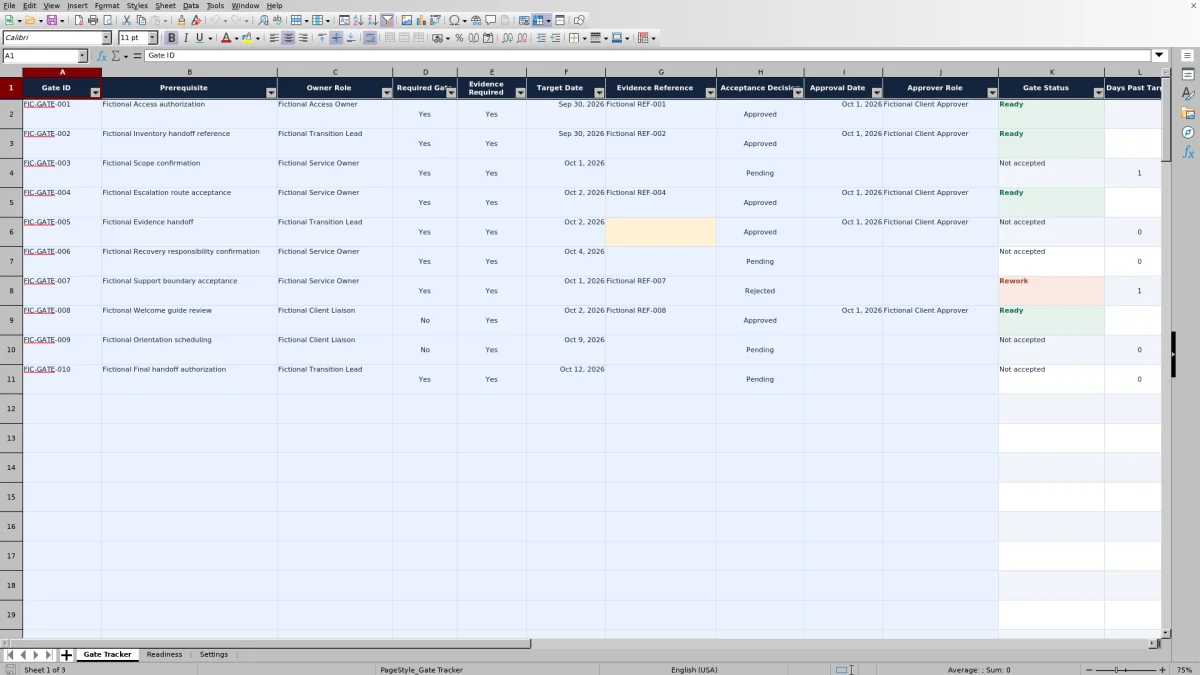
On Gate Tracker, enter one prerequisite per row in columns A:J, rows 2–101. Supply a unique Gate ID, Prerequisite, Owner Role, Required Gate choice, Evidence Required choice, and Target Date. Use the Yes/No choices to reflect your agreed transition requirements, not the fictional examples.
3. Record evidence and acceptance
Enter nonsensitive identifiers in Evidence Reference rather than evidence contents. Set Acceptance Decision to Pending, Approved, or Rejected. For an approved gate, record Approval Date and Approver Role, and supply an evidence reference when Evidence Required is Yes.
4. Resolve exceptions before review
Leave the calculated Gate Status, Days Past Target, and Timing Flag columns unchanged. Check Readiness for setup issues, open overdue gates, and partial rows, then reconcile the underlying entries. Use the recommendation to prepare the acceptance discussion, not as automatic authorization to begin service.
Define the prerequisites that matter to the handoff
Start with the conditions you need to verify before accepting the client's managed IT service scope. Access authorization, scope confirmation, inventory handoff references, and escalation-route acceptance are examples of transition prerequisites. Describe each condition clearly enough that you can decide whether it has been accepted; a broad entry such as “onboarding complete” hides the unresolved work.
Required Gate is an editable assumption, not a contractual default. Mark it Yes when the prerequisite must be ready for the workbook's transition-review recommendation. Evidence Required is a separate choice: it determines whether an evidence reference is needed for that row to become Ready. A gate marked optional can still require evidence for its own acceptance.
Use Owner Role to show who is responsible for progressing the prerequisite and Approver Role to record the role accepting it. These are manual records, not assignments or approval requests sent by the workbook. Keep one client transition per copy, and replace or clear unused fictional inputs so they do not remain in your gate counts.
Separate an approval entry from a ready gate
Selecting Approved is not sufficient by itself. For a described prerequisite, the workbook first checks that Gate ID and Owner Role are present, both requirement choices are Yes or No, and Target Date is numeric. Missing setup produces Incomplete setup before the acceptance decision is evaluated.
With setup complete, Rejected produces Rework. A gate becomes Ready only when Acceptance Decision is Approved, Approval Date is a positive numeric date no later than the review date, Approver Role is present, and Evidence Reference is filled in when evidence is required. Other acceptance states produce Not accepted.
A reference is not verified evidence. The formula checks whether the required reference field contains an entry; it does not inspect the referenced record, confirm its relevance, or verify the approver's authority. You still need to review the underlying evidence and acceptance. Store only nonsensitive identifiers in this workbook, not credentials, infrastructure details, personal data, or the evidence itself.
Read the recommendation without overlooking exceptions
Readiness counts Gates Entered from rows with a Prerequisite description. With no described gates, Recommendation says No gates entered. If any described gate has incomplete setup, it says Complete gate setup. If setup is complete but no gates are marked required, it says Define required gates.
Once those conditions are satisfied, all required gates must be Ready for the recommendation to show Ready for transition review. Otherwise, it shows Hold. This is a count-based decision aid, not a percentage estimate of how much transition work remains.
Check partial rows separately. A row with other inputs but no Prerequisite is excluded from gate counts and has blank calculated row results. Readiness reports these entries under Partial Rows Missing Prerequisite and Entry Reconciliation, but that count does not directly change Recommendation. Resolve them before relying on the summary.
Optional gates with complete setup do not block the recommendation merely because they remain unaccepted. Open Overdue Gates includes both required and optional gates, but overdue status is not a separate recommendation test. You can therefore see Ready for transition review alongside an overdue optional item. Decide how to handle that outstanding obligation during the review rather than treating the recommendation as proof that nothing remains open.
Example: distinguish late work from accepted work
For a controlled example, set Review Date to October 5, 2026, and Warning Window (Calendar Days) to 3. Enter a gate with Gate ID EX-001, Prerequisite “Scope confirmation,” Owner Role “Service Owner,” Required Gate Yes, Evidence Required Yes, and Target Date October 2, 2026. Leave its evidence and approval fields blank and select Pending.
With these inputs, Gate Status is Not accepted, Days Past Target is 3 calendar days, and Timing Flag is Overdue. The result means the target has passed and acceptance is still missing; it does not measure technician effort or business-hours delay. Your next action is to resolve the scope acceptance and required evidence, not simply move the target date to remove the warning.
If you then record Evidence Reference EX-REF-001, select Approved, set Approval Date to October 5, 2026, and enter Approver Role “Client Service Sponsor,” the gate becomes Ready. Timing Flag becomes Closed and Days Past Target becomes blank. Closed does not mean completed on time. The original target still precedes approval, but this field no longer displays the delay after readiness.
For other open gates in the same review, targets from October 5 through October 8, 2026, are Due soon, including both endpoints. Later targets are On track. A zero in Days Past Target means the target is today or later, not that the gate has been accepted. If this example were the only entered gate, with no partial rows, it would move the recommendation from Hold to Ready for transition review after acceptance is complete.
Troubleshooting missing statuses and unexpected results
- Approved still shows Not accepted: check for a missing or future Approval Date, missing Approver Role, or missing Evidence Reference when required. Future means later than the selected Review Date, which may be a fixed historical date.
- Gate Status shows Incomplete setup: check Gate ID, Owner Role, the two Yes/No fields, and Target Date. A date stored as text does not satisfy the numeric-date check. Enter actual dates without time components and confirm the displayed date.
- A partly filled row has blank results: add its Prerequisite or clear the stray inputs. A blank description suppresses its status and timing calculations; it does not mean that the entered work is complete.
- Days Past Target is blank: Ready gates intentionally have no value here, as do rows without a prerequisite or numeric target. Read Gate Status and Timing Flag alongside it to distinguish those cases.
- The fictional example no longer matches its baseline: the targets are fixed while the default review date changes with TODAY(). The baseline text on Readiness describes the initial example, not a live total. Use the calculated measures for your current review.
- Results are blank or appear stale when first opened: recalculate in Excel or LibreOffice and verify the review date. Do not rely on a file preview to establish readiness.
The sheets are not protected. Paste inputs only into the intended entry cells, and avoid overwriting formulas in Gate Tracker columns K:M or the Readiness summary. Validation and highlighting support entry checks, but you should still review pasted records for duplicates, invalid dates, and inconsistent decisions.
Keep a stable review record and respect the workbook's limits
For a formal review, use a fixed Review Date so the timing flags and approval-date checks stay tied to that review. Save a separately named copy if you need a baseline, and manage versions through your own process. Do not assume the workbook retains a change history or an approval audit trail.
The prepared entry area contains 100 rows, and the summary formulas reference rows 2–101. If you need more capacity, do not assume that adding a row below the range extends calculations, validation, formatting, or summary counts. Check all of those elements before using an expanded copy for a decision.
Timing uses elapsed calendar days, not working hours or service-level agreement performance. Target dates are gate-planning inputs, not automatically established contractual deadlines. The inventory example is a handoff reference rather than an asset inventory, and a scheduling-related gate is not a project schedule.
The workbook does not monitor client systems, store passwords, or certify security compliance. Its readiness labels summarize your entries. Formal acceptance and the decision to take responsibility remain outside the calculation.
Comparison: this workbook or a blank spreadsheet?
A blank spreadsheet can suit a short, unusual handoff when you want to design every field yourself. This workbook is useful when you want a prepared structure that separates prerequisites, acceptance evidence, and timing. The tradeoff is that its existing decision rules need to match how you intend to review the transition.
| Method | Starting structure | Readiness and timing | Adaptation and upkeep | Acceptance boundary |
|---|---|---|---|---|
| MSP onboarding checklist workbook | 100 prepared gate rows, evidence-reference fields, acceptance records, and a summary | Existing status, calendar-day timing, required-gate recommendation, and partial-row checks | Edit client assumptions and records; check formulas and ranges before expanding the structure | Supports review; does not verify evidence or transfer responsibility |
| Blank spreadsheet | You choose and build the fields | You calculate results manually or create and check your own formulas | Flexible layout, with consistency and summary maintenance left to you | Acceptance rules and review records depend on what you design and maintain |
Choose based on the decision you need to support. Use this workbook when its gate-based review fits your process. Start from a blank sheet when a materially different structure is more important than the prepared checks. If you need notifications, ticket ownership, or activity history, evaluate an appropriate ticketing or professional services automation (PSA) system rather than expecting this file to provide those workflows.
Frequently asked questions
Is this an employee onboarding checklist?
No. It is for an external managed IT service transition: tracking prerequisites, evidence references, and acceptance before taking responsibility for a client's IT. It is not an employee orientation form or an internal HR checklist.
Can I track multiple clients in the same workbook?
The workbook is structured for one client transition, with a single Client Alias on Settings and a shared readiness summary. Use a separate copy for each client so their required gates, review dates, and acceptance results are not mixed.
Do I have to require evidence for every gate?
No. Evidence Required is editable for each row. When set to No, a blank Evidence Reference does not prevent readiness if all other conditions are satisfied. Make that choice according to the actual acceptance requirement; do not remove an evidence requirement merely to change the status.
Does the workbook send reminders or obtain approvals?
No. Timing flags and highlighted cells show items that need your attention, but they are not notifications or approval requests. You enter the acceptance decision, approval date, and approver role after handling the review through your own process.
Can I change the dropdown choices?
The supplied choices are Yes/No and Pending/Approved/Rejected. The calculations rely on those exact values. Editing the guidance text on Settings alone does not change the dropdown rules. If you need different labels, update and check the relevant validation, formulas, and highlighting together before relying on the results.
About the authors

Tessa WhitlockClient & service operations
More about this area of the library →
Nathan CalderwoodService economics & planning
More about this area of the library →