Before a proposed change reaches a client’s production environment, you need a clear record of its impact, review decision, and planned implementation window. This Excel change approval register gives managed service provider (MSP) change managers one place to record those details and identify planning gaps.
Enter each proposal and its reviewer decision, then check record completeness, scheduling readiness, and approval lead time. The workbook supports planning review, not execution authorization; your operational approval and implementation procedures still apply.
When to use this workbook
- Keep proposed changes, client context, and reviewer decisions together for planning reviews.
- Find missing decision information and duplicate change IDs before relying on a record.
- Separate approved changes from records that also have the required scheduling details.
- Spot scheduling-ready changes that fall below your editable approval lead-time target.
What is in the file
How to use the workbook
1. Set the planning assumptions
In Settings, review Reporting date, Minimum approval lead time hours, and Operational time zone. The initial target is 24 elapsed hours, and the initial time zone is UTC. Use one consistent time basis for all entries; changing the time-zone label does not convert timestamps.
2. Replace the fictional examples
Changes rows 2–11 contain fictional records. Clear or replace their inputs in columns A:N before using the register for client work, while preserving the formulas in O:R. Enter one proposed production change per row within the prepared range, rows 2–101.
3. Record the proposal and decision
Enter a text Change ID, Client alias, Service, Proposed change, Impact, Risk, and Requested start. Select the Decision and enter the supporting reviewer details when applicable. Add Scheduled start, Scheduled end, and a plain-text Implementation reference when those details are available.
4. Review exceptions before handoff
Read Record check, Scheduling check, and Lead time check together. Correct incomplete records and invalid schedules, then address lead-time exceptions through your change process. Use Overview for the register counts, not as evidence that a change has been authorized or implemented.
Keep each approval cycle tied to a clear change proposal
Use one row to describe one proposed production change for a client. A useful Proposed change entry identifies what is changing, while Impact describes the expected service effect. Keep those descriptions specific enough for review without placing credentials, customer secrets, or sensitive technical details in the workbook.
Use one change ID per approval cycle. If a revision requires renewed approval, assign a new ID and reference the earlier ID in Proposed change. This keeps the renewed proposal distinguishable from the earlier decision rather than making the old approval appear to cover a different scope.
Implementation reference is a plain-text internal identifier, not a live connection to an implementation record. Use it to help your team locate the corresponding work in its existing process. The workbook does not retrieve status from that reference or establish whether the referenced work was completed.
Separate record completeness from the reviewer’s decision
The Decision field is a manual entry using Pending, Approved, Rejected, or Needs revision. Record check is calculated: it evaluates whether the information required for that recorded state is present. A Complete result therefore means the row meets the workbook’s field checks, not that the proposal is safe, approved, or technically sound.
For a unique Change ID, the basic completeness check requires Client alias, Service, Proposed change, Impact, Risk, Requested start, and Decision. Any decision other than Pending also requires Reviewer role and Decision recorded. Rejected and Needs revision additionally require a Decision note so the reason or required follow-up can be recorded.
Approval and completeness are separate questions. A row marked Approved can still be incomplete, and a fully documented Pending or Rejected row can be Complete. Resolve missing information without changing the decision merely to make a calculated status look favorable. The checks assess field presence and specified conditions; they do not verify the quality of an impact assessment or a reviewer’s authority.
Read scheduling readiness and lead time as separate checks
Scheduling check first requires a Complete record and an Approved decision. It then requires Scheduled start, Scheduled end, and Implementation reference. The end must be later than the start, and the scheduled start cannot precede Decision recorded. A row that meets those conditions returns Ready for scheduling.
Lead time check applies only to scheduling-ready rows. It calculates the elapsed time from Decision recorded to Scheduled start and compares it with Minimum approval lead time hours in Settings. A gap below that target returns Review lead time; a gap equal to or above it returns Within lead time target. The initial 24-hour target is editable and is not a contractual default.
These results must be read together: Ready for scheduling can appear alongside Review lead time. Decide whether the window should move or whether the exception needs handling through your established process. Neither result authorizes execution.
Planned window hours measures Scheduled end minus Scheduled start in elapsed hours. It is not business-hours effort, actual implementation duration, or a measure of staff capacity. The workbook does not total overlapping windows. Use the Settings time zone consistently; UTC is the initial basis, with no daylight-saving offset changes assumed.
Example: a two-hour window with insufficient approval lead time
The fictional FC-002 record for Fictional Harbor describes a managed application restart with a possible brief interruption and Medium risk. It includes the required proposal information, an Approved decision, Reviewer role of Change reviewer, and Implementation reference Fictional-IMP-002. Its timing inputs are:
- Decision recorded: October 5, 2026, at 12:00 AM UTC.
- Requested start and Scheduled start: October 5, 2026, at 10:00 AM UTC.
- Scheduled end: October 5, 2026, at 12:00 PM UTC.
- Minimum approval lead time: 24 elapsed hours.
The planned window is 2.00 elapsed hours: noon minus 10:00 AM. The approval-to-start gap is only 10 elapsed hours, which is 14 hours below the target. With the other required entries present, the record is Complete and Ready for scheduling, but its Lead time check returns Review lead time.
The next decision is not whether the two-hour duration is mathematically valid—it is. You need to review whether the short notice is acceptable under your change process or whether the scheduled window should be moved. A planned duration alone says nothing about approval lead time or execution permission.
Use Overview without overstating what the counts mean
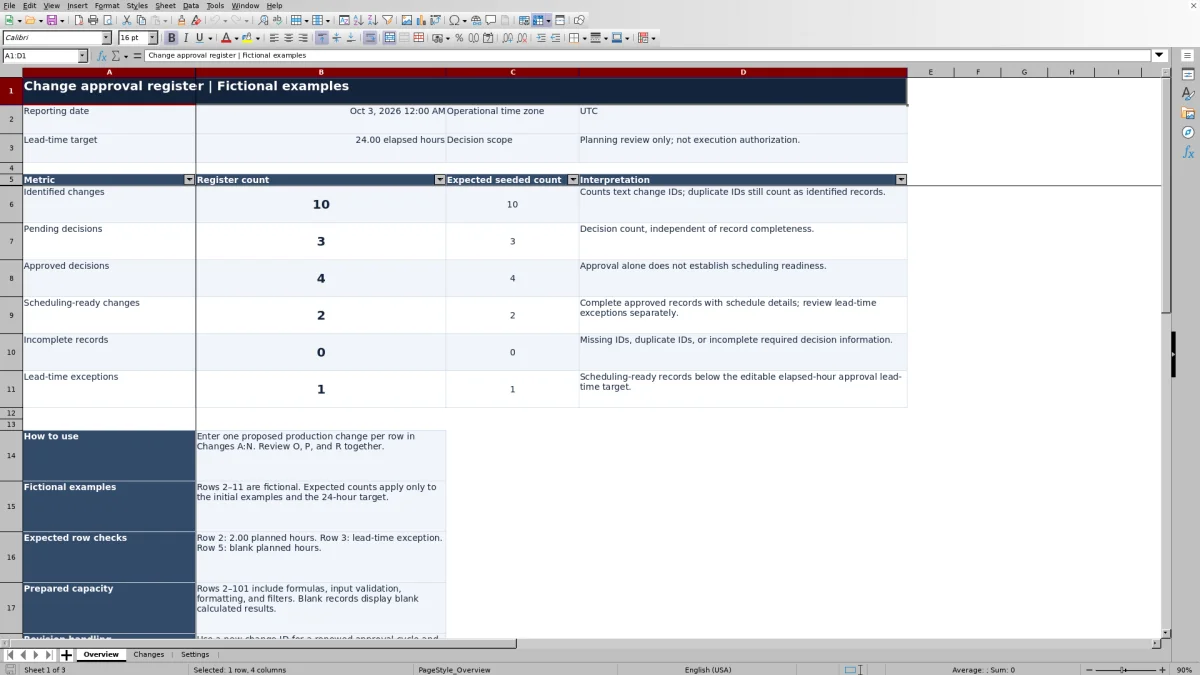
Overview summarizes the prepared Changes range, rows 2–101. Identified changes counts text change IDs, including duplicate occurrences. Use a consistent text identifier such as CHG-001 rather than a numeric-only value if you want the row included in that count. Missing or duplicate IDs are also surfaced by Record check.
Pending decisions and Approved decisions count the recorded decision labels independently of completeness. Scheduling-ready changes counts the scheduling status, while Lead-time exceptions counts scheduling-ready rows below the target. Consequently, an approved count should not be presented as the number of changes ready for implementation.
The initial fictional examples have 10 identified changes, 3 pending decisions, 4 approved decisions, 2 scheduling-ready changes, no incomplete records, and 1 lead-time exception at the 24-hour target. The Expected seeded count is a sample benchmark, not a target for your client register. It no longer provides a meaningful comparison after you replace the examples or change the target.
A zero exception count does not prove every proposal has adequate notice: rows that are not scheduling-ready do not receive a lead-time result. Reporting date supplies context on Overview; it does not filter the counts into a historical snapshot.
Troubleshooting missing statuses, invalid schedules, and pasted data
- Missing change ID or Duplicate change ID: enter a unique text ID for the approval cycle. A partially entered row without an ID is flagged rather than treated as an empty record.
- Incomplete or Fix record: review the proposal fields and the requirements for the selected Decision. Non-pending decisions need Reviewer role and Decision recorded; Rejected and Needs revision also need a Decision note.
- Missing schedule: enter Scheduled start, Scheduled end, and Implementation reference for the approved, complete record.
- Invalid schedule: check that the scheduled end is later than the start and that the scheduled start is not earlier than the recorded decision.
- Blank Planned window hours: check for a missing Change ID, missing or nonnumeric scheduled timestamps, or an end that is not later than the start. Blank does not mean a zero-hour change.
- Blank Lead time check: review Scheduling check first. Lead-time testing is deliberately limited to Ready for scheduling rows.
Pasting can bypass input validation, so confirm that dates are real Excel date-time values and that decisions match the workbook’s expected labels. The decision-list cells are editable, but the formulas use specific decision words; renaming a label without aligning the formulas can make statuses and counts unreliable.
Changes O:R are visually distinguished but not protected. If a result looks inconsistent with its inputs, check whether its formula was overwritten and review workbook recalculation before relying on it. Rows 2–101 are prepared; do not assume entries below row 101 receive the same checks or appear in Overview. Extending the register requires reviewing formulas, validation, filters, formatting, and summary ranges together.
Comparison: this register or a blank spreadsheet
A blank spreadsheet is a realistic alternative when your change process needs a different record structure. This workbook provides a defined planning workflow and checks without requiring you to build those elements first, but you must work within its assumptions or deliberately revise them.
| Method | Initial structure | Planning checks | Ongoing care | Execution boundary |
|---|---|---|---|---|
| MSP change approval register | Prepared proposal, decision, schedule, and reference fields for 100 rows. | Built-in completeness, scheduling, elapsed-window, and lead-time formulas. | Keep formulas intact, verify pasted inputs, and review ranges before expanding. | Planning record only; no execution authorization or live status retrieval. |
| Blank spreadsheet | You define the fields and layout around your process. | Checks must be performed manually or designed and maintained by you. | You maintain the structure, validation, formulas, and summaries you choose to add. | A manually maintained record unless you separately build and verify other capabilities. |
Choose this register when its single-cycle records and planning checks match your review process. Start from a blank spreadsheet when substantially different fields or logic matter more than a prepared layout. If you need routed approvals, controlled decision history, or operational status updates, evaluate a change-management system against those requirements rather than assuming either spreadsheet provides them.
Frequently asked questions
Does Ready for scheduling mean a technician can execute the change?
No. It means the record is complete, the entered decision is Approved, and the required schedule details pass the workbook’s checks. Review Lead time check separately and follow your execution-authorization process before work begins.
Can I change the reporting date, lead-time target, or time zone?
Yes. Settings B2:B4 are editable. Reporting date initially uses TODAY(), and the lead-time target starts at 24 elapsed hours. Replacing TODAY() with a fixed date fixes that displayed reporting date; it does not preserve historical register contents. The operational time zone starts as UTC. If you change it, keep every timestamp on a consistent basis and account for any necessary time conversion yourself.
Does the implementation reference connect to our ticketing system?
No. Implementation reference holds a plain-text internal identifier. The workbook has no external integrations, automated messages, or live monitoring. Do not put links, credentials, customer secrets, or sensitive technical details in that field.
Can the workbook serve as a complete approval audit trail?
Do not assume it does. The workbook records the current entered decision information, including Reviewer role and Decision recorded, but its cells are editable and its calculation columns are not protected. Keep approval evidence and any required historical records in your established process. The workbook does not provide compliance certification.
Can I keep a planned window for a pending or rejected change?
You can enter scheduled timestamps, and Planned window hours can calculate from a valid start and end when a Change ID is present. That calculation does not depend on approval. Scheduling check will not return Ready for scheduling for a non-approved decision, so a visible duration must not be interpreted as permission to proceed.
About the authors

Tessa WhitlockClient & service operations
More about this area of the library →
Nathan CalderwoodService economics & planning
More about this area of the library →