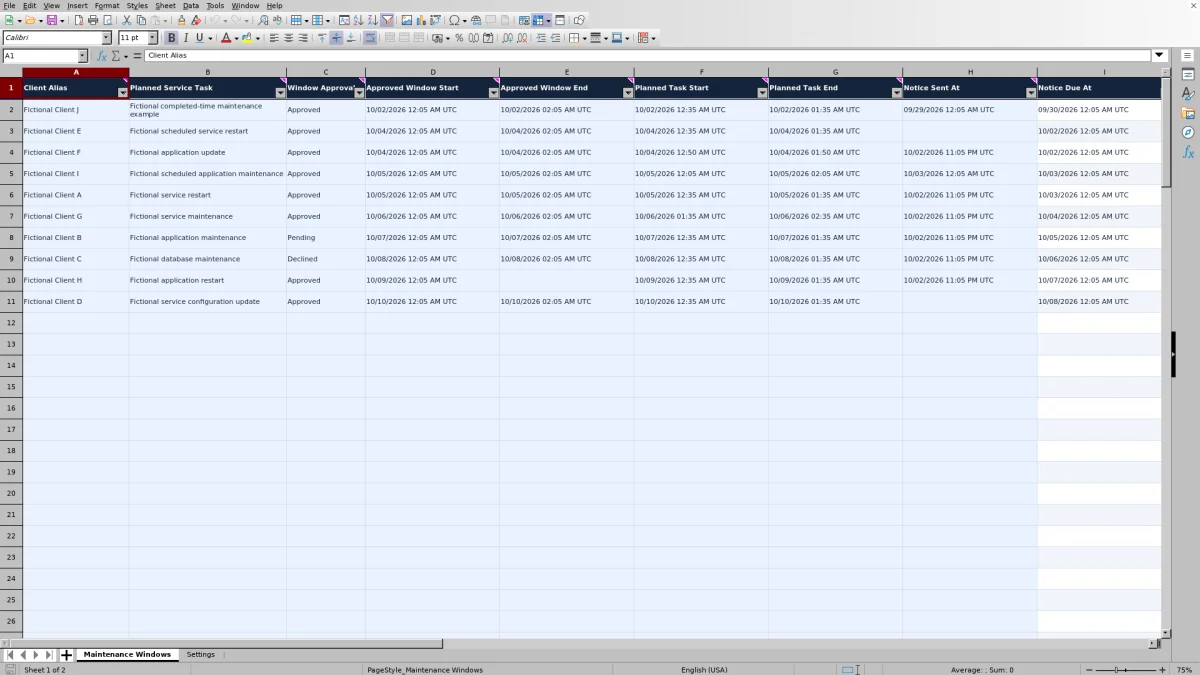
Before scheduling customer downtime, check that each service task fits the approved window and that advance notice has been recorded. This MSP maintenance window calendar gives managed service provider coordinators an Excel worksheet for reviewing those details across clients.
Enter the customer window, planned task times, approval, and actual notice timestamp. The workbook calculates notice deadlines, planned elapsed hours, window fit, notice status, and readiness for review. It supports coordination; it does not send notices or perform maintenance.
When to use this workbook
- Keep customer downtime windows and planned service tasks together for review.
- Identify tasks that extend beyond their recorded customer window.
- Find missing, overdue, or late notices using an editable lead-time assumption.
- Filter records needing review before confirming the maintenance schedule.
What is in the file
How to use the workbook
1. Set the planning assumptions
In Settings, review Notice Lead Time (Elapsed Hours) in B2 and update Review Timestamp (UTC) in B3. The supplied 48-hour lead time is a fictional, editable planning assumption, not a customer requirement. Convert all timestamps to UTC before entry.
2. Enter the window and task
In Maintenance Windows, replace the fictional examples or use an empty prepared row. Enter one task and customer window per row in columns A:H. Record Client Alias, Planned Service Task, Window Approval, both approved window timestamps, and both planned task timestamps. Use Approved only when the customer has actually approved the window.
3. Record notices actually sent
Enter Notice Sent At only after sending the notice through your normal communication process. Leave it blank while the notice is unsent. Check the calculated Notice Due At against the customer's requirements before relying on it for scheduling.
4. Recalculate and resolve review items
Recalculate the workbook, then filter Readiness for Review. Inspect Window Fit and Notice Status to find the issue; do not rely on color alone. Keep columns I:M as calculations. When sorting by Planned Task Start, sort the entire record range so client, schedule, and notice details stay together.
Keep customer approval attached to each service task
Use one row per task and customer window, even when several tasks share the same downtime period. Repeat the approved start and end on each applicable row. This lets you check whether each task fits without assuming that approval for one activity covers every other activity scheduled that night.
Window Approval is a manual entry, not an approval workflow. Confirm the customer's decision through your normal process before selecting Approved. Pending and Declined both lead to Review rather than Ready. Keep the underlying approval evidence in your established service records; a selected value does not prove who authorized the work or what conditions they imposed.
If one customer notice covers multiple tasks, repeat its Notice Sent At timestamp only on the rows it actually covered. When scope or timing changes, check whether the existing approval and notice still apply before updating the schedule.
Set notice timing in elapsed hours and UTC
Notice Due At is calculated from the approved window start, not the task start. The workbook subtracts Settings B2, Notice Lead Time (Elapsed Hours), from Approved Window Start. A task scheduled later within the window therefore retains the same notice deadline as other tasks using that window.
The lead time is one shared setting for the workbook. It uses elapsed hours, including nights and weekends, rather than business hours. Verify customer-specific notice terms separately. If clients require different lead times, use separately managed copies for different assumptions or another process that supports per-client rules; changing B2 changes the calculation for every record.
All timestamp fields use UTC. Their UTC display label does not convert local times, so perform that conversion before entry, including any daylight saving adjustment. Review Timestamp (UTC) is also manually maintained: it is the reference point for overdue notices, future notice checks, and future task starts, not a live clock.
A notice recorded exactly at its deadline is On time. An unsent notice remains Notice pending at the exact deadline and becomes Overdue only when the review timestamp is later. A recorded notice after the deadline is Late, unless it is also later than the review timestamp, in which case it needs a notice-time check.
Example: a two-hour window with timely notice
Consider this planning scenario, with every timestamp entered in UTC:
- Client Alias: Example Client; Planned Service Task: service restart; Window Approval: Approved.
- Approved window: October 5, 2026, from 12:05 AM to 2:05 AM.
- Planned task: October 5, 2026, from 12:35 AM to 1:35 AM.
- Notice lead time: 48 elapsed hours; Notice Sent At: October 3, 2026, at 12:05 AM.
- Review Timestamp: October 3, 2026, at 1:00 AM.
The notice deadline is October 3, 2026, at 12:05 AM: 48 elapsed hours before the approved window opens. Because the recorded notice equals that deadline and is not later than the review timestamp, Notice Status is On time.
The planned task lasts 1.00 elapsed hour and sits entirely inside the two-hour window, so Window Fit is Fits. With a client and task entered, Approved selected, timely notice recorded, and a task start still in the future, Readiness is Ready.
Use that result to proceed to your remaining operational checks, not to skip them. The task leaves 30 minutes before and after it inside the window, but the workbook does not decide whether that is enough for preparation, verification, or rollback. Extending the task end to 2:35 AM would produce Outside window and Review; you would need to revise the plan or obtain a suitable window.
Use readiness as a planning gate, not execution approval
Ready is a calculated planning result. It requires a nonblank client and task, Window Approval equal to Approved, Window Fit equal to Fits, Notice Status equal to On time, and a planned task start later than the review timestamp. A populated row that fails any of these conditions shows Review.
Review is therefore broader than a scheduling error. A correctly documented task whose start time has arrived or passed also shows Review. That does not establish that the task failed, was canceled, or was completed; the workbook has no actual completion calculation. Planned Elapsed Hours likewise measures the scheduled interval, not actual maintenance duration or outage performance.
Before releasing work, manually check technician availability, dependencies, rollback arrangements, and simultaneous work across clients. Row-level window checks do not detect resource conflicts or prove that overlapping tasks can safely proceed. The workbook also does not establish contractual obligations or verify customer receipt of a notice.
Troubleshooting blanks and unexpected statuses
- Blank duration or notice deadline: Planned Elapsed Hours stays blank when either task timestamp is missing or nonnumeric, or when the end is not later than the start. Notice Due At stays blank when Approved Window Start is not numeric. A blank is not a zero-hour task or permission to omit notice.
- Incomplete or Invalid interval: Window Fit needs four numeric timestamps for the approved window and planned task. Once those are present, both end times must be later than their respective starts. For overnight work, include the next day's date rather than entering only a later-looking clock time.
- Outside window: The task starts before the approved window or ends after it. Adjust the task plan or seek a revised approval. A task may start or end exactly at the window boundary and still show Fits.
- Missing schedule or Check notice time: Missing schedule means no notice deadline could be calculated. Check notice time means the notice entry is nonnumeric or later than Review Timestamp. Correct the entry or update a stale review timestamp after verifying what was actually sent.
- Overdue or Late: Overdue means no notice is recorded and the review time is past the deadline. Late means a recorded notice missed the deadline. Follow your customer communication and escalation process rather than editing the timestamp to make the row appear ready.
Entry validation allows blanks while you build a record, and pasted values may bypass validation. Restore valid Settings inputs before interpreting results: B2 should contain a nonnegative numeric lead time, and B3 should contain the intended UTC review date and time. Recalculate after corrections and inspect the text statuses again.
Maintain a usable cross-client review file
The prepared range supports 100 records in rows 2–101. Ten populated rows are fictional examples, and rows 12–101 start empty. Replace or remove example inputs before using the file operationally while preserving the calculations in columns I:M.
Filter by client or approval when reconciling customer decisions, then use Readiness to focus the final scheduling review. Refresh the review timestamp each time; otherwise a task may still appear future-dated against an outdated reference point. If you need a retained planning snapshot, save a separately named copy rather than assuming the workbook maintains an audit trail.
Do not assume rows beyond 101 inherit the formulas, validation, filters, or formatting. Check any extension before using it, or use another controlled copy of the prepared range. Keep client aliases and task descriptions operationally useful without entering credentials or sensitive technical details. This is a coordination record, not password storage or system monitoring.
Comparison: prepared workbook or blank spreadsheet
A blank spreadsheet can be suitable when you need a highly customized register and have someone responsible for building and checking it. This workbook is useful when your process matches its task-and-window structure and you want the supplied deadline and readiness checks without designing them from scratch.
| Method | Setup | Schedule and notice checks | Operating responsibility | Best fit |
|---|---|---|---|---|
| Maintenance window workbook | 100 prepared rows with approval choices and editable shared settings. | Calculates elapsed duration, window fit, notice timing, and readiness from entered data. | You confirm approvals, send notices, update the review timestamp, and check resource conflicts. | A row-based coordination process using a shared notice lead-time assumption. |
| Blank spreadsheet | You define the fields, formulas, validation, and review layout. | Checks are manual unless you build and verify calculations. | You maintain both the schedule data and the checking logic. | A custom process needing fields or timing rules not supplied here. |
Neither option sends customer communications merely because you enter a notice deadline. If you need assigned workflow, notification delivery, or an activity history, assess service-management software for those specific capabilities rather than treating this workbook as a substitute. Its calendar is a row-based schedule, not a month-view calendar or live ticketing system.
Frequently asked questions
Does the workbook send maintenance notices or reminders?
No. It calculates Notice Due At and evaluates Notice Status from the timestamps you enter. Send notices through your normal communication process, then record the actual sent time in Notice Sent At.
Can I use a notice lead time other than 48 hours?
Yes. Edit Notice Lead Time (Elapsed Hours) in Settings B2 to a nonnegative numeric value appropriate to your planning process. The supplied 48 hours is fictional, not a contractual default. The setting applies to every row and does not calculate business-hour deadlines.
Can I change the approval dropdown choices?
The list is maintained in Settings D2:D4. Keep Approved unchanged because the readiness calculation explicitly requires that value. Changing a dropdown label does not change the readiness rules, so check the effect before using revised choices.
How should I enter a window that crosses midnight?
Enter complete UTC dates and times, with the end on the following date. For example, a window from October 5, 2026, at 11:00 PM to October 6, 2026, at 1:00 AM spans two elapsed hours. Both the approved window and the task must have an end later than their own start.
Why did a previously Ready task change to Review?
Check whether the updated Review Timestamp has reached or passed Planned Task Start. Ready requires the start to remain in the future. Changes to approval, schedule fit, notice entries, or the shared lead-time assumption can also change readiness. Review is not a completed-work status; confirm execution outcomes in your normal service records.
About the authors

Tessa WhitlockClient & service operations
More about this area of the library →
Nathan CalderwoodService economics & planning
More about this area of the library →