When the same client services keep generating incidents, you need a consistent way to decide what to investigate next. This Excel workbook helps you group incident exports by affected service and provisional cause, then compare current and previous incident counts.
Built for managed service provider (MSP) problem reviews, it turns manually entered records into recurrence candidates and suggested investigation actions. Use it to focus your review, while keeping confirmed root cause separate from grouped incident counts.
When to use this workbook
- Identify service-and-cause groups that warrant a closer recurrence review.
- Compare equal-length periods without manually counting each group.
- Spot incomplete, duplicate, or mismatched records before relying on the analysis.
- Keep unresolved causes visible instead of treating their classification as settled.
What is in the file
How to use the workbook
1. Set the review assumptions
In Settings, choose the Review Date, Window Length (Calendar Days), and Investigation Threshold (Incidents). The initial window length is 30 calendar days and the threshold is 3 incidents. Review Date initially uses TODAY(); enter a fixed date when you need a repeatable snapshot.
2. Define the service and cause lists
Replace the fictional service names in Settings!A10:A14 with five unique, nonblank service values. Review the four unique cause values in Settings!C10:C13, keeping Under review for unresolved causes. Confirm that Settings Check shows Ready before continuing.
3. Replace the fictional incident inputs
Clear the sample inputs in Incidents!A2:D11, then manually enter or paste your records into columns A:D within rows 2–101. Supply a unique text Incident ID, a date-only Opened Date, an Affected Service, and a Cause Group. Leave columns E:F intact; they calculate Record Check and Review Window.
4. Resolve checks and review the groups
Correct records marked Check record and confirm their window assignments. In Priority Review, use the filters on Suggested Action and Current Incidents to focus your investigation. Check the source tickets before treating a group as a single recurring problem or assigning corrective work.
Define a consistent incident review scope
Start by deciding which service-delivery incidents belong in the review. Use the same export criteria for both periods so a count change does not simply reflect a different selection of tickets. Enter one row per incident, not one row per ticket update, technician activity, or exported history event.
The workbook groups records by Affected Service and Cause Group. It does not include a client field, so records from different clients with the same service and cause labels are combined. For client-specific decisions, prepare a client-specific export and keep a separately named workbook copy. For a cross-client service review, make sure the categories mean the same thing across the records you include.
Cause Group is a manual classification, not a diagnosis generated from ticket content. Use Under review when the evidence does not yet support another category. Keep incident narratives and personal data out of the workbook; use Incident ID to locate supporting evidence in your source system.
Choose review dates that support a fair comparison
The workbook compares two adjacent windows of equal length using Opened Date. The current window starts at the review date minus the window length plus one day and ends on the review date. The previous window covers the same number of days immediately before it. Both include their endpoints and use calendar days, not business hours.
For a Review Date of October 2, 2026, and a window length of 30 calendar days, the current period is September 3–October 2, 2026. The previous period is August 4–September 2, 2026. A record dated September 2 belongs to Previous, not Current. A record dated October 3 or August 3 is Outside review; that status alone does not mean the record is invalid.
You can edit the window length from 1 to 365 whole calendar days. Choose a period appropriate to your review cadence, but keep in mind that equal duration does not equal equal demand: client growth, seasonal workload, or changes in supported services may explain some movement. Replace TODAY() in Settings!B2 with a fixed date before saving a snapshot that must retain the same period boundaries.
Read the counts and suggested actions correctly
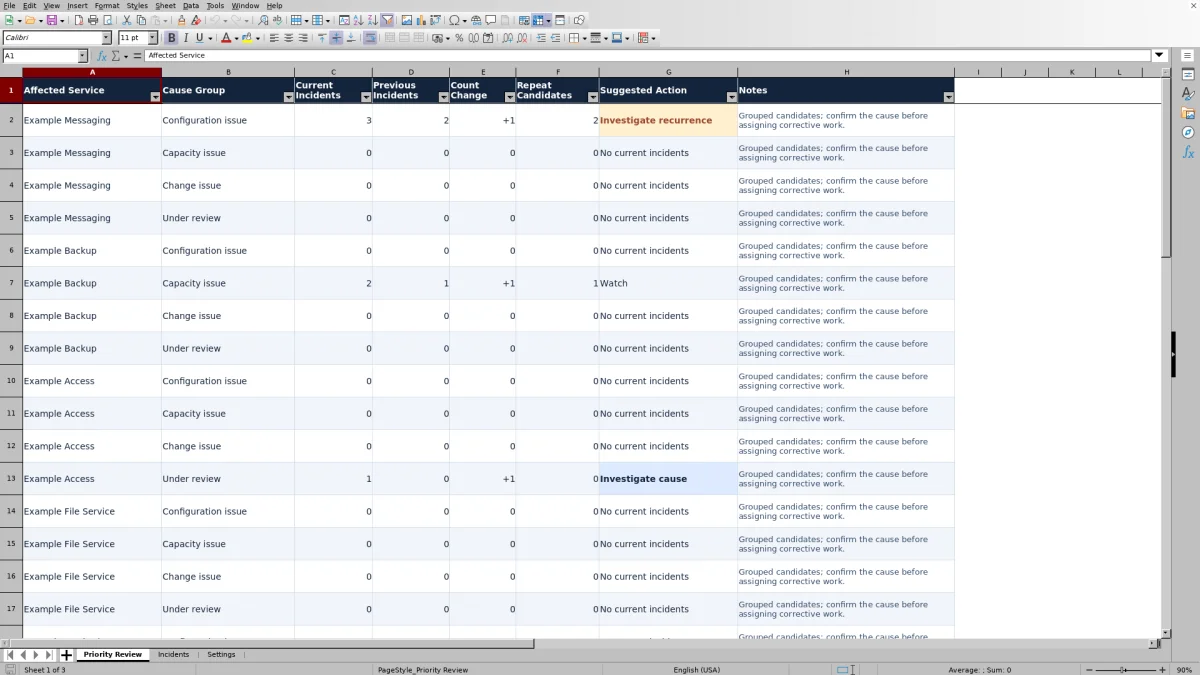
Priority Review counts valid records for each service-and-cause combination. Count Change is Current Incidents minus Previous Incidents: a positive value means more incidents were opened in the current period, while a negative value means fewer. It is a change in incident count, not a percentage, a workload estimate, or a measure of resolution performance.
Repeat Candidates counts additional current incidents after the first incident in a group. Its calculation is MAX(0, current count minus 1). A current count of 4 therefore produces 3 repeat candidates. Repeat Candidates is a screening measure: it does not establish that three incidents share a proven root cause.
- No current incidents appears when the current count is zero.
- Investigate cause appears for an Under review group with at least one current incident, regardless of the threshold.
- Investigate recurrence appears for other cause groups when the current count reaches or exceeds the investigation threshold.
- Watch appears for other cause groups with current incidents below the threshold.
The threshold accepts whole values from 2 to 100 incidents. It is your editable internal screening rule, not a contractual service-level agreement (SLA). Suggested Action uses the current count and cause category; an increase over the previous period is not required to trigger Investigate recurrence.
Example: interpret the fictional sample incidents
To reproduce this example, keep the ten fictional records DEMO-001 through DEMO-010 and the supplied category lists. Set Review Date to October 2, 2026, Window Length (Calendar Days) to 30, and Investigation Threshold (Incidents) to 3. Confirm that settings and records show Ready.
- Example Messaging / Configuration issue has 3 current incidents and 2 previous incidents. Count Change is +1, Repeat Candidates is 2, and Suggested Action is Investigate recurrence.
- Example Backup / Capacity issue has 2 current incidents and 1 previous incident. Count Change is +1, Repeat Candidates is 1, and Suggested Action is Watch.
- Example Access / Under review has 1 current incident and no previous incidents. Repeat Candidates is 0, but Suggested Action is Investigate cause. Its August 3, 2026, record falls outside both windows.
The messaging group meets the screening threshold, so you would inspect those tickets for a shared configuration condition before proposing a fix. The backup group has increased by the same count, but remains below the selected threshold. The access group shows why zero repeat candidates does not mean no work is needed: the current incident still needs cause classification.
These results illustrate the calculations, not a real client's performance. Remove all fictional input records before using the workbook for an operational review.
Troubleshooting missing counts and review warnings
Resolve data checks before interpreting low counts. Records marked Check record are excluded from the period counts. A clean-looking Priority Review can therefore understate the imported incident population if you leave input problems unresolved.
- Check settings: Review the date, the whole-number window length and threshold, and both category lists. The lists require five unique, nonblank service values and four unique, nonblank cause values. Invalid settings block analysis rather than providing usable counts.
- Duplicate or invalid Incident ID: Use nonblank text IDs that are unique within rows 2–101. Duplicate IDs flag all matching records, rather than keeping one automatically. Reconcile duplicate export rows against the source ticket before removing them.
- Date rejected or record flagged: Enter a real Excel date without a time component. A timestamp may look like a date on screen but still contain a fractional day that fails the whole-date check. Convert exported timestamps to date-only values before entry.
- Service or cause mismatch: Choose values from the configured lists. When renaming a used category, update the corresponding incident records as well. Pasted data still needs review; do not rely only on dropdowns.
- Blank Review Window: Check Record Check first. Invalid records have no window assignment, and unused rows remain blank. A blank is not the same as Outside review.
- Unexpected zero count: Confirm record readiness, date boundaries, category assignments, and that all relevant records are within the prepared input range. Zero means no matching valid records in that window, not proof that the service had no incidents.
Formula cells are not protected. If a check or count has been replaced with a value, restore the affected formula from an intact copy before trusting the results.
Turn recurrence candidates into investigation decisions
Use the filtered groups to build an investigation shortlist, then return to the source tickets. Compare symptoms, affected components, recent changes, and existing diagnostic evidence before deciding whether several incidents belong to one problem. A broad category such as Configuration issue can contain unrelated failures.
Frequency is not impact. This workbook does not calculate outage duration, technician effort, client impact, or contractual performance. A single high-impact incident may deserve attention before a more frequent low-impact group. Apply those considerations separately when you choose the next investigation.
Keep corrective-work ownership, due dates, and completion evidence in your established work-tracking process. The workbook supplies suggested actions, not live task assignments or proof that corrective work occurred. At the next review, use consistent export criteria and category definitions before interpreting lower counts as evidence of improvement; fewer opened incidents alone do not establish that a fix caused the reduction.
The prepared analysis covers 100 incident rows across both periods and any outside-review records you retain. Records beyond Incidents row 101 are not included in the existing counting ranges. Adding rows or categories requires coordinated formula and validation changes, not just typing below the prepared area. Do not silently truncate a larger export and present it as a complete review.
Comparison: this workbook or a blank spreadsheet
A blank spreadsheet can be appropriate when your review needs custom client dimensions, more categories, or a different method of measuring recurrence. This workbook is suited to a bounded review where its five-service, four-cause structure and two-period comparison match the task.
| Method | Setup effort | Checks and calculations | Scope flexibility | Ongoing workflow |
|---|---|---|---|---|
| Recurring incident analysis workbook | Review assumptions, replace sample categories, and enter incident inputs. | Prepared record checks, equal-window counts, repeat candidates, and action flags. | 100 prepared incident rows, five services, and four causes; expansion needs formula review. | Manual refresh and investigation; no live ticket synchronization or corrective-work assignment. |
| Blank spreadsheet | Design the input structure, review rules, and summaries yourself. | Checks and calculations must be built and verified. | You can design the dimensions and ranges around your review requirements. | Refresh and follow-up depend on the process you create. |
Choose the prepared workbook when you want a defined screening method without designing it from scratch. Choose a custom analysis when the fixed structure would distort or omit important parts of your incident population. If you need live records and tracked follow-up, evaluate reporting in your professional services automation (PSA) or ticketing system against those requirements; this file does not replace that workflow.
Frequently asked questions
Does the workbook import tickets automatically?
No. You manually enter or paste incident inputs into Incidents columns A:D. The workbook calculates checks and summaries from those entries; it does not connect to a ticketing system or refresh an export automatically.
Can I rename the service and cause categories?
Yes. Edit the five service values and four cause values on Settings, keeping each list unique and nonblank. Update incident records that use renamed values, and preserve Under review as the unresolved-cause category so its special investigation flag continues to work.
Does Ready mean the cause has been verified?
No. Ready indicates that a record passes the workbook's input checks, such as having a unique text ID, a valid whole date, and matching category values. It does not verify the ticket evidence, the completeness of your export, or the accuracy of the cause assignment.
Does the analysis include old incidents that are still open?
Window assignment depends on Opened Date, not current ticket status. An incident opened before both review windows is Outside review even if it remains unresolved. The workbook has no status or resolution-date input, so use your source system for backlog and resolution analysis.
How should I preserve a monthly review?
Set a fixed Review Date and save a separately named copy with the relevant inputs and settings. TODAY() changes when recalculated, so leaving it in place can shift the windows later. Keep the source export according to your data-handling process; do not assume the workbook maintains a historical audit trail.
About the authors

Tessa WhitlockClient & service operations
More about this area of the library →
Nathan CalderwoodService economics & planning
More about this area of the library →