Assign client visits to engineers without losing track of competing bookings or requested time windows. This Excel dispatch schedule helps you plan external managed service provider (MSP) visits and identify scheduling issues before confirming assignments.
You enter the site, engineer, planned times, requested window, and status. The workbook calculates planned elapsed hours and checks eligible rows for overlaps and timing exceptions. It supports planned client visits, not employee attendance or live ticket dispatch.
When to use this workbook
- See which engineers have overlapping planned visits before confirming assignments.
- Check whether the entire visit fits the client's requested window.
- Review planned elapsed hours alongside incomplete entries and scheduling exceptions.
- Use consistent site and engineer labels to make assignments easier to review.
What is in the file
How to use the workbook
1. Set your planning assumptions
On Controls, edit Daily dispatch start, Daily dispatch end, and Planning time zone. The initial daily hours are 8:00 AM–6:00 PM, and the zone label is fictional. Use one shared planning zone for all entries, then confirm that Planning assumption check shows Ready.
2. Replace the fictional references and visits
On Lists, enter unique client-site labels in A2:A21 and engineer aliases in B2:B21. Replace or clear the fictional Dispatch inputs before operational use. Blue cells are editable; preserve the calculated columns. Keep addresses, credentials, personal details, and sensitive security information outside this workbook.
3. Enter one assignment per row
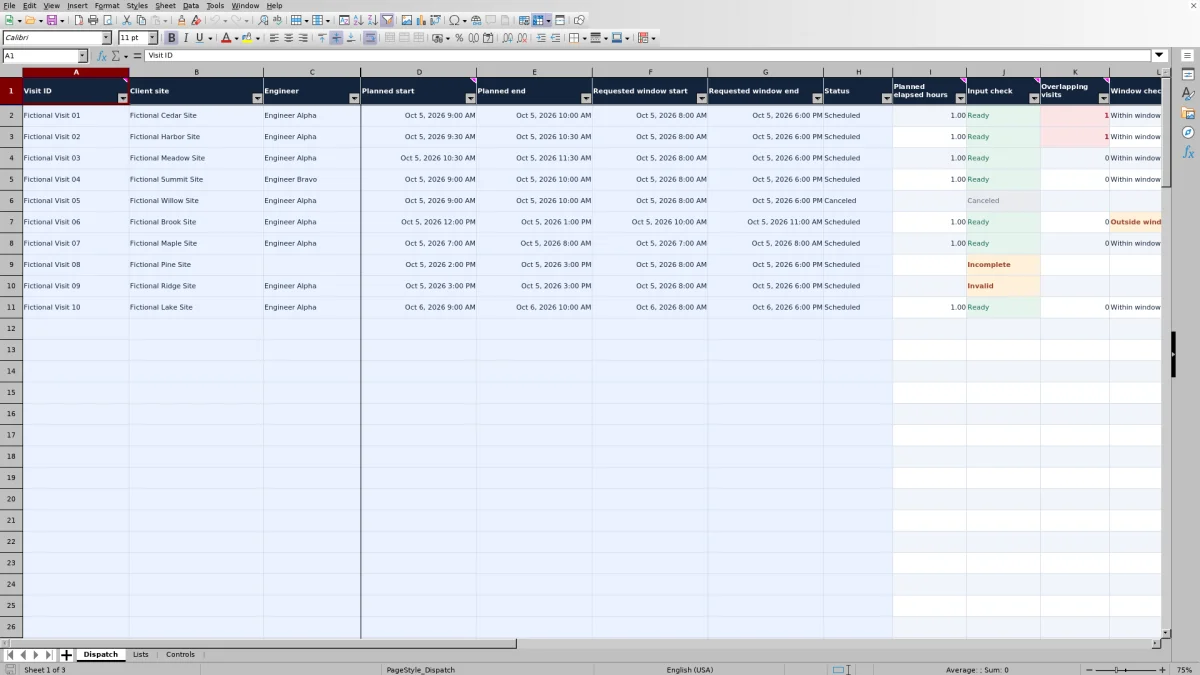
On Dispatch, complete Visit ID through Status in columns A–H. Choose a listed site and engineer, enter full dates and times for both the planned visit and requested window, and select Scheduled or Canceled. Each row represents one engineer at one site, and each start/end pair must stay within one date.
4. Review exceptions before confirming visits
Recalculate the workbook, review the indicators on Controls, and filter Dispatch to inspect problems. Correct incomplete or invalid inputs, duplicate labels or IDs, overlaps, and timing exceptions. Ready is not dispatch approval: also check travel feasibility and any commitments not represented in the file.
Separate valid inputs from a workable assignment
Use Input check on Dispatch to establish whether a row has enough usable information for the scheduling formulas. Ready means the eight input fields are populated, the time fields are numeric, the site and engineer appear in Lists, the status is Scheduled, and each time pair runs forward within a single date.
A Ready row can still overlap another visit, fall outside its requested window, or sit outside daily dispatch hours. It can also have a duplicate Visit ID, because duplicate IDs are tracked separately rather than changing Input check. Treat input validity and scheduling suitability as two separate decisions.
Start with the Controls indicators, then inspect the underlying Dispatch rows. Before confirming an assignment, review Overlapping visits, Window check, and Dispatch-hours check as well as the duplicate indicators. The workbook identifies exceptions; you decide whether to move the visit, assign another engineer, or clarify the requested window.
Keep requested windows, dispatch hours, and duration distinct
The requested window belongs to the individual visit. Window check returns Within window only when Planned start is at or after Requested window start and Planned end is at or before Requested window end. Exact boundaries are allowed. A visit that starts inside the window but finishes after it is Outside window.
Daily dispatch start and Daily dispatch end on Controls are a separate, editable assumption applied every day. They do not evaluate holidays or a business-day calendar. A visit can fit the client's request while falling outside your dispatch hours, so review both results rather than using either one as a substitute for the other.
Planned elapsed hours subtracts the planned start from the planned end and converts the difference to hours. A 9:00 AM–10:30 AM visit therefore contributes 1.50 hours when its input check is Ready. This is planned elapsed duration, not actual work, billable time, or business-hours performance. The Controls total includes Ready visits even when they have scheduling exceptions, so it is not a conflict-free capacity total.
All dates and times must use the shared Planning time zone. The label documents your assumption; it does not convert times or validate a geographic time zone. Convert client requests into the chosen zone before entering them.
Example: Two overlapping visits and a tight handoff
Consider an isolated three-visit schedule using the workbook's fictional sites and Engineer Alpha. All visits are Scheduled on October 5, 2026, with requested windows of 8:00 AM–6:00 PM and daily dispatch hours of 8:00 AM–6:00 PM:
- Fictional Cedar Site: 9:00 AM–10:00 AM.
- Fictional Harbor Site: 9:30 AM–10:30 AM.
- Fictional Meadow Site: 10:30 AM–11:30 AM.
With complete inputs and matching list entries, each visit is Ready and contributes 1.00 planned elapsed hour, for 3.00 hours total. Cedar and Harbor overlap for 30 minutes, so each shows 1 in Overlapping visits. Controls shows 2 Visits with overlaps: it counts affected visits, not one distinct conflict pair. The overlap column counts bookings, not overlapping minutes.
Meadow shows 0 overlaps because it starts exactly when Harbor ends. All three visits are within their requested windows and dispatch hours. Nevertheless, touching endpoints leave no travel allowance. Resolve the Cedar–Harbor conflict, then assess whether the Harbor–Meadow handoff is practical. Recheck every affected row after moving a visit or changing its engineer.
Plan around what the conflict check does not know
Overlapping visits compares Ready rows assigned to the same engineer within Dispatch rows 2–101. Different engineers can have simultaneous visits without triggering this check. The result does not establish whether a site can accommodate both visits or whether the assigned engineer has the required skills, access, or equipment.
Travel and preparation time are excluded. Allow for them when choosing visit times and manually review the gaps between sites. A zero overlap count means no qualifying same-engineer time collision was found in the prepared range; it does not prove that the engineer can complete the route.
For a visit requiring two engineers, use separate rows with unique Visit IDs. Each engineer's assignment is then checked against that engineer's other Ready visits. The elapsed-hours total adds both rows, so two engineers booked for the same one-hour visit contribute 2.00 planned elapsed hours across assignments, not a two-hour appointment.
Confirm external commitments separately. This workbook does not measure actual arrival, completion, or performance against a contractual service-level agreement (SLA).
Troubleshooting blanks, invalid rows, and duplicates
- Blank results are not a clean schedule. Unused rows stay blank, and rows marked Incomplete, Invalid, or Canceled do not produce duration or scheduling-check results. Resolve non-ready active visits before relying on a zero conflict count. Valid scheduled elapsed hours on Controls stays blank when there are no numeric durations to total.
- Incomplete means a noncanceled row has fewer than eight populated input fields. Fill in the missing visit details, including both requested-window endpoints.
- Invalid can result from text instead of numeric date/time values, an unlisted site or engineer, an unsupported status, equal or reversed endpoints, or a visit or requested window crossing midnight. Correct the underlying input rather than overwriting the formula.
- Invalid controls in Dispatch-hours check points to the planning assumptions. On Controls, use numeric time-only values with the end later than the start, plus a nonblank text zone label. Other row calculations can still appear while the dispatch-hours check is unavailable.
- Duplicate entries need separate attention. Review Rows with duplicate Visit IDs and Duplicate reference entries on Controls, along with the highlights. These indicators count entries involved in duplication, not distinct duplicate groups.
Validation helps with typed entries, but pasted data may bypass it. After pasting, inspect both calculated checks and duplicates. If you rename a reference on Lists, update existing Dispatch records that use the old label; changing the list does not rename those records for you.
Check the workbook before releasing the schedule
Formula results require recalculation in your spreadsheet application. Before putting the workbook into operational use, use a temporary copy to check representative cases: an isolated visit, a same-engineer overlap, adjacent visits, exact requested-window boundaries, a cancellation, and invalid controls. Include entries near the beginning, middle, and end of the prepared range so you do not rely only on the first row.
The workbook includes fictional records for review, including intentional scheduling and input problems. Inspect their results before replacing them, and do not treat sample assignments as real work. If you plan to use Excel or LibreOffice, recalculate and verify the behavior in the application you will actually use rather than assuming identical behavior without checking.
Keep the published limits visible in your planning process: there are 100 prepared visit rows and 20 reference slots each for client sites and engineers. Appending rows alone does not extend the fixed overlap and summary ranges or the validation coverage. If you modify the layout or capacity, verify all affected formulas, dropdowns, formatting, and totals before relying on the revised file.
Comparison: Dispatch workbook or blank spreadsheet?
A blank spreadsheet can work when you only need a small visit list and are comfortable checking every assignment manually. This workbook is useful when you want a predefined structure and repeatable timing checks, while keeping the dispatch decision with you.
| Method | Setup | Scheduling checks | Ongoing review | Capacity and structure |
|---|---|---|---|---|
| MSP dispatch workbook | Replace fictional inputs, edit reference lists, and set daily hours and the planning zone. | Calculates same-engineer overlaps, requested-window fit, dispatch-hours fit, and input status. | You correct exceptions and manually assess travel, access, and other commitments. | 100 prepared visits and 20 slots per reference list; expansion requires checking fixed ranges. |
| Blank spreadsheet | You define the fields, labels, and layout. | You check assignments manually or build and verify your own formulas. | You establish a consistent review process and maintain any checks you add. | You choose the structure and maintain it as the schedule grows. |
Choose based on the workflow you need, not just the number of rows. If you require live ticket-linked scheduling or other operational automation, assess a professional services automation (PSA) or ticketing system for those specific requirements. This workbook does not provide live ticketing, monitoring, or automated dispatch notifications.
Frequently asked questions
Can I schedule overnight visits?
Not as a single valid row. The planned visit and the requested window must each begin and end on the same date. Daily dispatch controls also require an end time later than the start time within the day. For overnight work, use a scheduling method that supports that requirement rather than forcing the times into this model.
What happens when I cancel a visit?
Set Status to Canceled. Input check then shows Canceled, and the row does not contribute planned elapsed hours or conflicts. Controls counts canceled visits separately. The entry remains in the worksheet; cancellation does not delete it.
Does the workbook prevent duplicate Visit IDs?
Validation is configured to block duplicate typed Visit IDs, and duplicates are highlighted and counted on Controls. Pasting can bypass validation, so review the duplicate indicator after imports or bulk edits. A duplicate ID does not by itself change Input check from Ready.
Can I use different time zones for different clients?
The workbook uses one shared Planning time zone and performs no time-zone conversion. Convert each client's requested window and your planned visit times into that zone before entry. If you need simultaneous local-time views or automated conversion, use a method designed for those needs.
Can I use planned elapsed hours for billing or attendance?
No. The calculation measures the duration between planned visit endpoints for Ready rows. It does not capture attendance, actual effort, completion, billing rules, or payroll. Use your appropriate operational records for those purposes.
About the authors

Tessa WhitlockClient & service operations
More about this area of the library →
Nathan CalderwoodService economics & planning
More about this area of the library →