When open tickets keep carrying over, you need to know which work is aging, what is blocking it, and what should happen next. This Excel workbook helps you review a dated open-ticket snapshot and record clearance actions for your managed service provider (MSP) team.
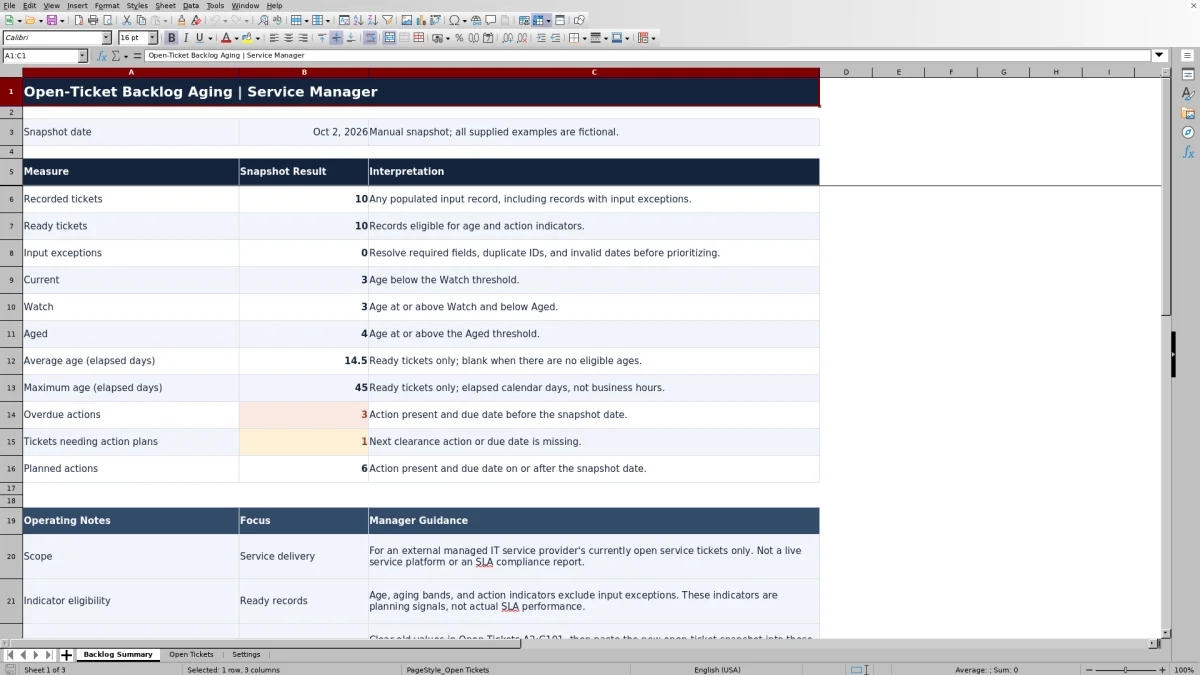
Paste ticket details into the prepared input area, set the review date, and check the calculated aging bands and action indicators. The report supports manual backlog planning for external managed IT delivery; it does not replace your live service platform.
When to use this workbook
- Separate aging tickets from newer work using editable planning thresholds.
- Find tickets that need a clearance action or due date before the next review.
- Review owners and blockers together to decide where follow-up is needed.
- Identify input exceptions before relying on backlog age and action totals.
What is in the file
How to use the workbook
1. Set the snapshot date and planning thresholds
In Settings, enter the snapshot date in As of Date, cell B2. Review Watch Threshold (Elapsed Days) in B3 and Aged Threshold (Elapsed Days) in B4. The supplied values are 7 and 14 days. Use whole-number thresholds, with Watch at least zero and Aged greater than Watch.
2. Replace the open-ticket inputs
Clear old values in Open Tickets A2:G101, including the fictional examples, before pasting the new snapshot into that area only. Map your source data to Ticket ID, Client Alias, Owner Alias, Opened Date, Blocker, Next Clearance Action, and Action Due Date. Preserve formulas in H:K and use actual Excel dates rather than date-looking text.
3. Resolve input exceptions
Filter Record Check to Check inputs. Supply missing required fields, resolve duplicate ticket IDs, and correct invalid dates. Then inspect blockers manually: a Ready result does not confirm that every blocker or action description is useful.
4. Review the backlog and assign next actions
Use Backlog Summary to assess the snapshot, then filter Open Tickets by owner, blocker, aging band, or action status. Enter a short Next Clearance Action and an Action Due Date where a plan is missing. Carry operational assignments and updates back to your service platform through your normal process.
Establish a reliable open-ticket review baseline
Start with tickets that are open at the snapshot date. The workbook does not have a ticket-status input that independently verifies whether a record is still open, so select the correct source population before importing it. Including closed tickets would distort both the backlog count and its apparent age.
Each populated record needs a unique Ticket ID, Client Alias, Owner Alias, and valid Opened Date. An optional Action Due Date must also be valid when supplied. Record Check returns Ready when the required checks pass; otherwise, it returns Check inputs. Ready means eligible for indicators, not complete, approved, or ready to close.
Backlog Summary counts both Ready and Check inputs records under Recorded tickets, but only Ready records contribute to age and action indicators. Review Input exceptions alongside the totals. A low Aged count is not reassuring if many records have been excluded because their inputs need correction.
Interpret ticket age and choose useful thresholds
For an eligible record, Age (Elapsed Days) is the snapshot date minus the opened date, using the date portion of each value. A ticket opened on the snapshot date has an age of zero days. This measures elapsed calendar days, including weekends; it is not business hours, technician effort, or time since the last update.
With the supplied thresholds, tickets below 7 days are Current, tickets from 7 through 13 days are Watch, and tickets at 14 days or more are Aged. You can change these internal planning assumptions in Settings. Choose thresholds that support your review process, and keep them consistent when comparing separately saved snapshots.
Average age describes the eligible records as a group, while maximum age points to the oldest eligible ticket. Use both: an acceptable-looking average can coexist with one very old unresolved ticket. Neither measure establishes compliance with a service-level agreement (SLA), and the planning thresholds are not contractual response or resolution targets.
Turn blocker information into a clearance decision
Age identifies work worth examining, but a blocker explains why it may not be moving. Filter by Owner Alias and Blocker to review tickets awaiting a client response, vendor response, or internal dependency. Then enter the next concrete step in Next Clearance Action, such as requesting a specific approval or scheduling a dependency review, rather than a vague instruction to follow up.
Action Status is calculated separately from Aging Band. An eligible ticket is Plan needed if either the action or its due date is missing. It is Overdue when both are present and the due date is before the snapshot date. It is Planned when both are present and the due date is on or after the snapshot date.
Planned does not mean completed. The indicator checks the presence of an action and its date, not whether anyone has performed it. A Current ticket can have an overdue action, while an Aged ticket can have a future plan. Review these signals together, then verify urgency and client impact in the source ticket before deciding what to address first.
Example: separate ticket age from action urgency
Consider a two-ticket review using these fictional inputs: snapshot date October 2, 2026; Watch threshold 7 days; Aged threshold 14 days. Both records have unique IDs and populated client and owner aliases. FICT-004 opened September 25, 2026, has the blocker Internal Dependency, the action Review dependency, and an action due date of October 1, 2026. FICT-003 opened September 26, 2026, has the same blocker, no clearance action, and an action due date of October 4, 2026.
FICT-004 is 7 elapsed days old, so its Aging Band is Watch. Its action was due before the snapshot date, so Action Status is Overdue. The useful next decision is to establish why the dependency review has not progressed and update the operational plan—not simply to move its due date forward.
FICT-003 is 6 elapsed days old, so it remains Current. Its future due date does not make the plan complete: because the action is blank, Action Status is Plan needed. Specify what the owner must do before treating that date as a meaningful commitment.
If these were the only populated records, the summary would show 2 Ready tickets, an average age of 6.5 elapsed days, a maximum age of 7 days, 1 Current ticket, 1 Watch ticket, 1 Overdue action, and 1 ticket needing an action plan. Those results describe this two-ticket scenario, not the full set of supplied examples.
Troubleshooting missing indicators and misleading totals
- Blank age or action indicators: Check Record Check first. Input exceptions are deliberately excluded. A wholly empty input row also remains blank. Blank does not mean a ticket has zero age or no follow-up requirement.
- Duplicate ticket IDs: Review all occurrences of the ID. The uniqueness check applies across A2:A101, so duplicate records can each be marked Check inputs. Reconcile them against the source rather than removing a row without checking its contents.
- Dates that look correct but fail: Confirm that Opened Date is a numeric Excel date and is not later than the snapshot date. If Action Due Date is supplied, it must also be a valid numeric date. Use date-only values and inspect imported data because pasting can bypass validation.
- Unexpectedly high ticket counts: Confirm that you cleared the previous input area before pasting a shorter replacement snapshot. Old records left below the new import still contribute to the report.
- Unexpected aging bands: Recheck the manual snapshot date and both thresholds. Inspect Settings after pasting values there; entry validation should not be treated as a substitute for review.
Average and maximum age are blank when there are no eligible ages. If aging or action counts are zero, compare them with Ready tickets and Input exceptions before concluding that the backlog is clear. If calculated columns were overwritten, restore their formulas from an unchanged copy before using the results.
Use snapshots without implying a live history
The report is anchored to the manually entered As of Date, not automatically to today's date. That makes a dated review possible, but it also means indicators become stale if you keep using the file without refreshing both the ticket inputs and the date. State the snapshot date when sharing results with a service owner or account manager.
Save a separately named, dated copy if you need a baseline before replacing the inputs. Do not treat the working file as an automatic audit trail or a record of every ownership change, action completion, or ticket closure. To compare snapshots, use the same inclusion rules and note any threshold changes; otherwise, a change in the Aged count may reflect different assumptions rather than different service performance.
Use client and owner aliases as intended, and keep blocker and action descriptions limited to what the review needs. Do not paste passwords, credentials, or unnecessary sensitive ticket content. An alias is a practical data-minimization measure, not a guarantee that the file is anonymous or safe to distribute without access controls.
Comparison: prepared workbook or blank spreadsheet
A blank spreadsheet can be sufficient for a small one-off review when you only need a list and manually agreed actions. This workbook is useful when you want a repeatable set of age calculations, eligibility checks, and action indicators without building them yourself. Both approaches still depend on a correctly selected and refreshed ticket snapshot.
| Method | Setup and structure | Age and action review | Checks and upkeep | Operational boundary |
|---|---|---|---|---|
| This Excel workbook | Prepared fields and formulas for 100 ticket records | Calculated elapsed-day ages, editable aging bands, and action-status counts | Built-in record checks; manual import, date updates, and blocker review | Dated planning snapshot, not a live ticket queue |
| Blank spreadsheet | You choose and maintain the fields and layout | You calculate or manually review ages and action needs | You design duplicate, date, and completeness checks | Manual review record unless you build additional processes |
Choose the prepared workbook when its fields and 100-row scope fit the review. Choose a custom sheet when you need a substantially different structure and can maintain its calculations and checks. For live assignments, ticket communications, and current status, continue using your professional services automation (PSA) or ticketing platform rather than relying on either spreadsheet as the operational system of record.
Frequently asked questions
How many tickets can I include in the prepared report?
The prepared input area is Open Tickets A2:G101, providing 100 ticket records. Calculated columns and summary formulas cover rows 2 through 101. Do not assume that pasting below row 101 extends the report. A larger version would require deliberate updates to formulas, summary ranges, validation, and filtering, followed by checks of the results.
Can I change the blocker dropdown choices?
Yes. Edit the five cells in Settings A7:A11 and keep all five populated. The supplied choices are None, Client Response, Vendor Response, Internal Dependency, and Unspecified. After renaming a choice, review existing ticket values; changing the list does not rewrite previously entered blockers.
Record Check does not verify blocker membership. Inspect pasted blockers even when a record is marked Ready.
Will Backlog Summary change when I filter to one owner?
No. The summary formulas evaluate the prepared ticket ranges, not just the rows visible after filtering. Use filters to inspect an owner's records, but do not present the overall summary as that owner's totals. For a separate owner-only snapshot, use a separately named copy containing only the intended records and label its scope clearly.
Does the workbook import directly from my PSA?
No live connection or synchronization is provided. Export or otherwise obtain your open-ticket snapshot, map the fields to Open Tickets A:G, and paste the values into the prepared input area. Check dates, duplicate IDs, blockers, and the snapshot date before using the report. Actions entered in the workbook do not automatically update your PSA.
About the authors

Tessa WhitlockClient & service operations
More about this area of the library →
Nathan CalderwoodService economics & planning
More about this area of the library →