When a client leaves your managed service provider (MSP), you need a clear record of what is being handed over, who should receive it, and which acknowledgments are still missing. This Excel workbook organizes that delivery inventory and highlights records that need follow-up.
Use the client data handover manifest to record export descriptions, formats, recipient roles, and delivery and receipt dates. Keep it metadata only: the workbook tracks the handover, not the confidential exports themselves, and a recorded acknowledgment does not establish that the contents are complete or intact.
When to use this workbook
- Keep the export inventory and intended recipient roles together for an offboarding review.
- Separate missing information and date inconsistencies from delivery and receipt follow-up.
- See elapsed calendar days for sent items without calculating each interval manually.
- Give the delivery packet a reviewable index of items and acknowledgment references.
What is in the file
How to use the workbook
1. Prepare an operational copy
Save a separately named copy for the client transition. Replace or clear the ten fictional records in the editable Manifest fields, retaining the formulas in columns J and K. Use non-sensitive aliases, descriptions, recipient roles, and short receipt references rather than confidential content.
2. Set the review assumptions
In Settings, check Review date in B2 and Receipt follow-up threshold (elapsed days) in B3. The review date defaults to TODAY(), and the threshold starts at 3 elapsed days. Replace the review date with a fixed date for a dated review, and keep both settings populated.
3. Inventory each handover item
In Manifest, enter one artifact for one recipient role per row. Provide a unique text Record ID, Client alias, Export description, File format, Recipient role, and Delivery due date. Rows 2–101 are prepared for 100 records.
4. Record actual delivery and acknowledgment
Enter Sent date after delivery occurs. When acknowledgment arrives, enter both Receipt date and Receipt reference. Leave future events blank; a planned delivery belongs in Delivery due date, not Sent date.
5. Review exceptions before closing the packet
Recalculate the workbook and use the Manifest filters to examine calculated statuses. On Summary, check Receipt review and the separate missing-ID warning. Resolve incomplete records and inconsistent dates or references before relying on the receipt totals.
Define the handover record before you list exports
Use one artifact for one recipient role as the unit of work. If both the incoming provider and a client-designated role must acknowledge the same export, create two records with different unique IDs. That keeps one acknowledgment from being mistaken for confirmation by every intended recipient.
Describe the artifact clearly enough to distinguish it from other deliveries without copying confidential data into the workbook. For example, a service documentation index and a backup policy description are different artifacts even if both use PDF. The File format field describes the expected format; it does not inspect, convert, or validate a file.
Reconcile your list against the agreed handover scope before sending the packet. The workbook can identify gaps within entered records, but it cannot discover an export you forgot to list. Likewise, Recipient role is an inventory field, not verification that a particular person is authorized to receive the material. Confirm authorization through your normal handover process.
Use elapsed days as a follow-up cue, not a service guarantee
The timing calculation uses Sent date as its starting point. Without a receipt, it subtracts Sent date from the Settings review date. Once a valid receipt is recorded, it subtracts Sent date from Receipt date instead. The result is elapsed calendar days, not business days, working hours, or a live measure of delivery progress.
The editable receipt threshold determines when an unacknowledged delivery becomes overdue. Elapsed time must be greater than the threshold: with a 3-day threshold, 3 elapsed days is not yet Receipt overdue; 4 elapsed days is. Use that distinction when deciding which recipients to contact first.
Delivery due dates and the receipt threshold are planning and follow-up inputs. They do not establish contractual service-level commitments. Keep planned dates separate from actual events, and choose a threshold that reflects your transition process rather than treating the default as an agreed obligation.
A changing TODAY() review date supports current follow-up when the workbook recalculates. A fixed review date supports an as-of review, but you must advance it for later activity. Otherwise, newly entered actual dates can appear to be in the future relative to the review.
Example: decide whether an acknowledgment needs follow-up
Consider one hypothetical record with these inputs together: Record ID HANDOVER-01; Client alias Cedar Client; Export description Service documentation index; File format CSV; Recipient role Incoming provider role; Delivery due date October 4, 2026; and Sent date September 28, 2026. Leave Receipt date and Receipt reference blank. Set the review date to October 2, 2026 and the receipt threshold to 3 elapsed days.
The elapsed calculation is October 2 minus September 28, producing 4 elapsed days. Because 4 is greater than the 3-day threshold, the record is Receipt overdue. Your next action is to request acknowledgment and check the delivery circumstances—not to infer that the transfer failed. Although the delivery due date is still ahead, the item has already been sent, so the open issue is receipt follow-up.
If you then record an acknowledgment dated October 1, 2026 with a short reference such as ACK-01, the valid record becomes Receipt confirmed. Elapsed days becomes 3, measured from September 28 through October 1, and no longer grows with the review date. That result records the acknowledgment interval; it does not verify the export's contents.
Read the receipt summary without overstating completion
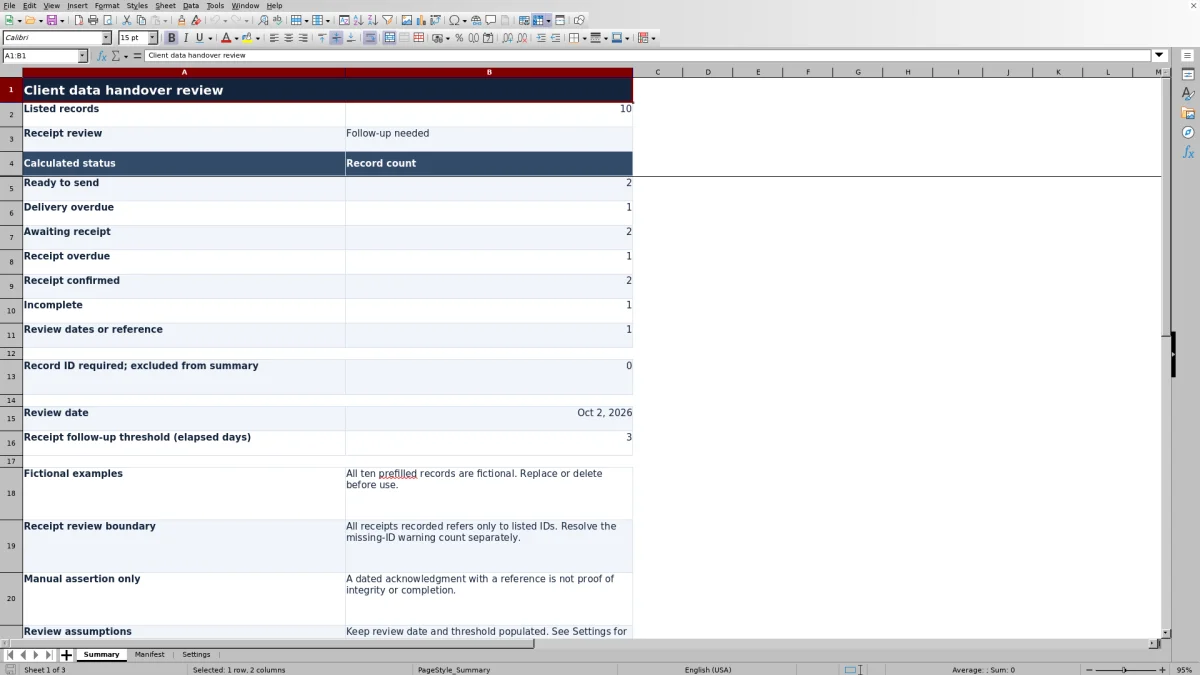
Summary counts listed records from nonblank Record IDs and counts each calculated status separately. Receipt review displays No records when there are no listed IDs, All receipts recorded when the confirmed count matches the listed-record count, and Follow-up needed otherwise.
All receipts recorded applies only to listed IDs. A row containing handover details but no Record ID has no calculated status and is excluded from those totals. Summary counts it separately under Record ID required; excluded from summary. Resolve that warning even if the main receipt review appears complete. No records also means there is nothing counted, not that a handover has been completed.
Receipt confirmation is a manual assertion supported by the date and reference you enter. Keep the underlying acknowledgment through your approved recordkeeping process and use the short reference to identify it. A reference in this workbook is not proof of content integrity, recipient authority, contractual completion, or compliance.
Before closing the packet, reconcile the listed scope, review the separate missing-ID count, and check the acknowledgment evidence. Save a dated copy if you need a review baseline; do not assume that later edits preserve earlier states or create an audit trail.
Troubleshooting incomplete records, dates, and blank results
The status checks have a priority order, so repairing one issue can reveal another. Start with the earliest missing requirement rather than replacing the calculated status manually.
- Incomplete: For a row with an ID, fill in Client alias, Export description, File format, Recipient role, and Delivery due date. Missing required metadata takes precedence over later checks.
- Review dates or reference: Check for a receipt without a sent date, a sent date later than the review date, or a receipt date outside the inclusive sent-to-review date range. Also check that Receipt date and Receipt reference are either both present or both blank.
- Blank calculated status: Check Record ID first. Populated rows without an ID are deliberately excluded from the main summary and flagged separately.
- Blank elapsed days: This can mean there is no ID, no sent date, or an Incomplete or Review dates or reference status. It does not mean the delivery took zero days.
- Zero elapsed days: With valid inputs, this means the end date used in the calculation equals the sent date. It represents a same-calendar-day interval, not proof of instant transfer.
Validation guides direct entry, but pasted data can bypass it. After pasting, review unique nonblank text IDs, allowed formats, actual date values, and receipt references. Do not assume a plausible-looking status catches every invalid value. Keep the Settings review date and threshold populated, and leave calculated columns J and K as formulas.
Keep the prepared range and calculation limits visible
The workbook is prepared for 100 records in rows 2–101. The status and elapsed-day formulas, entry validation, filter range, and Summary calculations use that prepared area. Adding records below row 101 should not be assumed to extend those functions automatically.
If the handover exceeds 100 records, either divide it into clearly labeled packets with a separate reconciliation of the overall scope, or have the workbook ranges and formulas extended and checked before relying on the totals. Merely typing a new row below the prepared range is not enough.
Recalculate in your intended spreadsheet application and check representative results before operational use. The file includes calculation-verification guidance, but it should not be treated as a compatibility certification. The fictional baseline is useful only with matching review assumptions; because Review date defaults to TODAY(), date-dependent example statuses can change over time.
This is a review workbook, not an active delivery system. It does not monitor transfers or send acknowledgment requests. Assign follow-up work through your existing operational process, and keep service tickets, financial reconciliation, asset disposition, and project scheduling outside this manifest.
Comparison: this workbook or a blank spreadsheet
A blank spreadsheet can be sufficient for a small, one-time handover if someone maintains the list and checks every date manually. This workbook is useful when you want a consistent record structure and repeatable exception review without building those calculations yourself.
| Method | Inventory setup | Follow-up review | Receipt evidence | Maintenance needs |
|---|---|---|---|---|
| Client data handover workbook | Prepared fields for 100 artifact-and-recipient records | Calculated statuses, elapsed days, and summary counts based on entered data | Manually entered receipt date and short reference; underlying evidence stays separate | Update actual events and settings, preserve formulas, and check pasted entries |
| Blank spreadsheet | You choose and create the fields and record structure | Manual review unless you add and maintain calculations | You decide how to record acknowledgments and reference evidence | Build any validation, formulas, filters, and summary checks you need |
Choose the prepared workbook when its record unit, elapsed-day model, and capacity fit the transition. Choose a custom sheet when the required inventory is materially different and you can maintain its checks. If you need assigned tasks or automated reminders, assess those needs in your existing ticketing or project system rather than expecting either spreadsheet approach to provide them.
Frequently asked questions
Should I attach exports or store credentials in the workbook?
No. Keep the workbook metadata-only, using non-sensitive aliases, descriptions, recipient roles, and short acknowledgment references. Do not embed confidential exports, credentials, or sensitive personal details. Transfer the actual artifacts through your approved delivery process.
Which file formats can I select?
The File format dropdown offers CSV, JSON, PDF, ZIP, and Other. These choices describe the artifact being handed over; they do not establish that the workbook can open, generate, convert, or verify that artifact.
How do I record the same export for two recipient roles?
Create a separate row for each role and give each row a different unique text Record ID. Record each acknowledgment independently so that one recipient's receipt does not close the other recipient's record.
Does Receipt confirmed mean the offboarding is complete?
No. It means the entered record meets the workbook's metadata, date, and receipt-reference checks for that status. It does not verify the artifact's contents or establish that every offboarding obligation has been fulfilled. Review scope completeness and the supporting acknowledgment separately.
Can I use a fixed date for a past handover review?
Yes. Replace TODAY() in Settings B2 with the date you want to review as of, and save a separately named copy if you need a baseline. Sent and receipt dates must not be later than that review date. A fixed date does not advance automatically, so update it before recording later events in an ongoing review.
About the authors

Tessa WhitlockClient & service operations
More about this area of the library →
Nathan CalderwoodService economics & planning
More about this area of the library →