Review what happened after a client change, not just whether implementation finished. This Excel workbook helps you compare rollback use, actual disruption, and corrective actions across implemented changes in your managed service provider (MSP) delivery operation.
Enter change records, choose the review dates and disruption threshold, then use the calculated outcomes to guide follow-up. The summary separates failed changes from incomplete assessments, so missing information does not silently become a successful result.
When to use this workbook
- Evaluate change outcomes using a consistent, editable rollback and disruption rule.
- Read the failure rate alongside the number of changes still awaiting assessment.
- Find overdue corrective actions across the backlog, including changes outside the review period.
- Keep a consolidated corrective action, responsible role, and closure date alongside each change.
What is in the file
How to use the workbook
1. Recalculate and inspect the fictional examples
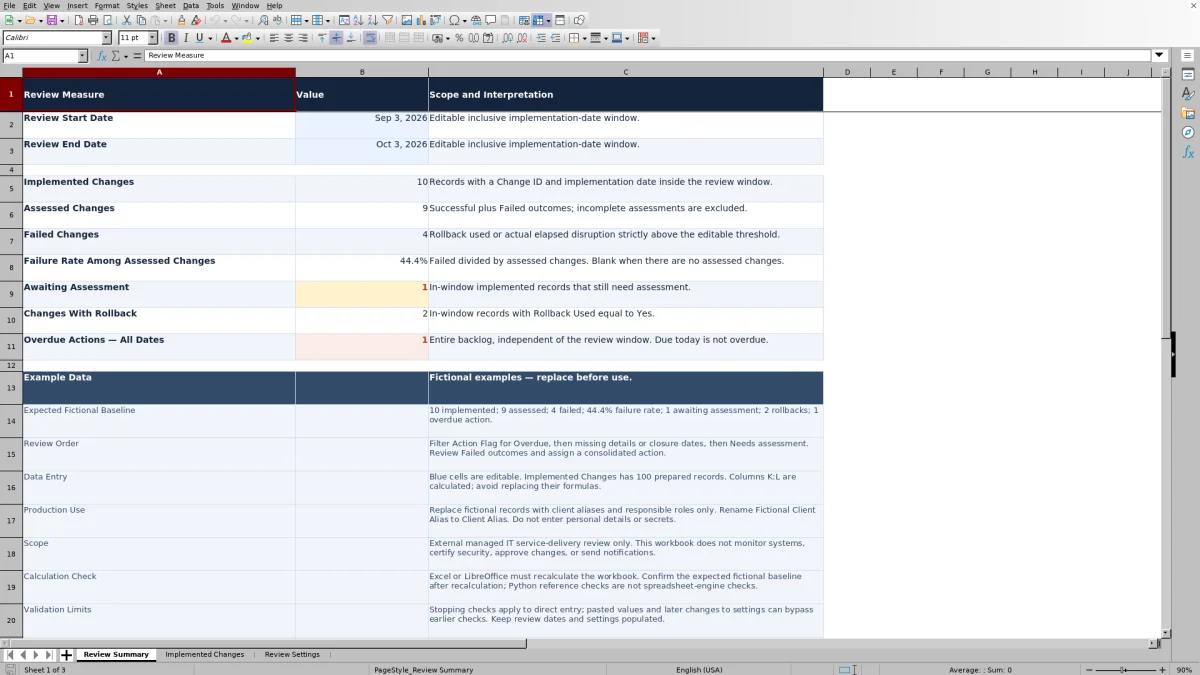
Open the workbook in Excel or LibreOffice and recalculate it before relying on the results. Review the expected fictional baseline on Review Summary. Because the date defaults move with today’s date, check the review window and As-of Date if the example totals differ. Replace the fictional records before production use.
2. Set the review definition and dates
On Review Settings, confirm Disruption Failure Threshold (Elapsed Minutes) and As-of Date. On Review Summary, set Review Start Date and Review End Date. Keep all four values populated. Use fixed dates rather than the TODAY-based defaults when you need a repeatable dated review.
3. Enter implemented changes and action details
Use the blue editable cells on Implemented Changes. Enter a unique Change ID, client alias, Implementation Date, Rollback Used response, and Actual Disruption (Elapsed Minutes). Rename Fictional Client Alias to Client Alias. Use aliases and responsible roles rather than personal details, and do not enter secrets. Leave the calculated Review Outcome and Action Flag columns intact.
4. Resolve exceptions before reporting
Filter Action Flag for Overdue, then missing action details or closure dates, then Needs assessment. Review Failed outcomes and record a consolidated corrective action with a responsible role, due date, and status. Check Awaiting Assessment on Review Summary before sharing the failure rate.
Define failure before comparing change outcomes
The workbook uses an operational rule: a fully assessed change is Failed if Rollback Used is Yes or actual elapsed disruption is strictly above the threshold on Review Settings. The initial threshold is 0 minutes, so any positive disruption qualifies as failure. With no rollback, disruption equal to the threshold is Successful.
The threshold is not a contractual target. It does not establish whether you met a service-level agreement (SLA). Enter actual elapsed minutes, not business-hours minutes or an allowed outage budget. If you change the threshold, existing outcomes recalculate under the new definition; confirm that the definition is consistent before comparing separate review periods.
For a row with a Change ID, a missing implementation date, rollback response, or disruption value produces Needs assessment. That check takes precedence even if rollback is already marked Yes. Finish the required assessment inputs before interpreting the calculated result. Successful means the recorded inputs passed this rule, not that every aspect of the change was verified.
Read the failure rate with its denominator and date scope
Review Summary includes records with a Change ID and an Implementation Date inside the inclusive start and end dates. Assessed Changes counts Successful plus Failed outcomes. Failure Rate Among Assessed Changes divides Failed Changes by Assessed Changes, while Awaiting Assessment shows the difference between implemented and assessed records.
A blank failure rate is not 0%. The rate is blank when no changes have been assessed. A displayed 0% means there are assessed changes and none are classified as Failed; it can still coexist with records awaiting assessment. Read both measures before concluding that the period had no failures.
The default dates run from today minus 30 days through today, including both endpoints. Replace them with explicit calendar dates when reporting a fixed period. A row without an Implementation Date cannot enter a dated summary, so inspect the primary register for missing dates rather than assuming Awaiting Assessment captures every incomplete record. Client aliases support identification, but the summary is not a client-selected report.
Example: interpret rollback, disruption, and incomplete records
For an illustrative review, set Review Start Date to September 1, 2026, Review End Date to September 30, 2026, As-of Date to October 3, 2026, and the disruption threshold to 15 elapsed minutes. Enter four records with unique IDs, client aliases, and September implementation dates:
- Change A: Rollback Used = Yes; actual disruption = 0 minutes.
- Change B: Rollback Used = No; actual disruption = 15 minutes.
- Change C: Rollback Used = No; actual disruption = 16 minutes.
- Change D: Rollback Used = No; actual disruption left blank.
Change A is Failed because rollback alone qualifies once the assessment inputs are complete. Change B is Successful because 15 minutes equals, rather than exceeds, the threshold. Change C is Failed because 16 minutes exceeds it. Change D needs assessment; a blank duration is not evidence of zero disruption.
The summary therefore shows 4 implemented changes, 3 assessed, 2 failed, 1 awaiting assessment, and 1 rollback. The failure rate is 2 ÷ 3 = 66.7%, not 2 ÷ 4. Your next decisions are to confirm Change D’s actual disruption and assign corrective actions for A and C. If an otherwise complete open action is due October 3, 2026, it remains Open on that As-of Date; one due October 2, 2026, is Overdue.
Turn failed outcomes into actionable follow-up
The register provides one consolidated corrective action per change. For a Failed outcome, enter Corrective Action, Responsible Role, Action Due Date, and an Action Status of Open, In progress, or Closed. Not needed does not satisfy the action requirement for a failed change. A Closed action also requires an Action Closed Date.
Action Flag checks completeness before aging the action. Missing action text, role, due date, or an appropriate status produces Missing action details rather than Overdue. A closed action without its closure date produces Missing closure date. This means the overdue count is not the whole exception backlog: you must also review incomplete action records.
Overdue Actions — All Dates counts overdue flags across the prepared register, regardless of the review window. It uses As-of Date on Review Settings, not Review End Date, and an action due on the As-of Date is not overdue. Successful changes can also carry corrective actions; a successful row without corrective-action text is flagged Not needed. Keep action completion separate from the historical change outcome: closing a corrective action does not turn a Failed change into Successful.
Troubleshooting missing counts and unexpected flags
- A change is absent from the summary: check its Change ID and Implementation Date, then confirm the date is inside the inclusive review window. Correct missing dates in the register; do not widen the window merely to hide a data-entry problem.
- An outcome seems too favorable: verify that disruption is a nonnegative whole number of elapsed minutes, Rollback Used is exactly Yes or No, and the threshold is correct. Pasted values can bypass the direct-entry checks.
- An old action is not flagged Overdue: check for Needs assessment, Missing action details, or Missing closure date first. Those conditions take priority over the due-date comparison.
- Totals change when you reopen the file: the default review dates and As-of Date use TODAY. Set fixed dates for a fixed review and recalculate.
- A calculated field is blank or incorrect: a row without a Change ID has blank calculated flags. Also check whether formulas in columns K:L were overwritten before changing the assessment inputs.
Recalculate the untouched examples and compare them with the stated fictional baseline: 10 implemented, 9 assessed, 4 failed, a 44.4% failure rate, 1 awaiting assessment, 2 rollbacks, and 1 overdue action. If the counts differ, inspect the example dates, moving date settings, threshold, and formulas. Do not force production data to match those fictional totals.
Keep the review bounded and repeatable
The workbook has 100 prepared records, with calculations and validation covering rows 2–101. Adding records below that range does not establish that they are included in the summary. Before expanding the file, extend and check the formulas, summary ranges, validation, formatting, and filter range, then test the results. The prepared capacity is not evidence of a tested larger limit.
Direct-entry checks help enforce unique IDs, allowed responses, whole-minute disruption values, and date relationships. They are not a complete data-quality guarantee: pasting values or changing settings later can bypass earlier checks. Review existing records after changing the As-of Date, and keep review dates and settings populated.
For a repeatable baseline, save a separately named copy with fixed review dates, As-of Date, and the threshold used. The workbook does not provide an automated history, monitor client systems, approve changes, send notifications, or certify security. Keep sensitive supporting evidence in your approved operational system and use this register for the bounded change-outcome review.
Comparison: this workbook or a blank spreadsheet
A blank spreadsheet can work when your review needs a different outcome definition or several action records per change. This workbook is useful when its rollback-or-disruption rule and one-action-per-change structure match your review process. The trade-off is a prepared model that still needs manual inputs, checking, and follow-up.
| Method | Outcome assessment | Corrective-action follow-up | Setup and boundaries |
|---|---|---|---|
| MSP change failure review workbook | Calculates outcomes from rollback and an editable disruption threshold; excludes incomplete assessments from the failure-rate denominator. | One consolidated action per change, with completeness, closure, and overdue flags. | 100 prepared records and dated summary calculations; requires manual entry, recalculation, and review. |
| Blank spreadsheet | You define the assessment rule, formulas, and treatment of incomplete records. | You design the action fields and any aging or closure checks. | Flexible structure, but calculations, validation, filtering, and summary scope must be built and checked. |
Choose this workbook for a repeatable, bounded review that fits the supplied model. Choose a custom register when the model itself must change. If you need routed assignments, reminders, or multiple linked tasks, evaluate a ticketing system configured for those needs rather than expecting spreadsheet flags to perform that workflow.
Frequently asked questions
Does the workbook import changes from a PSA or ticketing system?
No import or live connection is provided. Enter change information manually or carefully transfer approved records from your professional services automation (PSA) or ticketing system. Recheck pasted values because they can bypass direct-entry validation.
Can I review changes for only one client?
You can filter the client-alias column on Implemented Changes to inspect that client’s records. The Review Summary formulas use the full prepared range and the review dates; filtering visible rows does not make those totals client-specific. Use a separately prepared client-only copy if you need a client-only summary, retaining the formulas and settings.
Can I record several corrective actions for one change?
The supplied structure supports one consolidated action per change. If a change requires several independently assigned tasks, manage those details in your approved task system and summarize the follow-up here. Do not duplicate a Change ID across rows to represent separate actions; the workbook expects unique IDs and counts change records.
Does marking an action Closed verify that the issue is resolved?
No. Action Status and Action Closed Date are manual entries. The calculated flag checks that the required fields are present; it does not verify remediation evidence or accept the work on your behalf. Confirm completion through your service-delivery process before recording closure.
Can I rely on the displayed results immediately after opening the XLSX?
Recalculate the workbook in Excel or LibreOffice and inspect the example results and date settings first. The calculation instructions are not a guarantee for every application or version. Before using the file for reporting, verify that dates, formulas, validation, and flags behave as expected in your spreadsheet application.
About the authors

Tessa WhitlockClient & service operations
More about this area of the library →
Nathan CalderwoodService economics & planning
More about this area of the library →