Check how often your managed service provider (MSP) resolves a ticket during first contact without transferring it or seeing it reopened. This Excel workbook turns manually entered ticket outcomes into a first contact resolution rate for a selected reporting period.
Set your review dates and observation period, record the outcomes, and use the summary to investigate unsuccessful or excluded tickets. The report measures resolution outcomes, not response-target compliance, and compares the result with an editable internal target.
When to use this workbook
- Separate successful first-contact outcomes from tickets with transfers, reopenings, or a No outcome.
- Apply a consistent observation period before including reviewed tickets in the rate.
- See excluded cohort tickets alongside the result so you can assess reporting gaps.
- Focus follow-up on eligible failures and records that need correction.
What is in the file
How to use the workbook
1. Set the reporting rules
In Report Settings, enter the Report start date, Report end date, and As-of date. Keep the start date on or before the end date, and the end date on or before the as-of date. Review the editable Observation period (calendar days) and First contact resolution target rather than accepting the demonstration assumptions without checking them.
2. Replace the fictional ticket inputs
In Ticket Outcomes, replace the ten fictional records with your own nonidentifying ticket references and outcomes. Use the blue editable cells in columns A through G, preserving the calculated columns. Enter first contact, initial resolution, and outcome review dates; choose Yes or No for Resolved during first contact; and enter cumulative transfer and reopen counts through the review date.
3. Review record checks and eligibility
Inspect Record check for Incomplete or Check inputs messages. Correct missing or inconsistent entries from the source record. A Ready record still needs to fall within the reporting cohort and meet the observation period before Eligible ticket becomes 1. Review pasted data manually because input validation is not a substitute for that check.
4. Read the result and investigate exceptions
Recalculate the workbook, then open Resolution Summary to review eligible tickets, first contact resolutions, the actual rate, and the target comparison. Check Cohort tickets not eligible before sharing the percentage. To investigate unsuccessful eligible outcomes, filter Ticket Outcomes to Eligible ticket = 1 and First contact resolution = 0.
What qualifies as a first contact resolution
The workbook first decides whether a ticket is eligible for measurement. It then counts that ticket as a success only when Resolved during first contact is Yes, Transfer count is zero, and Reopen count is zero. Those counts must reflect what happened through the entered Outcome review date, not just what was known at initial closure.
A Yes entry alone is not a success. An otherwise eligible ticket marked Yes with one transfer or one reopening remains in the denominator but contributes nothing to the success count. An eligible ticket marked No also counts as an unsuccessful outcome, even if both counts are zero.
The actual rate is first contact resolutions divided by eligible tickets. This is a resolution-quality measure based on your entered reviews. It does not establish how quickly the service desk responded, whether a response deadline was met, or whether a contractual service-level agreement (SLA) was satisfied.
Choose a cohort and allow time to observe outcomes
The reporting cohort uses First contact date, not Initial resolution date. A ticket with a reference belongs to the cohort when its first contact date falls between the report start and end dates, including both boundaries. This keeps the selection tied to when the support interaction began.
Eligibility also requires a complete, consistent record and enough time between initial resolution and outcome review. The observation test is review date minus initial resolution date, measured in calendar days. With a seven-day setting, a ticket initially resolved on September 28, 2026 needs an outcome review on October 5, 2026 or later. If the as-of date is October 3, 2026, it cannot yet have a permitted review that meets that requirement.
Moving the as-of date forward permits later ticket dates; it does not update the ticket reviews for you. Check the source outcomes again and enter the actual review date and cumulative counts. A zero-day observation setting is allowed, but it removes the minimum waiting period and may include tickets before later repeat work becomes visible. Keep this assumption consistent when comparing reporting periods.
Example: interpret the fictional demonstration
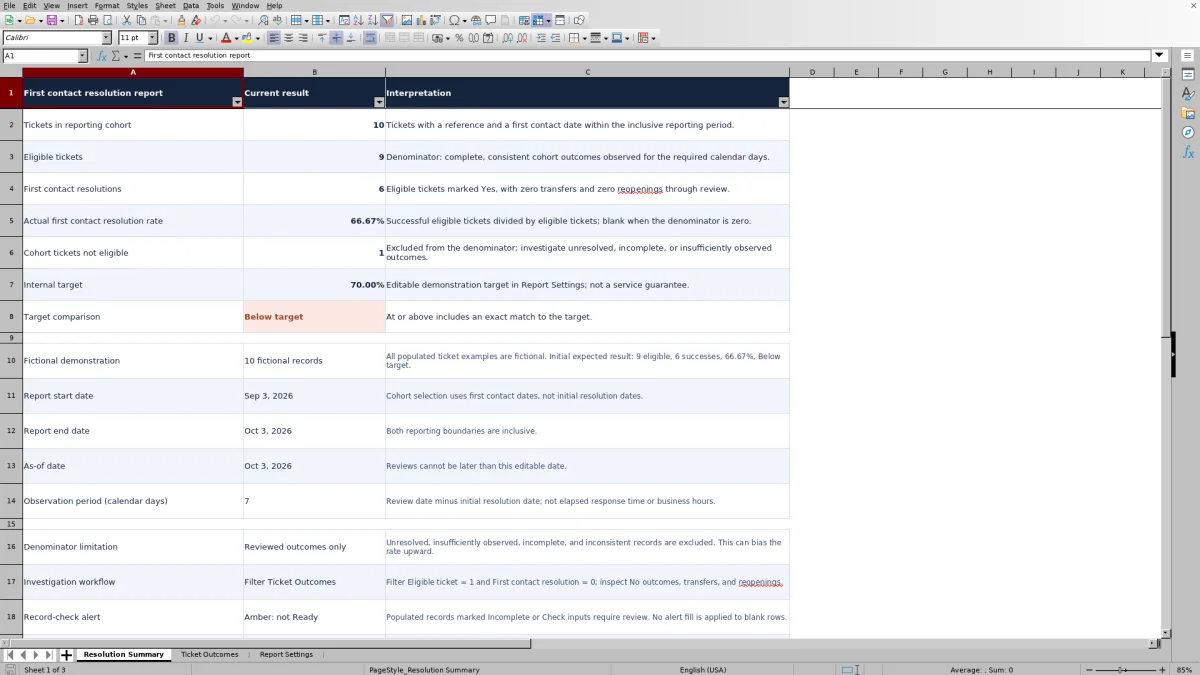
The supplied demonstration uses ten fictional ticket records, a reporting period from September 3, 2026 through October 3, 2026, an as-of date of October 3, 2026, a seven-calendar-day observation period, and a 70% internal target. Its expected summary is ten cohort tickets, nine eligible tickets, and six first contact resolutions.
The calculation is 6 ÷ 9 = 66.67%. The denominator is nine reviewed, eligible outcomes—not all ten cohort tickets. Three eligible tickets are unsuccessful, and one cohort ticket is excluded. Because 66.67% is below 70%, the target comparison reads Below target.
For an individual illustration, a ticket first contacted and initially resolved on September 13, 2026, reviewed on October 3, 2026, marked Yes, and showing zero transfers and zero reopenings has 20 calendar days of observation. It meets the seven-day minimum and counts as a success. If its reopen count were changed to one based on the review evidence, it would remain eligible but no longer count as a first contact resolution.
Use the summary to choose the next check: investigate the three eligible failures for repeat work or transfers, then establish why the remaining cohort ticket is excluded. Replace the fictional records before using the workbook for service reporting.
Read exclusions before judging service performance
The percentage covers reviewed outcomes only. Unresolved, incomplete, inconsistent, and insufficiently observed records are excluded from the denominator. That is useful for avoiding premature classifications, but it also means excluded tickets can bias the rate upward, particularly when difficult work remains unresolved.
Read Tickets in reporting cohort, Eligible tickets, and Cohort tickets not eligible together. If the rate improves while the excluded count rises, check whether the apparent improvement reflects better resolution or simply fewer difficult tickets reaching eligibility. Do not present the percentage as a success rate across all incoming tickets.
For eligible failures, filter Eligible ticket to 1 and First contact resolution to 0. Inspect No outcomes, transfer counts, and reopen counts, then consult the source ticket history to understand the cause. For exclusions, check record completeness and observation dates before deciding whether correction or a later review is needed.
The workbook does not determine why a transfer occurred or whether an escalation was appropriate. Use the flags to select cases for review, not to infer technician performance or blame from the percentage alone.
Troubleshooting missing rates and unexpected results
- Incomplete: For a row with a ticket reference, check that the Yes/No outcome is entered and all three dates and both counts are numeric Excel values. Enter zero where the verified transfer or reopen count is zero; a blank count is not equivalent to zero.
- Check inputs: Confirm the outcome is Yes or No, first contact is not after initial resolution, review is not before resolution or after the as-of date, and counts are nonnegative whole numbers.
- Ready but Eligible ticket = 0: Check whether First contact date is outside the inclusive reporting period or the review occurred too soon after initial resolution. Ready indicates that the record checks passed, not that the ticket qualifies for the denominator.
- Blank actual rate: When there are no eligible tickets, Resolution Summary leaves the rate blank and shows No eligible tickets. This is not a 0% performance result. A 0% rate instead means eligible tickets exist but none qualify as successes.
- Blank calculated ticket cells: Check for a missing Ticket reference. The ticket formulas return blanks when that reference is absent.
- Unexpected counts after pasting: Review reference uniqueness, date-only values, Yes/No entries, and whole-number counts. Validation may not prevent pasted invalid data, and Record check is not a complete duplicate or date-format audit.
Amber alerts identify populated records that are not Ready; pale red alerts identify eligible failures. After correcting inputs, recalculate and verify the summary. Do not overwrite formulas to force a preferred classification.
Keep the report within its manual reporting limits
Ticket Outcomes has 100 prepared rows, from row 2 through row 101. The summary formulas use that range. Entries below row 101 are not included by the existing summary formulas, so do not assume that adding more rows expands the report automatically. If you extend the workbook, review the summary ranges, row formulas, validation, filters, and conditional formatting together, then verify the totals.
The report depends on manually entered outcomes and manually refreshed reviews. It does not monitor tickets, detect later reopenings, or synchronize with your service desk system. A previously successful ticket can change classification after you update its cumulative counts and review date.
Use nonidentifying ticket references only. Keep names, credentials, ticket narratives, customer secrets, and sensitive security information out of the file. Retain the detailed evidence in the appropriate source system rather than copying it into this reporting workbook.
If you need to preserve a period-end result, save a separately named copy after checking the inputs and recalculation. Do not assume the workbook maintains an automatic historical snapshot when you change settings or review dates.
Comparison: this workbook or a blank spreadsheet
A blank spreadsheet is a realistic alternative when you want to define a different resolution policy or build your own reporting layout. This workbook provides an existing review structure, but you still need to enter and verify the ticket outcomes.
| Method | Calculation setup | Review controls | Ongoing work |
|---|---|---|---|
| This workbook | Prepared cohort, eligibility, success-rate, and target calculations for 100 ticket rows. | Record checks, an observation-period rule, input validation, and exception alerts. | Enter outcomes, refresh reviews, check exclusions, and verify any range extensions. |
| Blank spreadsheet | You design the denominator, success rules, formulas, and summary layout. | You create any validation, date checks, and review alerts you need. | Maintain both the reporting logic and the ticket outcomes as requirements change. |
Choose this workbook when its reviewed-outcome definition matches your reporting policy and the prepared range suits the task. Choose a custom spreadsheet when you need materially different eligibility rules or a different structure and can maintain the calculations. Neither option, by itself, provides live ticket monitoring; if automatic reporting is required, assess the reporting facilities of your ticketing system and verify that its definition matches the metric you intend to publish.
Frequently asked questions
Is the 70% target an industry benchmark or a service guarantee?
No. It is an editable internal demonstration target in Report Settings, not a benchmark or contractual guarantee. Replace it with the internal target appropriate to your reporting policy. An exact match is classified as At or above target.
Can the outcome review happen after the reporting period ends?
Yes. The reporting period selects tickets by first contact date. An outcome review may happen later, provided it is not after the as-of date and meets the observation requirement. This lets you review late-period tickets after enough calendar days have passed.
Can I use the report for a single client?
Yes, by entering only that client's relevant ticket records in a separate reporting copy. The workbook has no client field or client-level grouping calculation, so do not mix clients and expect a client-specific breakdown. Keep references nonidentifying and confirm the selected records match your intended reporting scope.
Does the workbook retrieve outcomes from ticketing software?
No. It is a manual service-delivery report. You enter the dates, first-contact outcome, and cumulative transfer and reopen counts, then refresh them when you review the source records. The workbook calculates classifications and totals from those entries; it does not retrieve or verify the underlying ticket history.
What should I do if the summary does not change after editing inputs?
Recalculate the workbook in Excel or LibreOffice, then confirm that your ticket entries are within rows 2 through 101 and that the calculated columns have not been overwritten. Check the reporting dates and eligibility flags as well: a corrected record may still be outside the cohort or short of the observation period.
About the authors

Tessa WhitlockClient & service operations
More about this area of the library →
Nathan CalderwoodService economics & planning
More about this area of the library →