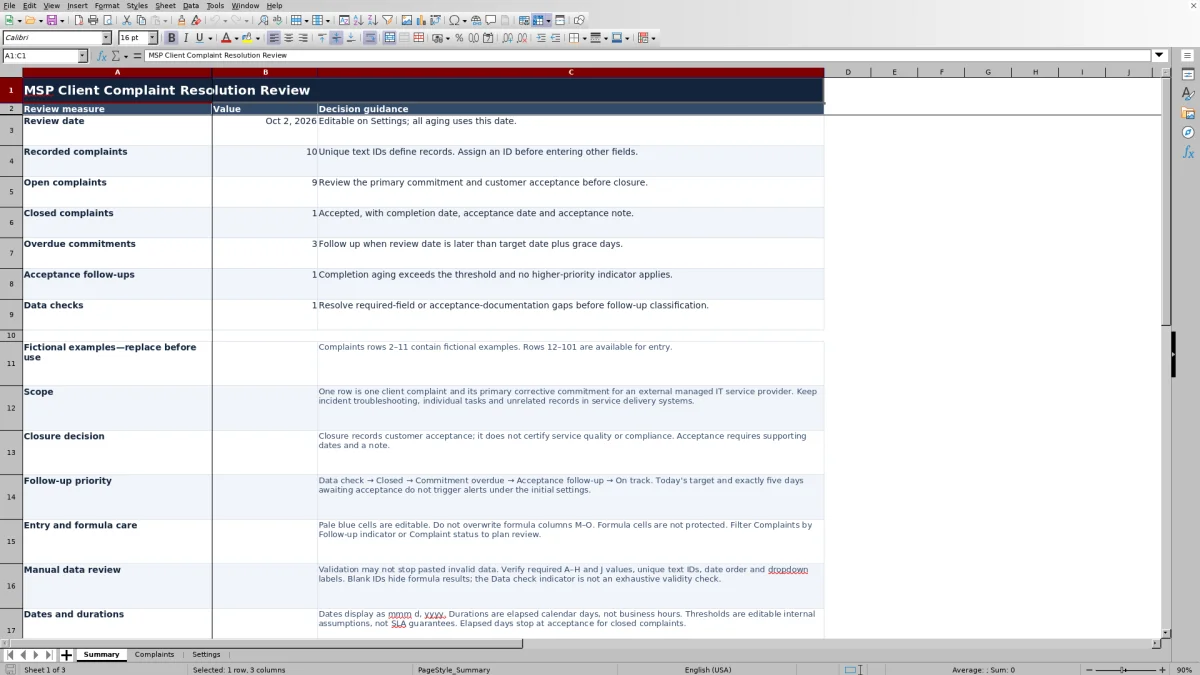
When a client complains about missed updates or poor follow-through, fixing the technical incident may not resolve the service concern. Use this Excel complaint resolution log to record the corrective commitment, review its target date, and document customer acceptance.
Built for account managers at a managed service provider (MSP), the workbook keeps complaint follow-up separate from incident resolution. You enter the complaint and acceptance details; formulas calculate status, elapsed calendar days, and a follow-up indicator for your review.
When to use this workbook
- Keep each client complaint, primary corrective commitment, and accountable role together.
- Identify complaints needing documentation checks, commitment follow-up, or acceptance review.
- Distinguish completed corrective work from documented customer acceptance.
- Use a consistent review date and editable thresholds for account review meetings.
What is in the file
How to use the workbook
1. Prepare your working copy
Save a copy and replace the fictional entries in Complaints rows 2–11 before using the summary for client reporting. Clear or replace their input values without deleting the formulas in columns M–O. Rows 12–101 are available for additional entries.
2. Set the review assumptions
On Settings, check Review date in B2, Commitment grace days in B3, and Acceptance follow-up days in B4. The review date initially uses TODAY(); replace it with a fixed date if you need a dated review. The initial thresholds are zero grace days and five acceptance follow-up days, both measured in elapsed calendar days.
3. Record the complaint and commitment
On Complaints, assign a unique text Complaint ID first. Complete the client alias, received date, theme, complaint summary, account owner role, corrective commitment, and commitment target date. Select Customer acceptance from the dropdown; use Pending while acceptance remains outstanding.
4. Record completion and acceptance separately
Enter Action completed date when the corrective work is done. Record the customer's response in Customer acceptance. For an accepted complaint, also enter Acceptance date and Acceptance note. Completion alone does not close a complaint.
5. Review exceptions and totals
Filter Complaints by Follow-up indicator or Complaint status, then use Summary for review counts. Resolve Data check entries first and inspect overdue commitments before planning acceptance follow-ups. Leave formula columns M–O intact; they are not protected from editing.
Keep service complaints separate from technical incidents
Use one row for one complaint and its primary corrective commitment. For example, an incident may be resolved while the client's complaint about missed progress updates remains open. The complaint row should describe the service concern and the commitment made to address it, rather than repeat technical troubleshooting notes.
Make Corrective commitment specific enough to review: “Agree and document an update schedule” is more useful than “Improve communication.” Enter the responsible account role and a target date so the next review has a clear decision: confirm progress, follow up on the commitment, or seek acceptance. Keep individual implementation tasks and incident activity in your separate operational records; this workbook is not a task dependency tracker or live ticketing system.
Read the follow-up indicator in priority order
The Follow-up indicator returns one result per complaint, not every condition that applies. Its priority is Data check → Closed → Commitment overdue → Acceptance follow-up → On track. Missing required details or incomplete acceptance documentation can therefore hide a timing-related indicator until you correct the record.
A commitment is overdue when the review date is later than Commitment target date plus Commitment grace days. With zero grace days, a target due on the review date is not yet overdue. Acceptance follow-up applies when the number of calendar days since Action completed date exceeds Acceptance follow-up days, provided no higher-priority condition applies. At the initial five-day threshold, exactly five days does not trigger that indicator; six days does.
The overdue test does not exclude completed work. A completed but unaccepted complaint can still show Commitment overdue if its target-plus-grace date has passed. Review completion and acceptance details together rather than interpreting that label as proof that no corrective work occurred. Likewise, On track means no earlier formula condition applied; it is not evidence of customer satisfaction.
Document acceptance before treating a complaint as closed
Complaint status becomes Closed only when Customer acceptance is Accepted, Action completed date and Acceptance date contain numeric date values, and Acceptance note is not blank. You supply these details manually; the formula does not obtain customer approval or verify the contents of the note. Use the note to identify what the customer accepted and the supporting communication you can locate in your normal records.
Elapsed days measures the period from Received date to Review date while a complaint is open. Once closed, it measures Received date to Acceptance date, so later reviews do not continue aging that complaint. These are elapsed calendar days, not business hours, and they do not measure time spent working on the complaint.
Check chronology yourself even when the status says Closed. Numeric dates satisfy the status formula but do not prove that the dates are in a sensible order. Closure records documented customer acceptance; it does not certify service quality, contractual performance, or compliance.
Example: completed work still needs acceptance follow-up
Suppose you enter the following complaint and review assumptions. All other required complaint fields are complete, and the acceptance date and note remain blank because the customer has not yet accepted the outcome.
- Complaint ID: CMP-104; client alias: Client West; theme: Communication.
- Received date: Oct 1, 2026; complaint: missed client updates; account owner role: Account manager.
- Corrective commitment: agree and document an update schedule; target date: Oct 15, 2026.
- Action completed date: Oct 6, 2026; Customer acceptance: Pending.
- Review date: Oct 12, 2026; Commitment grace days: 0; Acceptance follow-up days: 5.
The complaint is Open and has 11 elapsed days, calculated from Oct 1 to Oct 12. Completion was six calendar days before the review date, exceeding the five-day acceptance threshold. Because the target date has not passed and no data check takes priority, the indicator is Acceptance follow-up. Your next action is to request the customer's response, not to assume the completed action resolved the complaint.
If the customer accepts on Oct 13, 2026, advance the review date as appropriate, select Accepted, and record that acceptance date with a supporting note. The status becomes Closed and elapsed days becomes 12. Conversely, if the target had been Oct 10 and acceptance were still pending on Oct 12, the indicator would be Commitment overdue because that condition takes priority over acceptance follow-up.
Troubleshooting missing records and misleading results
A blank result is not a clean bill of health. Without a Complaint ID, all three row formulas stay blank even if other details have been entered. Summary counts recorded complaints from text IDs, so assign a unique text ID before filling the row. Duplicate text IDs are not deduplicated by the summary and can inflate the recorded count.
- Data check appears: Review Client alias through Commitment target date and Customer acceptance for missing values. If acceptance is Accepted, check for missing completion date, acceptance date, or acceptance note.
- Accepted still shows Open: Confirm that both supporting dates are actual spreadsheet dates, not text, and that the acceptance note is present. A filled-in but nonnumeric date can prevent closure without producing a Data check warning.
- Elapsed days is blank or negative: Check the ID, confirm Received date is a real date, and compare it with Review date or Acceptance date. A same-day period legitimately returns zero days.
- Counts or labels look wrong after pasting: Check unique text IDs, required fields, exact dropdown labels, and date order. Entry validation may not stop pasted invalid data, and the Data check formula is not a complete validation audit.
- Results no longer change after inputs change: Check workbook recalculation and whether formulas in columns M–O were overwritten. Recover an intact formula or a clean working copy before relying on the totals.
Keep Pending, Accepted, and Declined spelled exactly as supplied. If you edit theme options on Settings, review existing complaint rows manually; changing the list does not reconcile earlier entries.
Use summary counts within the prepared review range
Summary gives you counts to organize a review, not a full measure of complaint-handling performance. Overdue commitments, Acceptance follow-ups, and Data checks count the single selected indicator on each row. For example, zero Acceptance follow-ups does not mean every completed complaint has customer acceptance: some may be overdue, need a data check, or still be within the threshold.
The prepared range is Complaints rows 2–101. Its formulas, validation, filter, and summary references cover those 100 rows. Do not assume entries below row 101 are included. If you need more space, review and extend each affected range, then check the results before relying on the expanded file. No broader capacity claim is established by the prepared range.
Use a fixed Review date for a repeatable dated review, and save a separately named copy if you need to preserve that review's inputs. TODAY() advances with recalculation, but it does not update complaint details. The fictional example dates also remain fixed when the review date changes, so their initial counts should not be treated as permanent expected results. Grace and follow-up thresholds are editable internal planning assumptions, not service-level agreement (SLA) guarantees.
Comparison: this workbook or a blank spreadsheet?
A blank spreadsheet can be appropriate when your complaint process needs different fields or several corrective actions per complaint. This workbook suits a more specific task: reviewing one primary commitment and its acceptance for each client complaint. Its benefit is the prepared structure and calculations, not automated complaint handling.
| Method | Initial setup | Follow-up review | Closure documentation | Ongoing care |
|---|---|---|---|---|
| MSP complaint resolution workbook | Prepared fields, settings, and 100 complaint rows | Calculated elapsed days, prioritized indicators, and summary counts | Status formula requires Accepted, supporting dates, and a note | Manual updates, data checks, formula care, and range review when expanding |
| Blank spreadsheet | You design the fields and review structure | You review dates manually or build your own formulas | You define and maintain the acceptance requirements | You maintain the layout, calculations, and checks you choose to add |
Choose this workbook when the prepared complaint-and-acceptance model matches your review process. Choose a custom sheet when a different structure is more important than ready-made calculations. If you need routed assignments, reminders, or a retained activity history, evaluate a ticketing or professional services automation (PSA) system against those requirements; do not assume this workbook provides them or connects to such a system.
Frequently asked questions
Can I use this log to track incident resolution?
Keep incident troubleshooting and resolution in your incident records. This log is for the separate service-delivery complaint, its primary corrective commitment, and customer acceptance. Restoring service does not necessarily resolve a complaint about communication or follow-through.
What happens when a customer declines the corrective outcome?
Select Declined in Customer acceptance. The complaint remains Open, and its follow-up indicator depends on documentation and timing conditions. There is no separate declined-outcome indicator, so review the customer's response and decide what revised commitment or discussion is needed.
Does the workbook send reminders or contact customers?
No. It calculates review indicators and summary counts from the values you enter. You must review the rows, contact the appropriate people, and update completion and acceptance details yourself.
Should I put customer passwords or detailed technical evidence in the log?
No passwords or secrets should be stored here. Use the Client alias field and keep complaint summaries and acceptance notes limited to what you need for the review. Retain sensitive technical evidence in your approved records and identify supporting communications without copying unnecessary sensitive content.
Can I change the review date for an earlier account review?
Yes. Replace Settings B2 with a fixed date, but check whether the complaint entries belong to that review period. Changing the review date recalculates aging and indicators; it does not reconstruct earlier input values or remove completion and acceptance details entered later. Use a saved review copy when you need to preserve a historical record.
About the authors

Tessa WhitlockClient & service operations
More about this area of the library →
Nathan CalderwoodService economics & planning
More about this area of the library →