When a client requests a departure from your standard service policy, record what changes, why it is needed, and when it ends. This Excel register helps managed service provider (MSP) account managers organize customer decisions and prepare for periodic exception reviews.
Enter the exception, approval details, evidence reference, and review dates. The workbook calculates date-based indicators and summarizes records needing attention, while keeping recorded approval separate from calculated review status.
When to use this workbook
- Keep the standard policy, requested departure, and business rationale together for each client exception.
- Identify expired exceptions, upcoming expirations, and overdue reviews against a chosen review date.
- Give account owners a focused follow-up list using status counts and register filters.
- Spot missing required inputs before relying on an approved record’s review indicator.
What is in the file
How to use the workbook
1. Prepare your working copy
Save a separate working copy. The 10 seeded records are fictional; clear Exceptions!A2:N11 before entering operational records. Keep the formulas in columns O–Q. Pale blue cells identify editable inputs, although alert shading may replace that color. Sheets are not locked, so take care not to overwrite formulas.
2. Set the review assumptions
On Settings, check Review date in B2 and Expiration warning days in B3. The review date defaults to TODAY(); you can replace it with a specific date. The warning window defaults to 14 elapsed calendar days and accepts whole numbers from 0 to 3650. Do not rename the fixed approval status keys.
3. Record each client exception
Use one row per exception per client on Exceptions, within prepared rows 2–101. Enter a unique Exception ID, Client alias, Standard policy, Requested departure, Business rationale, Approval status, and Account owner role. For Approved records, also complete the customer approver role, approval date, effective date, expiration date, next review date, and approval evidence reference.
4. Check and act on the results
Inspect Input check and Review status before using the Review summary. Resolve incomplete records and duplicate IDs, then filter column Q for Check inputs, Expired, Review due, or Expires soon. Make the relevant customer follow-up outside the workbook and update the recorded decision, dates, and evidence only after that decision occurs.
Define the departure clearly enough to review later
A useful exception record explains the difference between normal service and the customer’s requested arrangement. In Standard policy, state the usual practice. In Requested departure, describe the specific change rather than repeating the policy. Use Business rationale to explain why the client needs it.
For example, distinguish a normal monthly client administration meeting from a temporary request to meet every six weeks during a pilot. That gives you a concrete arrangement to revisit instead of a vague note such as “special meeting schedule.” Keep unrelated departures in separate rows so their decisions and expiration dates remain clear.
One row per exception per client is the operating basis. A unique Exception ID identifies the record, while Client alias and Account owner role provide context without requiring personal names. This is a client service administration register, not a staffing or vendor-management log.
Record approval without treating the register as authorization
Approval status is a manual entry with four choices: Pending, Approved, Declined, and Withdrawn. Pending means the customer decision has not yet been recorded; it must not be treated as permission to adopt the departure. Declined and Withdrawn preserve the recorded outcome for follow-up.
Every populated record needs the core fields in columns A–F and Account owner role in column N. An Approved record also needs Customer approver role, Approval date, Effective date, Expiration date, Next review date, and Approval evidence reference. Last review date is optional.
Evidence references are not verified approvals. Use non-clickable internal codes to identify evidence retained through your established process. Do not paste correspondence, personal names, credentials, secrets, or sensitive security information into the register. A Ready result in Input check means the formula’s requirements are satisfied; it does not authenticate the evidence, establish the approver’s authority, or authorize operational changes.
Understand which date indicator takes priority
The workbook evaluates records against Settings!B2, not necessarily the date when you open the file. For an Approved record that passes Input check, Days until expiration subtracts the review date from the expiration date. The result is in elapsed calendar days, not business hours, and is not a service-level performance measure.
Review status follows a defined order. Check inputs comes first. A complete non-approved record retains its Pending, Declined, or Withdrawn status. For approved records, the date indicators are evaluated in this sequence:
- Expired: the expiration date is before the review date.
- Not started: the effective date is after the review date.
- Review due: the next review date is on or before the review date.
- Expires soon: the expiration date falls within the warning window, including its boundary.
- Current: none of the earlier conditions applies.
The stated expiration date is included in the validity period; Expired begins the following day. Only one review status is shown. An overdue review therefore takes priority over an upcoming expiration, and an expired record takes priority over both. Inspect the dates as well as the status when planning follow-up.
Example: a temporary contact-routing exception
Suppose a fictional client temporarily routes meeting requests through an office coordinator role rather than the primary contact. Use these grouped inputs for an illustrative review:
- Review date: October 2, 2026; warning window: 14 calendar days.
- Approval status: Approved; approval and effective dates: September 2, 2026.
- Expiration date: October 9, 2026.
- Last review date: September 22, 2026; next review date: October 22, 2026.
- All core fields, required roles, and an internal approval evidence reference are completed.
The expiration date minus the review date is 7 calendar days remaining. Input check returns Ready, and Review status returns Expires soon: the arrangement has started, its next review is not yet due, and expiration falls inside the 14-day warning window.
The next decision is whether to obtain renewal evidence or plan to end the departure by October 9. The later next review date does not extend validity. If you change Next review date to October 2, the result becomes Review due because that condition takes priority. On October 9, Days until expiration is zero, not Expired; on October 10, it is negative one and the status is Expired.
Use the summary to organize periodic follow-up
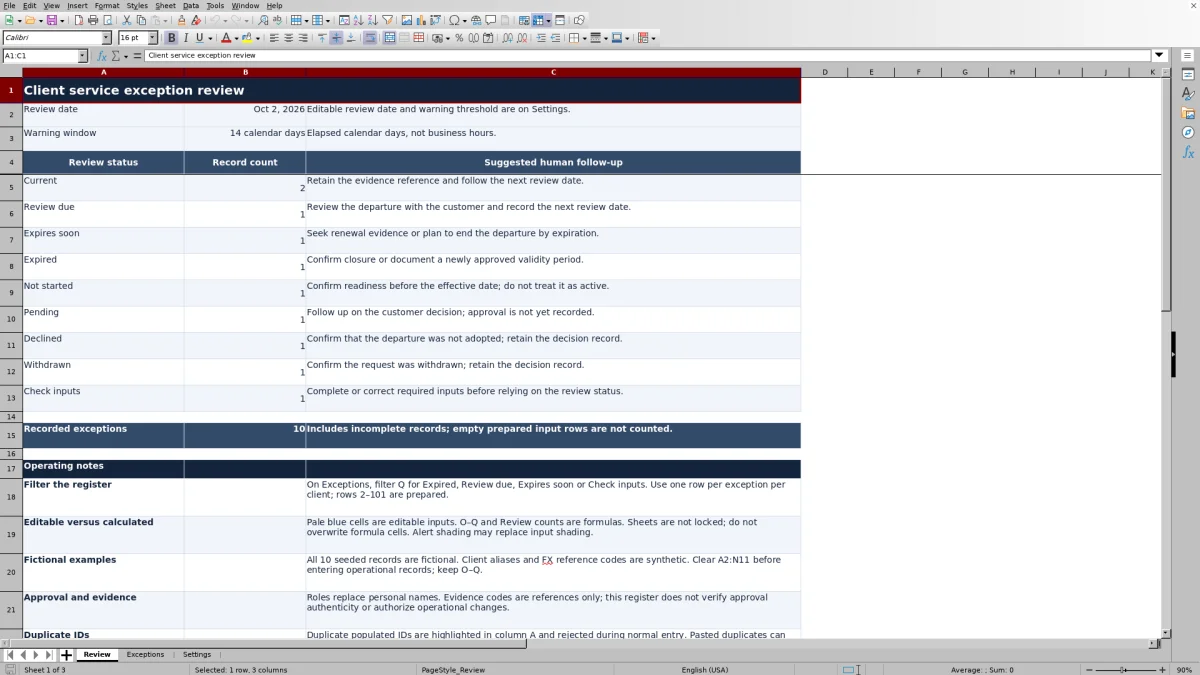
The Review worksheet counts the calculated statuses in Exceptions!Q2:Q101. Its Recorded exceptions total includes incomplete records but excludes completely empty prepared input rows. It is a count of recorded exceptions, not a count of active approvals or unique clients.
Start with Check inputs to identify records you cannot yet interpret reliably. Then use the Exceptions filter to inspect Expired records, due reviews, and approaching expirations. The summary’s suggested follow-up provides a prompt, but you still need to examine the departure, evidence reference, and dates before deciding what action is appropriate.
Expired does not mean closed. Confirm that the departure ended, or document a newly approved validity period after the relevant decision. Likewise, Current does not prove that delivery matches the approved arrangement. The workbook does not observe service delivery, send reminders, or maintain a ticket queue; arrange follow-up through your existing operating process.
Troubleshooting incomplete records and misleading results
If Review status shows Check inputs, first inspect the core fields and Account owner role. For Approved records, check the approver role, evidence reference, and four required dates: approval, effective, expiration, and next review. Enter real Excel dates rather than text. Expiration cannot precede the effective date, and approval and any entered last review date cannot be later than the chosen review date.
A blank Days until expiration value is not zero days remaining. That calculation appears only for Approved records with a Ready input check; pending or incomplete records leave it blank. Completely empty input rows also produce blank calculated results and are not included in the summary.
Duplicate populated IDs are highlighted in column A and rejected during normal entry, but pasted duplicates can bypass validation. Resolve them separately: a Ready input check or Current review status does not establish ID uniqueness. Pasted values also warrant a manual date-format check.
If counts look wrong, check the review date, confirm formulas remain in O–Q, and verify recalculation in the spreadsheet application you use. The file requests recalculation on load, but you should test representative date boundaries and counts before relying on them. A zero status count means no records in the counted range currently return that label; it is not proof that no follow-up is needed elsewhere.
Comparison: prepared register or blank spreadsheet?
A blank spreadsheet can work for a small, manually reviewed list when your process needs different fields or status rules. This workbook provides a defined structure and date-based review logic, but you must accept its rules or carefully revise and check them. Neither approach replaces the customer decision or confirms that a service change occurred.
| Method | Record structure | Review prioritization | Ongoing responsibility |
|---|---|---|---|
| This Excel workbook | Prepared fields for policy departures, approval details, roles, dates, and evidence references. | Calculated status, days remaining, and summary counts within the prepared range. | Enter and verify decisions, resolve input issues, preserve formulas, and arrange follow-up outside the file. |
| Blank spreadsheet | You choose and build the fields and permitted values. | Manual date review unless you add formulas, filters, or other review aids. | Design and maintain the structure, checks, and any calculations, as well as the review process. |
Choose the prepared register when its approval labels and calendar-day rules match your process. Choose a custom sheet when different requirements justify building your own controls. If you need assigned tasks, notifications, or controlled approval workflows, evaluate software configured for those needs rather than assuming either spreadsheet provides them.
Frequently asked questions
Can I review the register as of a past date?
Yes. Replace TODAY() in Settings!B2 with the desired review date. The indicators then evaluate the currently entered records against that date. This does not reconstruct earlier versions of the data or create an audit trail. Approval or last review dates later than your selected date can cause Check inputs. Restore TODAY() when you want the date to advance with recalculation again.
How many exceptions are prepared in the workbook?
Exceptions has 100 prepared input rows, from row 2 through row 101. The status formulas, validation, filtering, and Review counts use that prepared range. Do not assume records added below row 101 are included. If you extend the workbook, inspect and update all affected ranges and verify the results; no larger supported capacity is established.
Can I add a Closed approval status?
Closed is not one of the supported approval labels. Keep Pending, Approved, Declined, and Withdrawn unchanged, including the fixed keys on Settings. Expired is a calculated review indicator, not a closure field. Record and confirm actual closure through your established process rather than inventing a new dropdown value or using Withdrawn as a substitute for an expired arrangement ending.
Does the XLSX file work the same in every spreadsheet application?
Equivalent results across applications are not established. Open the file in your intended application, allow recalculation, and check the dropdowns, date handling, duplicate highlighting, summary counts, and expiration boundaries before operational use. Keep a separate copy before making structural changes.
About the authors

Tessa WhitlockClient & service operations
More about this area of the library →
Nathan CalderwoodService economics & planning
More about this area of the library →