When a client’s service agreement ends, you need clear ownership of data handover, access-removal coordination, and customer acceptance. This Excel checklist helps your managed service provider (MSP) team assign those tasks and identify what still needs attention before final review.
Use one workbook per departing client. Enter responsibilities, dates, and coordination outcomes, then review the calculated schedule and readiness indicators. The workbook supports administrative lead review; it does not perform data transfers or revoke access.
When to use this workbook
- Keep offboarding responsibilities and due dates together for one departing client.
- Identify overdue work, approaching deadlines, and missing information before lead review.
- Separate task completion from required customer acceptance.
- Focus review discussions on exceptions without treating a completed checklist as technical proof.
What is in the file
How to use the workbook
1. Set the client and review assumptions
In Settings, replace the fictional Client alias and enter the Transition date, Review date, and Due-soon window (calendar days). Update the review date manually whenever you assess progress. The warning window accepts whole numbers from 0 through 30.
2. Replace the fictional tasks
In Offboarding Tasks, replace or clear the starting examples in the pale blue input cells. Enter a unique Task ID, Workstream, Task, Responsible role, Due date, Status, and Customer acceptance required choice for each task. Preserve the calculated Schedule indicator and Task readiness columns.
3. Record coordination outcomes
Update Status as work progresses and enter the actual Completion date when it is complete. Where acceptance is required, update Customer acceptance from the available choices. Use Reference note for sanitized document identifiers or brief coordination outcomes only—not credentials, customer data, technical access details, attachments, or hyperlinks.
4. Review exceptions and make the lead decision
Filter Schedule indicator and Task readiness to investigate exceptions, then check Overview for the summary and Overall review gate. Review pasted values, duplicate IDs, dates, and acceptance entries manually. A Ready result still requires the transition lead to assess the underlying work and supporting records.
Define the offboarding scope and assign responsibility
Start with the work you have agreed to coordinate for the departing client, rather than treating the fictional examples as a complete offboarding scope. The available workstreams are Data handover, Access-removal coordination, and Customer acceptance. Use them to group related tasks while keeping each task specific enough to assign and review.
For example, confirming a handover scope and coordinating delivery of an approved data package are different decisions. Give them separate rows when they have different owners, deadlines, or acceptance requirements. Enter the accountable role in Responsible role and make sure your team knows who currently fills that role; entering a role does not notify or assign work to someone in another system.
The Transition date in Settings is a planning reference. It does not generate task deadlines or establish a contractual obligation. Enter each Due date deliberately, taking the agreed handover sequence into account.
Read schedule indicators against the review date
The schedule calculation compares each task’s dates and status with the manually entered Review date and Due-soon window in Settings. These are calendar-day checks, not business-hour service-level agreement (SLA) measurements, and they do not advance automatically with today’s date.
For a task that is not Complete, a due date before the review date produces Overdue. A due date from the review date through the end of the warning window, inclusive, produces Due soon. Later dates produce Scheduled. A zero-day window therefore highlights tasks due on the review date itself; it does not disable the warning.
For a Complete task, the calculation first checks for a completion date and whether that date is after the review date. It then compares completion with the due date to return Completed late or Completed on time. Missing due dates take priority in the schedule indicator. Use the result to decide whether to chase unfinished work, correct the record, or discuss a missed deadline—not to infer contractual compliance.
Understand what makes a task ready
Task readiness answers a different question from the schedule indicator: is this record administratively complete enough for lead review? A populated row needs Task ID, Workstream, Task, Responsible role, Due date, Status, and Customer acceptance required. If any of those are absent, it returns Missing required input.
Once those fields are present, a status other than Complete returns Open. A Complete task also needs a Completion date no later than the Review date. If Customer acceptance required is Yes, Customer acceptance must be Accepted; otherwise the task returns Awaiting acceptance. Only after these checks does it return Ready.
Ready does not mean completed on time. A late task can be Ready after completion and any required acceptance are recorded. Likewise, a Blocked task with its required inputs filled remains Open in readiness while also contributing to the blocked count on Overview.
The Overall review gate returns Ready for lead review only when every populated task is Ready. Otherwise it returns Not ready, or No tasks when there are no populated task records. The gate does not test whether you included every obligation in the offboarding scope.
Example: a late handover task and pending delivery
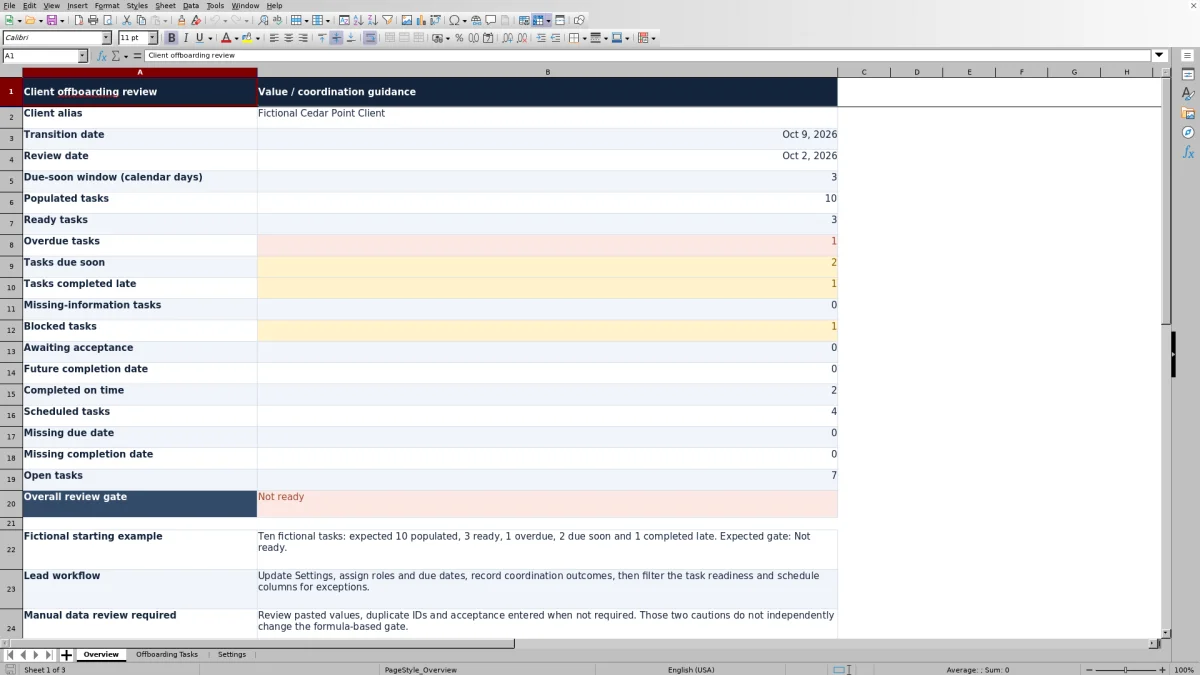
Use the fictional starting assumptions to see how schedule and readiness work together: Review date is October 2, 2026, Transition date is October 9, 2026, and the Due-soon window is 3 calendar days. The due-soon period therefore runs from October 2 through October 5, 2026.
- FIC-002, Approve transfer instructions: due September 30, 2026; Status is Complete; Completion date is October 1, 2026; customer acceptance is not required. With the other required inputs present, its results are Completed late and Ready.
- FIC-004, Deliver approved data package: due October 4, 2026; Status is In progress; customer acceptance is required and is Pending. Its results are Due soon and Open.
The first task is ready for administrative review but still records a missed deadline. Review the consequence of that delay rather than changing the due date to remove the warning. The second task needs delivery follow-up now. If you later mark it Complete with a valid completion date but leave acceptance Pending, its readiness becomes Awaiting acceptance—not Ready.
The workbook’s ten-task fictional starting example is expected to show 10 populated tasks, 3 ready, 1 overdue, 2 due soon, and 1 completed late, with an overall gate of Not ready. These figures are a demonstration, not a benchmark for your client transition.
Troubleshooting missing inputs and misleading totals
Review pasted values manually. Paste can bypass validation, so dropdowns and date checks are not a substitute for reviewing the records before closure.
- Unexpected missing-information result: check the required fields first. The formula reports the first applicable readiness issue, so fixing one missing input may reveal a missing completion date or outstanding acceptance.
- Future completion date: compare the recorded Completion date with the Review date. Correct an entry error or update an outdated review date to the actual review date; do not alter a genuine completion date simply to clear the indicator.
- Duplicate Task IDs: check and correct them even if the gate says Ready for lead review. Duplicate IDs do not independently change that gate.
- Acceptance entered when not required: reconcile the entry with the agreed requirement. This caution does not independently block readiness.
- Invalid dates or unrecognized statuses: re-enter valid date-only values and use the provided choices. A nonblank pasted value is not necessarily a valid input.
Overview counts overlap. A task can contribute to both a schedule count and a readiness count, so adding all exception totals will not give you a unique task count. Missing-information tasks counts readiness labels beginning with Missing; missing due-date and completion-date schedule counts are also shown separately.
An entirely empty task row produces blank indicators and is not counted. A partly filled row is counted and can flag missing information. If the gate says No tasks, check that you have entered the real scope rather than interpreting an empty checklist as a successful offboarding.
Keep coordination records separate from technical evidence
The workbook records reported outcomes. It does not verify that access was removed, that a data package was transferred successfully, or that a customer actually approved the handover. The transition lead should check the relevant operational records before accepting closure.
Use sanitized references only in Reference note—for example, a document identifier and a short coordination outcome. Keep credentials, technical access details, customer data, attachments, and hyperlinks out of this workbook. Retain the underlying evidence in the appropriate controlled records and verify it there.
The acceptance field is a manual record, not a customer approval portal. Reference note is not required by the readiness formula, so Ready alone does not establish that supporting evidence has been referenced. Decide what evidence your team needs for each task before final review.
This checklist also does not replace service tickets, financial settlement records, asset records, or security evidence. Treat it as a coordination summary alongside those records, not as proof of compliance or a complete service-termination record.
Comparison: this workbook or a blank spreadsheet
A blank spreadsheet is a realistic alternative when your transition process needs different fields or a very small task list. This workbook gives you a defined review structure, but its fixed formulas and prepared ranges need to remain aligned with any changes you make.
| Method | Initial setup | Exception review | Customization | Evidence and execution |
|---|---|---|---|---|
| This Excel workbook | Prepared fields, dropdowns, fictional examples, and 100 task rows | Calculated schedule and readiness indicators with Overview counts | Editable planning inputs and lists; formula-dependent labels and ranges need care | Records coordination outcomes; technical work and evidence remain outside the file |
| Blank spreadsheet | You define the fields, task layout, and review process | Manual review unless you build calculations or other checks | Flexible layout, with consistency and checking rules left to you | You decide how to reference evidence; entries alone do not execute or verify work |
Choose this workbook when its three workstreams and administrative readiness checks fit your review process. Choose a blank spreadsheet when the process differs enough that rebuilding the structure is more practical. If task assignment and execution already take place in a ticketing system, decide which record is authoritative and reconcile this summary with it; do not assume synchronization.
Frequently asked questions
Can I use one workbook for several departing clients?
Use one workbook per departing client. Settings provides one Client alias and one set of review assumptions, while Overview summarizes all populated task rows together. Combining clients would mix their counts and review gate.
How many tasks are prepared in the workbook?
Offboarding Tasks has 100 prepared task rows, from row 2 through row 101. The formulas, validation, filter, and Overview counts use that range. Do not assume entries below row 101 are included. If you extend the file, review all affected ranges and test the resulting counts before relying on them.
Can I rename the dropdown choices?
The source lists in Settings are editable, but the schedule and readiness formulas depend on the labels Complete, Yes, and Accepted. Renaming those labels requires corresponding formula review. Check related summary formulas and indicators when changing other choices as well.
Does changing the transition date move the task deadlines?
No. Transition date is an editable planning reference displayed on Overview. Task deadlines are entered separately in Due date. Schedule indicators use those deadlines, the Review date, and the Due-soon window—not the transition date.
Does Ready for lead review mean the client is fully offboarded?
No. It means every populated task meets the workbook’s administrative readiness checks. The transition lead still needs to review scope completeness, technical outcomes, customer acceptance evidence where required, and any records kept outside the workbook. It is not proof of access revocation, successful data transfer, or compliance.
About the authors

Tessa WhitlockClient & service operations
More about this area of the library →
Nathan CalderwoodService economics & planning
More about this area of the library →