Before a client agreement renews, you need to know which review meetings, notice actions, and decisions still need attention. This Excel workbook helps account managers at managed service providers (MSPs) organize that work by agreement renewal event.
Enter verified notice dates, review targets, and next actions, then use calculated statuses and a summary to prioritize follow-up. The planner supports operational planning, not legal deadline calculation: you supply the notice dates and confirm completed work outside the workbook.
When to use this workbook
- Prioritize missing dates, overdue work, and approaching notice dates before your next account review.
- Keep renewal decisions separate from review completion and notice-action completion.
- Adjust internal warning windows to match your account-planning routine.
- See summary counts while retaining event-level details for follow-up.
What is in the file
How to use the workbook
1. Prepare a working copy
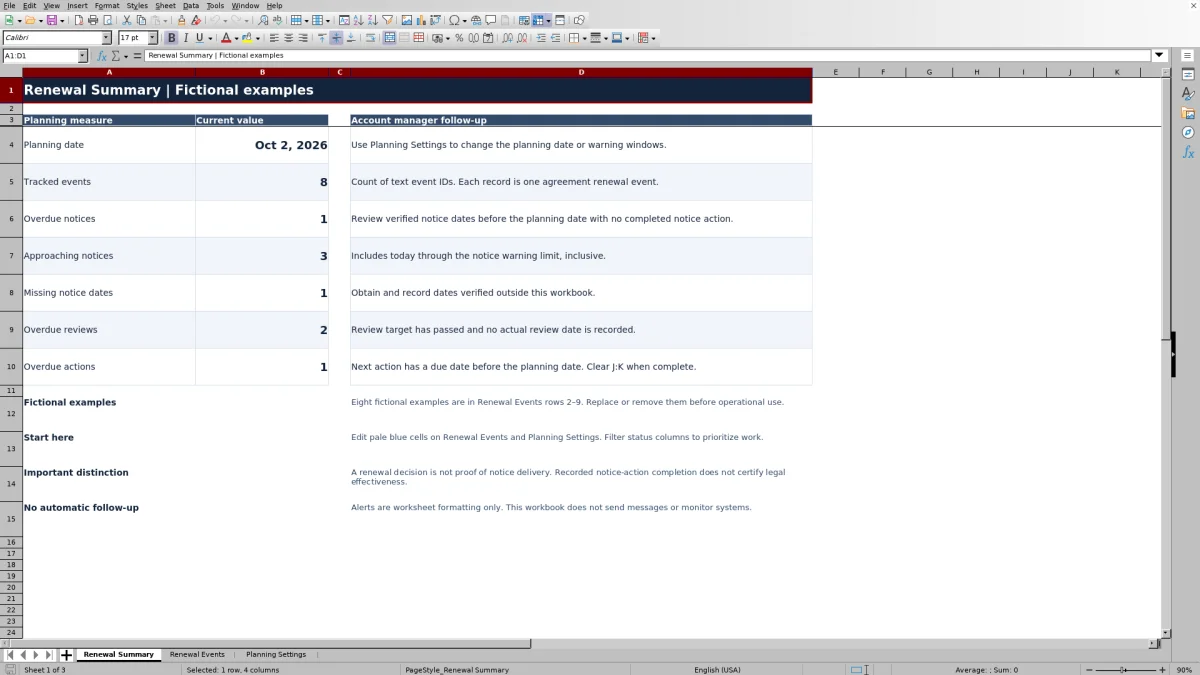
Renewal Events rows 2–9 contain eight fictional examples. Replace or clear their manual entries before operational use, preserving the formulas in columns L:O. Use one row for each agreement renewal event and assign a unique text Renewal Event ID.
2. Set the planning date and warning windows
In Planning Settings, B2 uses TODAY() by default. Leave it in place for a date that updates at recalculation, or enter a fixed date for a reproducible review. Check the editable notice, review, and action warnings in B3:B5; their starting values are 30, 14, and 7 calendar days.
3. Enter verified dates and planned work
Complete the pale blue input cells in Renewal Events. Enter the client label, renewal date, externally verified notice date, review target, and any next action with its due date. Record actual review, decision, and notice-action completion dates only when those events have occurred.
4. Review the summary and work the exceptions
Check Renewal Summary, then filter Review Status, Notice Status, and Action Status in Renewal Events. Address missing information and overdue items before reviewing Due soon items. After completing a next action, clear both Next Action and Next Action Due Date, or replace them with the next outstanding task.
Use verified notice dates, not inferred deadlines
A renewal date tells you when the agreement renews; it does not establish the notice date in this planner. Enter Renewal Date and Verified Notice Date separately in Renewal Events. The workbook does not subtract a contractual notice period, interpret agreement wording, or adjust for delivery methods or holidays.
The notice, review, and action warnings are internal planning windows. They determine when a recorded date appears as Due soon, not whether a contractual obligation has been met. All three use elapsed calendar days rather than business hours, and they are not service-level agreement targets.
Obtain the notice date through your agreement-review process before entering it. If verification is incomplete, leave the date blank and follow up on Notice date missing rather than entering an estimate that could appear authoritative.
Example: turn approaching dates into a follow-up plan
For a reproducible example, set the planning date to October 2, 2026, with notice, review, and action warnings of 30, 14, and 7 calendar days. Enter one event with a renewal date of December 31, 2026; a verified notice date of November 1, 2026; a review target of October 16, 2026; and a next action, “Prepare review agenda,” due October 9, 2026. Leave the actual review and notice-action completion dates blank, and set the renewal decision to Pending.
- Days Until Notice Date is 30: November 1 minus October 2. Notice Status is Due soon because the date is exactly at the 30-day warning limit.
- Review Status is Due soon because the uncompleted review target is 14 calendar days after the planning date.
- Action Status is Due soon because the outstanding action is due 7 calendar days after the planning date.
These results identify work to prepare now; they do not mean the review occurred or notice was delivered. Confirm the review arrangements and prepare the agenda, then record actual completion as it happens. Today and the warning limit are included in Due soon; a date becomes Overdue only when it is before the planning date and the relevant completion condition has not been met.
Track decisions, meetings, and notice actions separately
A client may decide to renew before the account review is complete, or decide not to renew while a notice action remains outstanding. Keep those facts separate. Renewal Decision and Decision Date record the decision; Actual Review Date records the meeting or review; Notice Action Completed Date records confirmed completion of the relevant notice action.
Review Status becomes Completed when Actual Review Date is populated. Notice Status becomes Handled when both a verified notice date and a notice-action completion date are present. If the verified notice date is absent, Notice date missing takes precedence even when a completion date has been entered. Choosing Renew or Do not renew does not clear notice warnings.
A decision is not proof of notice delivery. Enter Notice Action Completed Date only after confirming the action is complete, and retain any supporting evidence in your appropriate record system. The Handled label does not certify legal effectiveness.
Next actions use a different workflow: there is no separate action-completion field. Clear columns J:K after completion. If another task remains, replace both the description and due date so the status reflects the current outstanding work.
Read the summary as a work queue, not an all-clear
Renewal Summary counts text event IDs and selected statuses from Renewal Events rows 2–101. Tracked events means agreement renewal records, not distinct clients: one client can have multiple agreement events. Approaching notices counts Notice Status values of Due soon, including dates equal to the planning date.
Start with missing notice dates and overdue notices, reviews, and actions. Then filter the event sheet for other gaps and approaching work. The summary does not include a separate total for every possible status, such as Review date missing or Action date missing, so the event-level review remains necessary.
Zero overdue items is not proof that every record is complete. A missing date may generate a missing-date status instead of Overdue, and a missing Renewal Event ID leaves calculated statuses blank. Check highlighted input gaps as well as the summary counts before concluding that follow-up is under control.
Troubleshooting dates, blanks, and unexpected statuses
- Blank calculations: Check Renewal Event ID first. Days Until Notice Date also stays blank without Verified Notice Date. Action Status stays blank when Next Action is empty, even if a due date remains in column K.
- Zero or negative days until notice: Zero means the notice date equals the planning date; a negative number means it has passed. This calculation remains a date difference even after Notice Status becomes Handled, so read the number together with the status.
- Completed dates rejected: Actual Review Date, Decision Date, and Notice Action Completed Date must not exceed the planning date. Check whether you left the workbook on an earlier fixed planning date. Do not enter a future target as an actual completion.
- Unexpected results after pasting: Pasted data may bypass entry validation. Recheck unique text IDs, actual Excel dates without time values, and highlighted gaps. Text that looks like a date is not a reliable calculation input.
- Missing or altered formulas: Columns L:O and Renewal Summary contain calculations. Formula cells are visually separated but not locked, so avoid pasting over them and compare accidental changes with an untouched copy.
Worksheet colors support the text statuses: red indicates Overdue, amber indicates Due soon, and yellow indicates missing dates. Use the text and underlying entries to resolve the issue rather than relying on color alone.
Keep the planning file within its prepared scope
The workbook has 100 prepared event rows, from row 2 through row 101. After removing the fictional entries, all 100 are available for your own events. The summary formulas, filter range, and entry validation use those prepared rows. Do not assume that adding a row below 101 automatically extends every calculation or check; review and extend the relevant ranges before relying on added records.
For a repeatable account-planning meeting, enter a fixed planning date and save a separately named copy if you need a baseline. The workbook does not provide an automated history of earlier decisions or cleared actions. If you move the planning date backward, manually review any actual dates already entered after that date.
Alerts are worksheet formatting only. The planner sends no messages, monitors no systems, and has no integrations. Decide how you will revisit the file and carry out follow-up through your existing processes. Keep service tickets, finance, assets, security evidence, and projects in their appropriate systems rather than treating this renewal register as a replacement for them.
Comparison: renewal planner or blank spreadsheet?
A blank spreadsheet is a realistic alternative when you need a custom renewal register. This workbook supplies an initial structure and status logic, while a blank file leaves those design choices to you. Neither approach removes the need to verify notice dates or confirm completed actions.
| Method | Initial setup | Prioritization | Follow-up and evidence | Flexibility and maintenance |
|---|---|---|---|---|
| MSP client renewal planner | Prepared fields, settings, and 100 event rows; fictional entries must be replaced. | Calculated date differences, separate statuses, summary counts, and worksheet alerts. | Manual completion entries; no message delivery or certification of notice effectiveness. | Editable warnings and decision labels; added rows require range checks. |
| Blank spreadsheet | You define the fields, layout, and entry rules. | Manual review unless you build formulas, filters, and alerts. | You design completion tracking and maintain evidence outside or alongside the register. | Open-ended structure, with responsibility for building and checking the logic. |
Use the planner when its event-based structure matches your account-review routine. Start from a blank spreadsheet when the required record structure is substantially different. If your main requirement is assigned reminders or shared task history, evaluate a professional services automation (PSA) or ticketing workflow for those specific needs; this file does not supply them.
Frequently asked questions
Can I set a warning window to zero?
Yes. The warning inputs in Planning Settings B3:B5 accept whole numbers from 0 through 365 calendar days. With a zero-day warning, an otherwise outstanding item is Due soon only when its date equals the planning date. Earlier dates are Overdue and later dates are Not yet due.
Can I rename the renewal decision choices?
Yes. Planning Settings D2:D4 supplies the decision list. D2 is the pending choice, and D3:D4 are the non-pending choices. Use distinct, nonblank text labels and update existing event records if you rename them; changing the list does not rewrite previously entered decisions.
Why do the fictional examples show different statuses when I open the file?
The example dates are anchored to October 2, 2026, but Planning Settings B2 uses TODAY() by default. The planning date changes at recalculation while the example dates stay fixed. Set B2 to October 2, 2026, to review the examples against their reference date, then choose the appropriate planning date for your own work.
How do I restore a planning date that updates automatically?
If you replaced Planning Settings B2 with a fixed date, enter =TODAY() in that cell to restore the date-at-recalculation behavior. Review the resulting statuses afterward. This updates worksheet calculations; it does not create scheduled reminders or run follow-up while the file is unattended.
Can I track more than one agreement for the same client?
Yes. Each row represents one agreement renewal event, so you can repeat Client Label for separate agreements or renewal cycles. Give every event a unique text Renewal Event ID, such as ACME-SUPPORT-2027, so the records remain distinguishable. The summary counts events rather than unique clients.
About the authors

Tessa WhitlockClient & service operations
More about this area of the library →
Nathan CalderwoodService economics & planning
More about this area of the library →