Give the incoming support shift a clear next action for each outstanding priority case or watch item. This Excel checklist helps managed service provider (MSP) shift leads record the handover, check acknowledgment timing and review follow-up deadlines.
Enter the service reference, outgoing and incoming shifts, and relevant timestamps. The workbook calculates statuses against a manually set evaluation time, helping you identify items to review without implying live monitoring or automatic acceptance.
When to use this workbook
- Give the incoming shift a service reference, next action and due time for each handover item.
- Separate acknowledgment timing from follow-up completion so acceptance is not mistaken for finished work.
- Find unacknowledged items past target and overdue follow-ups at a chosen review time.
- Spot incomplete records and missing acknowledgment targets before relying on the handover view.
What is in the file
How to use the workbook
1. Prepare a working copy and review the settings
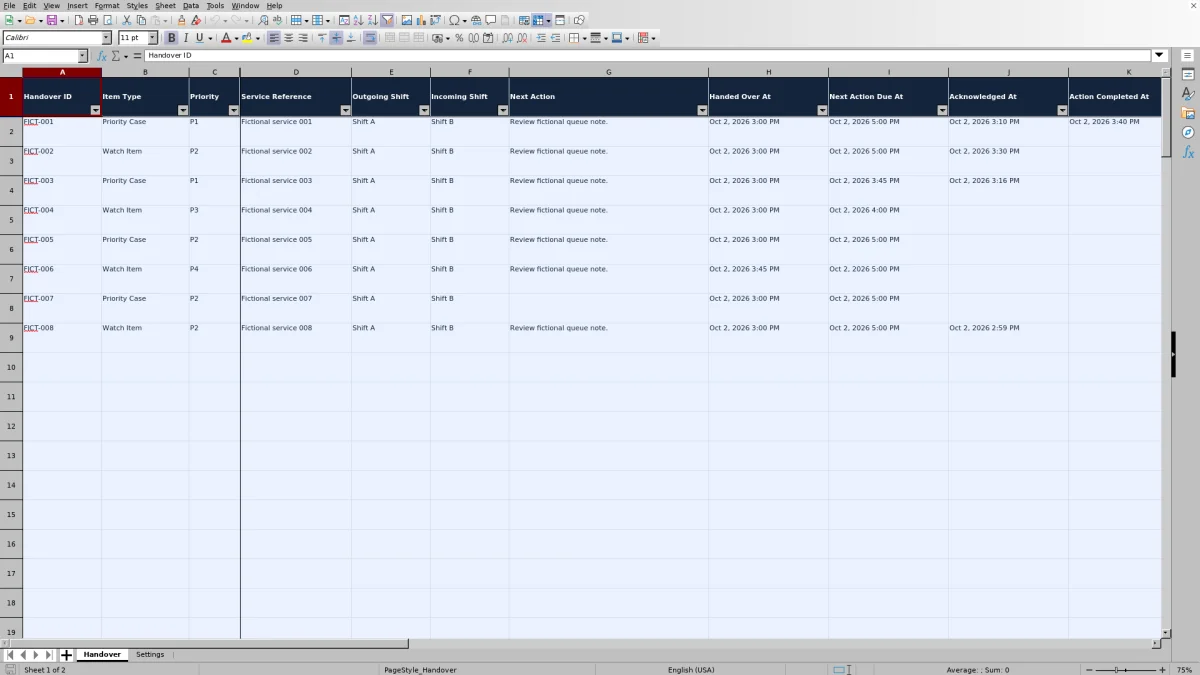
Save a copy, then replace or clear the fictional inputs in Handover rows 2–9 without deleting the formulas in columns L:P. In Settings, set Evaluation Time in B2 and review the documented time zone, priority targets, item types and shift labels. The supplied targets are editable operational assumptions, not contractual commitments.
2. Record each item being handed over
On Handover, complete columns A:I for every active record. Use a unique Handover ID, select the item type and priority, identify the service, and enter different outgoing and incoming shifts. Write a specific Next Action and enter full dates and times for Handed Over At and Next Action Due At.
3. Resolve input issues before reading the statuses
Check Input Check in column P. Correct Incomplete or Check input results before interpreting the calculated timing columns. If Acknowledgment Status shows Missing target, review the priority mapping and its target in Settings.
4. Record events and review outstanding work
Enter Acknowledged At only after acknowledgment has occurred, and Action Completed At only after the stated next action is finished. Update Settings!B2 at each review, then use the Handover filters and the operational counts on Settings to find items needing attention. These event timestamps are manual records, not automated confirmations.
Make each handover actionable for the incoming shift
A useful handover tells the incoming shift what to do next, not just which case is still open. Use Service Reference to identify the relevant client service or support record, then write Next Action as a concrete task with a reviewable outcome. For a watch item, that might be to check the latest backup result and update the support record by a specified time.
Keep one item per handover record. If the same case passes to another shift later, create a separate unique Handover ID rather than reusing the earlier ID. This distinguishes separate handoffs while allowing the Service Reference to remain the same.
Outgoing Shift and Incoming Shift identify shifts, not named technicians or verified acceptance. If you need an individual owner or detailed case history, maintain that information in your support record. Avoid placing passwords or unnecessary client-sensitive details in the checklist.
Set the timing assumptions before judging acknowledgment
The supplied acknowledgment targets are P1: 15 minutes, P2: 30 minutes, P3: 60 minutes and P4: 120 minutes. Review and, if needed, edit them in Settings!B6:B9. Each target must be a positive whole number of minutes, and each priority label in A6:A9 should be unique. These are fictional operational defaults, not service-level agreement (SLA) targets or guarantees.
Acknowledgment Time (Elapsed Minutes) measures the interval from Handed Over At to Acknowledged At. If no acknowledgment timestamp is entered, it measures from Handed Over At to Evaluation Time instead. Excel stores time as fractions of a day, so the formula multiplies that difference by 1,440 to produce minutes and rounds the result to two decimal places.
The calculation uses elapsed minutes, not business hours. It does not exclude overnight periods, weekends or holidays. An unacknowledged item is Pending at or below its target and Overdue above it. Once an acknowledgment is recorded, the labels become On time or Late; an acknowledgment exactly at the target is On time.
The supplied time basis is Arizona MST (UTC-07:00), which has no daylight-saving transitions. Keep all timestamps on a consistent basis. Changing the documented time-zone label does not convert existing entries or add daylight-saving calculations.
Example: a late acknowledgment with an overdue next action
Consider the supplied fictional FICT-003 handover. It is a P1 Priority Case passed from Shift A to Shift B on October 2, 2026, at 3:00 PM. Its acknowledgment target is 15 minutes, Acknowledged At is 3:16 PM, Next Action Due At is 3:45 PM, and Action Completed At is blank. Evaluation Time is October 2, 2026, at 4:00 PM. All times use the documented Arizona MST basis.
Assuming Input Check is Ready, the acknowledgment interval is 16.00 elapsed minutes: 3:16 PM minus 3:00 PM. That exceeds the 15-minute target, so Acknowledgment Status is Late. The next action was due before the 4:00 PM evaluation time and has no recorded completion, so Follow-Up Status is Overdue.
The incoming shift has a recorded acknowledgment, but the next action still needs review. Check whether that action remains unfinished or whether its completion timestamp was omitted. Do not request acknowledgment again merely because it was late.
This row contributes to Overdue Follow-Ups on Settings, but not to Unacknowledged Past Target: the latter counts only acknowledgment statuses labeled Overdue, not acknowledgments already recorded as Late.
Use the status columns to decide what needs attention
Start with input quality, then examine acknowledgment and follow-up separately. Settings provides counts for Records Needing Correction and Missing Targets alongside the outstanding-work counts. An invalid record can display an input warning instead of an operational status, so resolve those warnings before treating the summary as a reliable review of the queue.
For unacknowledged items, filter Acknowledgment Status to Overdue and arrange the required acceptance or escalation outside the workbook. For follow-up work, use Follow-Up Status: a due time earlier than Evaluation Time is Overdue, an exactly matching time is Due now, and a later time is Upcoming.
For a Ready row, a populated Action Completed At produces Complete. Complete applies to the next action only; it does not establish that the support case is closed, the client is satisfied or acknowledgment was on time. The follow-up calculation also does not classify completed actions as early or late.
A zero overdue count is not proof that all handovers are finished. Pending acknowledgments, upcoming actions, missing targets and records with input problems can still require attention. Read the relevant counts together and inspect the underlying rows.
Troubleshooting blanks, input warnings and stale statuses
- Incomplete records: Complete every required field in Handover columns A:I. Handed Over At and Next Action Due At must be numeric Excel date/time values, and Settings!B2 must contain a valid numeric evaluation timestamp. A date that only looks correct but is stored as text can prevent calculation.
- Check input warnings: Look for duplicate Handover IDs, item types or shift labels that do not match Settings, identical outgoing and incoming shifts, and duplicate priority labels. Correct the source inputs rather than typing over the warning.
- Missing target: Ensure the selected priority has a matching entry in Settings!A6:A9 and a positive whole-number target in B6:B9. A row can pass its input checks but still lack a usable acknowledgment target.
- Blank calculated timing: An unused row stays blank, and a row that is not Ready does not calculate its acknowledgment target or elapsed minutes. A blank target on a Ready row can indicate a missing or invalid target. Do not read a blank as zero elapsed minutes or successful acknowledgment.
- Statuses that seem out of date: Review Evaluation Time. It is a manual snapshot timestamp, not a running clock. Update it and confirm the workbook has recalculated before using the results.
- Unexpected results after editing or pasting: Check that formulas remain in columns L:P and the Settings count cells B14:B17. Styling and validation discourage formula edits, but the worksheets are not protected. Restore damaged formulas from a clean copy and review pasted values against the input rules.
Keep the workbook within its operational limits
The prepared Handover range contains 100 records in rows 2–101. The formulas, filters, validation ranges and summary counts refer to that range. Do not assume that entering a record in row 102 will include it in the checks or counts. If you extend the workbook, review and test every affected range before relying on the expanded version.
The workbook records manually entered acknowledgment and completion events. It does not collect ticket updates, monitor services, notify the next shift or verify that someone performed the action. Use it as a structured handover review alongside your normal support process, not as evidence of automated acceptance.
For a repeatable review, agree on who maintains the working copy and when Evaluation Time is updated. If you need to preserve a shift-end snapshot, save a separately named copy under your record-handling process. Do not assume the workbook provides an audit trail or preserves earlier values after an edit.
Keep configuration changes deliberate. Editing a priority target changes the basis used by matching rows when formulas recalculate, including earlier handovers. Preserve the earlier copy if you need to retain the assumptions used at that review.
Comparison: this workbook or a manual handover checklist
A manual checklist may be sufficient when a shift has only a few items and the lead can review every deadline directly. This workbook is useful when you want repeatable acknowledgment calculations and a separate view of follow-up status, while still accepting manual data entry.
| Method | Record structure | Timing review | Input checks | Ongoing maintenance |
|---|---|---|---|---|
| MSP support handover workbook | Prepared fields for priority cases, watch items, shifts and next actions across 100 record rows. | Calculates elapsed acknowledgment minutes and statuses against a manually entered evaluation time. | Includes selection lists, input checks and missing-target indicators. | Requires manual timestamps, evaluation-time updates and preservation of formulas. |
| Manual handover checklist | Can be arranged freely around the team's handover format. | The reviewer must compare timestamps and deadlines manually. | Completeness and consistency depend on the reviewer. | Requires manual updates but has no calculation formulas to maintain. |
Choose based on the review you need. The workbook supplies a defined calculation structure; the manual checklist offers flexibility without formula maintenance. If you need system-recorded acknowledgment, automated notifications or a detailed activity history, assess whether your ticketing platform supports those requirements rather than assuming this spreadsheet provides them.
Frequently asked questions
Can I use the checklist for both priority cases and watch items?
Yes. The supplied Item Type choices are Priority Case and Watch Item, maintained in Settings!D10:D11. Both use the same handover, acknowledgment and follow-up fields. Give each item a specific next action and due time so the incoming shift knows what to review.
Does opening the workbook update overdue statuses to the current time?
No. Unacknowledged timing and outstanding follow-up statuses use Evaluation Time in Settings!B2. Set that timestamp for the review you are performing. Recalculation alone does not replace it with the current time.
What do blank acknowledgment and completion timestamps mean?
A blank Acknowledged At or Action Completed At means no event has been manually recorded in that field. It does not prove that acknowledgment or completion has not happened elsewhere. Confirm the event through your support process before entering its timestamp.
Can I change the shift names and acknowledgment targets?
Yes. The supplied shift labels are editable in Settings!F10:F12, and the acknowledgment targets are editable in B6:B9. Keep priority labels unique and targets as positive whole minutes. If you rename a shift or priority after entering records, review existing rows so their values still match the settings. Adding choices beyond the supplied ranges requires changes to the affected validation and formula references.
Can I report SLA compliance from the acknowledgment results?
Do not treat these results alone as SLA compliance evidence. The supplied targets are operational assumptions, the calculation uses elapsed rather than business minutes, and the timestamps are manually entered. Confirm the contractual measurement rules and source records separately before using any result in a client performance report.
About the authors

Tessa WhitlockClient & service operations
More about this area of the library →
Nathan CalderwoodService economics & planning
More about this area of the library →