When client requests compete for attention, you need a consistent starting point for priority and routing. This Excel ticket triage matrix helps your managed service provider (MSP) team map impact and urgency to an editable policy, then review the dispatcher’s selections before acting.
The workbook proposes a priority, queue, and response target for each assessment and flags entries that need attention. It supports human-reviewed dispatch decisions; it does not route tickets, send notifications, or make automated safety decisions.
When to use this workbook
- Apply the same impact-and-urgency mapping across the ticket assessments you enter.
- Keep policy proposals separate from the dispatcher’s final priority and queue selections.
- Find missing inputs, duplicate ticket IDs, invalid mappings, and differing selections before routing.
- Review assessment counts and proposed priority distribution without tallying rows manually.
What is in the file
How to use the workbook
1. Review the policy before entering live assessments
On Triage Policy, review the nine impact-and-urgency mappings, allowed priorities, allowed queues, and Response Target (Business Minutes). Replace fictional starting assumptions with your agreed operating policy. Check that each mapping shows Valid in Policy Status; this checks the mapping’s structure, not whether it is appropriate for a client.
2. Replace sample inputs with ticket details
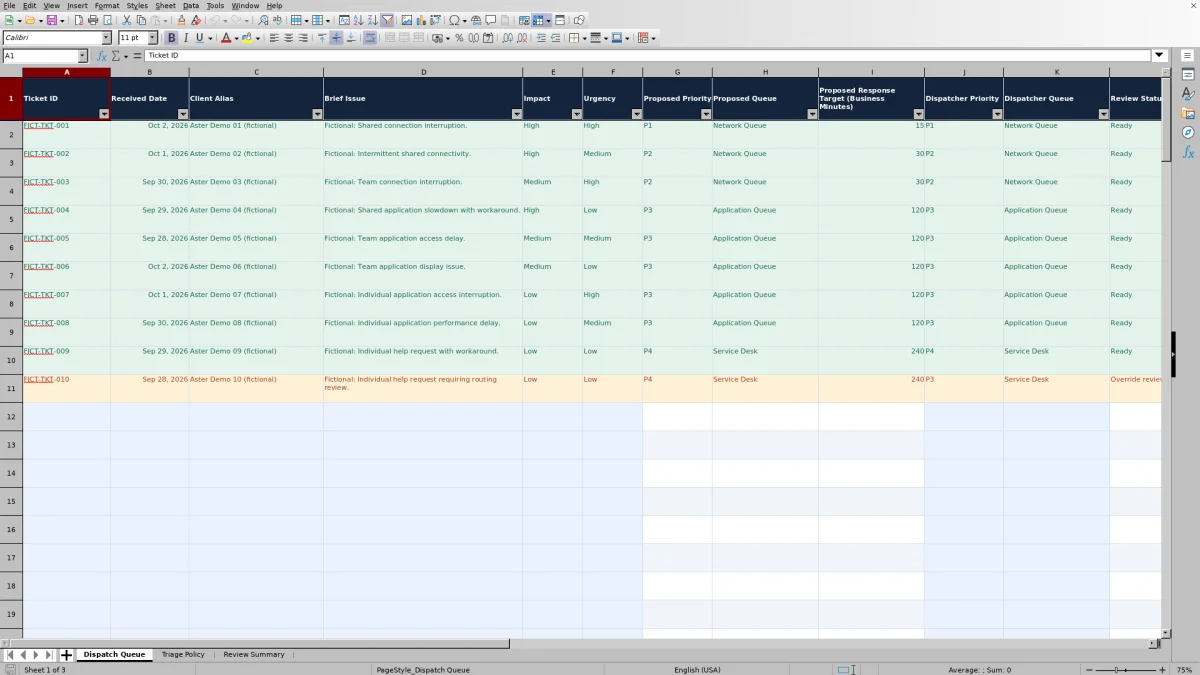
Use rows 2–101 on Dispatch Queue. Enter Ticket ID, Received Date, Client Alias, Brief Issue, Impact, and Urgency, keeping one current assessment per ticket. Replace or clear fictional manual entries while preserving the formula columns. Use the dropdown choices for Impact and Urgency and a received date no later than today.
3. Review the proposal and record your selections
Read Proposed Priority, Proposed Queue, and Proposed Response Target (Business Minutes). Check them against the actual issue and client agreement, then enter Dispatcher Priority and Dispatcher Queue. A different selection produces Override review rather than automatically approving the exception.
4. Resolve exceptions and perform the handoff
Recalculate the workbook and use Review Summary to identify records needing attention. Filter Review Status on Dispatch Queue to work through those records. Confirm the routing decision and carry out assignment in your operational ticketing process; a Ready row does not perform the handoff.
Set a policy that reflects your client delivery model
Before using the matrix, agree on what Low, Medium, and High mean for both Impact and Urgency. A practical distinction is to assess impact by the breadth or severity of disruption and urgency by how quickly action is needed. These are operating definitions you must establish; the workbook does not infer them from ticket text.
On Triage Policy, each Policy Key joins impact first and urgency second, such as High|Medium. That key determines the proposed priority, queue, and response target. Only impact and urgency drive the lookup; Client Alias and Brief Issue provide context for your review but do not change the proposal.
Edit Priority, Queue, and Response Target (Business Minutes) to fit your agreed policy. Keep the allowed lists and mapping values consistent. A Valid policy row means its key is unique, its priority and queue appear in the allowed lists, and its target is a positive number. It does not establish that all expected keys are spelled correctly or that the policy suits every client. Check coverage of all nine combinations before use.
Example: review a high-impact connection interruption
The fictional sample includes these inputs together: Ticket ID FICT-TKT-001, Received Date October 2, 2026, Client Alias Aster Demo 01 (fictional), Brief Issue “Fictional: Shared connection interruption,” Impact High, and Urgency High. Its manual selections are Dispatcher Priority P1 and Dispatcher Queue Network Queue.
Under the initial High|High policy, the formulas return P1, Network Queue, and a response target of 15 business minutes. This is a policy lookup, not a calculated risk score: the selected impact and urgency retrieve the values stored on Triage Policy.
With all six assessment inputs present, a unique ticket ID, a valid mapping, and matching dispatcher selections, Review Status becomes Ready. Your next decision is whether the classification and destination fit the actual incident. The issue description itself does not cause the Network Queue proposal, and the 15-minute target does not show when anyone responded. Use the example to understand the workflow, not as a universal rule for connection problems.
Handle dispatcher overrides without disguising exceptions
Proposed Priority and Proposed Queue are formula outputs. Dispatcher Priority and Dispatcher Queue are manual entries that record your selected classification and destination. If either selection differs from its proposal, an otherwise complete and valid record shows Override review.
Investigate the reason for the difference before routing. A policy mapping may be too broad, or the ticket may warrant an exception under your operating procedure. Keep the proposed fields intact and document the reason and any required authorization in your ticket record or another controlled process. The workbook has no override-reason or approval-history field.
Ready means selections match policy, not that a technician accepted the ticket or that the service is restored. Likewise, Override review is not an automatic rejection of the dispatcher’s judgment. There is no separate approved-override state, so a justified difference remains flagged. Do not force a match merely to remove it from the attention count.
Treat response targets as policy values, not SLA evidence
Response Target (Business Minutes) is an editable policy input. Dispatch Queue retrieves it for the selected impact-and-urgency combination only when the corresponding policy check is Valid. For example, the initial High|Medium mapping proposes 30 business minutes, while High|Low proposes 120 business minutes.
Business minutes are not elapsed minutes. Interpreting the target requires your service calendar, coverage hours, holidays, and agreement terms. The workbook does not calculate a due timestamp from Received Date or measure time to first response. It also does not establish a contractual service-level agreement (SLA) or prove that a target was met.
Changing Dispatcher Priority does not recalculate the proposed target from that manual selection. The target continues to come from the impact-and-urgency policy. If you override the priority or queue, separately confirm the applicable response requirement in your operational process. Never treat the displayed target as measured performance or as a resolution-time commitment.
Read the summary as an assessment review, not a live backlog
Review Summary counts records with a nonblank Review Status, including partial entries. Records needing attention adds the counts for Incomplete, Duplicate ID, Policy review, Awaiting dispatcher, and Override review. Use those counts to choose the next cleanup action, then inspect the underlying rows.
The P1–P4 counts use Proposed Priority, not Dispatcher Priority. They can include rows that still have review issues because a proposal can exist before the assessment is ready. Two rows carrying the same ticket ID may both contribute to these counts. They therefore describe entered assessment rows, not necessarily unique tickets awaiting service.
Records with no proposal subtracts the proposed-priority counts from records with assessments. A nonzero result points you toward missing impact or urgency, missing mappings, or invalid policy. Zero records needing attention does not prove readiness by itself: an empty queue also produces zero, and matching selections do not verify the quality of the underlying assessment. Check the record count and the rows as well.
Troubleshooting blank proposals and review statuses
A blank proposal is not a low priority or a zero-minute target. The proposal formulas leave their outputs blank when Policy Check is not Valid. Look at the assessment inputs and policy mapping before manually filling anything into the formula columns.
- Incomplete: complete all six fields from Ticket ID through Urgency. The status checks whether they are populated; it does not verify that the issue description is adequate.
- Duplicate ID: resolve repeated IDs within rows 2–101 and retain one current assessment per ticket. Do not create a second assessment row merely to record an update.
- Policy review: inspect Policy Check. Missing policy means the generated key has no matching mapping. Fix policy means the matched policy row failed its structural checks. Repair the key, allowed values, duplicate mapping, or target on Triage Policy.
- Awaiting dispatcher: enter both Dispatcher Priority and Dispatcher Queue after reviewing the proposal.
- Override review: review the difference outside the workbook before operational use. Correct an accidental selection, but preserve a justified difference rather than hiding it.
Statuses follow that order of precedence, with Ready last. A row that is both incomplete and duplicated first shows Incomplete. Resolve the displayed issue, recalculate, and check again; one visible status does not mean there is only one problem.
Control policy changes and stay within the prepared range
The workbook is prepared for 100 current assessments in rows 2–101. Proposal formulas, duplicate-ID checks, input validation, filters, and summary formulas use fixed ranges. Typing below row 101 does not establish that the new records receive the same checks or appear in the summary.
If you need more capacity, either use another controlled copy or have the workbook ranges extended and checked together. Verify the formulas, dropdowns, duplicate checks, and summary totals before relying on an expanded version. Adding a new allowed queue or priority also requires care because the allowed-list references are fixed; a value typed beneath a list may not be included.
Policy edits affect existing proposals when formulas recalculate. An assessment that previously matched may then show Override review even if its manual dispatcher selections did not change. Save a separately named baseline before revising policy when you need a reference, and record the policy’s approval and effective date outside the workbook. This file is a current assessment aid, not an automatic history of past decisions.
Comparison: a prepared triage workbook or a blank spreadsheet
A blank spreadsheet can work when you only need a small manual dispatch list or are still designing your classification scheme. This workbook is more structured: it already separates policy proposals from dispatcher selections and counts review exceptions. The tradeoff is that you must understand and maintain its fixed mappings and prepared ranges.
| Method | Policy mapping | Review controls | Capacity and maintenance | Operational handoff |
|---|---|---|---|---|
| MSP ticket triage workbook | Nine editable impact-and-urgency mappings supply proposals. | Formula checks flag incomplete records, duplicate IDs, policy issues, missing selections, and overrides. | Prepared for 100 assessments; changes beyond fixed ranges need verification. | You review selections and carry out routing elsewhere; no notifications are sent. |
| Blank spreadsheet | You design the mapping or look up policy manually. | You perform checks manually unless you build formulas and validation. | You choose the layout and maintain any checks or summary ranges you add. | You record decisions and perform the handoff through your chosen process. |
Choose the prepared workbook when its three-level impact-and-urgency structure fits your policy and you want a consistent review starting point. Choose a blank sheet when the assessment model needs a substantially different design. If the task requires live assignment, notifications, or measured response performance, evaluate those requirements in your ticketing system rather than treating either spreadsheet as a replacement.
Frequently asked questions
Can I use different policies for different clients?
The workbook has one shared policy table. Client Alias does not participate in the lookup, so the same impact and urgency produce the same proposal for every client entered in a copy. If client agreements differ, use clearly identified separate copies or manage client-specific rules in your operational system. Confirm the applicable agreement before using any displayed target.
Does the workbook assign tickets or connect to a PSA or RMM tool?
No connection to professional services automation (PSA), remote monitoring and management (RMM), or ticketing software is provided. The workbook calculates proposals from the entries you supply. Entering Dispatcher Queue does not assign a ticket or notify a team; carry out that action in your delivery workflow.
Why might a received date be rejected?
Received Date validation permits date values through TODAY(), so a future date may be rejected. Enter an actual spreadsheet date and use an unambiguous format such as October 2, 2026. The fictional sample dates can be later than your current date if you open the workbook before that sample period. Replace them with the actual received dates for your assessments rather than treating them as required inputs.
What should I check if the formulas or counts look stale?
Recalculate the workbook in your spreadsheet application before interpreting proposals or summary counts. For the unchanged fictional sample, the stated baseline after recalculation is 10 records: 9 Ready and 1 Override review. If your results differ, inspect calculation settings, formula cells, and any edited inputs or policy values. That sample baseline is a functional reference, not evidence that your live policy is correct or that another application is fully compatible.
What client information should I enter?
Use Client Alias and a brief issue description sufficient for dispatch review, with Ticket ID pointing back to the detailed operational record. Avoid passwords, secrets, and unnecessary sensitive client details. Apply your normal access and file-sharing controls; the workbook is not a password store or a compliance certification.
About the authors

Tessa WhitlockClient & service operations
More about this area of the library →
Nathan CalderwoodService economics & planning
More about this area of the library →