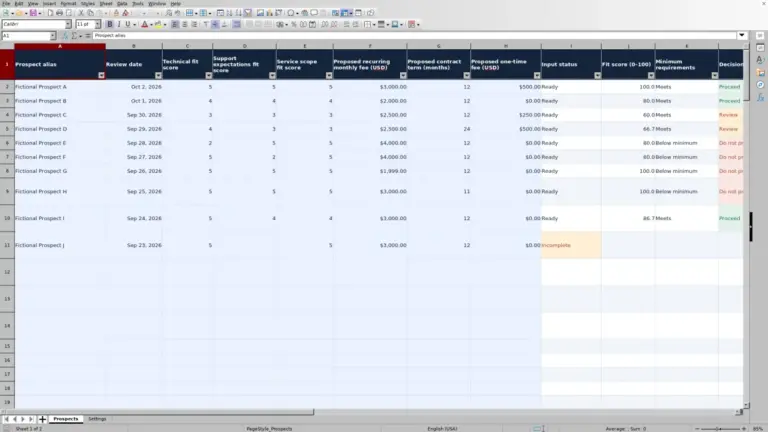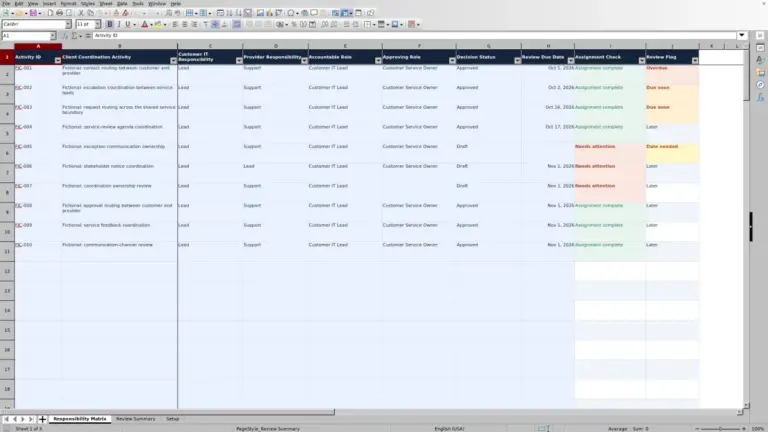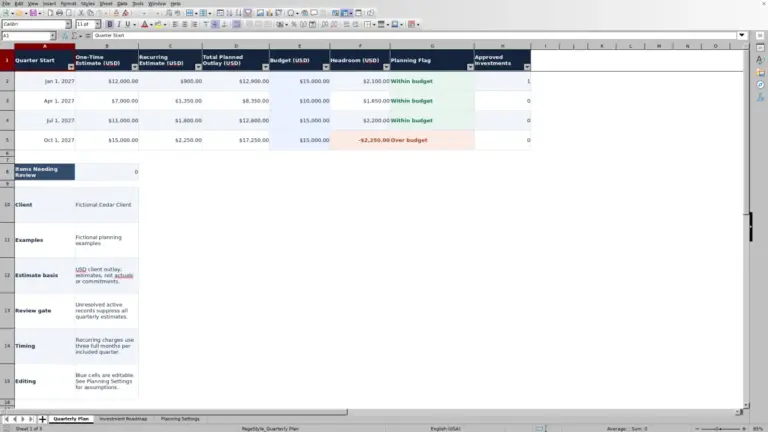
When the same service gap returns at a client review, you need a clear record of what was agreed and whether it worked. This Excel workbook helps managed service provider (MSP) account managers track client service improvement milestones, target dates, and verification evidence across review cycles.
Record each commitment in Improvement Plan, then use Review Summary to focus on one account and cycle. Calculated states flag overdue work, missing evidence, and incomplete records; you still assess the evidence and decide what needs further action.
When to use this workbook
- Keep recurring service gaps connected across reviews without losing each cycle’s separate commitments.
- Focus review discussions on overdue milestones and reported results that still need evidence.
- Separate reported completion from verification before deciding whether to close a commitment.
- Use an editable review cutoff and warning window to prioritize upcoming follow-up.
What is in the file
How to use the workbook
1. Set the account list and review assumptions
In Settings, replace the fictional account aliases in D2:D11 with your own aliases. Check As-of Date in B2 and Due Soon Window (Calendar Days) in B3. The date defaults to TODAY(), and the warning window starts at seven calendar days. Both are editable planning assumptions, not contractual targets.
2. Enter one agreed milestone per row
Replace the fictional records in Improvement Plan using the pale-blue input cells in columns A–K, rows 2–101. Enter a unique Milestone ID, Account Alias, Gap ID, Service Gap, Review Cycle Date, Agreed Milestone, Target Date, and Reported Outcome. Reuse a Gap ID when the same issue continues into another cycle, but give each milestone a new ID. Leave the calculated Verification State and Schedule State columns intact.
3. Record completion and assess evidence
As work progresses, enter Reported Completion Date, Verification Date, and Evidence Reference where appropriate. Use an evidence title or ID rather than pasting documents or sensitive details. Choose Verified only after your assessment supports it. The formula checks whether required entries exist; it does not judge the evidence itself.
4. Review the selected account and cycle
In Review Summary, select Account Alias and enter the exact Review Cycle Date used in the plan. Confirm that Planning Input Check says Ready, then filter Improvement Plan to the same account and date. Review overdue items and missing evidence, and check the global incomplete-record count. Confirm recalculated results before operational use, especially after pasting records or changing assumptions.
Keep recurring service gaps connected across review cycles
A recurring gap and an agreed milestone are different things. “Unclear update cadence” is a service gap; “Agree on a recurring client update cadence” is a specific commitment to address it. Keeping those separate helps you see whether the next review needs a new action, continued follow-up, or a different approach.
Use one row per milestone per review cycle. Several milestones can share a Gap ID, including milestones recorded in later cycles. Milestone IDs must remain unique throughout the prepared plan. If the same gap returns, retain the earlier record and add a new milestone with the appropriate Review Cycle Date rather than rewriting the old commitment as though it were newly agreed.
Write Agreed Milestone so you can tell what evidence would demonstrate completion. For example, “Improve updates” leaves the acceptance decision unclear; “Agree on a recurring client update cadence” gives you a concrete agreement to verify. The workbook records the commitment, but it does not enforce acceptance criteria or maintain an automatic change history. Save separately named review copies when you need a baseline before revising commitments.
Separate reported outcomes from verified improvements
Reported Outcome is a manual entry with three supplied choices: Pending, Needs rework, and Verified. Verification State is calculated. A complete record with Pending or Needs rework remains Open. A record reported as Verified becomes Evidence needed if Reported Completion Date, Verification Date, or Evidence Reference is missing; it becomes Verified when all three are present.
Required identifying and planning fields take priority. If any field in columns A–G or Reported Outcome is blank on a populated row, the calculated state is Incomplete, even if other evidence fields have been filled in. Completely unused rows stay blank.
Verified is a completeness check, not an evidence-quality judgment. Before closing a commitment, assess whether the referenced material actually supports the agreed milestone. A note title entered in Evidence Reference does not prove that the client-facing problem was resolved. Evidence references are manual titles or IDs, not stored documents or links.
Keep the supplied outcome label Verified unchanged unless you also update the calculation rules. The formulas depend on that exact label. Verification records your assessment; it does not certify compliance or establish that the improvement will persist into later cycles.
Interpret schedule states against a deliberate review cutoff
Schedule State compares Target Date with the As-of Date and Due Soon Window (Calendar Days) in Settings. For a complete, unverified milestone, a target strictly before the cutoff is Overdue. A target on the cutoff date or through the end of the warning window is Due soon. A later target is On track. These periods use calendar days, not business hours.
The calculation effectively uses the cutoff date plus the warning window as the last Due soon date. A zero-day window is valid and makes only the cutoff date itself Due soon; it does not disable schedule checks. Choose a window that gives you useful follow-up time rather than treating the supplied seven days as an agreed client obligation.
Closed does not mean completed on time. A milestone with calculated Verification State of Verified displays Closed regardless of whether completion occurred after its target. Compare Target Date with Reported Completion Date manually when discussing lateness, and keep Verification Date separate from both.
An incomplete record has no Schedule State, so a blank schedule result is not evidence that work is safe to ignore. Also check Planning Input Check before using schedule results: invalid or missing settings can make those results unreliable. The tool does not measure service-level agreement (SLA) response performance.
Example: Turn four milestones into a focused review agenda
For an illustrative review of Fictional Cedar Lab, use Review Cycle Date September 25, 2026, an As-of Date of October 2, 2026, and a warning window of seven calendar days. Consider these four supplied sample milestones:
- M01: target September 30, 2026; reported completion September 29, 2026; verification September 30, 2026; evidence reference “Fictional review note 01”; Reported Outcome Verified.
- M02: target October 1, 2026; Reported Outcome Pending; no completion or verification entries.
- M03: target October 2, 2026; Reported Outcome Pending; no completion or verification entries.
- M04: target October 9, 2026; Reported Outcome Pending; no completion or verification entries.
After recalculation, M01 is Verified and Closed because its required entries are present. M02 is Open and Overdue because its target is before October 2. M03 and M04 are Open and Due soon: the cutoff date and October 9 warning-window endpoint are both included.
For this four-record subset, that means one verified milestone, one overdue milestone, and two due soon. These are not the totals for every prefilled record in the selected cycle. Use the results to discuss M02’s missed commitment first, confirm immediate follow-up for M03, and prepare for M04 before the next boundary. Review M01’s evidence before accepting closure rather than relying on its label alone.
A reported Verified outcome without an evidence reference stays unverified. If you remove M01’s Evidence Reference while leaving its other entries intact, it becomes Evidence needed and, with this cutoff, Overdue. The missing reference changes both the closure decision and the review priority.
Read the summary without hiding unresolved work
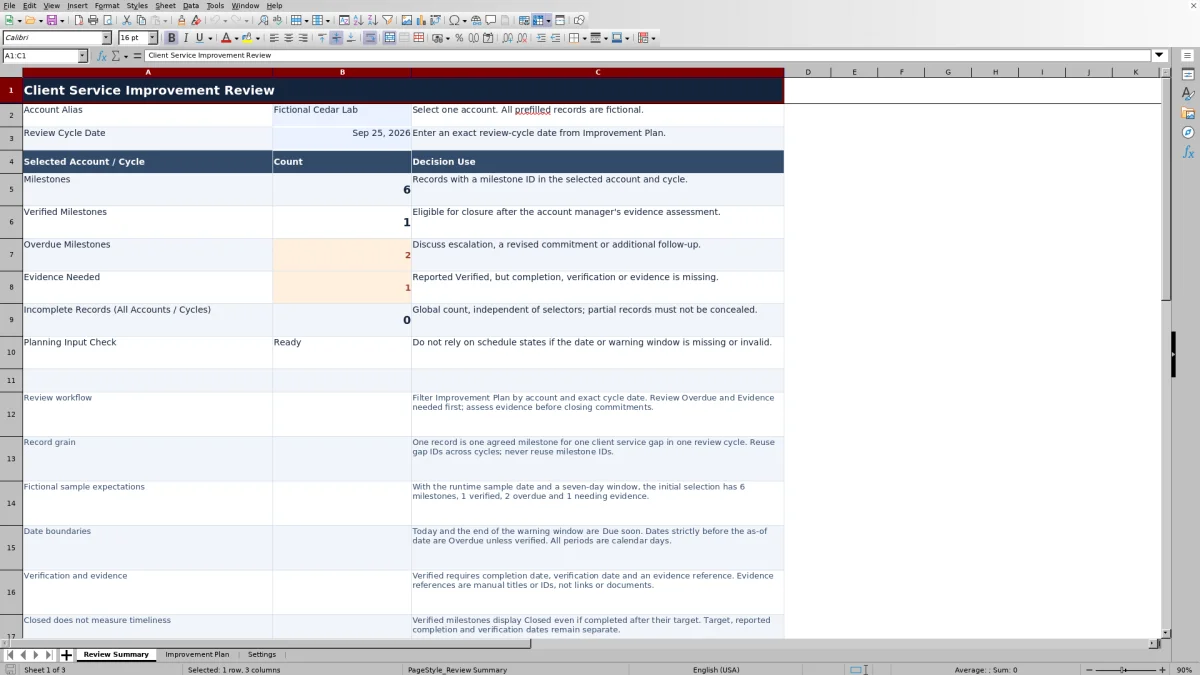
Review Summary counts records for the selected Account Alias and exact Review Cycle Date. Milestones counts matching rows with a Milestone ID; Verified Milestones, Overdue Milestones, and Evidence Needed count qualifying rows within that same selection. Use those figures to locate work for discussion, not as a score proving that customer service has improved.
The categories are not all mutually exclusive. An Evidence needed milestone can also be Overdue, so adding the displayed status counts does not produce a reliable total of distinct unresolved milestones. Filter the underlying plan and inspect the individual commitments before setting the agenda.
Incomplete Records (All Accounts / Cycles) is deliberately global. It does not change scope with the selectors. A partially entered row may be missing the account, cycle date, or milestone ID needed to appear in selected counts, but it can still contribute to this warning. Investigate that count separately rather than assuming every incomplete row belongs to the selected client.
If either selector is blank, the four selected counts remain blank. With both selectors populated, zero means no qualifying records matched the selection; it does not necessarily mean the account has no unresolved gaps. Check the alias, exact cycle date, and underlying records. Planning Input Check showing Ready validates the settings inputs only, not the quality of every milestone.
Troubleshooting incomplete records, dates, and pasted changes
Use the calculated warnings as prompts for correction, then inspect the source inputs. Validation helps with direct edits, but pasted data and later changes to planning assumptions still require manual review.
- Incomplete with a blank schedule: check Milestone ID through Target Date in columns A–G and Reported Outcome in K. Complete the missing inputs or clear the unused record’s input cells without deleting its formulas.
- Evidence needed after selecting Verified: check Reported Completion Date, Verification Date, and Evidence Reference. Add only supported information; if verification is not justified, change the reported outcome instead.
- Check Settings on the summary: enter a valid whole calendar date in Settings B2 and a nonnegative whole number of calendar days in B3. Do not rely on schedule states until the check returns Ready.
- A rejected or suspicious date: confirm that Review Cycle Date is no later than As-of Date; Target Date is no earlier than the cycle date; completion falls between the cycle date and cutoff; and verification falls between completion and cutoff. Recheck this order after pasted changes or a revised cutoff.
- Highlighted duplicate milestone IDs: assign a distinct ID to each milestone record. Summary formulas count matching rows, not unique IDs, so duplicates can distort your interpretation.
If results do not respond to edited inputs, check spreadsheet recalculation and inspect whether formulas were overwritten. Formula cells have a locked attribute, but worksheet protection is not enabled. Work from a saved copy when repairing formulas, and confirm the resulting states and counts before using them in a client review.
Comparison: This workbook or a blank spreadsheet?
A blank spreadsheet can be sufficient for a short list of commitments that you review manually. This workbook is useful when you want consistent milestone records, separate completion and verification entries, and repeatable account-and-cycle counts without building those rules yourself.
| Method | Review structure | Verification handling | Schedule review | Setup and limits |
|---|---|---|---|---|
| This workbook | Prepared gap, milestone, account, and cycle fields with a selected review summary. | Checks required entries and flags missing completion, verification, or evidence fields for reported Verified outcomes. | Calculates schedule states from an editable cutoff and calendar-day window. | 100 prepared rows and ten account alias slots; you must assess evidence, maintain inputs, and confirm calculations. |
| Blank spreadsheet | You define the columns and organize each review yourself. | You decide how to record evidence and identify missing information. | You check dates manually or build your own formulas. | Flexible structure, but any validation, summaries, and state rules must be created and maintained. |
Choose the workbook when its review structure fits your account-management process. Choose a blank sheet when a smaller manual register or substantially different fields better suit the task. Neither approach replaces live ticket dispatch, monitoring, automated communications, or SLA measurement. If those functions drive the work, retain the operational system that supports them and use this workbook only for the periodic improvement review.
Frequently asked questions
How many milestones and client accounts are prepared?
Improvement Plan has 100 prepared record rows, from row 2 through row 101. Settings provides ten editable account alias slots in D2:D11. These are the prepared ranges, not a claim about a tested maximum file size. Adding rows or aliases outside them requires reviewing formulas, validation, filters, and formatting; do not assume those elements expand automatically.
Can I use a fixed date for a past review?
Yes. Replace TODAY() in Settings B2 with the whole calendar date you want to use as the cutoff. Check date order afterward, because existing completion or verification entries may fall after that date. A fixed cutoff changes schedule calculations but does not reconstruct earlier record contents or create a historical snapshot. Save a separately named copy when you need to preserve a review baseline.
Does the workbook assign owners or send reminders?
No dedicated owner field or automated reminder function is provided. Keep responsibility and follow-up arrangements in your existing account-management process. The workbook records agreed milestones and highlights schedule states; it does not dispatch work or communicate with clients.
Can I use the XLSX file in Excel or LibreOffice?
The workbook uses spreadsheet formulas that require recalculation in the application. Open the file in your chosen application and verify the dropdowns, date checks, calculated states, and summary counts before operational use. Application-specific compatibility testing is not established, so do not treat opening the file successfully as confirmation that every behavior works as intended.
What client information should I enter?
Use account aliases and brief operational descriptions of the service gap and milestone. Record evidence using a non-sensitive title or ID that you can locate in your existing records. Do not enter personal data, secrets, credentials, or sensitive security details. The workbook is a review record, not a password store or evidence-document repository.
About the authors

Tessa WhitlockClient & service operations
More about this area of the library →
Nathan CalderwoodService economics & planning
More about this area of the library →