When a closed client ticket reopens, you need to understand what failed and what should change. This Excel tracker helps managed service provider (MSP) quality leads record each reopening, reference prior resolution evidence, and assign corrective action.
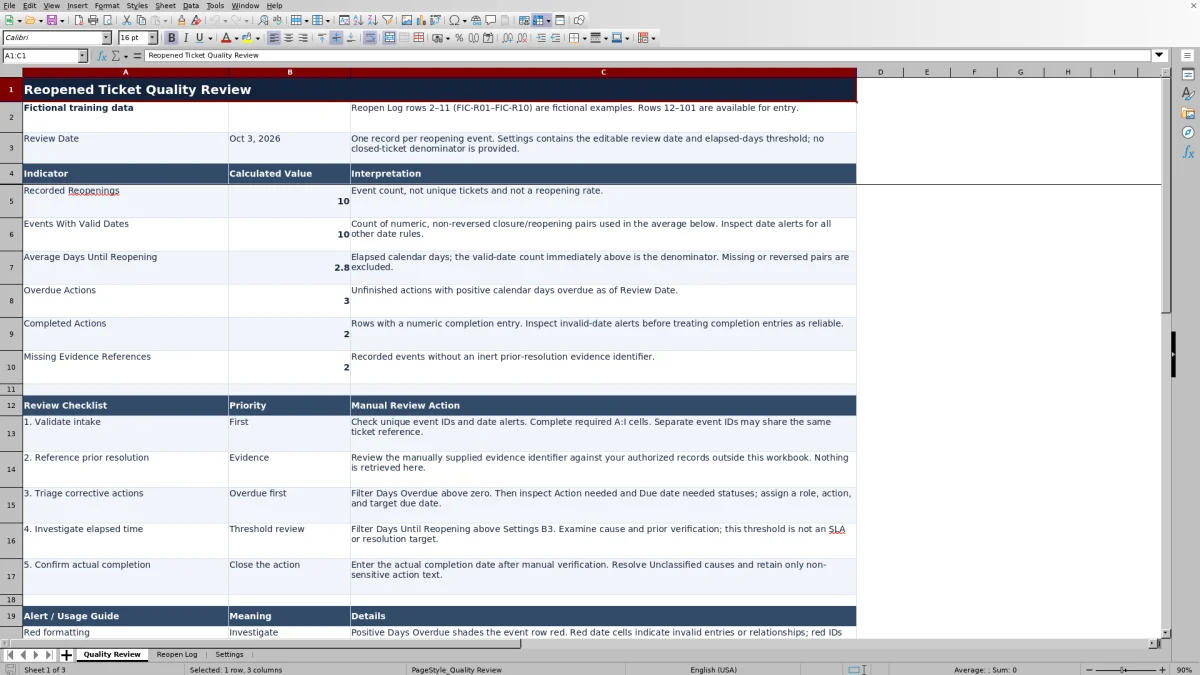
Enter the investigation details in Reopen Log, then use Quality Review to check elapsed time, overdue actions, and missing evidence references. The workbook supports manual service quality investigation; it does not retrieve ticket records or verify that an action worked.
When to use this workbook
- Keep each reopening event, its prior-resolution reference, and its corrective action together.
- Identify overdue actions against a chosen review date so you can prioritize follow-up.
- Spot missing evidence references and intake issues before relying on review totals.
- Separate assigned action targets from actual completion dates during quality reviews.
What is in the file
How to use the workbook
1. Prepare a working copy
Save a separate copy before entering client work. Reopen Log rows 2–11 contain fictional training records; clear their inputs in A:J or replace them with real event details before using the totals operationally. Preserve the formulas in K:M. Rows 12–101 are available for additional entry.
2. Set the review assumptions
In Settings, check Review Date in B2 and Elapsed Days Review Threshold in B3. Review Date defaults to TODAY(), which updates when Excel recalculates. Enter a fixed date if you need a dated review snapshot. The default threshold is seven elapsed calendar days, not a contractual service target.
3. Record and investigate each event
Complete Reopen Log A:I with a unique Reopening ID, ticket reference, closure and reopening dates, evidence identifier, cause, corrective action, owner role, and due date. Use dates without time components. Leave Action Completed Date blank until you have manually verified completion.
4. Review exceptions and follow through
Use Quality Review to identify missing evidence and overdue work, then inspect the affected log rows. Resolve date and intake alerts before interpreting the indicators. Enter the actual completion date in column J after verification; Action Status, Days Until Reopening, and Days Overdue are calculated in K:M.
Keep the reopening event tied to the prior resolution
Record one row per reopening event, rather than one row per ticket. If the same ticket reopens twice, give each event a different Reopening ID and retain the shared Ticket Reference. This preserves the distinction between repeated failures on one case and reopenings across several cases.
Enter an inert identifier in Resolution Evidence Reference that you can use to locate the prior resolution in your authorized records. Then inspect that evidence outside the workbook: what fix was recorded, what verification supported closure, and whether the new report concerns the same issue. A filled reference cell only shows that an identifier was supplied; it does not establish that the evidence is accessible or sufficient.
Keep credentials, secrets, personal contact details, and sensitive security information out of the log. Use a non-sensitive reference and a concise investigation summary instead of copying a full ticket conversation into the workbook.
Turn a reopening cause into an accountable action
The starting cause choices are Incomplete fix, Missing verification, Knowledge gap, Recurrence, and Unclassified. Choose the cause supported by the investigation, not merely the symptom the client reported. If the cause remains uncertain, use Unclassified while you review the evidence, then revisit it rather than treating intake as finished.
Write a corrective action that describes the change or check needed. For example, if closure lacked verification, specify what verification should be added and how you will confirm it was performed. Assign an Action Owner Role and an Action Due Date so the service desk lead can coordinate follow-through. A role entry does not notify or assign work to a person outside the workbook.
Action Status is calculated from the entered fields. With an event ID present, a numeric completion entry produces Completed; otherwise, a missing corrective action produces Action needed, and an action without a numeric due date produces Due date needed. An action with a numeric due date is Open. These are field-based statuses, so Completed is not proof of effectiveness. Verify the work before entering the actual completion date, and check that the owner and supporting details are complete.
Interpret the quality indicators without overstating them
Recorded Reopenings counts nonblank Reopening ID cells in rows 2–101. It is an event count, not a count of unique tickets. It is also not a reopening rate: the workbook has no total closed-ticket denominator. To report a rate elsewhere, first define the reporting period, population, and treatment of repeated reopenings consistently.
Days Until Reopening subtracts Closed Date from Reopened Date. The result is elapsed calendar days, not business hours. Quality Review averages the numeric results and shows their count as Events With Valid Dates. Missing, nonnumeric, or reversed date pairs are excluded from that calculation. The average is blank when no numeric results are available; that does not mean tickets reopened immediately.
The valid-date count describes the calculation's usable pairs, not a full pass of every date rule. For example, a numeric date pair may still need attention if it falls after Review Date. Inspect date alerts before relying on the average.
Use Elapsed Days Review Threshold to select events for investigation. The starting value is seven, and only values strictly greater than seven trigger the elapsed-time alert. This is an editable review aid, not a service-level agreement (SLA) target or a measure of SLA compliance.
Example: an eight-day reopening with overdue follow-up
Consider a review of the fictional FIC-R03 event with these inputs grouped together:
- Closed Date: September 18, 2026; Reopened Date: September 26, 2026.
- Resolution Evidence Reference: FIC-E03; Reopening Cause: Knowledge gap.
- Corrective Action: Review resolution checklist; Action Owner Role: Service lead.
- Action Due Date: October 3, 2026; Action Completed Date: blank.
- Settings Review Date: October 5, 2026; Elapsed Days Review Threshold: 7.
The closure-to-reopening interval is 8 elapsed calendar days, so it exceeds the seven-day review threshold. The action is Open and is 2 calendar days overdue because the review date is two days after its due date. These results identify two separate questions: why the issue returned after eight days, and why the follow-up action is still unfinished.
Review FIC-E03 in the authorized source records, confirm whether Knowledge gap is supported, and make the corrective action more specific if needed. If you verify completion on October 5, 2026 and enter that date, the status changes to Completed and Days Overdue becomes blank. That blank means the calculation no longer reports an unfinished action; it does not show that the action met its original due date.
Troubleshooting blanks, misleading statuses, and alerts
Resolve input problems before interpreting a clean-looking summary. Validation and formatting help you find issues, but they do not replace checking the underlying records.
- Blank elapsed days: check for a missing Reopening ID, missing or text-formatted closure and reopening dates, or a reopening date earlier than closure. A genuine same-day reopening returns zero, which is different from a blank.
- Zero Days Overdue: for an identified event with a numeric due date and no completion entry, zero means the due date is today or later relative to Review Date. It does not mean the action is complete.
- Blank Days Overdue on unfinished work: inspect the event ID, due date, and completion field. Any nonblank completion entry suppresses this calculation, even if that entry is text and Action Status does not show Completed.
- Completed with a questionable date: a numeric completion entry can produce Completed before all date rules are satisfied. Confirm that the date is on or after reopening and on or before Review Date.
- Unexpected totals: check for fictional records, duplicate event IDs, and populated rows without IDs. Missing IDs can keep events out of the review counts even when other details are present.
Red row shading identifies positive Days Overdue. Red date cells flag date problems, while red ID cells flag duplicate or missing IDs. Amber highlights missing required intake, Unclassified causes, and elapsed days above the threshold. Cell-level alerts can take precedence over overdue row shading, so inspect the values as well as the colors.
Preserve a reliable review snapshot and respect the file's limits
Review Date controls the overdue calculation and several date checks. Its default TODAY() formula changes at recalculation, so the same unfinished action can show a different overdue value on a later day. For a repeatable review, set a fixed review date and save a separately named copy. This is a manual snapshot practice, not an automated audit history.
The supplied log contains 100 event rows, including ten fictional examples. Its review formulas explicitly reference rows 2–101. Do not assume that adding rows below row 101 extends the summaries, validation, or visual checks correctly. If you expand the layout, verify each affected range and calculation before using the results.
Formula cells are unprotected. Enter log data in A:J and avoid overwriting K:M or the Quality Review indicators. Retain a clean source copy so you can compare or restore formulas if a calculated result disappears.
The workbook is a quality review record, not live ticketing or monitoring. Due dates are manually assigned targets, completion dates are manually entered actual results, and evidence must be checked elsewhere. Use your established service delivery process for active ticket handling and client communication.
Comparison: this workbook or a blank spreadsheet?
A blank spreadsheet can be enough for an occasional investigation with a few notes. This workbook is useful when you want the same event structure and review calculations across repeated quality reviews. Neither approach removes the need to investigate evidence and verify corrective work.
| Method | Investigation structure | Timing and review totals | Evidence and follow-through | Maintenance |
|---|---|---|---|---|
| MSP reopened ticket tracker | Prepared event fields, cause and owner-role lists, and intake alerts. | Built-in calendar-day calculations and summary indicators for rows 2–101. | Manual evidence identifiers, actions, due dates, and completion entries. | Requires input checks, formula care, and range verification if expanded. |
| Blank spreadsheet | You choose and create the fields needed for the investigation. | You calculate results manually or build and check your own formulas. | You design how references, ownership, and follow-up will be recorded. | Flexible layout, but review consistency and checks must be established. |
Choose the prepared workbook when its event-based review fits your process. Choose a blank sheet when the investigation needs a materially different structure. If you need workflow notifications, live ticket history, or automated collection, assess those needs in your ticketing system rather than expecting either spreadsheet approach to provide them.
Frequently asked questions
Can I change the reopening causes and owner roles?
Yes. Edit the cause choices in Settings A6:A10 and owner roles in C6:C8. Keep the cells populated and the choices distinct. Renaming a choice does not update existing Reopen Log entries, so review older records manually for consistency. Adding choices outside those ranges requires updating and checking the dropdown sources.
Does entering an evidence reference open or retrieve the resolution record?
No. Resolution Evidence Reference holds an inert, manually entered identifier. Use it to find the evidence in your authorized records outside the workbook. Missing Evidence References counts blank reference cells for recorded events; it does not test whether a supplied identifier is correct or accessible.
Can I enter future action due dates?
Yes. Future due dates are allowed, but an Action Due Date cannot precede its Reopened Date. Closure and reopening dates cannot follow Review Date, and completion must fall between reopening and Review Date. Enter whole dates without time components.
Are the sample records excluded from Quality Review?
No. The formulas include the fictional records in Reopen Log rows 2–11 while their inputs remain present. Use them for training, then clear or replace their A:J inputs in your working copy before reporting operational results. Keep the calculated cells in K:M intact.
Does Completed Actions show how many actions finished on time?
No. It counts rows whose calculated Action Status is Completed, which is driven by a numeric completion entry. It does not compare actual completion against the due date to report on-time performance. Check date validity and compare the two entered dates manually when timeliness matters.
About the authors

Tessa WhitlockClient & service operations
More about this area of the library →
Nathan CalderwoodService economics & planning
More about this area of the library →